
 iPhone Data Recovery
 iOS System Recovery
 iOS Data Backup & Restore
 iOS Unlocker
 iPhone Password Manager
 Location Changer
 Android Data Recovery
 Broken Android Data Extraction
 Android Data Backup & Restore
 Android Unlocker
 FoneTrans for iOS
 iPhone Data Eraser
 iPhone Cleaner
 HEIC Converter
 HyperTrans
 WhatsApp Transfer for iOS
 Mac Sweep
 Data Retriever
 Mac Data Retriever
 Video Converter Ultimate
 Screen Recorder
 Phone Mirror
 Recover PC Data Now
Recover the lost/deleted data from computer, hard drive, flash drive, memory card, digital camera and more.
Laptop Data Recovery: 4 Premier Methods with an Easy Guide
 Updated by
 Seeking an effective tool to recover data from laptop? If so, let this article show you whether it's possible to recover lost or deleted files on a laptop with the right program. Maybe your laptop crashed, you had to perform an unwanted format, or you simply deleted a file accidentally. Regardless, losing important files can happen to anyone, and it's often unavoidable. But instead of panicking, the first thing you must do is ask: how do you deal with it properly?
Well, it’s actually not as complicated as it seems. Various recovery tools provide immediate assistance for your data, and the good news is that we have already gathered the best ones in the following sections. Browse them to see if it is indeed possible for software to save your important data. Further information will then be introduced accordingly, so pay attention to recover your files safely.


Guide List
Part 1. Can Software Actually Save Your Data
Whether you’re dealing with your laptop hard drive or other storage devices, can software actually save your data? The short answer is that yes, it can, but it also depends on a few things. That’s because the cause of the data loss matters a lot, and so does what you have done afterward. If the cause is internal, such as accidental deletion, corruption, or formatting, recovery is usually possible, especially if you immediately stop saving data to the laptop to prevent overwriting.
However, if the drive itself is physically damaged, software alone won't be enough. Perhaps it makes strange clicking noises or isn't detected at all. In this case, going to a reliable repair store would be best, as the situation already calls for a professional’s help. But if the data loss is caused only by the internal issues, you can proceed with the recovery tools below.
Part 2. Best Laptop Data Recovery - FoneLab Data Retriever
When recovering lost files on a laptop, having the right tool makes all the difference. That’s why it’s best to start with the leading recovery tool, FoneLab Data Retriever. It is designed to help you get back deleted, formatted, or lost data with as little hassle as possible. From videos and photos to documents and emails, this program can restore a broad range of data types. It also supports laptops’ internal or external storage drives, making it more flexible than other methods.
FoneLab Data Retriever - recover the lost/deleted data from computer, hard drive, flash drive, memory card, digital camera and more.
- Recover photos, videos, documents and more data with ease.
- Preview data before recovery.
Hence, don’t hesitate to use a Windows data recovery tool like FoneLab Data Retriever, especially since its interface and features are designed to cater to all users. Whether you’re already experienced or new to data recovery, this tool will help you retrieve data with ease. Aside from that, you won’t want to miss the additional functions that make the process simpler, including the Secure Preview, Advanced Search & Filter, and more.
Follow the instructions below to use the best laptop data recovery program, FoneLab Data Retriever:
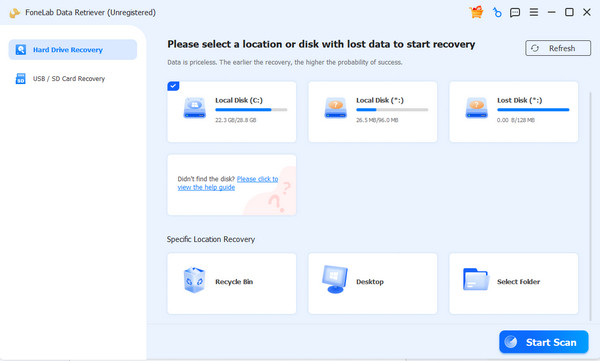
Step 1Choose Free Download, and you will acquire FoneLab Data Retriever’s file. You can open it to install and launch the program from your Downloads folder. Once the interface appears, click your laptop drive from the options, then select Start Scan.
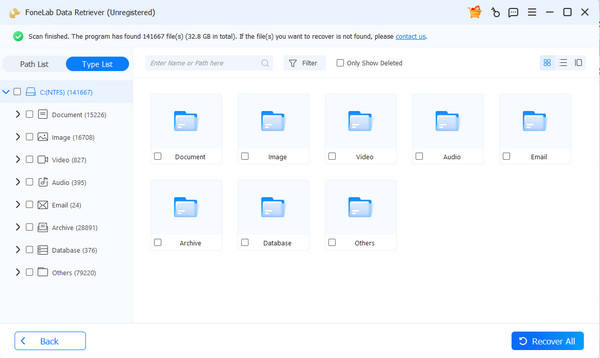
Step 2The next screen will present the results in folders by data type. Double-click the one you need, then explore the deleted or lost files. From there, find and mark the checkboxes of the items you plan to restore before clicking Recover All to finish.
Part 3. Top 3 Laptop Data Recovery Alternatives
To give you more options, here are the 3 leading alternatives for data recovery on your laptop. They offer a mix of similar and unique features, so choose the one that best suits your preferences.
Top 1. Disk Drill
Disk Drill is a well-known data recovery tool that works on various laptops. It offers a clean interface and sufficient features to recover lost files, supporting recovery from internal drives, external storage, and even some damaged partitions, making it a versatile option for various situations. Meanwhile, it also allows you to preview lost or deleted files before recovery to ensure they’re intact. Photos, office documents, videos, archives, and more are supported.
Follow the procedure below to recover data from laptop with Disk Drill:
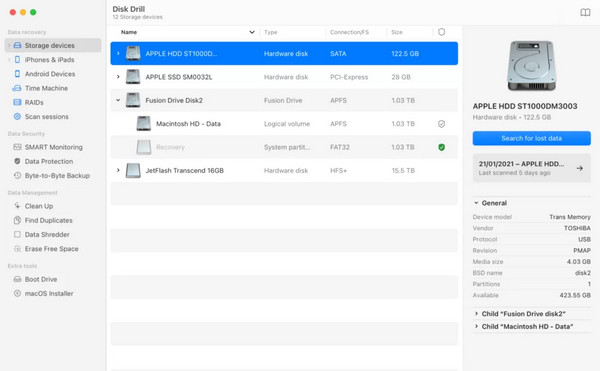
Step 1Save and install Disk Drill from the program’s official website, then launch the interface. Afterward, select the drive that contains your deleted files, then click Search for lost data.
Step 2When the erased or lost files appear in the results screen, browse them to find the item you want. Finally, select it and recover the file.
However, Disk Drill only allows up to 100 MB of data recovery for free. Should you need to recover more than that, you will need to purchase a subscription. Also, the speed of the process will depend on the size and number of files you try to restore, so manage your expectations.
Top 2. EaseUS Data Recovery Wizard
EaseUS Data Recovery Wizard is another popular option for data recovery on laptops. Like the previous tools, it can recover a wide variety of file types from internal drives, external storage, and even lost partitions. It also supports specific recovery situations, such as RAW drives, crashed systems, and devices that won't boot normally. Meanwhile, among the helpful features it offers is File Filter. It allows you to sort files by name, type, and the date your target data was deleted, making it quicker to find the deleted file you need.
Follow the task below for a laptop hard drive recovery with EaseUS Data Recovery Wizard:
Step 1Install EaseUS Data Recovery Wizard using the installer file you acquire from its website, then open the program.
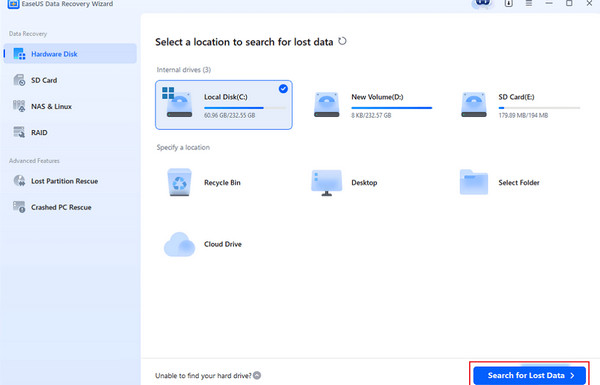
Step 2In the interface, select the appropriate laptop drive, then select Search for Lost Data. Then find and restore the files you wish to recover.
But like other tools, EaseUS Data Recovery Wizard has some downsides. Unfortunately, it can only recover a limited amount of data, which may not be enough if you've lost many files.
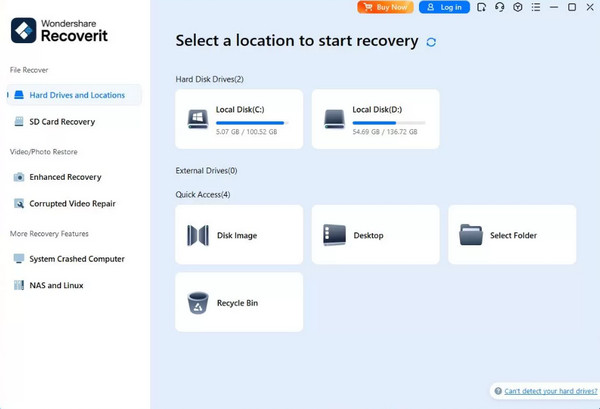
Top 3. Wondershare Recoverit
Another way to recover deleted files on a PC or laptop is with the Wondershare Recoverit tool. It offers strong performance and a wide range of supported file types, recovering deleted files, videos, photos, and more in over 1000 file formats. Additionally, you can rely on the program in various data-loss scenarios, such as unintentional deletion, formatting, corruption, and more. Besides, the interface is designed to be simple, catering to even first-time users.
Follow the directions below for laptop data recovery with Wondershare Recoverit:
Step 1Download the Wondershare Recoverit file to install the program, then run it on your desktop. After that, select your laptop’s disk drive on the interface.
Step 2Once the deleted files are ready on the results screen, select your desired items and recover them with ease.
Part 4. The Golden Rule of Data Recovery
When dealing with data recovery, there’s a golden rule every user must remember. Stop using the device or, in this case, your laptop immediately. The moment you realize you need to recover a deleted or missing file, every action you take afterward will heavily affect the result. So, you must avoid any unnecessary use of the drive, as this can overwrite the very files you're trying to recover. This simple step gives you the best possible chance of recovery.
Part 5. When to Stop Using Software and Seek a Professional Lab
While recovery software can handle many common data loss situations, there are times when it's simply not enough. As mentioned, physical damage can also occur, and it’s very different from dealing with internal issues. Whether you’re hearing strange or unusual noises while using the laptop or have noticed physical damage to the hardware, that’s usually the time to stop using recovery tools and turn to a professional instead. Bring your laptop to a reliable repair store, as they have the right equipment and clean rooms to handle the problem expertly.
Part 6. FAQs about Laptop Data Recovery
Can I recover files if my laptop won't turn on?
Sometimes, yes. If the problem is the operating system and not the drive itself, you may remove the drive and connect it to another working computer to run the recovery tools above. However, if the drive is physically damaged, consulting a professional is your best option.
Can I recover files that were deleted a long time ago?
Yes, it is possible with a tool like FoneLab Data Retriever. However, it’s still strongly recommended not to wait; act immediately for a much higher chance of data recovery.
Losing data on your laptop can feel like a disaster. Still, with the right tool and proper handling, data recovery is highly possible, especially with specialized tools like FoneLab Data Retriever.



