
 iPhone Data Recovery
 iOS System Recovery
 iOS Data Backup & Restore
 iOS Unlocker
 iPhone Password Manager
 Location Changer
 Android Data Recovery
 Broken Android Data Extraction
 Android Data Backup & Restore
 Android Unlocker
 FoneTrans for iOS
 iPhone Data Eraser
 iPhone Cleaner
 HEIC Converter
 HyperTrans
 WhatsApp Transfer for iOS
 Mac Sweep
 Data Retriever
 Mac Data Retriever
 Video Converter Ultimate
 Screen Recorder
 Phone Mirror
 Recover PC Data Now
Recover the lost/deleted data from computer, hard drive, flash drive, memory card, digital camera and more.
Outstanding Guide on How to Recover Deleted File on PC
 Updated by
 Several people ask how to recover deleted files on PC, and if you are among them, you have certainly come to the right place. Accidental deletion is a common problem for many, so it is no longer surprising that users frequently inquire about effective file recovery solutions. After all, this isn’t the only possible reason, as you may also only regret erasing a specific file on your PC and want to restore it.
Regardless, you no longer have to overthink about permanently losing your deleted file, as multiple solutions are available, and you must only perform the most suitable one for you and your Windows computer. Whether you prefer the PC’s built-in data recovery method or a competitive recovery tool, the details in the following sections will be helpful, so check them out.

Guide List
Part 1. Check the Recycle Bin
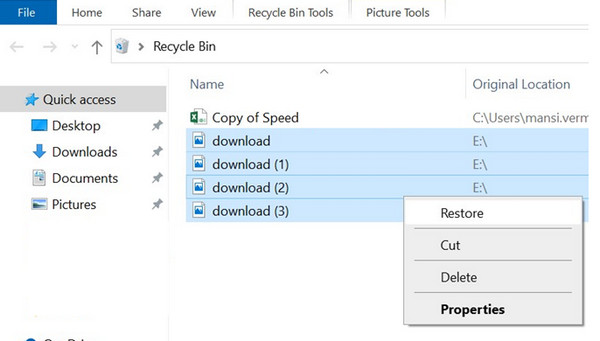
You will be delighted to discover that, like other computers, Windows also offers a folder for deleted files called the Recycle Bin. If you are familiar with Mac’s Trash, this basically works the same way, as it contains the files you have deleted from your PC. Yes, you read that correctly. Deleting your data from its original folders doesn't mean it will be immediately eliminated from the computer. They will remain in this folder, allowing you to recover files from the Recycle Bin, as long as you haven’t permanently erased them from it.
Have regard to the secure directions below to grasp how to retrieve deleted files on PC by checking the Recycle Bin:
Step 1Locate and initialize the Recycle Bin on your desktop. You may also find it by selecting the Windows symbol at the bottom left and typing the program’s name.
Step 2Once opened, find the deleted file you wish to recover and right-click it. Then, choose Restore among the options. It will then return to its folder before the deletion.
Part 2. Use the Undo Delete Shortcut
What if you just deleted the files a few moments ago, and you haven’t yet left the folder or performed other actions? In this case, recovering the file will be effortless, since it will only take the proper key combination to return it within a second. That’s right. An undo delete shortcut is available, and as the name suggests, it will let you undo the deletion you have just made without a problem. However, it’s important to note that once you take another action after deleting a file, you will no longer be able to undo it.
Take to heart the appropriate steps below to understand how to recover deleted file on PC using the Undo Delete Shortcut:
Step 1As mentioned, this works best right after the deletion, so ensure you won’t do any actions that might make the process impossible first.
Step 2Then, press Ctrl + Z on the keyboard, and your erased files will immediately return. Alternatively, right-click and choose Undo Delete from the selections.

Part 3. Restore from File History
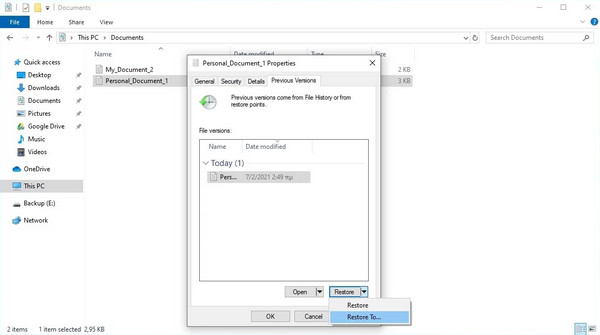
Meanwhile, File History can also be trusted if you have set it up on your computer. If it’s your first time hearing about it, File History is Windows’ built-in backup feature that automatically saves copies of your files, such as photos, documents, music files, etc. This way, you will be able to restore the previous version of your file if it is unintentionally deleted, changed, or lost. But as mentioned, this will only work if you have activated the feature beforehand. If not, restoration won’t be possible.
Mimic the simplified task below to determine how to recover deleted files on PC by restoring them from File History:
Step 1First, head to your PC’s File Explorer and open the folder that used to contain your deleted file.
Step 2After that, right-click and hit Restore previous versions. When a list of versions appears, pick the one that still has your erased file and select the Restore option to recover it.
Part 4. Try FoneLab Data Retriever
FoneLab Data Retriever, on the other hand, is a solution that doesn’t have many requirements for the recovery of your deleted files. Accidental or not, it will detect and present the files that have been erased from your PC and allow you to recover them. It also doesn’t matter if they have already been deleted for a while; this program will still be able to read them before they are overwritten. It supports different data types in various formats, including pictures, messages, audio, videos, and contacts.
FoneLab Data Retriever - recover the lost/deleted data from computer, hard drive, flash drive, memory card, digital camera and more.
- Recover photos, videos, documents and more data with ease.
- Preview data before recovery.
Other than that, you will find FoneLab Data Retriever’s intuitive interface an advantage, as developers designed it especially to make everyone’s data recovery process smooth. Hence, you don’t need to be experienced or have advanced knowledge about tools like this. Simply understanding and navigating the guidelines will be enough to recover your deleted PC files successfully.
Identify the painless navigation below as a pattern of how to recover permanently deleted files from PC with FoneLab Data Retriever:
Step 1On the FoneLab Data Retriever site, opt for the left Free Download selection, and the tool’s installer will quickly be in your Downloads. Use it to set up the recovery program, making it ready within a few moments. Then, initialize its interface and choose storage of the deleted files you wish to recover.
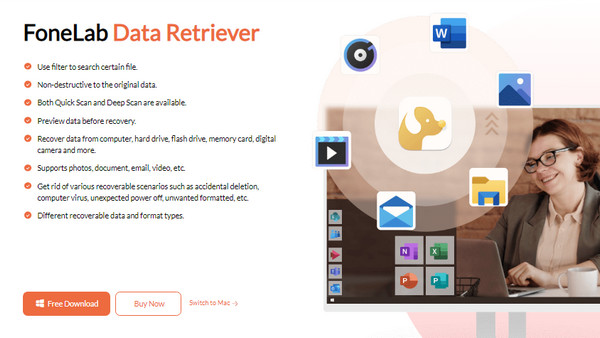
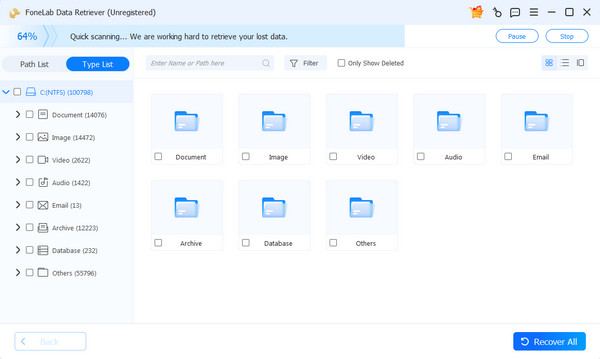
Step 2Once ready, click the Start Scan tab on the lowermost right for the program to read your chosen drive’s files. The following screen will then present various folders and categories you can browse to find the deleted file. Hence, locate and mark your file before ticking the Recover All selection at the bottom right.
Part 5. File Recovery Techniques Comparison
| Aspect | Recycle Bin | Undo Delete Shortcut | File History | FoneLab Data Retriever |
| Primary Use Case | Temporarily holds deleted files | Immediate reversal of the deletion | Scheduled versioning and system backup | Recovery after whether or not permanent deletion, formatting, or system failure |
| Data Retention | Until manually emptied | Immediate action only (limited to recent operations) | Based on the backup schedule and retention settings | Retains data for years, even after almost any type of deletion |
| Ease of Use | Easy | Very easy | Moderate | Easy |
Part 6. FAQs about How to Recover Deleted Files on PC
Are overwritten files recoverable on a PC?
Yes, they are. If the files were deleted because they were overwritten, use the File History method or FoneLab Data Retriever, as these strategies are both capable.
Is recovering deleted files free?
Yes, it is. The suggested recovery methods above are mostly free, so returning your deleted files won’t be a problem.
Regardless of your desired method for file recovery on your PC, you don’t have to worry about any complex navigation. All suggestions above, even the professional FoneLab Data Retriever, are user-friendly, so don’t hesitate to install it whenever needed.



