
 iPhone Data Recovery
 iOS System Recovery
 iOS Data Backup & Restore
 iOS Unlocker
 iPhone Password Manager
 Location Changer
 Android Data Recovery
 Broken Android Data Extraction
 Android Data Backup & Restore
 Android Unlocker
 FoneTrans for iOS
 iPhone Data Eraser
 iPhone Cleaner
 HEIC Converter
 HyperTrans
 WhatsApp Transfer for iOS
 Mac Sweep
 Data Retriever
 Mac Data Retriever
 Video Converter Ultimate
 Screen Recorder
 Phone Mirror
 Recover PC Data Now
Recover the lost/deleted data from computer, hard drive, flash drive, memory card, digital camera and more.
How Do You Remove the Hard Drive from a Laptop Effectively
 Updated by
 Our computers have built-in storage that can be used for storing multiple types of data. It includes photos, videos, documents, emails, and more. However, there are instances wherein the built-in storage is not enough for users.
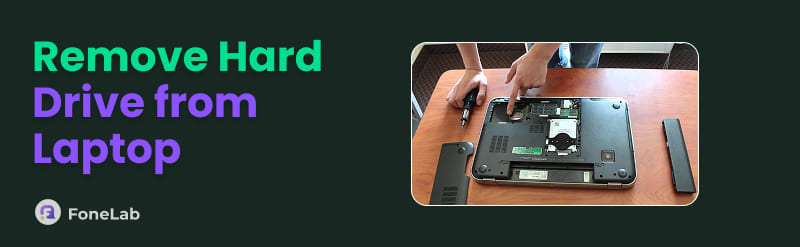
A hard drive is one of the devices that may be used to add additional storage to your computer. But some want to remove it due to malfunctions. Removing hard drive from laptop is easy with this post! Please continue browsing it to see the information you need to know about it!

Guide List
Part 1. Why Data Can Be Recovered
By default, you only remove the hard drive from your laptop by detaching it. The computer will indeed function without a hard drive, but the data that has been stored on the mentioned device will also vanish.
If the hard drive is already detached, you can only recover the data that has been deleted from your computer. Also, you can recover the files that have been copied from your cloud storage. Permanently deleted files will be hard to recover.
Part 2. Preparation Before Recovery
You can still recover your data on your hard drive before or after you remove it from your laptop. It is almost the same as the recovery process of other devices from your laptop. But before that, you need to ensure that you have a backup of your current data before you recover the deleted ones. In this case, you can avoid complex data loss after the recovery.
In addition to that, you need to ensure that you have enough storage on your hard drive or laptop before the recovery. In this case, you will avoid errors during the data recovery.
Part 3. Logical Damage: DIY Recovery Steps
When you recover your data from a hard drive, it would be very difficult for some users. In this section, you will see the DIY recovery methods for the recovery process. Please continue browsing below to learn the information you need to know about them.
Method 1: Use a Disk Image
A disk image is another way to back up your computer files, including the ones on the hard drive. If you have created a disk image before, you can use it to restore these backups. However, it has a complicated procedure compared to the other cloud-based storage service procedures. Please note that this procedure cannot be done if you did not make a disk image before your files are lost. Please follow the steps below to know how the process works.
Step 1Open your computer and connect a storage device. You can also select a separate safe partition on the mentioned device. Later, open a data recovery that supports disk imaging. Then, choose the Create Disk Image button. Choose a destination path on your healthy drive. Rename the file and start the process. You need to wait for the completion message afterward.
Step 2Open or mount the newly created image file inside the utility tool for recovering your files. Choose the Open Image or Mount Disk button. Please select the mounted image from the disk list in your software list. Run a full analysis for the mounted image. You can also run a file scan. It is for your deleted or missing data on your computer.
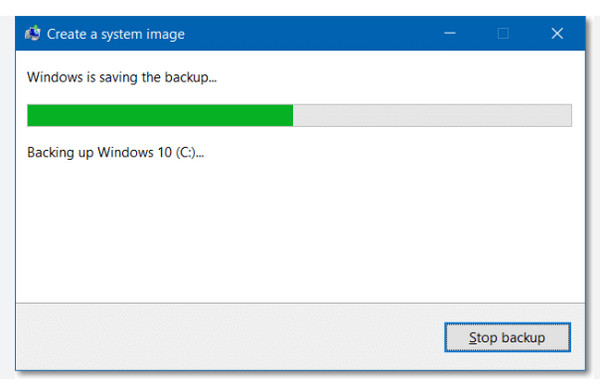
Step 3After the process, you can now preview the recovered files on your screen. You need to review them and choose the recovered files on your computer. This way, the process will be completed. Check the files that you want to recover from your hard drive. If they are not present, you can proceed to the next process.
Method 2: Use FoneLab Data Retriever
If your files are deleted or cannot be accessed, you can use FoneLab Data Retriever. It is a tool that can recover deleted files from PC. It includes images, videos, databases, music, emails, and more. The good thing about it is that it is user-friendly. Novices will not have difficulties using the tool, including professionals.
FoneLab Data Retriever - recover the lost/deleted data from computer, hard drive, flash drive, memory card, digital camera and more.
- Recover photos, videos, documents and more data with ease.
- Preview data before recovery.
Besides the hard drive data recovery, you can also recover your data directly from your PC, Mac, recycle bin, and more. Do you want to use the tool to recover your lost or deleted hard drive on your computer? Please follow the steps below for your guidance.
Step 1Please download FoneLab Data Retriever. Install the files and follow the on-screen instructions to open the tool on your computer. Sometimes, the computer automatically opens the software. If not, you can manually open it from your computer.
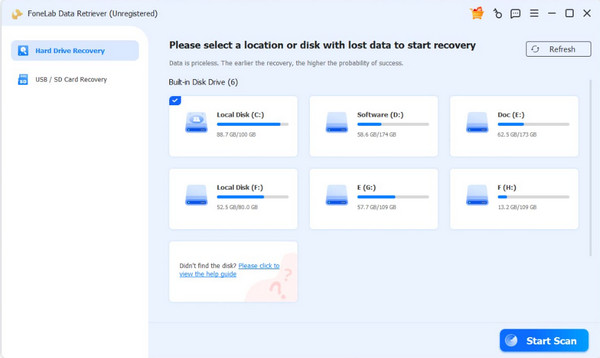
Step 2The tool will prompt the supported locations where it can recover your files. Please choose the hard drive location from the options list. Later, please click the Start Scan button at the bottom right of the screen. Later, the tool will start locating your files.
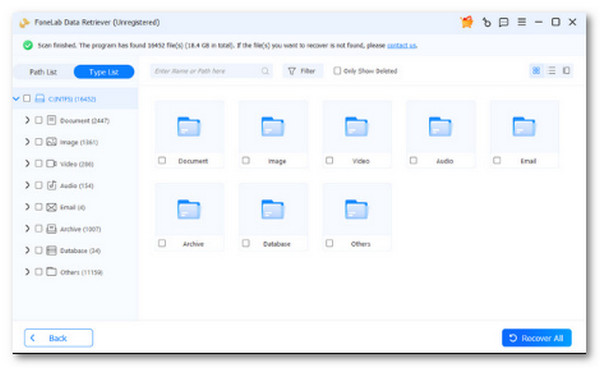
Step 3The results will be listed on the next screen. The tool will classify them. Please select the data you prefer to recover. Finally, please click the Recover All button at the bottom right of the screen. The process will only take a few seconds to be completed.
Part 4. Physical Damage (DANGER ZONE – Stop Here)
There are instances where people are confused about the recovery process. They experience that the data are not recovered from the hard drive. Recovering the hard drive data is possible, but there are some limitations. A hard drive with physical damage is one of the limitations for the recovery process. This issue does not allow you to recover the data from the hard drive. In fact, even professionals with powerful tools cannot recover the data included in the damaged hard drive.
You can only recover the data from your hard drive if you have a backup of the files, including other drives or cloud-based storage.
Part 5. FAQs about how to Remove Hard Drive from Laptop
How do I completely remove all data from a hard drive?
You can delete all the data from your hard drive using your laptop. Open the Settings program and select System. Choose the Recovery and Reset PC option. Finally, choose Remove Everything and follow the on-screen instructions to complete the process.
Can a person wipe a hard drive completely clean?
Yes. A hard drive can be completely clean after a factory reset. In this case, no one can recover the data you have deleted from the mentioned device.
This article has shown you how to remove hard drive from laptop. The simplest ways to do it are posted in this post. FoneLab Data Retriever is here to help you recover your data on your hard drive, computer, and other devices. If you want to know more about the tool, please download it on your computer.



