
 iPhone Data Recovery
 iOS System Recovery
 iOS Data Backup & Restore
 iOS Unlocker
 iPhone Password Manager
 Location Changer
 Android Data Recovery
 Broken Android Data Extraction
 Android Data Backup & Restore
 Android Unlocker
 FoneTrans for iOS
 iPhone Data Eraser
 iPhone Cleaner
 HEIC Converter
 HyperTrans
 WhatsApp Transfer for iOS
 Mac Sweep
 Data Retriever
 Mac Data Retriever
 Video Converter Ultimate
 Screen Recorder
 Phone Mirror
- Part 1. Perform A Quick Windows Support Check
- Part 2. How to Install HP Cloud Recovery Tool: Preparation and Steps
- Part 3. Common Errors or User Mistakes to Be Wary Of
- Part 4. How to Recover Lost Files in Windows with FoneLab Data Retriever
- Part 5. Verdict and Quick Troubleshooting Table
- Part 6. FAQs about HP Recovery Tool
 Recover PC Data Now
Recover the lost/deleted data from computer, hard drive, flash drive, memory card, digital camera and more.
HP Cloud Recovery Tool Download and Overview Guide
 Updated by
Over time, your Windows device stores data that occupies storage and RAM, which can slow it down. Some people think their Windows device is outdated and choose to buy a new one. However, before doing that, users should try rebooting their computer, though many are unaware that rebooting their device's operating system is doable with the right guide and method. Using the HP Cloud Recovery Software Tool is a go-to method for rebooting a user's Windows device.
HP Cloud Recovery Tool is a software tool that backs up or downloads the Windows operating system to a USB drive, allowing users to freely reformat their Windows device and reinstall Windows from the USB drive. But the catch is that not every Windows-running computer is eligible for or supports the HP Cloud Recovery Tool, so this guide also checks whether the user’s Windows device is eligible to download it.

Guide List
- Part 1. Perform A Quick Windows Support Check
- Part 2. How to Install HP Cloud Recovery Tool: Preparation and Steps
- Part 3. Common Errors or User Mistakes to Be Wary Of
- Part 4. How to Recover Lost Files in Windows with FoneLab Data Retriever
- Part 5. Verdict and Quick Troubleshooting Table
- Part 6. FAQs about HP Recovery Tool
Part 1. Perform A Quick Windows Support Check
Users should check whether their Windows device supports the HP Recovery Tool and whether they are still allowed to install and use it to reboot their device. As the HP Cloud Recovery Tool only supports Windows PCs produced from 2016 to the present, it also requires the device to have Windows 10 version 15063.0 and a 64-bit (x64) architecture. If you are not quite sure of your Windows version, you can check the HP support page by visiting HP Cloud Recovery in your browser.
Part 2. How to Install HP Cloud Recovery Tool: Preparation and Steps
Preparation:
- • Prepare a blank USB Flash Drive with at least 64 GB of free storage.
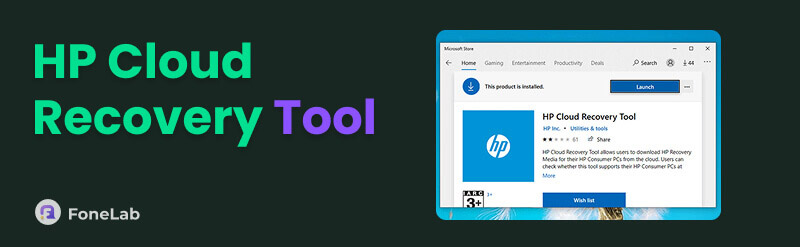
- • Prepare your Windows or HP computer by installing the HP Cloud Recovery Tool.
- • Back up your important files to an external hard drive in advance.
How to Back Up Windows OS with HP Cloud Recovery Tool:
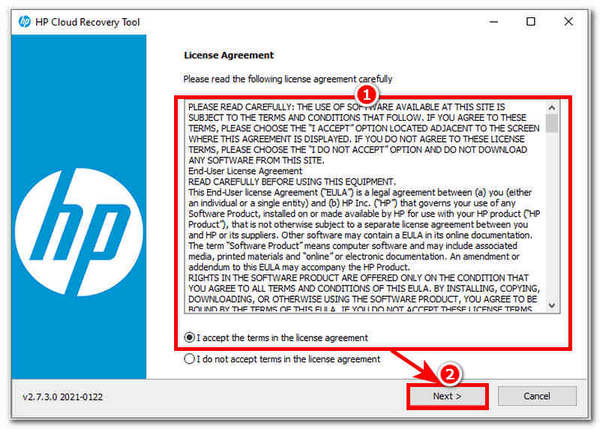
Step 1Plug your empty USB flash drive into your computer, open and run the HP Cloud Recovery Tool as Administrator on your Windows device, and after accepting the terms and license agreement, click Next to proceed.
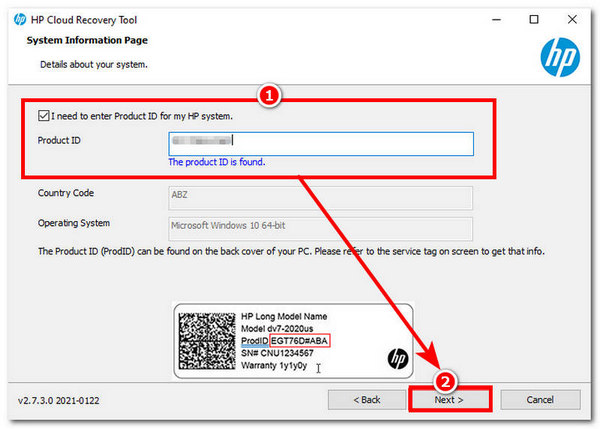
Step 2The HP Cloud Recovery Tool will open a new window with a System Information Page. Check the ‘I need to enter Product ID for my HP system’ option, then enter your product ID in the provided field, and click Next.
Note: If you don’t find your Product ID, you can check the HP support page to find your product ID.
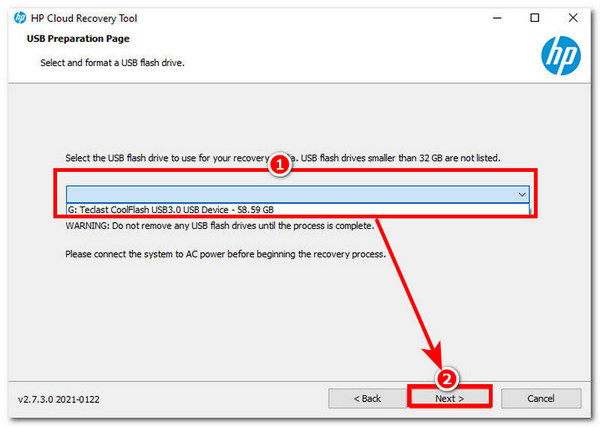
Step 3A new window will pop up on your screen. From there, click the drop-down field, locate and select your USB flash drive, then click Next to proceed.
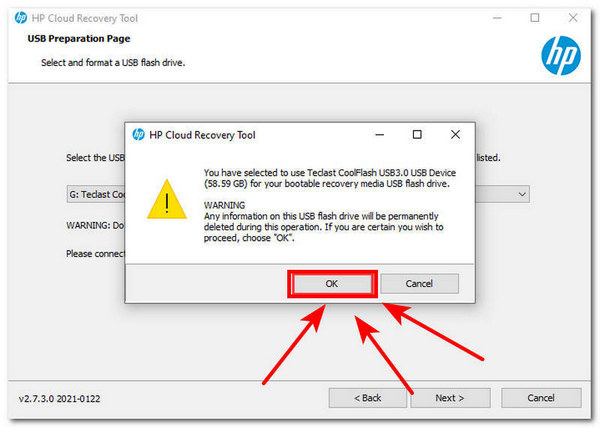
Step 4A warning message will appear on your screen confirming your USB drive selection, and the data on it will be permanently erased to make room for the Windows operating system backup.
Step 5Click OK to continue; then it will take about an hour to download, extract, and install the Windows recovery software on your USB drive. Once done, click Finish to close and end the HP Cloud Recovery Tool.
Part 3. Common Errors or User Mistakes to Be Wary Of
- • Not checking or entering their Product ID in the provided field.
- • Using a corrupted USB drive.
- • Insufficient storage space to proceed.
- • Not backing up important data files.
- • Forcing the computer to shut down during the process.
- • Closing the laptop lid during the reboot.
- • Disconnecting the power supply during the restart.
Part 4. How to Recover Lost Files in Windows with FoneLab Data Retriever
Now that you know how to check your Windows eligibility to download and how to use the HP Cloud Recovery Tool for Windows rebooting, and suddenly you have lost an important file in the process, or you forgot to save it on your backup external drive, then a way for you to check and still possibly recover your lost files is to use the FoneLab Data Retriever tool.
FoneLab Data Retriever - recover the lost/deleted data from computer, hard drive, flash drive, memory card, digital camera and more.
- Recover photos, videos, documents and more data with ease.
- Preview data before recovery.
FoneLab Data Retriever can recover data from a laptop that gets lost or deleted when users reboot their Windows device. It can search for residual data on the device, including photos, documents, videos, and emails, to ensure that everything lost can be restored to the drive or device. This is possible thanks to the tool's flexible and advanced search filters, which enable quick, in-depth scanning of files and ensure all data is displayed in a preview window, so users can easily check which file to restore to their device.
Step 1Download your preferred Windows Data Recovery tool for your device. For this scenario, download the FoneLab Data Retriever software to your desktop, then proceed to open the tool.
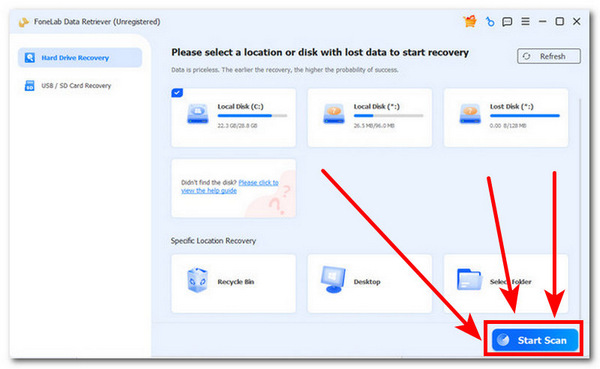
Step 2Once the software tool is open, click the Start Scan button to scan your desktop device's hard drive for any data files that were lost or deleted when you rebooted your computer.
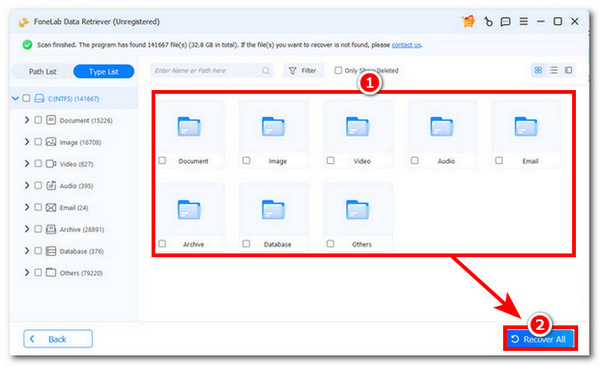
Step 3The FoneLab interface will show all folders that contain files you lost or deleted when you rebooted your computer. You may check a specific folder or restore all data by clicking the Recover All button.
Part 5. Verdict and Quick Troubleshooting Table
In summary, slow performance on a desktop device doesn’t necessarily mean it should be replaced immediately. Sometimes all users have to do is check and reboot their computer to refresh the hardware and remove unnecessary files and data that slow down their Windows device.
Users can easily do it on their own with the right guide, as shown in this article, which specifically explains what the HP Cloud Recovery Tool is and how it helps save a user's Windows Operating system when rebooting by teaching users how to check their device eligibility to use the software, providing some preparation tips before rebooting the Windows device, as well as the actual process of installing and saving the Windows operating system using the HP Cloud Recovery Tool.
If users are still struggling to use the HP Cloud Recovery Software tool on the devices listed below, here are some quick troubleshooting tips to try.
| Before Opening the Tool | • Be sure to use a blank USB drive with at least 64GB of free storage space. • Connect your Windows device to AC power and never unplug it. • Be sure you are connected and have a stable internet connection. • Check your device eligibility and product ID on the official HP website. |
| The Tool Won’t Open | • Be sure to open the HP Cloud Recovery tool as an administrator. • Install the latest Windows updates and use the latest version of the tool. |
| Downloading Failure | • Temporarily turn off antivirus or firewall software that may interfere with downloads or USB creation. |
| USB Creation Fails | • Reformat the USB drive and try again. • Use a different USB drive if partitioning errors continue. • Avoid using external hard drives; the tool is designed for USB flash drives. |
Part 6. FAQs about HP Recovery Tool
Is HP Recovery Tool free to use?
Yes, HP Recovery Tool is generally free to download and use from the Microsoft Store as long as the user's desktop device is supported by the tool.
How do I download HP Recovery Tool?
Users can download the tool via their desktop device's Microsoft Store or through HP's official support and resources webpage. Before doing so, make sure your device version is eligible and supported.
This guide shows how to reboot your desktop using the free HP Cloud Recovery tool. It includes essential steps for checking your Windows system and detailed instructions for installing and using the HP Cloud Recovery software. This guide provides all the key information you need to avoid creating new problems with your device. If you accidentally lose an important file during the reboot process, you can quickly recover it using the FoneLab Data Retriever tool.


