
 iPhone Data Recovery
 iOS System Recovery
 iOS Data Backup & Restore
 iOS Unlocker
 iPhone Password Manager
 Location Changer
 Android Data Recovery
 Broken Android Data Extraction
 Android Data Backup & Restore
 Android Unlocker
 FoneTrans for iOS
 iPhone Data Eraser
 iPhone Cleaner
 HEIC Converter
 HyperTrans
 WhatsApp Transfer for iOS
 Mac Sweep
 Data Retriever
 Mac Data Retriever
 Video Converter Ultimate
 Screen Recorder
 Phone Mirror
 Recover PC Data Now
Recover the lost/deleted data from computer, hard drive, flash drive, memory card, digital camera and more.
How to Perform a Windows 10 Factory Reset in 2 Quick Techniques
 Updated by
 Greetings! My Windows 10 computer has a major issue that needs to be fixed right away. So I can use it for my work. My friend suggested a factory reset. Can you help me reset Windows 10 to factory settings? Thank you in advance!
Windows 10 computers can be factory reset to fix issues on their systems. If you plan to do it as a beginner, you need a step-by-step guide to complete it correctly. This article will be your guide for the process. It has 2 easy methods for factory resetting your Windows 10 computers. Continue browsing the post to see the complete details about the topic.


Guide List
Part 1. How to Factory Reset Windows 10 on Settings
There are countless reasons why you need to learn how to factory reset PC Windows 10. You will need it when there are persistent performance issues, including system slowdowns. Besides that, you can use it to fix serious malware infections on your Windows 10, as these are difficult to remove with normal troubleshooting methods.
Additionally, some users need to factory reset Windows 10 in preparation for selling it or giving it away to someone. But it is mostly used for resolving recurring issues on the system that simple troubleshooting methods cannot fix. The Settings program is one of the methods you can use. Please follow the steps below to know how to use it.
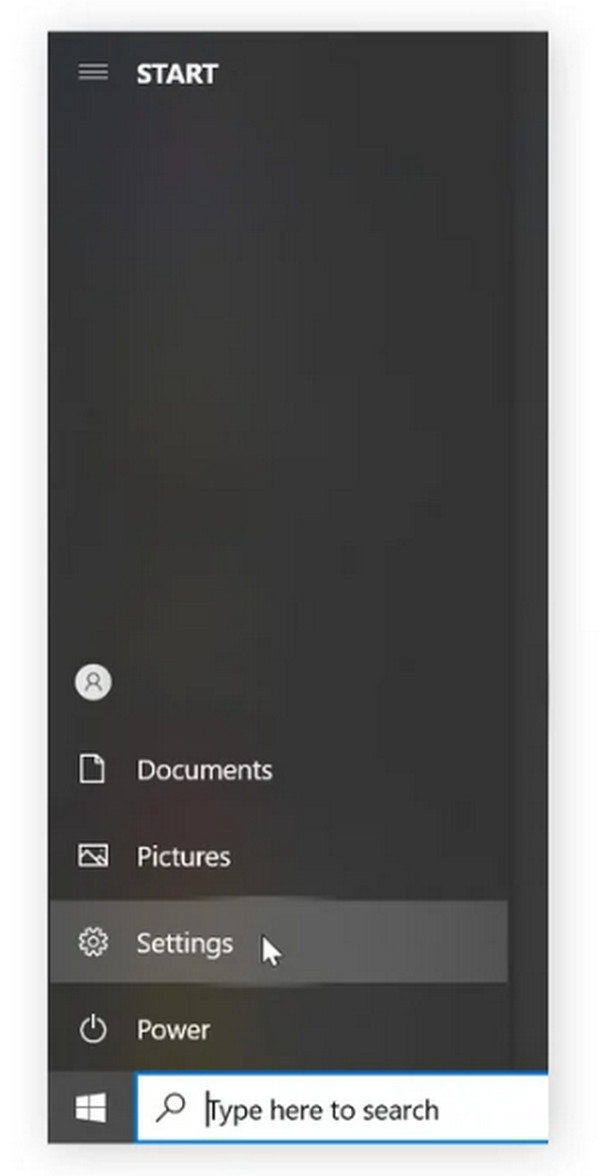
Step 1Please turn on your Windows 10 computer. Then, click the Windows icon at the bottom left. A menu will appear. Please select the Settings button from the list. The Settings window will open. Please select the Update & Security button at the bottom left.
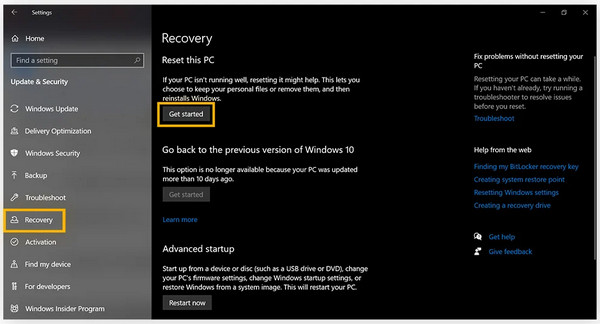
Step 2Please click the Recovery button on the left side of the screen. More options will appear on the right. Click the Get Started button on the right. The Choose an Option screen will appear. Please click the Remove Everything button at the bottom. You need to authenticate the process. Later, the factory reset process will start immediately.
Part 2. How to Factory Reset Windows 10 through Recovery Environment
In contrast, if you want to know how to factory reset Windows 10 without password, you can use Windows Recovery Environment, or WinRE, is a built-in troubleshooting method that can be used for factory resetting your Windows 10 computer. The best thing about this method is that it does not need your password for authentication, unlike the previous method. It is similar to macOS recovery mode.
Besides that, the tool can uninstall updates, restore backups, repair startup issues, and access the advanced troubleshooting tools that can be used for the mentioned device. Please use the steps below to know how to use WinRE to factory reset your Windows computer.
Step 1Go to the Settings program of your Windows 10. After that, please select the Update & Security button from the large window. Later, select the Recovery button on the left side of the screen. Click the Restart Now button. This way, the PC will restart into WinRE.
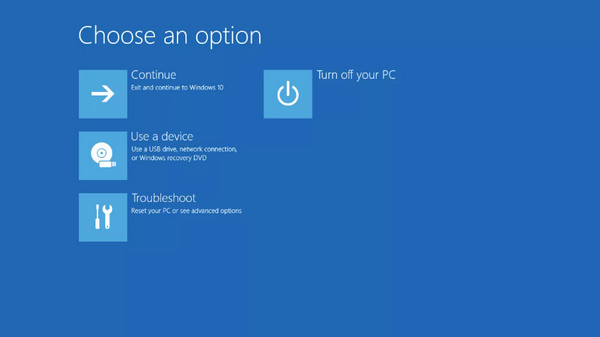
Step 2Click the Power physical button and hold the Shift key on your physical keyboard. Please click the Restart button on the screen. Keep holding the Shift key until you see the recovery options on the screen. Click the Troubleshoot button and click the Reset This PC button. Select the Remove Everything button on the pop-up window.
Part 3. How to Recover Lost/Deleted Data from Windows 10 With FoneLab Data Retriever
A factory reset on your Windows will delete all the data and settings. A backup is needed for the safety of your data from the mentioned device. However, some did not have the chance to back up their data for deleted computer data recovery. In that case, FoneLab Data Retriever can help. This tool can perform a hard drive, USB, and flash drive recovery. It includes your local disk, backup, and other locations.
Multiple data types can be recovered using the tool. It includes your videos, photos, music, documents, database, and more. Also, it has a simple interface, which makes the process easier for beginners. Please use the steps below to recover deleted data from Windows using a third-party tool.
FoneLab Data Retriever - recover the lost/deleted data from computer, hard drive, flash drive, memory card, digital camera and more.
- Recover photos, videos, documents and more data with ease.
- Preview data before recovery.
Step 1Click the Free Download section and wait for the process to be completed. The process duration depends on the internet connection. Later, locate the downloaded file and set it up based on the requirements. Please click the Install button afterward in the small window. Wait for the installation to be completed, and the tool will be opened automatically afterward.
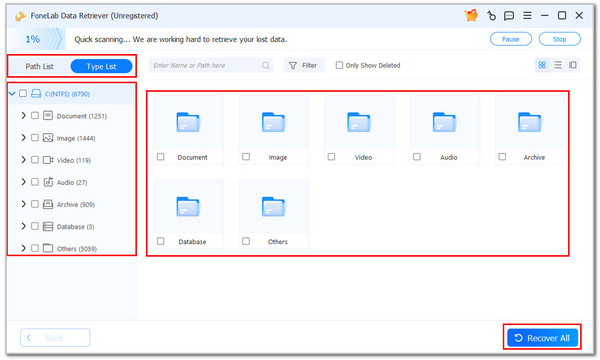
Step 2Select from the Hard Drive Recovery and USB/SD Card Recovery buttons at the top left corner. Later, please choose the location where you want to retrieve the data. Please click the Start Scan button at the bottom right. The tool will start to locate the deleted data on your Windows 10. The results will be prompted on the next screen. Go to the Path List and Type List sections at the top left to see their classifications.
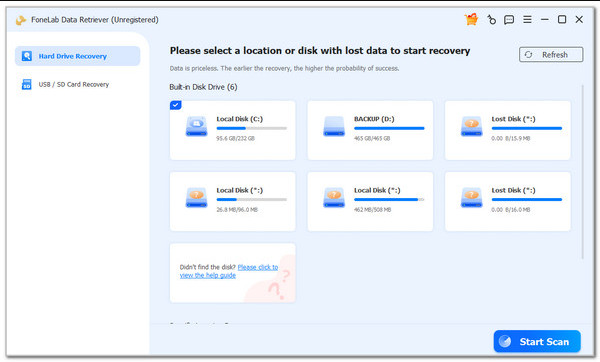
Step 3Choose the data type from the folders on the left side of the screen. Please locate the deleted files you want to recover afterward on the right side of the screen. Then, click the Recover All button at the bottom right. The tool will start to recover your deleted data on your Windows 10. Wait for the process to be completed for a few seconds or minutes.
Part 4. FAQs about How to Factory Reset Windows 10
Is F11 or F12 a factory reset?
Neither F11 nor F12 performs a factory reset on Windows 10. However, they do play a role: F11 is commonly used to enter the recovery partition, and F12 is often used to open the Boot menu, which can help initiate a factory reset.
Why won't my PC reset to factory settings in Windows 10?
However, there are times when the PC cannot perform a factory reset. It happens when there are corrupted system files, which cause the reset errors. In this situation, it is recommended to run the System File Checker (SFC) tool to repair the corrupted files before attempting the reset again.
All in all, this article teaches you how to reset Windows 10 to factory settings. The 2 leading methods are posted in this article to help you with the process. FoneLab Data Retriever is here to help you retrieve your data, including your images, videos, and more, if you lost them after factory resetting your computer.



