
 iPhone Data Recovery
 iOS System Recovery
 iOS Data Backup & Restore
 iOS Unlocker
 iPhone Password Manager
 Location Changer
 Android Data Recovery
 Broken Android Data Extraction
 Android Data Backup & Restore
 Android Unlocker
 FoneTrans for iOS
 iPhone Data Eraser
 iPhone Cleaner
 HEIC Converter
 HyperTrans
 WhatsApp Transfer for iOS
 Mac Sweep
 Data Retriever
 Mac Data Retriever
 Video Converter Ultimate
 Screen Recorder
 Phone Mirror
 Recover PC Data Now
Recover the lost/deleted data from computer, hard drive, flash drive, memory card, digital camera and more.
Simple Guide to Factory Reset Dell Laptop Professionally
 Updated by
 Good day! May I ask somebody to help me do a Dell factory reset? I plan to sell my laptop, so as to ensure that none of my data and information will remain, I want to factory reset it beforehand. Besides, this will also make the buyer experience the Dell laptop like it's new again. Please lend me a hand to avoid creating damage to it instead. Thank you in advance!
Factory resetting a Dell laptop is among, if not the most, effective ways to wipe the laptop's personal data, resolve system errors, or improve its performance. So, whether you plan to sell yours or simply want to fix minor issues and improve its efficiency, performing a factory reset is the most recommended approach. However, since this is a significant management option, choosing the most suitable method and performing the steps correctly is necessary. The question is, how would you choose? We've introduced the most efficient ways below, so check them to decide.


Guide List
Part 1. Factory Reset Dell Laptop on Windows Settings
The Windows Settings menu offers the most direct and user-friendly way to factory reset your Dell laptop. This built-in feature is available on all modern Dell systems running Windows 10 or Windows 11, making it accessible without needing to install anything. This section can be navigated even with basic computer knowledge, so it's ideal if you simply need to wipe your data before selling it or want to boost performance. However, this process may not work if you're trying to resolve specific issues like crashing, lagging, or freezing.
Follow the convenient directions below to factory reset Dell laptop on Windows Settings:
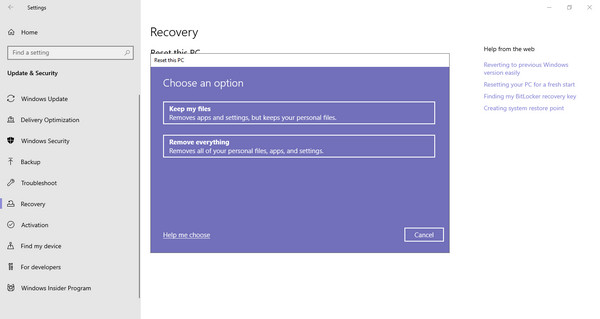
Step 1Step 1. Open your Dell laptop's Start menu, then choose the Settings or gear icon from the presented options. Afterward, select Update & Security on the Settings interface.
Step 2Step 2. The following section will contain various options in the left column, so click Recovery, and under Reset this PC, select Get Started > Remove everything.
Part 2. Use Advanced Startup for Dell Factory Reset
The Advanced Startup option serves as a powerful alternative when Windows fails to load properly or when you need more control over the reset process. This method is especially useful when your system is unstable, infected with malware, or simply refusing to start normally. Like the previous method, Advanced Startup is built in, so no installation is required. YYou just need to boot the laptop with the right options to access it.
Follow the simple steps below to perform a Dell factory reset using Advanced Startup:
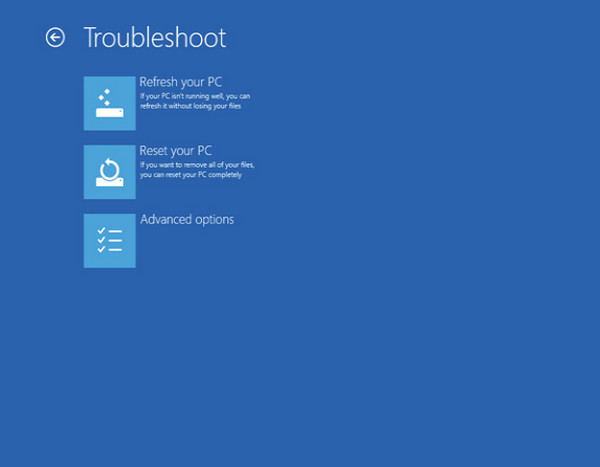
Step 1Step 1. Navigate the necessary options on your laptop via Start menu > Settings > Update & Recovery. In the left column, tick Recovery, then Restart now under Advanced startup.
Step 2Step 2. After restarting, the Advanced startup options will be displayed. Hence, select Troubleshooting, followed by Reset your PC to perform a factory reset.
Part 3. Reset Dell via SupportAssist OS Recovery
SupportAssist OS Recovery is Dell's official recovery mode that you can access to reset your laptop to factory settings. As with the other methods, you simply need to select the correct options to boot into SupportAssist OS Recovery, where the interface will provide the designated factory reset options. Note that this process is more advanced and sensitive than the previous methods, so make sure you follow each step correctly—a wrong click could affect your system.
Follow the simple guidance below to factory reset Dell laptop via SupportAssist OS Recovery:
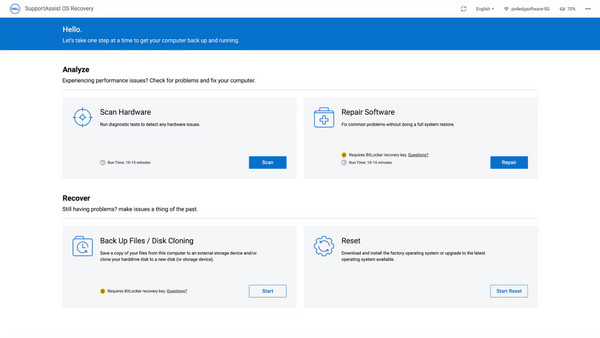
Step 1Step 1. Select the Start menu > Power > Restart to restart your Dell laptop, and before Windows completely loads, press the F12 key to launch the System Boot menu.
Step 2Step 2. Next, choose SupportAssist OS Recovery and click the Start Reset button on the following display. You must then simply follow along the prompts to factory reset the laptop.
As mentioned, some users factory reset their Dell laptops because of existing issues and don't actually intend to erase all their files. If you're one of them, you'll be glad to know that we'll introduce a professional tool to help you recover your data after the reset.
Part 4. How to Recover Data After Factory Resetting Dell Laptop
FoneLab Data Retriever is one of the best—if not the best—recommendations we have for Dell data recovery after a factory reset. It doesn't matter how you lost your files. Whether it was due to a factory reset, accidental deletion, virus attack, unwanted formatting, or other issues, you can trust this program to restore your lost or deleted data. After all, numerous file types can be retrieved, including pictures, documents, emails, videos, music files, and more.
So don't hesitate to use FoneLab Data Retriever to recover files from PC. After all, it doesn't require expert or technical knowledge to navigate. Its interface is built with labels, descriptions, and on-screen guides that even beginners can follow with ease. Moreover, this tool provides additional features that will help make your data recovery on the Dell laptop even more convenient, such as the search bar, filter, preview, batch recovery, and more.
FoneLab Data Retriever - recover the lost/deleted data from computer, hard drive, flash drive, memory card, digital camera and more.
- Recover photos, videos, documents and more data with ease.
- Preview data before recovery.
Follow the simple steps below to recover your data after a Dell factory reset with FoneLab Data Retriever:
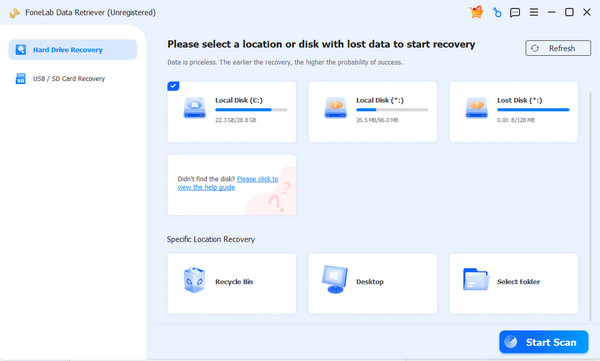
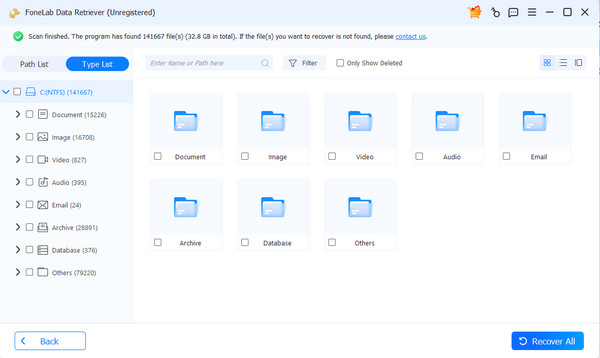
Step 1Step 1. Start by saving FoneLab Data Retriever's file with the Free Download button. Once it reaches the Downloads folder, launch it for the installation, and afterward, hit Start to present the program's key interface. From there, you can mark the disk drive containing the deleted or lost files you hope to recover. Then, proceed with the Start Scan button.
Step 2Step 2. Shortly, the results will be displayed on the next screen. Feel free to explore the data type folders to find and mark the checkboxes of the specific files you want. Feel free to explore the data type folders to find and mark the checkboxes of the specific files you want.
Part 5. FAQs about Factory Resetting Dell Laptop
Does factory resetting my Dell laptop erase everything?
Yes. A factory reset—whether on laptops, computers, or mobile phones—clears all data and settings, leaving your device completely wiped.
Is it okay to factory reset frequently?
The urge to perform a factory reset is understandable, as it offers many advantages. However, it is not recommended to do it frequently, as it could do more harm than good if overused.
There are various reasons why users want to factory reset their Dell laptops. The question is: which reset method will actually work for you?? By following the recommendations above, you can achieve your goal safely. And afterward, FoneLab Data Retriever is available to recover any files you didn't mean to lose.



