
 iPhone Data Recovery
 iOS System Recovery
 iOS Data Backup & Restore
 iOS Unlocker
 iPhone Password Manager
 Location Changer
 Android Data Recovery
 Broken Android Data Extraction
 Android Data Backup & Restore
 Android Unlocker
 FoneTrans for iOS
 iPhone Data Eraser
 iPhone Cleaner
 HEIC Converter
 HyperTrans
 WhatsApp Transfer for iOS
 Mac Sweep
 Data Retriever
 Mac Data Retriever
 Video Converter Ultimate
 Screen Recorder
 Phone Mirror
- Part 1. How to Reset a Windows Password Online
- Part 2. How to Reset a Local Windows Password
- Part 3. The Worst-Case Scenario – Wipe/Reset the PC to Bypass the Password
- Part 4. How to Recover Lost Files via FoneLab Data Retriever
- Part 5. Security Best Practices: How to Never Get Locked Out Again
- Part 6. FAQs about How to Reset Password Windows
 Recover PC Data Now
Recover the lost/deleted data from computer, hard drive, flash drive, memory card, digital camera and more.
Proper Guide on How to Reset Windows Password Easily
 Updated by
 Do you need to reset Windows password? Perhaps it has been months since you last logged in, and now you’re having difficulty remembering it. Or it may have been changed recently, and you haven’t memorized it yet, causing you to type in the wrong password too many times. Whatever the reason, this situation can be alarming, as it prevents you from accessing everything you have on the computer-whether your important files, account information, or other personal data.
The good news is that this is a very common problem, and it has a solution that doesn’t require technical skills or expensive professional help. If you’re unaware, resetting your Windows password is actually much simpler than most people think. That’s because developers have already prepared and provided some built-in methods for this specific issue. Discover the best ones below and learn about their information, guidelines, and a bonus recovery tool.

Guide List
- Part 1. How to Reset a Windows Password Online
- Part 2. How to Reset a Local Windows Password
- Part 3. The Worst-Case Scenario – Wipe/Reset the PC to Bypass the Password
- Part 4. How to Recover Lost Files via FoneLab Data Retriever
- Part 5. Security Best Practices: How to Never Get Locked Out Again
- Part 6. FAQs about How to Reset Password Windows
Part 1. How to Reset a Windows Password Online
The first option for resetting a Windows password is online if you use a Microsoft account to log into your Windows computer. It is by far the most convenient process because, aside from not requiring any technical skills, your login credentials are stored in the cloud. This means you will only need to provide basic information, like your email, on the designated website, and it will allow you to reset your Windows password without a problem. Besides, the recovery site is straightforward to navigate. Once you fill in the needed details, it can be finished within minutes.
Follow the navigation below to understand how to reset Windows password online:
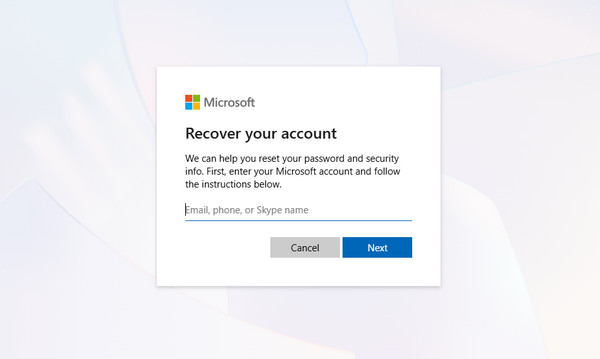
Step 1Go to Microsoft’s account.live.com/password/reset website, then enter the account email or username you use on your locked Windows computer.
Step 2Next, choose how you’d like to get your security code. Once you receive it, enter the code, and the page will allow you to reset or create a new password.
Part 2. How to Reset a Local Windows Password
Understandably, not everyone uses a Microsoft account to log into Windows. In this case, you’re probably using a local account where your password is stored directly on your computer instead of the cloud, but don’t worry. You can still reset the password by using another admin account that is already on the computer. If you have access to a different administrator account, you can log in with that one and simply change the password for your locked account with the help of Command Prompt. Unlike the online method, this can be done offline, so the internet is not required.
Follow the directions below to perform a local Windows password reset:
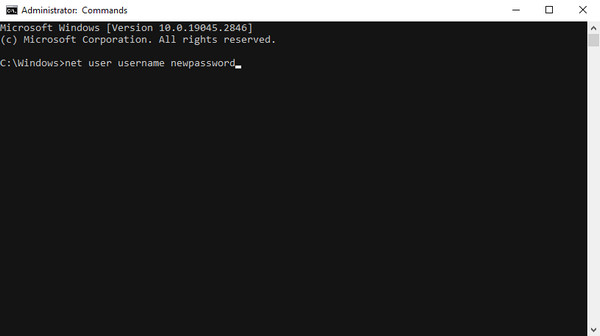
Step 1Log in first using the other admin account on your PC. Once you’re in, press Windows + X and choose Powershell (Admin) or Terminal (Admin).
Step 2On the command-line interface, run the net user username newpassword command. However, ensure you replace ‘username’ with your own account name before pressing Enter.
Part 3. The Worst-Case Scenario – Wipe/Reset the PC to Bypass the Password
Sometimes, the unfortunate happens, and you reach the worst-case scenario where nothing works. Perhaps you don’t have access to another admin account, and the online reset option is not available for you. When you run out of options like this, there is still one final solution, but note that it comes with a heavy price. It involves wiping your computer clean and resetting it to factory settings, which also removes your Windows password. Thus, expect all your data to be erased, including personal files, installed programs, and saved settings.
Follow the steps below to reset your PC to bypass its password:
Step 1On your Windows login screen, click the Power button, then long-press Shift before clicking Restart. Once the blue screen appears, you can release Shift.
Step 2From there, select Troubleshoot, then click Reset this PC > Remove everything.

We completely understand the hesitation to wipe or reset your PC despite not being able to access it. Knowing your data is still there, even if you can’t see it, is much different from knowing they no longer exist because of the reset. So, we’ve also prepared a deleted computer data recovery tool below to help you bring your files back afterward.
Part 4. How to Recover Lost Files via FoneLab Data Retriever
If you had to wipe or reset your PC to regain access, you may have lost important files in the process. Luckily, this is where FoneLab Data Retriever comes in to save your documents, videos, photos, music files, and even emails. The program has the ability to perform a quick or deep scan on many storage devices, like your computer’s internal hard disk, to find deleted files.
Hence, you can rely on FoneLab Data Retriever to recover deleted file on PC, no matter the recovery scenario. Whether you lost data from an unwanted reset, accidental deletion, data corruption, etc., this program will have your back. Besides, even beginners will be able to navigate its user-friendly interface, especially with helpful features like search and filter.
FoneLab Data Retriever - recover the lost/deleted data from computer, hard drive, flash drive, memory card, digital camera and more.
- Recover photos, videos, documents and more data with ease.
- Preview data before recovery.
Grasp the simplified guide below as an example to recover your lost files via FoneLab Data Retriever:
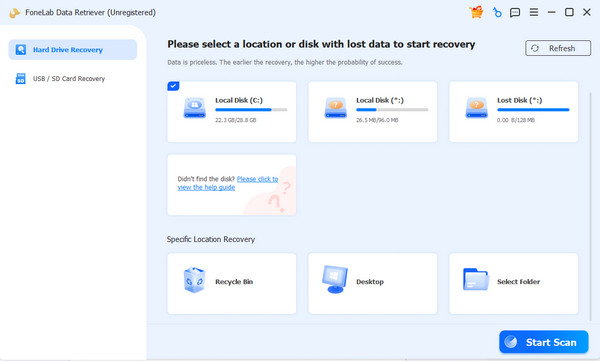
Step 1Click Free Download, and the FoneLab Data Retriever file will be saved, letting you set up and install the tool. Start it once it's ready. Later, you can choose your hard disk from the available drives before hitting Start Scan to proceed.
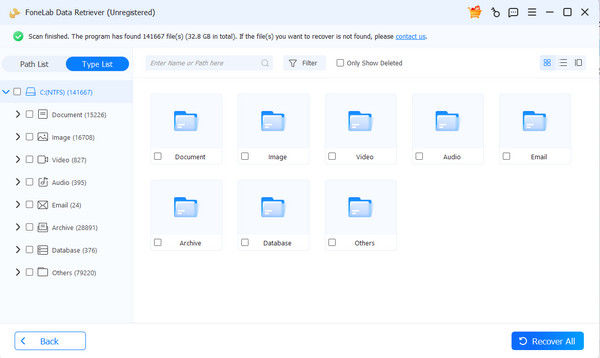
Step 2The following interface will show you different folders for every data type. Open them and look for the files you want to recover. You can select them by marking the checkboxes, and once done, finish with the Recover All button.
Part 5. Security Best Practices: How to Never Get Locked Out Again
After you reset Windows password, we suggest taking a few security measures to avoid experiencing this again in the future. First, store your password in a secure place. You can also set up recovery options like an alternate email or number so you can reset your password anytime. For local accounts, create a backup admin account just in case. Finally, back up your important files regularly. These practices may take minutes to set up, but they will save you from trouble later.
Part 6. FAQs about How to Reset Password Windows
Will I lose my data if I reset my Windows password?
No, you won't lose your files using the usual reset methods, such as the online method or using another admin account. You will only face data loss in the worst-case scenario, which requires a computer reset.
How long will it take to reset my Windows password?
It depends. The online method takes about 5–10 minutes, while the admin account usually takes less than 5 minutes. But the full factory reset can take an hour or more.
Resetting your Windows password is easier than many think. With the right approach, you can regain access to your PC quickly without losing important files—especially with FoneLab Data Retriever.



