
 iPhone Data Recovery
 iOS System Recovery
 iOS Data Backup & Restore
 iOS Unlocker
 iPhone Password Manager
 Location Changer
 Android Data Recovery
 Broken Android Data Extraction
 Android Data Backup & Restore
 Android Unlocker
 FoneTrans for iOS
 iPhone Data Eraser
 iPhone Cleaner
 HEIC Converter
 HyperTrans
 WhatsApp Transfer for iOS
 Mac Sweep
 Data Retriever
 Mac Data Retriever
 Video Converter Ultimate
 Screen Recorder
 Phone Mirror
- Part 1. What Is the Microsoft Recovery Page
- Part 2. Which Recovery Page Do You Need?
- Part 3. How to Use Microsoft Account Password Reset
- Part 4. How to Recover a Hacked or Compromised Microsoft Account
- Part 5. How to Use Windows Recovery Environment (WinRE) — "Your PC Couldn't Start Properly"
- Part 6. How to Use BitLocker Recovery Page — When Your PC Asks for a 48-Digit Key
- Part 7. How to Use Reset This PC (Via Windows Settings)
- Part 8. How to Use Media Creation Tool — Bootable USB for Recovery
- Part 9. How to Recover Lost Files After Recovery With FoneLab Data Retriever
- Part 10. FAQs about Microsoft Recovery Page
 Recover PC Data Now
Recover the lost/deleted data from computer, hard drive, flash drive, memory card, digital camera and more.
Microsoft Recovery: How to Use It Effectively for Recovering Accounts
 Updated by
 Good day! My Microsoft account is facing unknown issues. I tried to log in, but I cannot access it. I tried the process multiple times, but it did not work. My brother told me to go to the Microsoft Recovery page. Can you help me know more about it? Thank you!
Microsoft Recovery page is indeed helpful for issues related to your Microsoft accounts. There’s more to learn about this website. Please continue browsing below to know the important details.


Guide List
- Part 1. What Is the Microsoft Recovery Page
- Part 2. Which Recovery Page Do You Need?
- Part 3. How to Use Microsoft Account Password Reset
- Part 4. How to Recover a Hacked or Compromised Microsoft Account
- Part 5. How to Use Windows Recovery Environment (WinRE) — "Your PC Couldn't Start Properly"
- Part 6. How to Use BitLocker Recovery Page — When Your PC Asks for a 48-Digit Key
- Part 7. How to Use Reset This PC (Via Windows Settings)
- Part 8. How to Use Media Creation Tool — Bootable USB for Recovery
- Part 9. How to Recover Lost Files After Recovery With FoneLab Data Retriever
- Part 10. FAQs about Microsoft Recovery Page
Part 1. What Is the Microsoft Recovery Page
Microsoft Recovery Page helps you with different account issues on your Microsoft account. It can help you reset your forgotten passcode, recover a hacked account, restore Microsoft services, update the account security, and more.
Part 2. Which Recovery Page Do You Need?
There are multiple recovery pages Microsoft offers. It includes Microsoft account recovery pages, Windows Recovery Environment (WinRE), Media Creation Tool, and more. The best thing about this article is that most of them are explained. See them as you scroll below.
Part 3. How to Use Microsoft Account Password Reset
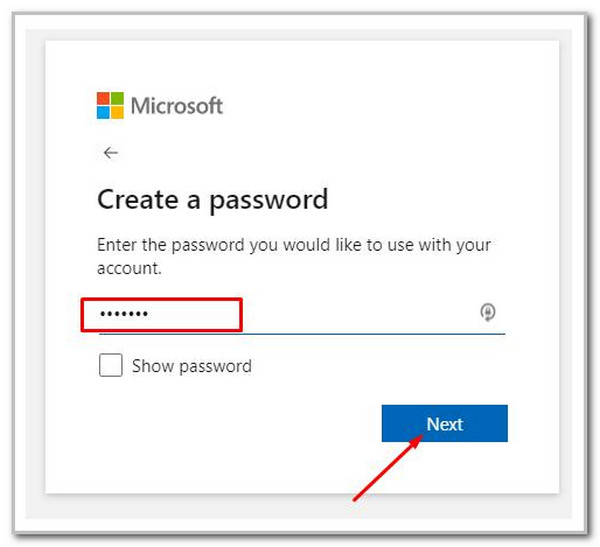
The Microsoft Account Password Reset website allows you to regain access to your Microsoft account by resetting your password. The steps for it are presented below.
Go to the Microsoft account recovery page and click Forgot Password. Enter your account details and click Next. Follow the on-screen prompts to verify your identity. Once verified, create a new password and click Save.
Part 4. How to Recover a Hacked or Compromised Microsoft Account
If your Microsoft account is hacked, you can use the previous method. However, your associated recovery information might be missing or have been removed from the account. In this case, recovering the account may not be possible. We recommend seeking help from professional recovery services.
Please be advised that their services are not free. Their services can be expensive. To be safe, contact them for a consultation before committing.
Part 5. How to Use Windows Recovery Environment (WinRE) — "Your PC Couldn't Start Properly"
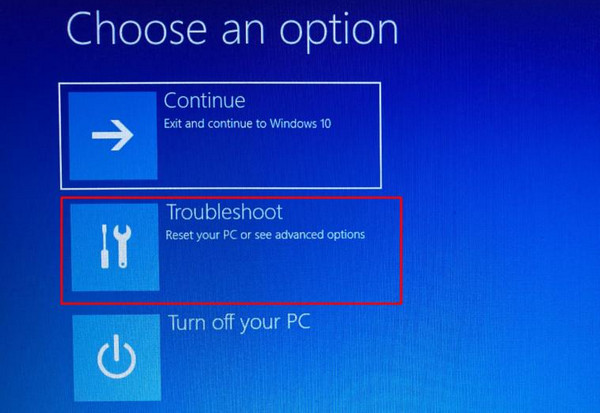
Have you seen the Your PC Couldn't Start Properly error message? This error message can be fixed with the Windows Recovery Environment (WinRE) feature on your Windows. It is a feature that can help you fix errors on your computer. See the steps below regarding it.
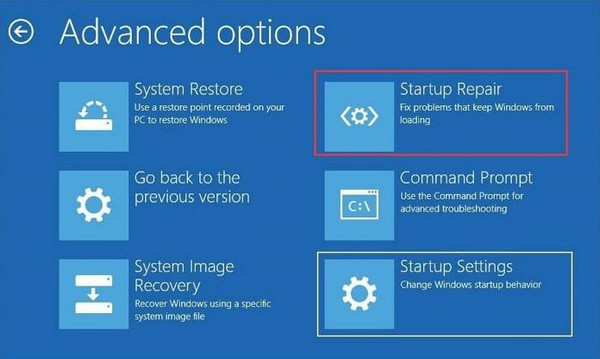
Step 1Turn on your PC. Turn your PC on and off three times to force it to open the Automatic Repair option. Choose the Advanced Options button. Select the Troubleshoot button from the options list. A new set of options will appear on the screen afterward. Please select the Advanced Options button once again. It will show you multiple options on the screen, which includes the needed feature for the process.
Step 2Choose the Startup Repair button on the screen. Later, choose the repair option that best addresses your specific issue. Please complete the on-screen steps to enter the mode that your computer needs. Finally, restart your computer. Check if the issue persists. If it does, try a different recovery method.
Part 6. How to Use BitLocker Recovery Page — When Your PC Asks for a 48-Digit Key
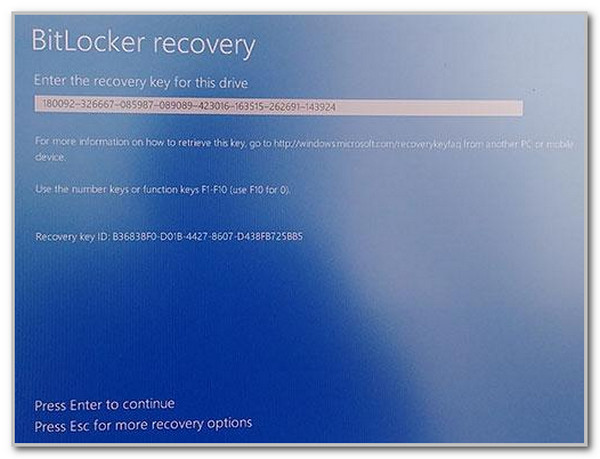
BitLocker Recovery Page can help you find your recovery key. In this case, you can recover your account. The steps for this website are available below.
Open the BitLocker recovery screen. Choose the Recovery Key ID button. Write down the Recovery Key ID (or take a photo of it). On another computer, visit the website. Log in with the same Microsoft account. Review the keys and locate the matching 48-digit recovery key. Enter the key to the locked computer afterward.
Part 7. How to Use Reset This PC (Via Windows Settings)
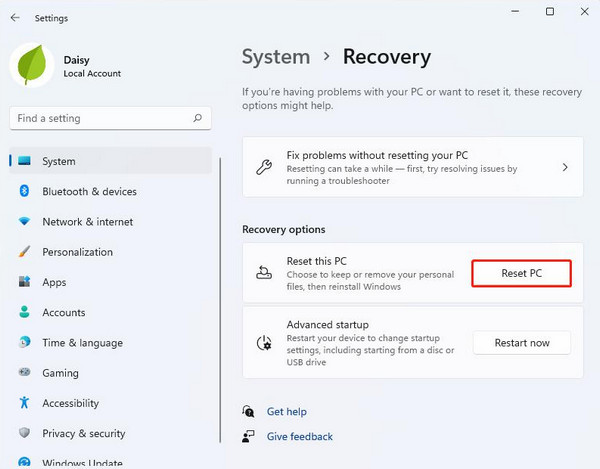
You can also use Reset This PC to recover your Microsoft account. See the steps below to know how to use it.
Press Windows + I. Then, choose System and Recovery. Choose Reset PC and select Keep My Files. Choose between a cloud download or local reinstall. Click Next and Reset. Finally, set up the computer again.
Part 8. How to Use Media Creation Tool — Bootable USB for Recovery
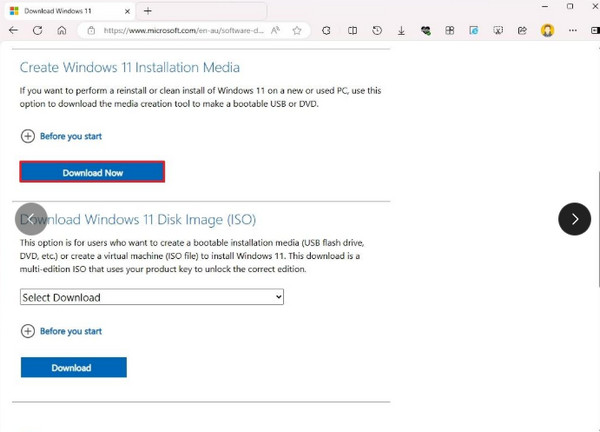
Microsoft Creation tool helps users create a bootable Windows installation USB. It is commonly used for deleted computer data recovery and fixing computer issues that affect your account. See how to use it below.
Insert a USB drive into your computer. Download Media Creation Tool. Click Accept and choose Create installation media (USB flash drive, DVD, or ISO file) for another PC and select Next. Follow the on-screen instructions to create the installation media. Then, restart your computer and boot from the USB drive. Restart your computer and press the specific key (often F12, F2, or Esc) to enter the Boot Menu. Select the USB drive and choose Repair your computer. Select Troubleshoot and select Advanced Options. Use your preferred tool to start the process.
Part 9. How to Recover Lost Files After Recovery With FoneLab Data Retriever
FoneLab Data Retriever is a tool that can restore deleted files. This software can recover lost files from your computer's hard drive, regardless of the reason for the loss. It includes images, videos, emails, databases, and more. The good thing is that it is easy to use. See how to use it below.
FoneLab Data Retriever - recover the lost/deleted data from computer, hard drive, flash drive, memory card, digital camera and more.
- Recover photos, videos, documents and more data with ease.
- Preview data before recovery.
Step 1Download FoneLab Data Retriever on your computer. Then, install and open it to start the process.
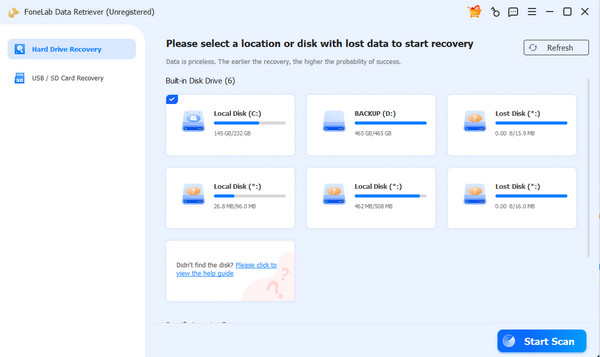
Step 2Choose the location where you want to scan the lost files. Later, click the Start Scan button.
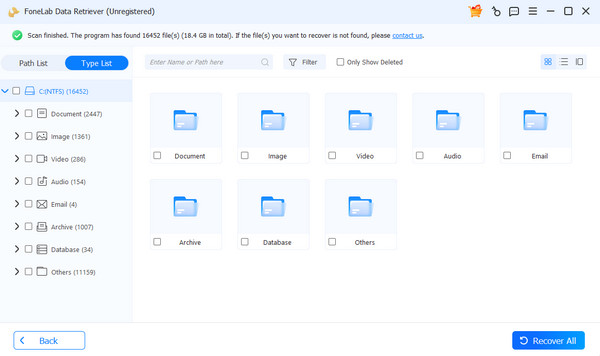
Step 3The scan results will be displayed on the next screen. Choose the data you want to retrieve afterward. Finally, click the Recover All button.
Part 10. FAQs about Microsoft Recovery Page
What happens if I can't recover my Microsoft account?
If you cannot recover your Microsoft account, you can ask for help from a professional to recover it. If they cannot recover it, it might be time to create a new account.
How long can Microsoft account recovery take?
The recovery process typically takes up to 24 hours. If you don't receive an update within 24 hours, you can check the status on the Microsoft recovery page.
In conclusion, understanding how to use the Microsoft Recovery page and its associated tools is essential for resolving account and PC issues. This post has all the information you need to know. For recovering lost files during this process, we also recommend using a dedicated tool like FoneLab Data Retriever. Visit our website to learn more.



