
 iPhone Data Recovery
 iOS System Recovery
 iOS Data Backup & Restore
 iOS Unlocker
 iPhone Password Manager
 Location Changer
 Android Data Recovery
 Broken Android Data Extraction
 Android Data Backup & Restore
 Android Unlocker
 FoneTrans for iOS
 iPhone Data Eraser
 iPhone Cleaner
 HEIC Converter
 HyperTrans
 WhatsApp Transfer for iOS
 Mac Sweep
 Data Retriever
 Mac Data Retriever
 Video Converter Ultimate
 Screen Recorder
 Phone Mirror
 Recover PC Data Now
Recover the lost/deleted data from computer, hard drive, flash drive, memory card, digital camera and more.
Easy Guide on How to Clean PC Using Premier Methods
 Updated by
What is the best way to clean up my PC? It’s been months since I got it, and I’ve been using it a lot for both work and leisure, but I didn’t realize I was running low on space. I never really thought about cleaning, but when the computer suddenly lagged earlier, it made me realize I should care more about these kinds of things. Would anybody please help? Thank you!
Cleaning a PC is one of the easiest ways to keep it running fast and smoothly. That’s because, over time, your computer collects junk files, temporary data, and unused programs that take up space and slow things down. The good news is that you don't need to be an expert to fix this. In this guide, we will show you the best methods for cleaning your PC, from removing unnecessary files to avoiding unreliable cleaners. Data recovery is also included, so don’t miss it.

Guide List
Part 1. What Cleaning a PC Really Includes
When discussing how to cleanup PC, know that it’s not just about deleting a few files. It covers several areas that affect your computer's speed, storage, and overall health, including junk files and temporary data that build up over time. Aside from that, startup programs that slow down your boot time can also be cleaned. And speaking of programs, cleaning a PC also includes uninstalling programs you no longer use, which are sometimes called bloat, to free up space. Additionally, a light physical cleaning of dust from your vents and fans can also help your PC stay cool and run better, even if it's often overlooked.
Part 2. Clean Up Junk Files and Temp Data
Junk files and temporary data, including temp folders, cache, Recycle Bin, and old downloads, are among the biggest contributors to wasted space on a PC. They build up over time as you browse, install programs, and run processes. So, clearing them is one of the fastest ways to free up space and improve the computer’s performance.
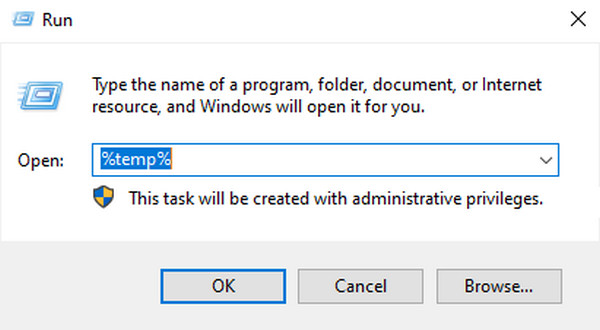
Temp folders: Press Win + R, type %temp%, and press Enter. When the window appears, select all the content, then right-click and choose Delete to delete temporary files.
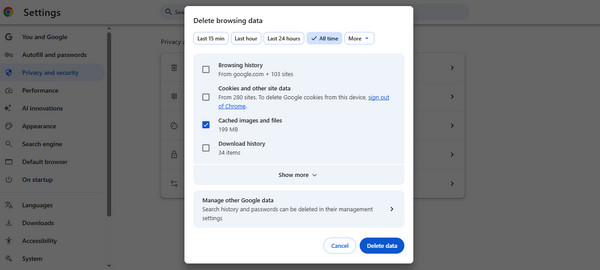
Cache: Open your browser's Settings, go to the Privacy or Clear Browsing Data section, and clear the cached files. It will remove stored website data that has piled up.
Old downloads: Open your Downloads folder and delete any installers or files you no longer need. It will help keep your storage clean and organized.
Recycle Bin: Easily learn how to empty Recycle Bin by right-clicking its icon on your upper-left desktop, then select Empty Recycle Bin.
Part 3. Uninstall Unused Apps and Clean Up Startup
Other than junk and temp data, a PC cleanup includes programs you installed but no longer use — apps you may have forgotten about — that are still taking up space. Hence, uninstalling these unused apps will greatly free up space on your PC. Aside from that, cleaning unneeded startup programs is equally important, as they open automatically when you turn on your PC. Letting them run right from the start, even if you don’t use them, can make boot times painfully slow.
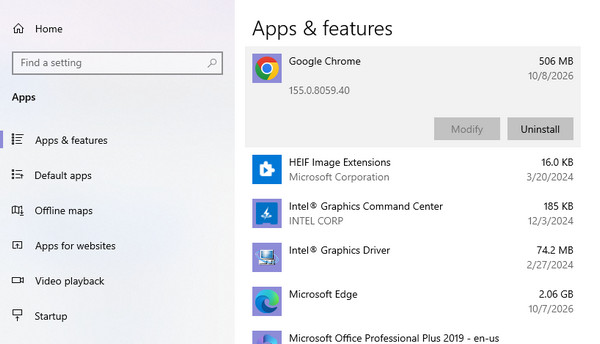
Uninstall unused apps: Open Settings and head to the Apps section. The list of your installed apps will appear; browse them and click the program you no longer need. When prompted, click the Uninstall button to remove the app from your PC.
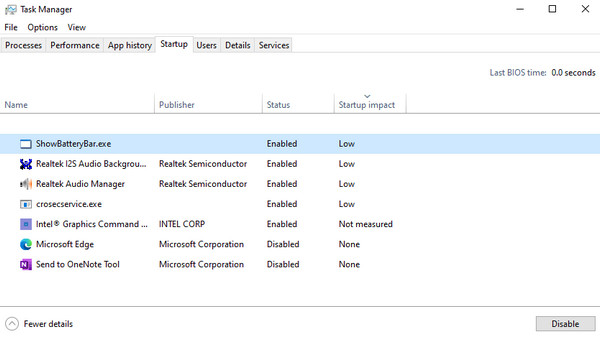
Clean up startups: Press Ctrl + Shift + Esc to launch Task Manager. Click the Startup tab in the upper section. When the list is displayed, select the startup program you don't need, then click Disable. It will then stop opening automatically when you turn on your PC.
Part 4. Restore Anything You Cleaned by Accident
When cleaning a PC, mistakes sometimes happen, such as accidentally deleting an important file along with the junk. Luckily, the methods below can help.
Option 1. Recycle Bin
The Recycle Bin is the quickest way to recover files. Deleted files usually stay here until you empty it; thus, you can restore them by right-clicking the files and choosing Restore. However, if you also cleaned up the bin, they may no longer be available for restoration.
Option 2. File History
Meanwhile, File History is a built-in Windows backup tool. If you turned it on before and backed up your files to another drive, it will be an effective recovery solution. But if not, there will be no backups to recover from, making recovery impossible.
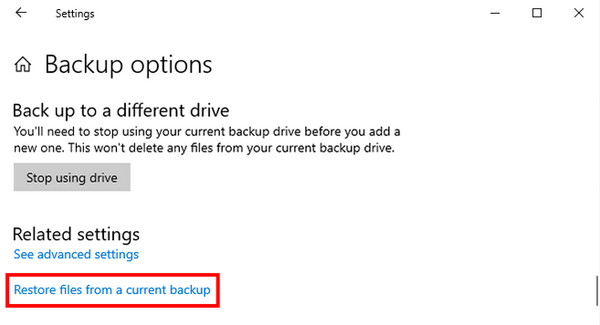
Step 1Open Settings, then choose Update & Security. In the left column, select Backup.
Step 2Next, select Restore files from a current backup to find and recover what you need.
Option 3. FoneLab Data Retriever
If the data loss or accidental deletion is sudden, and you weren’t able to prepare, don’t be discouraged. You can still determine how to recover deleted files on PC using FoneLab Data Retriever. It is known for its high success rate and user-friendly design, perfect for all users.
FoneLab Data Retriever - recover the lost/deleted data from computer, hard drive, flash drive, memory card, digital camera and more.
- Recover photos, videos, documents and more data with ease.
- Preview data before recovery.
The program also has versatile device support, allowing you to recover from computers, hard drives, flash drives, and more. Not only that, but this tool offers almost no limits, as it supports numerous formats and countless data-loss scenarios. Experience its capabilities any time.
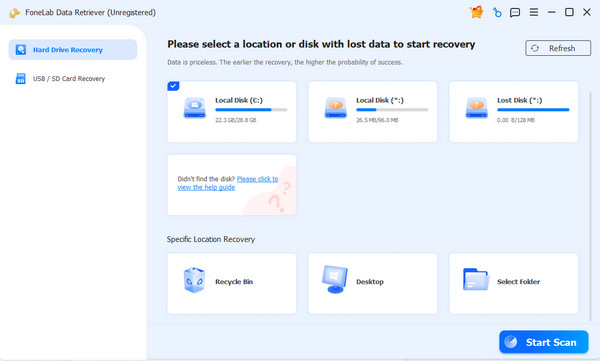
Step 1Click the Free Download button to download the FoneLab Data Retriever file, then use it to install. When the program is ready, select your data drive or location on the main interface, then click Start Scan.
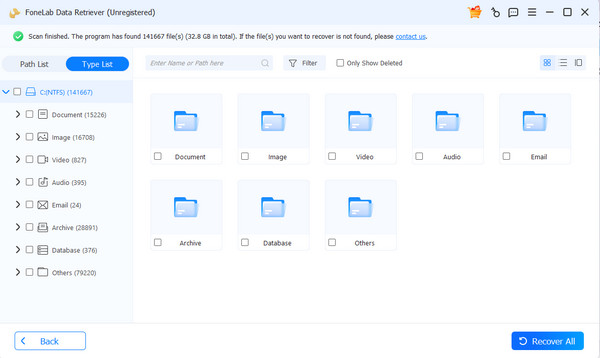
Step 2After scanning, your lost and deleted files will be listed in the results folders. Browse through them, select what you need, and then click Recover All.
Part 5. FAQs about How to Clean a PC
How do I deep-clean my PC?
For the best deep-clean results, perform each method above, from clearing simple caches to uninstalling unneeded programs.
Are PC cleaners safe?
Most third-party PC cleaners are not recommended because they can delete important files or install unwanted programs.
How often should I clean my PC?
Once a month is usually enough for most users. If you use your PC heavily, you can clean it every two weeks.
With these simple cleaning methods, you can keep your PC running fast, organized, and free from unnecessary clutter. But since unintentional data loss can happen at any time, it would be safer to have FoneLab Data Retriever on hand.


