
 iPhone Data Recovery
 iOS System Recovery
 iOS Data Backup & Restore
 iOS Unlocker
 iPhone Password Manager
 Location Changer
 Android Data Recovery
 Broken Android Data Extraction
 Android Data Backup & Restore
 Android Unlocker
 FoneTrans for iOS
 iPhone Data Eraser
 iPhone Cleaner
 HEIC Converter
 HyperTrans
 WhatsApp Transfer for iOS
 Mac Sweep
 Data Retriever
 Mac Data Retriever
 Video Converter Ultimate
 Screen Recorder
 Phone Mirror
- Part 1. Disable High-Impact Startup Programs
- Part 2. Clear Temporary Files and Free Up C Drive Space
- Part 3. Turn Off Visual Effects for Best Performance
- Part 4. Update Windows and Graphics Drivers
- Part 5. Run a Malware and Virus Scan
- Part 6. Uninstall Bloatware and Unused Applications
- Part 7. Essential Safety Check: How to Recover Files Accidentally Deleted During PC Optimization?
- Part 8. Hardware vs. Software: When is it Time for an Upgrade?
- Part 9. FAQs about PC Running Slow
 Recover PC Data Now
Recover the lost/deleted data from computer, hard drive, flash drive, memory card, digital camera and more.
6 Ways to Fix a PC Running Slow with a Detailed Guide
 Updated by
 Why is my PC so slow? I’m just doing regular work on my computer, but over time, I've noticed its performance has been steadily declining. Will this problem go away on its own, or should I implement a specific solution to fix it? Please guide me on how to handle a slow PC. Thanks!
A PC that runs slowly can turn even the simplest tasks, like opening a browser or switching between windows, into a test of patience. While it might feel like your computer’s performance is declining for no reason, the sluggishness is usually caused by an underlying issue you may not have yet discovered. But before you fix the issue, you need to diagnose the root cause, so it’ll be easier to find a suitable solution. The following sections will guide you throughout the process.

Guide List
- Part 1. Disable High-Impact Startup Programs
- Part 2. Clear Temporary Files and Free Up C Drive Space
- Part 3. Turn Off Visual Effects for Best Performance
- Part 4. Update Windows and Graphics Drivers
- Part 5. Run a Malware and Virus Scan
- Part 6. Uninstall Bloatware and Unused Applications
- Part 7. Essential Safety Check: How to Recover Files Accidentally Deleted During PC Optimization?
- Part 8. Hardware vs. Software: When is it Time for an Upgrade?
- Part 9. FAQs about PC Running Slow
Is it a CPU, RAM, or Disk Usage Issue?
Let’s start by pinpointing the problem. The slowdown typically comes down to three main hardware culprits. Each plays a vital role in your computer's speed, so when one of these components becomes overloaded or fails, your system’s performance suffers.
- • CPU (Processor) - Handles all the calculations and instructions. Once maxed out, your PC will struggle to keep up with basic commands.
- • RAM (Memory) - Manages all your active programs and open tasks. When full, your system slows down as it manages data.
- • Disk (Storage Drive) - Reads and writes your files and programs. A slow or overloaded drive can significantly slow down loading and saving.
Part 1. Disable High-Impact Startup Programs
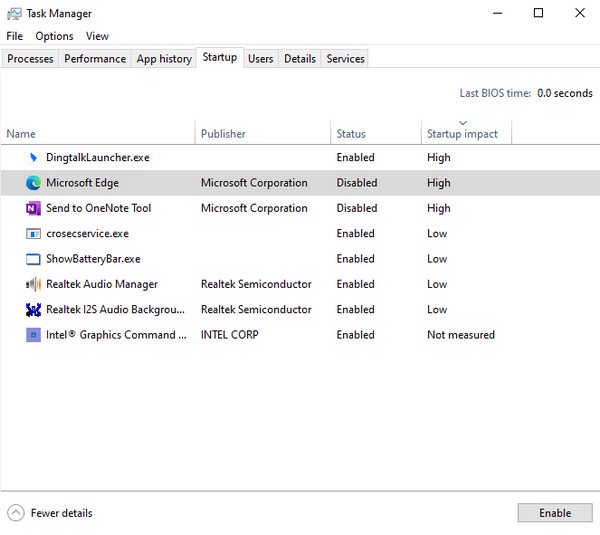
Every time you start your PC, several processes, including high-impact startup programs, also launch automatically in the background. Some are unnecessary yet consume your CPU, RAM, and disk resources, slowing down the system. So, if you identify and disable these programs, you can free up valuable resources and learn how to make PC run faster.
Step 1In the Task Manager, select Startup, then sort programs by clicking Startup impact.
Step 2The high-impact items will be at the top. Right-click the unnecessary ones and pick Disable to prevent them from launching automatically at boot.
Part 2. Clear Temporary Files and Free Up C Drive Space
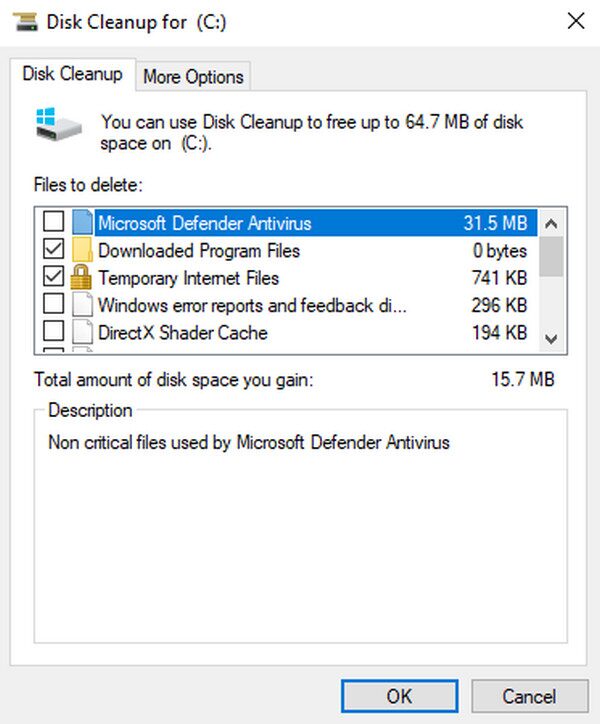
You may know that the C drive is where your regular files are usually stored on the computer. But what you may not know is that all kinds of unnecessary files, such as temporary internet data, leftover installation files, system caches, and more, also accumulate in this section. Over time, this clutter piles up, occupying valuable space and directly impacting your system's speed. Luckily, you can clear them to help the PC run more smoothly.
Step 1Open Disk Cleanup, select your C drive, and let it scan for temp files, caches, etc.
Step 2Check the boxes for the file categories and junk you want to remove, then click OK.
Part 3. Turn Off Visual Effects for Best Performance
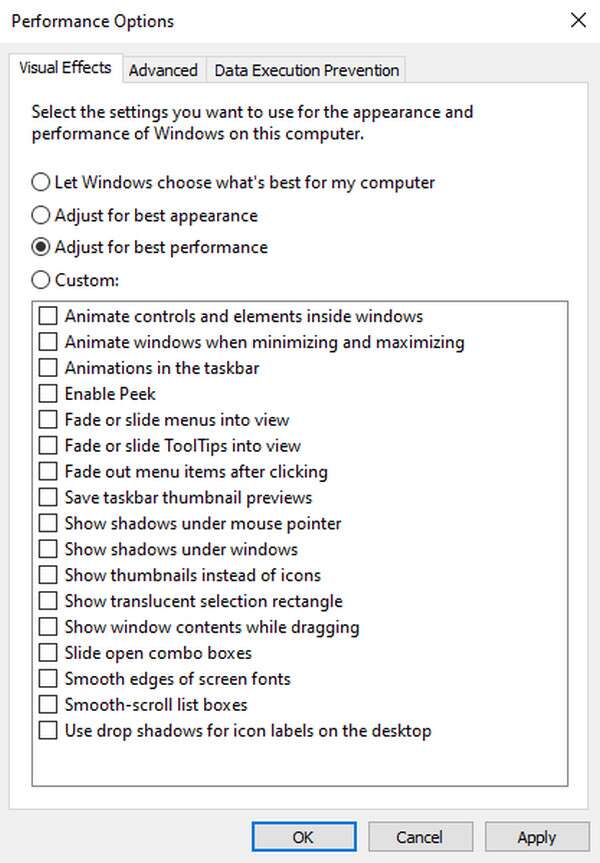
Additionally, Windows provides many flashy animations, shadows, and transparency effects that may look nice but actually consume valuable system resources. On a slow PC, these visual effects can reduce performance and sometimes cause lag during everyday use. Hence, turning them off can free up memory, giving your PC space for the best performance.
Step 1Press Windows + R and enter sysdm.cpl to open System Properties. From there, choose Advanced, and hit Settings under Performance.
Step 2Next, select Adjust for best performance or manually uncheck the visual effects you don't need under Custom, then click Apply.
Part 4. Update Windows and Graphics Drivers
Outdated Windows and graphics drivers can also cause slow or sluggish performance. So, regular updates for your Windows and Graphics Drives are recommended. After all, the processes for both only take a few clicks and don’t require technical knowledge.
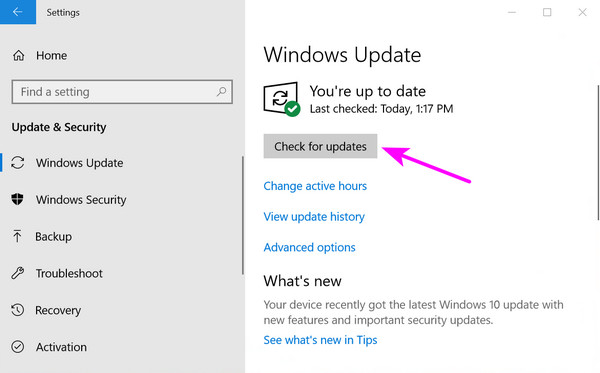
Update Windows: Head to Settings > Windows Update, then select Check for updates for the installation of any available updates.
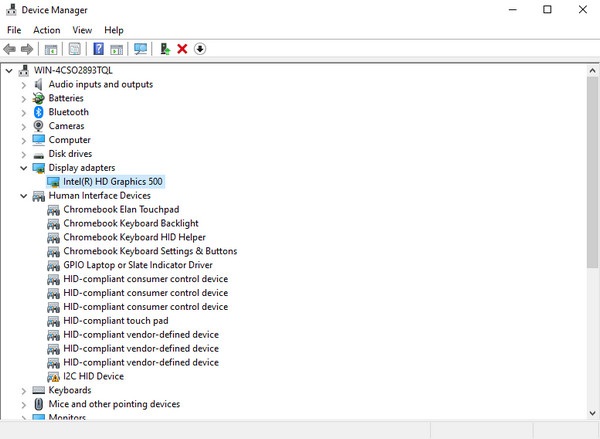
Update Graphics Drivers: In Device Manager, expand Display adapters and right-click your graphics card. Next, select Update driver > Search automatically for drivers.
Part 5. Run a Malware and Virus Scan
As you know, viruses and malware are notorious for corrupting files and systems when they manage to infect the computer or any device. Thus, it is also a possible cause of slowdowns. In this case, you can make PC faster by running a quick security scan, which will help detect and remove these threats.
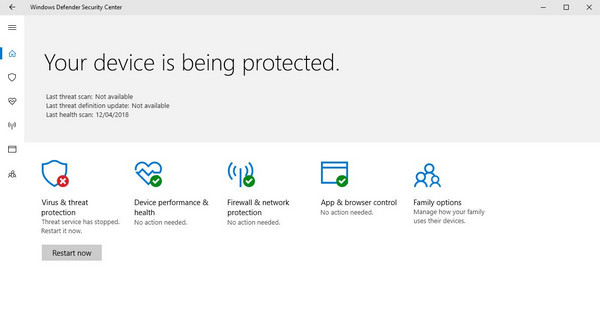
Step 1Open Windows Security > Virus & threat protection, and click Quick scan.
Step 2If you want a more thorough result, pick Scan options > Full scan, then Scan now.
Part 6. Uninstall Bloatware and Unused Applications
Many computers come with pre-installed software, including trial versions, manufacturer tools, and apps you never asked for. You also accumulate programs you no longer use over time, and even though you don't use them, they still take up space and sometimes run in the background. Uninstalling them will greatly help, as it frees up system resources and allows your PC to run properly.
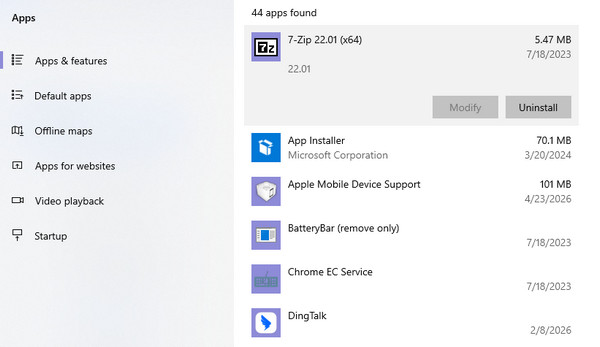
Step 1Start in Settings, then click Apps to identify programs you don't use or don't recognize.
Step 2Click on each unwanted app and select Uninstall to remove it completely.
Part 7. Essential Safety Check: How to Recover Files Accidentally Deleted During PC Optimization?
When performing repairs on a PC, things sometimes happen by accident, such as deleting or losing files. Fortunately, this doesn’t have to be permanent since FoneLab Data Retriever is available to help you recover deleted file on PC, including photos, emails, videos, and more.
FoneLab Data Retriever - recover the lost/deleted data from computer, hard drive, flash drive, memory card, digital camera and more.
- Recover photos, videos, documents and more data with ease.
- Preview data before recovery.
That’s right! This tool is known for deleted computer data recovery, so you can trust it with your precious files, whether the data loss is caused by corruption, accidental deletion, formatting, or other issues. Also, its interface and functions are designed to be user-friendly for everyone.
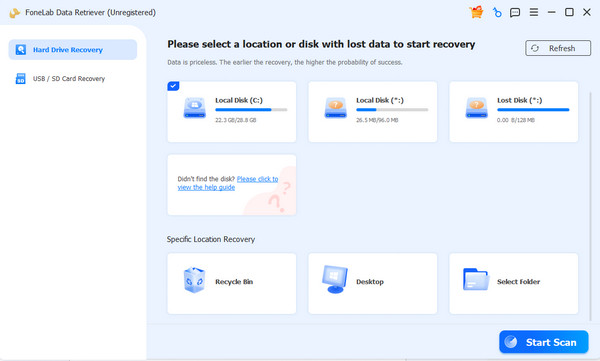
Step 1Download FoneLab Data Retriever and use its file to install it. Once the program starts, click the drive containing your deleted data on the key interface, then choose Start Scan.
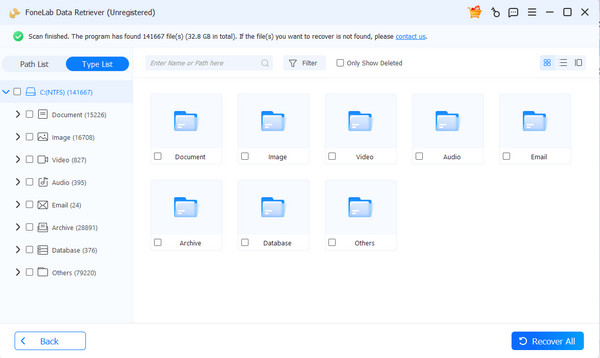
Step 2Following that, explore your data type folders in the results to scroll through the deleted files and find the one you need. Then, check them for selection and click Recover All.
Part 8. Hardware vs. Software: When is it Time for an Upgrade?
If software fixes aren't enough to optimize PC performance, it may be time to consider a hardware upgrade. Two changes make the biggest difference. First, switching from a traditional hard drive (HDD) to a solid-state drive (SSD) drastically speeds up boot times and file access. Second, adding more RAM allows you to run multiple programs smoothly without lag.
Part 9. FAQs about PC Running Slow
Does dust slow down a PC?
Yes, it does. Dust retains heat as it builds up on fans and vents, blocking airflow inside the case. This heat then affects your CPU or GPU, causing performance issues.
How much free space should I keep on my C drive?
Aim to keep at least 10–15% of your total drive space free. For instance, a 256GB drive should have about 25–40GB of free space for optimal performance.
A slow PC doesn't have to be permanent. By following these solutions, you can restore your computer's speed and keep it running smoothly. Just keep FoneLab Data Retriever on hand to safeguard your data afterward.



