
 iPhone Data Recovery
 iOS System Recovery
 iOS Data Backup & Restore
 iOS Unlocker
 iPhone Password Manager
 Location Changer
 Android Data Recovery
 Broken Android Data Extraction
 Android Data Backup & Restore
 Android Unlocker
 FoneTrans for iOS
 iPhone Data Eraser
 iPhone Cleaner
 HEIC Converter
 HyperTrans
 WhatsApp Transfer for iOS
 Mac Sweep
 Data Retriever
 Mac Data Retriever
 Video Converter Ultimate
 Screen Recorder
 Phone Mirror
- Empty Trash
- Delete Mail App
- Clear Cache on Mac
- Get More Storage on Mac
- Make Chrome Use Less RAM
- Where is Disk Utility on Mac
- Check History on Mac
- Control + Alt + Delete on Mac
- Check Memory on Mac
- Check History on Mac
- Delete An App on Mac
- Clear Cache Chrome on Mac
- Check Storage on Mac
- Clear Browser Cache on Mac
- Delete Favorite on Mac
- Check RAM on Mac
- Delete Browsing History on Mac
How to Remove Temporary Files on Computers in Easy Ways
 Updated by
 Good day! I was checking my Mac and Windows storage today. I noticed a portion of the storage that takes up too much space. I told my brother about it, and he told me that I need to clear temporary files. Can you help me? Thank you!
Your applications, operating system, web browsers, and other features create these short-term files. They take up a significant storage on your computers. So, you need to clear them to free up storage space. See the easy methods in this post by scrolling below.

Guide List
Part 1. How to Delete Temporary Files on Windows
How to delete temporary files on Windows 10, 11, and other models? Windows is also one of the most popular operating systems for computers. The great thing about Windows is that it has built-in methods to help you clear your temporary files.
1. Use Storage Settings
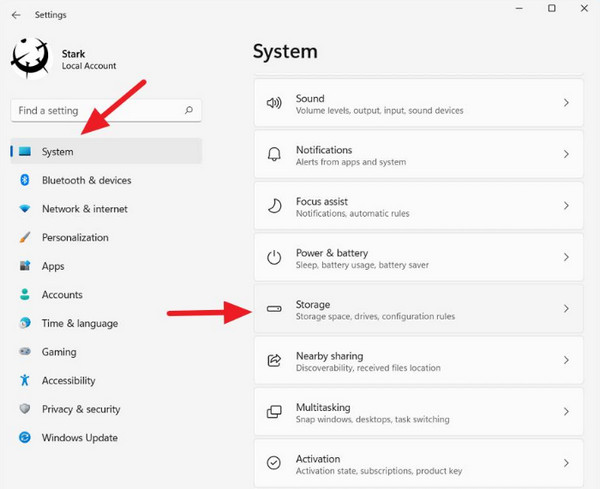
The Storage settings on Windows allow you to see how much storage your temporary files are consuming. See the steps below to learn how to delete them using Storage settings.
Open Settings. Then, choose the System button and Storage button to proceed. Select Temporary Files from the list. Later, your Windows will scan the mentioned files. Check the categories you want to delete. Click Remove Files afterward.
2. Utilize Storage Sense
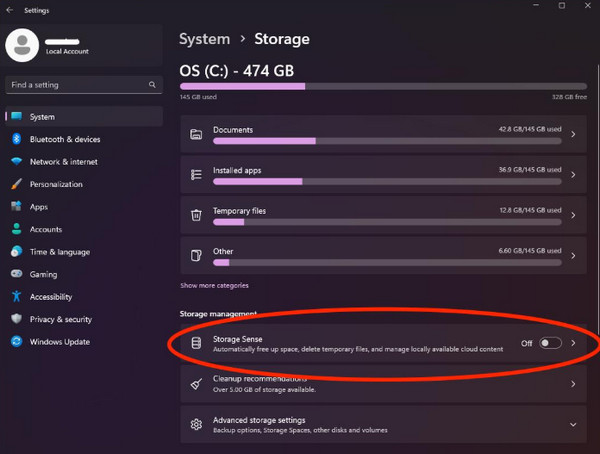
If you want to delete temporary files automatically, it's recommended to turn on Storage Sense. It helps automate the process. However, this feature is only available on Windows 11 and Windows 10. How to delete temporary files on Windows 11 and 10 with Storage Sense? The steps below will guide you.
Access Settings. Then, choose System and Storage on the left. Later, turn on Storage Sense. Select it to configure its settings. Click Run Storage Sense Now to start the cleanup.
3. Utilize The Run Command
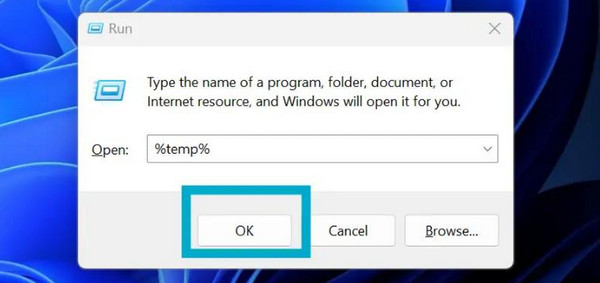
Did you know that you can directly search for temporary files on your Windows computer? You can use the Run command to do that. This way, you don't need to locate each temporary file individually. See how to delete temporary internet files, applications, and more with the steps below.
Press Windows + R. Then, a small window will appear. Type %tempt%. Click OK to confirm. Later, the Temp folder will appear. Press Ctrl + A to select all files. Press Delete or Shift Delete. Click Skip to start deleting your temporary files.
Part 2. How to Delete Temporary Files on macOS
In contrast, how to get rid of temporary files on macOS devices? The methods below will help you with the process. See them as you scroll below.
1. Storage Management
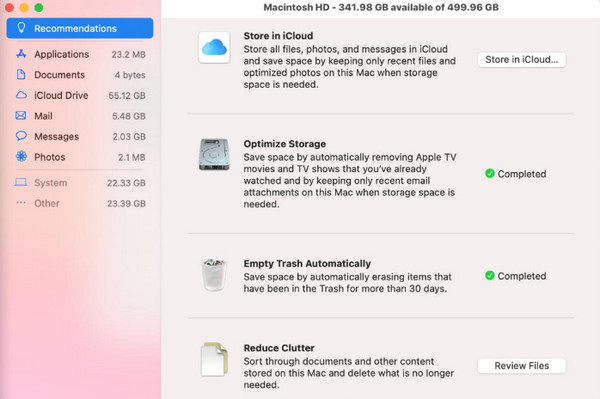
Storage Management settings allow you to identify the unnecessary data on your Mac. See how it's used for clearing temporary files below.
Open the Apple menu. Then, choose System Settings. Select General and Storage. Go to Recommendations. Review Reduce Clutter, Optimize Storage, and Empty Trash Automatically. Remove the unnecessary files afterward.
2. Manual Cache Clearing
Caches from macOS programs and system processes are among the top temporary files that consume storage. Finder is the tool you can use for this. Refer to the steps below to learn how.
Open Finder. Click Go and choose Go to Folder. Later, search for ~/Library/Caches. Press Return and select or delete the unnecessary data from the folder. Please empty Trash afterward.

3. Safe Mode & Restart
Temporary files can be deleted by restarting your macOS device. Refer to the steps below, depending on your Mac model.
Apple Silicon Mac: Shut down the Mac. Press and hold Power. Select your startup disk. Hold Shift and click Continue in Safe Mode. Log in to your Mac. Restart it normally afterward.
Intel-based Mac: Shut down your Mac. Turn it on and hold Shift. Release it when the Windows login screen is shown. Log in afterward.
4. FoneLab Mac Sweep
FoneLab Mac Sweep is third-party software that can clear your temporary files. It includes junk files, duplicated files, similar photos, recently deleted files, and more. The tool can also be used to check the status of your Mac. Learn how to get rid of temporary files with the steps below using the tool.

With FoneLab Mac Sweep, you will Clear system, email, photo, iTunes junk files to free up space on Mac.
- Manage similar photos and dulplicate files.
- Show you the detailed status of Mac with ease.
- Empty trash bin to get more storage.
Step 1Download FoneLab Mac Sweep. Then, set up, install, and open the tool on your computer.
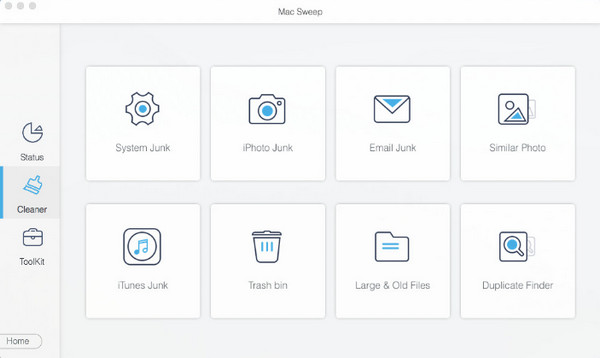
Step 2The supported features of the tool will appear. Select the Cleaner button at the center of the screen.

Step 3Choose one of the supported features. Later, click the Scan button. After that, click the View button. Later, choose the data you want to delete. Finally, click the Clean button.
Part 3. How to Recover Files on Computer With FoneLab Data Retriever
After you delete temporary files on Windows 11, Windows 10, and macOS devices, you might have accidentally deleted some important files. FoneLab Data Retriever is here to help! It helps you with the deleted computer data recovery process. It can recover emails, documents, databases, videos, images, and more. The best thing about it is that it works offline! An internet connection is not required. Additionally, it allows you to recover data from different locations or folders on your Windows and macOS devices. Please use the steps below to know how to use the tool effectively.

FoneLab Data Retriever - recover the lost/deleted data from computer, hard drive, flash drive, memory card, digital camera and more.
- Recover photos, videos, documents and more data with ease.
- Preview data before recovery.
Step 1Download FoneLab Data Retriever on your computer, such as Windows and macOS. Then, set up the downloaded file. Install it from the small window, and the computer will open it automatically.
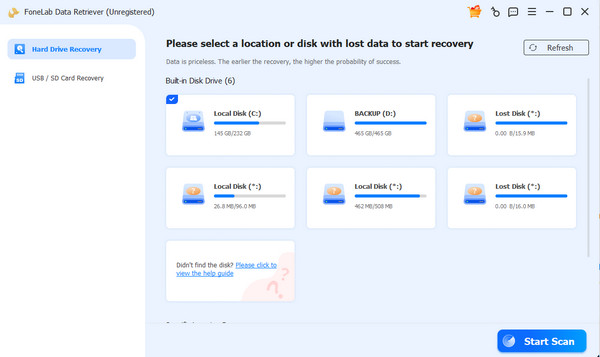
Step 2Please select the location or storage device where you lost the files. Please click the Start Scan button at the bottom right to proceed with the scanning process. The tool will start to scan your files. Please wait until the results are shown on the next screen.
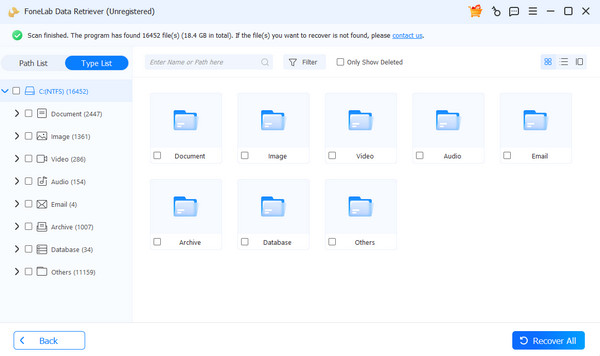
Step 3Choose the classification on the left side of the screen. The content will appear on the screen. Choose the data you want to recover on the screen. Later, click the Recover All button at the bottom right corner. Wait for the recovery process to be completed afterward.
Part 4. FAQs about How to Delete Temporary Files
Is it safe to delete temp files?
Yes, it is generally safe to delete temporary files. These temporary files include caches, installation files, and logs.
What files should you not delete?
It is not recommended to delete critical program files, operating system files, and other system-critical data. Also, make sure your personal data is safe before deleting anything.
We hope that you learned how to clear temporary files in this post. It includes methods for both Windows and Mac computers. FoneLab Mac Sweep is here to help you delete temporary files. FoneLab Data Retriever can be used to recover accidentally deleted files. Download the tools if you want to learn more about them!



