
 iPhone Data Recovery
 iOS System Recovery
 iOS Data Backup & Restore
 iOS Unlocker
 iPhone Password Manager
 Location Changer
 Android Data Recovery
 Broken Android Data Extraction
 Android Data Backup & Restore
 Android Unlocker
 FoneTrans for iOS
 iPhone Data Eraser
 iPhone Cleaner
 HEIC Converter
 HyperTrans
 WhatsApp Transfer for iOS
 Mac Sweep
 Data Retriever
 Mac Data Retriever
 Video Converter Ultimate
 Screen Recorder
 Phone Mirror
- Part 1. Immediate Action Required (Stop Now!)
- Part 2. Diagnose the Problem (Software vs. Hardware)
- Part 3. Recover Photos from Memory Card with FoneLab Data Retriever
- Part 4. Recover Pictures Using Command Prompt (For Tech-Savvy Users)
- Part 5. Comparison of Ways to Recover Pictures from a Memory Card
- Part 6. Memory Card Care: Prevention Tips
- Part 7. FAQs about How Do You Recover Pictures from a Memory Card
 Recover PC Data Now
Recover the lost/deleted data from computer, hard drive, flash drive, memory card, digital camera and more.
How Do You Recover Pictures from a Memory Card Easily
 Updated by
 How do you recover deleted photos from a memory card? People purchase this to store important memories, work files, and other personal data, avoiding running out of space on their devices that can lead to performance issues. However, data loss is a common problem, mostly due to unintentional deletion and card damage, which can lead to unwanted formatting. It can also happen when you remove the card without unmounting, and it is understandably stressful.
The good news is that deleted photos are often not permanently gone. You still have a chance to get your pictures back, especially if you act quickly. All you need to do is choose the right recovery approach, and you can browse the best options in the following sections. Aside from that, we will cover additional information to help you keep your memory card safe, along with your pictures and other data. That said, continue reading below to learn more.

Guide List
- Part 1. Immediate Action Required (Stop Now!)
- Part 2. Diagnose the Problem (Software vs. Hardware)
- Part 3. Recover Photos from Memory Card with FoneLab Data Retriever
- Part 4. Recover Pictures Using Command Prompt (For Tech-Savvy Users)
- Part 5. Comparison of Ways to Recover Pictures from a Memory Card
- Part 6. Memory Card Care: Prevention Tips
- Part 7. FAQs about How Do You Recover Pictures from a Memory Card
Part 1. Immediate Action Required (Stop Now!)
We understand the urgency of getting your photos back when you notice they're missing. However, immediately taking unplanned action is definitely not the right approach. Yes, you have to move fast, but the first step is to stop using the memory card, because sometimes the best action is to do nothing—in this case, avoiding worst-case scenarios. You may not know this, but continuing to save files to your memory card can overwrite your deleted files, making data recovery almost impossible. Thus, stop using the card immediately.
Part 2. Diagnose the Problem (Software vs. Hardware)
The next appropriate step is to diagnose the problem. Before trying to recover deleted files SD memory card, it’s best to understand what kind of problem you are dealing with, whether a software or hardware issue. Simply put, software issues are the most common and have a higher chance of recovery. You may have experienced accidental deletion, formatting, corruption, or other internal problems that can be resolved within the system.
On the other hand, hardware issues are more serious. This is when your memory card is physically damaged, such as a broken connector, water damage, or a burned chip. So, if the card doesn’t appear on your device or computer at all, it may indicate a hardware problem. That’s why knowing the difference is important, because software problems can often be fixed at home with the following solutions, while hardware problems may need professional help.
Part 3. Recover Photos from Memory Card with FoneLab Data Retriever
Once you determine it is a software issue, the first recovery tool to try is FoneLab Data Retriever. It is often praised as an effective Windows data recovery solution, and what makes it even more useful is its support for SD card recovery. That’s right! Simply attaching your memory card lets you scan lost and deleted files on your computer to recover them later.
FoneLab Data Retriever - recover the lost/deleted data from computer, hard drive, flash drive, memory card, digital camera and more.
- Recover photos, videos, documents and more data with ease.
- Preview data before recovery.
Besides, FoneLab Data Retriever has been a preferred program, especially for beginners, because of its comprehensive interface and easy functions. It works with a broad range of file types, including pictures, documents, videos, emails, and more, supporting almost any format. Also, it can also recover files lost due to virus attacks, disk damage, update failures, formatting, and more.
Follow the convenient process below to recover photos from memory card with FoneLab Data Retriever:
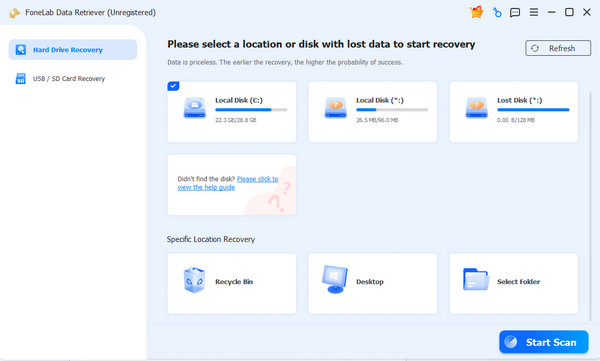
Step 1Get a copy of the FoneLab Data Retriever file with the Free Download tab. It will be saved to your Downloads folder; double-click it there and start installing the tool. Later, select Start, then in the interface select your memory card, then tick the Start Scan button.
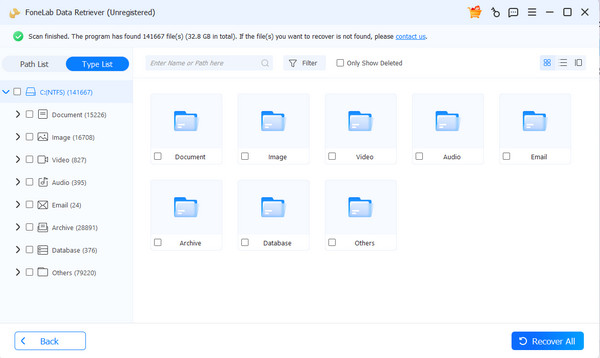
Step 2Folders for the designated data types will appear afterward. Open the Images folder and browse the content to find your lost or deleted memory card pictures. Once found, mark the items you need using their checkboxes. Then, once ready, choose the Recover All tab below.
Part 4. Recover Pictures Using Command Prompt (For Tech-Savvy Users)
Additionally, you can also try using Command Prompt if you are comfortable with your computer. It is a built-in Windows tool that lets you run commands to find and restore lost files. So, what makes this solution advantageous is that it doesn’t require you to download or install any extra software. However, unlike the previous tool, it’s not for everyone. As mentioned, it involves typing specific commands, and one wrong entry can cause more harm than good.
Follow the proper instructions below to learn how do you recover pictures from a memory card using Command Prompt:
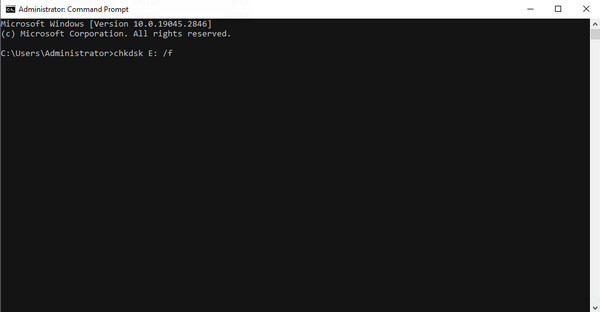
Step 1Plug the drive or memory card containing the lost pictures into your computer, then open your Command Prompt as administrator. Simply search ‘cmd’ and right-click the tool.
Step 2Once the command-line interface launches, type chkdsk [card letter]: /f and hit Enter to scan and repair your memory card’s file system. When done, find and open the FOUND.000 folder on the card. The recovered files are saved as .CHK, so simply rename them to .
Part 5. Comparison of Ways to Recover Pictures from a Memory Card
| Feature | FoneLab Data Retriever | Command Prompt |
| Recovery Capability | Directly recovers deleted or lost photos from memory cards | Mainly fixes file system errors and recovers hidden files; however, it can’t recover permanently deleted or formatted data |
| Ease of Use | Offers simple, click-through steps with no technical skills required | Requires typing complex commands like chkdsk with a high risk of user error |
| Preview Function | Allows you to preview photos before recovery | No preview available. You must recover files blindly and hope they open correctly |
| Success Rate | High success rate for common scenarios like accidental deletion, corruption, or formatting | Limited success rate, as it only works for specific logical errors and hidden files, not actual data loss |
| Safety | Non-destructive. It reads the memory card without modifying its contents | Potentially risky. Incorrect commands can cause further damage or data overwriting |
| Format Supported | Recovers various image formats, including JPG, PNG, RAW, and more | May recover files as .CHK fragments, but they require manual renaming with no guarantee |
Part 6. Memory Card Care: Prevention Tips
- • Always Eject Properly: Never remove the memory card while it’s still in use on your device, camera, or computer, especially when data is being written.
- • Back Up Regularly: After taking important photos, copy them to at least two different locations, such as a computer, an external drive, or cloud storage.
- • Avoid Filling the Card: Keep at least 10% of the memory card's capacity free to prevent errors and performance issues.
- • Keep the Memory Card Clean and Dry: Store the card in a protective case and keep it away from moisture, extreme temperatures, and magnets.
- • Use Quality Brands: Buy memory cards from reputable brands to reduce the risk of sudden failure.
Part 7. FAQs about How Do You Recover Pictures from a Memory Card
Can I recover pictures from my formatted memory card?
Yes, you can. Formatting usually does not erase the actual data, but only removes the file index. Hence, recovery tools like FoneLab Data Retriever can often restore formatted photos.
Can I recover my memory card pictures without a computer?
Sadly, the chances are low. Mobile devices have limited recovery options, so for the best results, use a computer with a card reader and a proper recovery tool.
As you can see, it's not difficult to restore lost or deleted pictures, especially with FoneLab Data Retriever. Install it whenever needed.



