
 iPhone Data Recovery
 iOS System Recovery
 iOS Data Backup & Restore
 iOS Unlocker
 iPhone Password Manager
 Location Changer
 Android Data Recovery
 Broken Android Data Extraction
 Android Data Backup & Restore
 Android Unlocker
 FoneTrans for iOS
 iPhone Data Eraser
 iPhone Cleaner
 HEIC Converter
 HyperTrans
 WhatsApp Transfer for iOS
 Mac Sweep
 Data Retriever
 Mac Data Retriever
 Video Converter Ultimate
 Screen Recorder
 Phone Mirror
- Part 1. What is AutoRecover
- Part 2. AutoRecover vs. AutoSave
- Part 3. How to Use AutoRecover (Word/Excel)
- Part 4. Where the Files Live (Paths)
- Part 5. Limitations of AutoRecover
- Part 6. Alternatives to Recover Files on Windows
- Part 7. Comparison Table of Methods to Recover Files on Windows
- Part 8. FAQs about AutoRecover
 Recover PC Data Now
Recover the lost/deleted data from computer, hard drive, flash drive, memory card, digital camera and more.
AutoRecover: How to Use It Conveniently on Your Devices
 Updated by
 Have you ever been creating a document when your computer suddenly shut down out of nowhere? This can be a major setback for anyone working on a project with a lot of important information. It means they have to redo the content they added before the shutdown..
The good news is that AutoRecover is available in various document software programs. This includes Word and Excel.. Do you want to know how this feature keeps a copy of your document when you forget to save it? Please continue browsing this post for the full information.


Guide List
- Part 1. What is AutoRecover
- Part 2. AutoRecover vs. AutoSave
- Part 3. How to Use AutoRecover (Word/Excel)
- Part 4. Where the Files Live (Paths)
- Part 5. Limitations of AutoRecover
- Part 6. Alternatives to Recover Files on Windows
- Part 7. Comparison Table of Methods to Recover Files on Windows
- Part 8. FAQs about AutoRecover
Part 1. What is AutoRecover
If you use Microsoft programs like Excel and Word, you're likely familiar with their saving options. The Save button is the primary option for saving your work.. Did you know there's a hidden feature that automatically saves your progress each time you add information or details? That feature is AutoRecover!!AutoRecover on Word and Excel is the same. Both programs have this automatic backup function for your documents They are both lifesavers when something unexpected happens while creating a document, preventing you from losing your work.
Part 2. AutoRecover vs. AutoSave
Many people misunderstand the difference between AutoSave and AutoRecover features. In fact, these features are quite different, though both can help recover unsaved Word document. AutoRecover serves as a safety net for your documents in programs that don't have the AutoSave feature. In this case, an unexpected computer shutdown or program crash—like in Word or Excel—isn't a problem. The last backup of the document can be recovered.
On the other hand, AutoSave is a feature in programs that automatically saves the current progress of your document. It saves the latest version, including all details, pictures, and attachments.
Part 3. How to Use AutoRecover (Word/Excel)
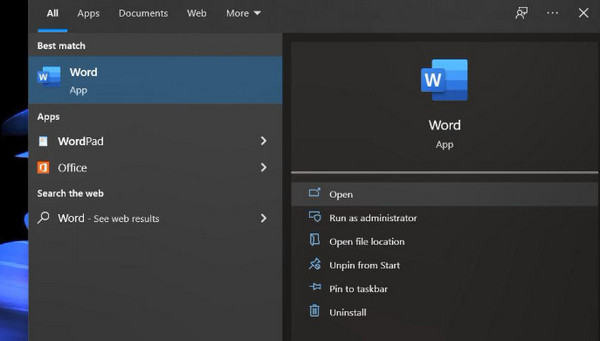
It's certainly convenient to use AutoRecover in Word and Excel. In this section, you will encounter the steps to use the mentioned feature to recover your unsaved or missing document.
Open Microsoft Word or Excel. Then, select the Document Recovery pane. Select the document you want to recover. Select File and choose Save As. Change the name and click Save.
Part 4. Where the Files Live (Paths)
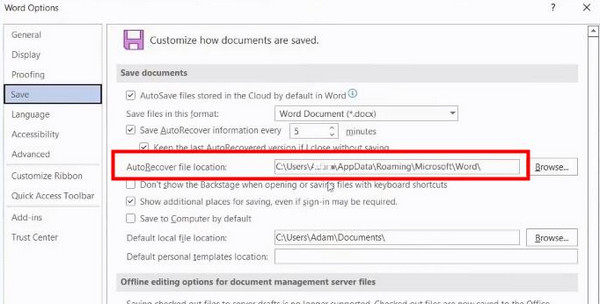
AutoRecover files don't have a dedicated app where you can find unsaved documents. You can directly go to Excel or Word to find where the copies of your documents were saved. Learn how to find AutoRecover files in Word and Excel with the steps below.
Open Microsoft Word or Excel. Then, locate the AutoRecover files. To do that, click Options and choose Save. Copy the path folder from the AutoRecover file location. Then, open File Explorer. Paste the location and press Enter to see the files.
Part 5. Limitations of AutoRecover
While AutoRecover is a great feature for recovering lost or unsaved documents, it does have some limitations that you might find inconvenient. If the data or information added to the document hasn't been backed up by the feature yet, it won't be recovered. Also, the recovery file is deleted once the document is saved on your computer or other devices. The biggest drawback is that the feature does not guarantee 100% recovery of unsaved documents on your devices.
Part 6. Alternatives to Recover Files on Windows
Besides AutoRecover, you can use other methods to recover your lost or unsaved documents. You can use a backup from your computer or a third-party tool. The methods below provide full details.
1. Use a Backup
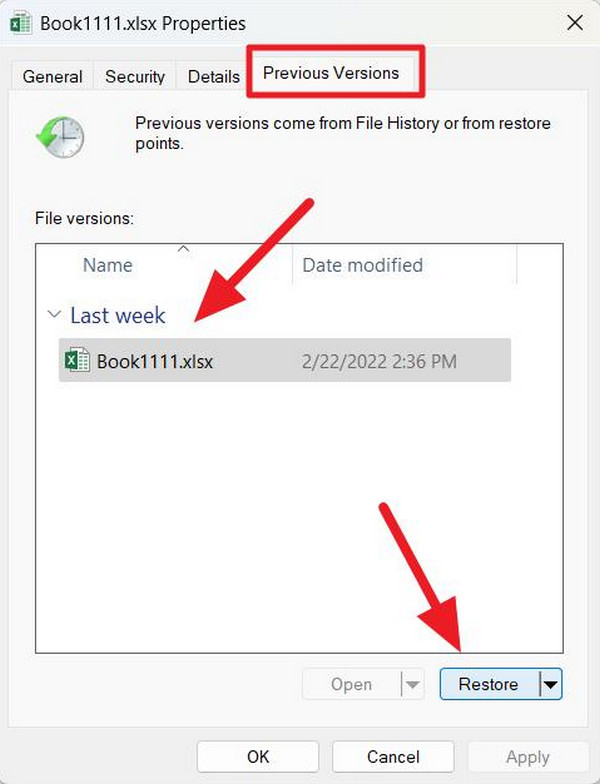
If you have a backup of the latest version of your document, you can use it to retrieve your file. BIf you don't have a backup, you can skip this section and use other methods. See how to restore your lost documents using a backup with the steps below.
Open the folder where you lost the files. Right-click and choose Properties. Choose Previous Versions at the top. You can select the version you want to recover. Later, click Restore. Wait for the process to be completed. Finally, click Apply.
2. Use FoneLab Data Retriever
If a backup isn't available, you can use a third-party tool. FoneLab Data Retriever is one such tool. It is a deleted computer data recovery third-party tool that can recover different data types on your Windows and Mac. This includes documents, videos, photos, databases, and more. The best part is that it has a simple interface and procedure, making it ideal for beginners. Please see the steps below to know how to use the tool.
FoneLab Data Retriever - recover the lost/deleted data from computer, hard drive, flash drive, memory card, digital camera and more.
- Recover photos, videos, documents and more data with ease.
- Preview data before recovery.
Step 1Download FoneLab Data Retriever on your computer. Then, install and open it on the mentioned device to start the recovery process for the documents.
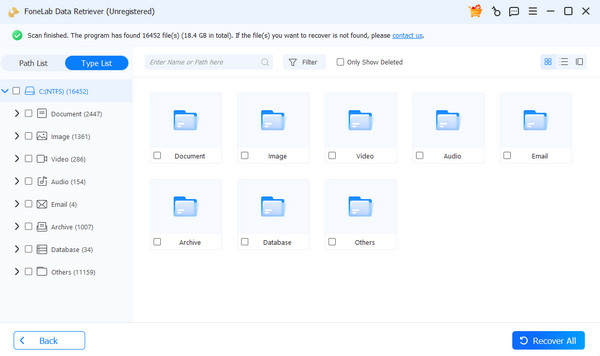
Step 2Please select the location where you think you lost the files. Then, click the Start Scan button. Then, wait for the files to be scanned by the tool. Later, the results will be seen on the next screen of the mentioned tool. They will be listed on the screen, depending on their data types.
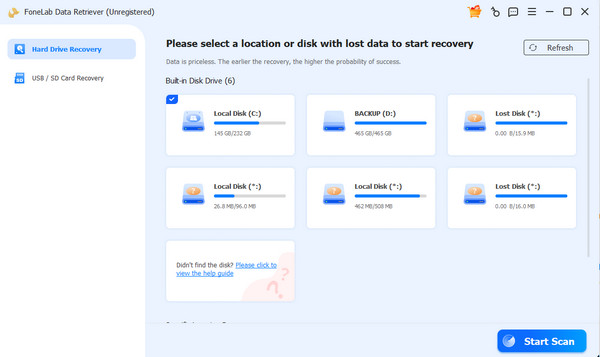
Step 3Please select the Document button on the left side of the main interface. Later, the documents will appear on the right side of the screen. Select the Word or Excel documents on the list that you want to recover. Finally, please click the Recover All button at the bottom right.
Part 7. Comparison Table of Methods to Recover Files on Windows
| Method | Success Rate | Difficulty | Cons |
| AutoRecover | Moderate | Moderate | Cannot recover files when not turned on. |
| Backup | Moderate | Moderate | Cannot recover files when a backup has not been made. |
| FoneLab Data Retriever | High | Low | Needs to be downloaded. |
Part 8. FAQs about AutoRecover
How long are AutoRecover files kept?
AutoRecover files are automatically deleted by your system or program. They typically remain for up to 4 days before being permanently removed.
What is the default time for AutoRecover?
There is no fixed default time for AutoRecover, but users say it typically backs up data every 10 minutes.
In conclusion, the AutoRecover folder is accessible on your computer. This article provides all the information you need about this feature. FoneLab Data Retriever is here to help you recover documents, as well as images, videos, databases, and more. Download the tool now and explore its features!



