
 iPhone Data Recovery
 iOS System Recovery
 iOS Data Backup & Restore
 iOS Unlocker
 iPhone Password Manager
 Location Changer
 Android Data Recovery
 Broken Android Data Extraction
 Android Data Backup & Restore
 Android Unlocker
 FoneTrans for iOS
 iPhone Data Eraser
 iPhone Cleaner
 HEIC Converter
 HyperTrans
 WhatsApp Transfer for iOS
 Mac Sweep
 Data Retriever
 Mac Data Retriever
 Video Converter Ultimate
 Screen Recorder
 Phone Mirror
 Recover PC Data Now
Recover the lost/deleted data from computer, hard drive, flash drive, memory card, digital camera and more.
Everything about Windows Safe Mode: An Excellent Guide
 Updated by
Having issues with your computer? Well, learning how to boot PC in Safe Mode is often an effective solution. It’s a special way to start Windows using only the most basic files and drivers, allowing you to determine if a problem is caused by something you installed or by a basic Windows setting. If your PC works fine in Safe Mode, the issue is likely not with your system.
Hence, it is a very effective troubleshooting tool. Safe Mode is especially helpful when your computer won’t start normally, keeps crashing, or a new program is causing issues. It lets you run the PC without the software or driver that may be causing the issue, saving you time and effort by avoiding the need to try other solutions—Safe Mode can resolve it quickly. That said, explore the sections below to dive into Safe Mode further, along with more information.


Guide List
Part 1. Scenario-Based Access Methods
One thing about Safe Mode is that it can be accessed in various scenarios. This is very helpful since issues can occur at any time. Whether you're in Windows, at the login screen, or Windows won't boot, a suitable method is available.
Scenario A: If you are logged into Windows
If you are logged in to Windows and your computer is running well enough to reach your desktop, you can access Safe Mode directly from there. This offers the easiest process, especially since it is done in Settings, where you only need to click the right options. Just note that this requires your PC to operate properly without issues such as freezing.
Follow the steps below to boot into Windows Safe Mode if you are logged into Windows:
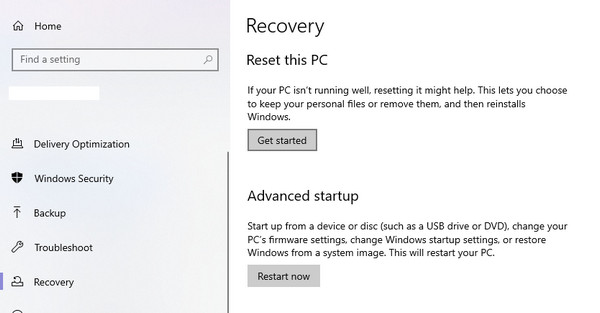
Step 1Open the Start menu and go to Settings. From there, navigate to System > Recovery. Next, under Advanced startup, click Restart now and follow the prompts.
Step 2When you reach the Recovery Environment, start with the Troubleshoot option, followed by Advanced options > Startup Settings > Restart. Finally, choose Safe Mode.
Scenario B: If you are at the Login Screen
Sometimes your computer starts up fine but can't get past the login screen. It may be due to a frozen screen or an issue that occurs right after you enter your credentials. In this case, you still don’t need to worry because Windows also incorporated the necessary options into the design. This way, you will still be able to reach Safe Mode, even without logging in to Windows. Besides, the process is also straightforward, and you don’t need to install anything or learn any technical details.
Follow the steps below to learn how to start Windows in Safe Mode if you are at the login screen:
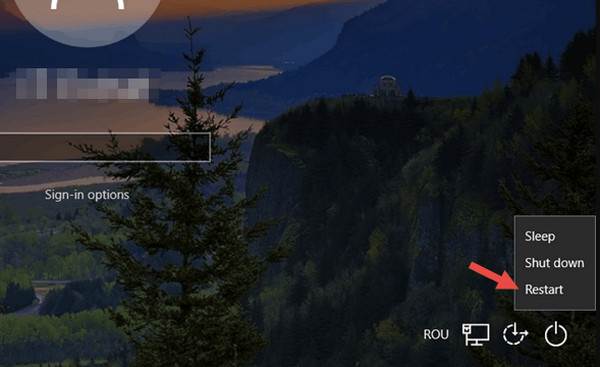
Step 1On the login screen, choose the Power icon in the bottom right corner. Afterward, hold down the Shift key on your keyboard, then click Restart while holding it down.
Step 2Once the recovery environment opens, go to Troubleshoot > Advanced options > Startup Settings > Restart, then choose Safe Mode from the list.
Scenario C: If Windows won't boot
Finally, Windows being unable to boot is probably the most serious scenario. Your computer may show a black screen, get stuck in a boot loop, or fail to load Windows, preventing you from reaching your desktop or the login screen. Naturally, the usual methods won’t work in this case, but don’t be alarmed. Accessing Safe Mode is still possible with the right steps. As before, there are specific keys to press to access the mode without issue.
Follow the task below to start Windows in Safe Mode if Windows won’t boot:
Step 1Turn on your PC and wait for the first sign of Windows starting, then hold the Power key to shut it down. Repeat this 2 to 3 times until Windows opens the Automatic Repair screen.
Step 2From there, click Advanced options, followed by Startup Settings. When further selections appear, choose Restart, then proceed to Safe Mode.

Part 2. What to Do Inside Safe Mode
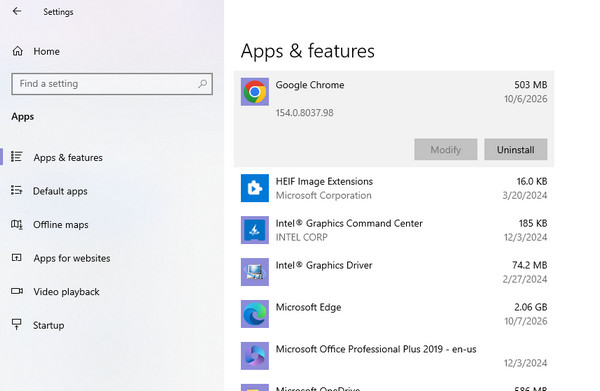
Once you are in Safe Mode, you will notice the screen looks different, with lower resolution and simpler visuals, since only the basic files and drivers are loaded. At this time, you can uninstall the problematic program causing issues on your Windows system. Simply open Settings > Apps, then browse the list to find the item, and click Uninstall.
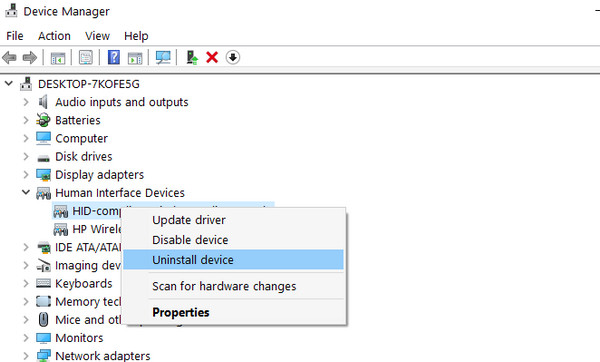
If the problem is a driver, right-click Start and proceed to Device Manager. Next, find the driver in the window, right-click it, then select Uninstall device. Once removed, you can restart your PC to test if the issue still occurs without the software interfering. You will know the problem has been fixed once Windows boots normally.
Part 3. Troubleshooting: I'm Stuck in Safe Mode
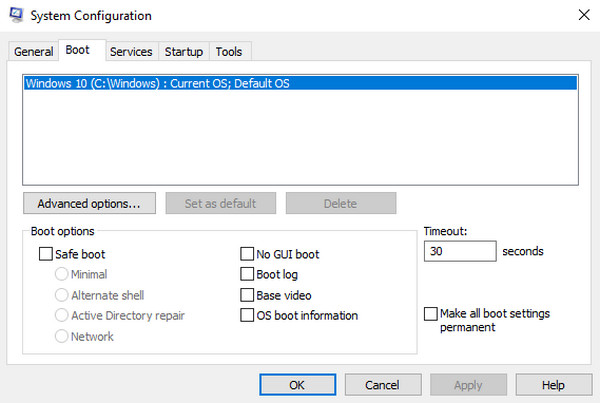
What if your PC keeps booting into Windows Safe Mode, even after you restart it? Unfortunately, this can happen if a setting is stuck, but there's no need to worry because the fix is straightforward. To get out, open the System Configuration tool by searching for it in the Start menu, then select the Boot tab. From there, uncheck Safe boot and hit Apply. Then restart it.
Part 4. How to Recover Lost Files with FoneLab Data Retriever
Additionally, we have prepared FoneLab Data Retriever for further help. Unfortunately, the risk of data loss never goes away when dealing with various issues. But with this program, you no longer have to worry about that, since it can easily recover Windows data in case of an issue.
When it comes to the best data recovery software, FoneLab Data Retriever stands out, not only for its high success rate but also for its capabilities. It doesn’t matter how you lost your files, since this tool can restore your photos, documents, and more with ease.
Follow the guide below to restore your lost files with FoneLab Data Retriever:
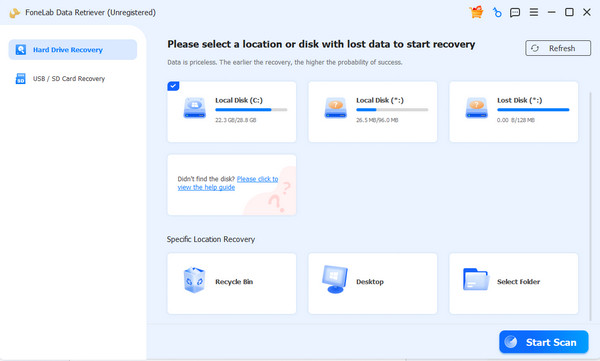
Step 1Download the necessary file with the Free Download option, then use it to install FoneLab Data Retriever. A Start tab will appear shortly; launch the interface from there, then choose your drive from the available locations on the screen. Once ready, opt for Start Scan.
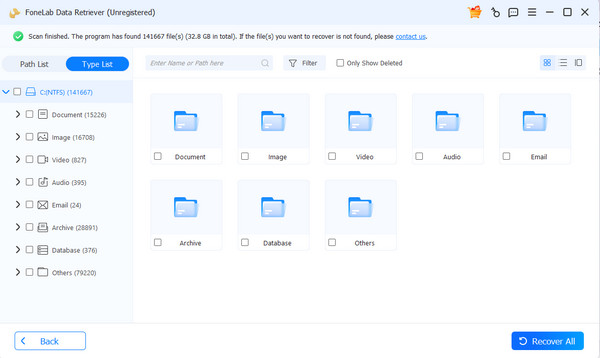
Step 2Each data type has its own designated folder in the results; explore the ones containing the files you intend to restore. When you find the items, tick the checkboxes next to them and select Recover All at the bottom.
Part 5. FAQs about Windows Safe Mode
How long does Safe Mode last?
It depends. By default, Safe Mode lasts until you restart your computer. It is not permanent unless you want it to be and set it to stay on.
Does Safe Mode need the internet?
No, it doesn’t. Safe Mode does not require the internet to work. It can be used offline to uninstall programs, run scans, or fix issues.
Windows Safe Mode is a simple yet powerful tool that can help you fix problems, remove troublesome software, and get your PC back to normal. Pair it with FoneLab Data Retriever, and you no longer have to worry about data loss while resolving problems.


