
 iPhone Data Recovery
 iOS System Recovery
 iOS Data Backup & Restore
 iOS Unlocker
 iPhone Password Manager
 Location Changer
 Android Data Recovery
 Broken Android Data Extraction
 Android Data Backup & Restore
 Android Unlocker
 FoneTrans for iOS
 iPhone Data Eraser
 iPhone Cleaner
 HEIC Converter
 HyperTrans
 WhatsApp Transfer for iOS
 Mac Sweep
 Data Retriever
 Mac Data Retriever
 Video Converter Ultimate
 Screen Recorder
 Phone Mirror
- Part 1. First Checks: Brightness and Power
- Part 2. Force Restart Your MacBook
- Part 3. Reset the SMC (System Management Controller)
- Part 4. Reset NVRAM/PRAM (Intel Macs Only)
- Part 5. Test with an External Display
- Part 6. Recover Your Data Before Repairs
- Part 7. FAQs about Why Is My MacBook Screen Black
 Recover PC Data Now
Recover the lost/deleted data from computer, hard drive, flash drive, memory card, digital camera and more.
Why Is My MacBook Screen Black: Find the Solutions Here
 Updated by
Why is my MacBook screen black when I turn it on? Well, I’m not even sure if it’s turning on, but I badly need anyone’s help. I’ve had this MacBook for a while now, and this is the first time I've experienced this, so I really have no idea what to do. I hope someone knowledgeable can lend me a hand. I need it for work, and any help or advice would be greatly appreciated.
Various scenarios or issues can cause a black screen on a MacBook. Perhaps it is only due to low brightness or a drained battery, both of which you can easily fix. Or it could be due to a sleep/wake glitch or a display hardware issue. Regardless, don’t worry; many of these problems have clear solutions, and we will discuss them in the following parts. We’ll also cover more, including data recovery, in case you run into further problems.


Guide List
- Part 1. First Checks: Brightness and Power
- Part 2. Force Restart Your MacBook
- Part 3. Reset the SMC (System Management Controller)
- Part 4. Reset NVRAM/PRAM (Intel Macs Only)
- Part 5. Test with an External Display
- Part 6. Recover Your Data Before Repairs
- Part 7. FAQs about Why Is My MacBook Screen Black
Part 1. First Checks: Brightness and Power
Why is my MacBook screen black? As mentioned, common causes of a MacBook black screen include low brightness or a low battery. So, before proceeding to more advanced solutions, it would be best to first check whether you’re dealing with simple power or brightness settings, to avoid wasting time on more complex methods if these are really the causes.
After all, your MacBook might just be set to the lowest brightness level, which can make it look completely black. To find out, simply press F2, the brightness-up key, repeatedly to see if the screen lights up. You can also check if the Caps Lock light turns on to see if it’s still running.
If it’s still black, the next thing to check is power. Plug in your charger and wait at least 15 minutes before trying anything else. As you may know, a drained battery can make a MacBook seem dead even when it’s not. Afterward, press the power button and see if the screen turns on.
Part 2. Force Restart Your MacBook
If the basic checks didn't resolve the black screen, you may need to force-restart your MacBook. Sometimes the screen can get stuck in a sleep-wake glitch, leaving it black even though the device is still on. In this case, a force restart can cut the power completely, allowing you to force quit on MacBook and start the system fresh. It is a safe, simple fix you can do once in a while, especially for glitches and stuck screens.
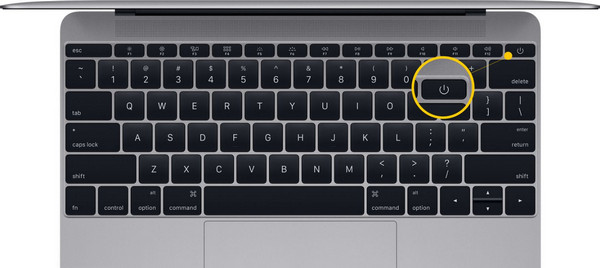
Step 1Press and hold your MacBook’s Power key for about 10 seconds until it shuts down.
Step 2Once it’s completely off, press it again to turn the MacBook back on.
Part 3. Reset the SMC (System Management Controller)
Resetting the SMC is also a possible solution. The System Management Controller handles power, battery, and display functions on Intel MacBooks, so a glitch here can also cause a black screen. But with the proper reset, you can fix power-related issues that a normal restart cannot. Just note that you only need to know how to reset SMC on MacBook Intel, as Apple Silicon resets SMC automatically on restart.
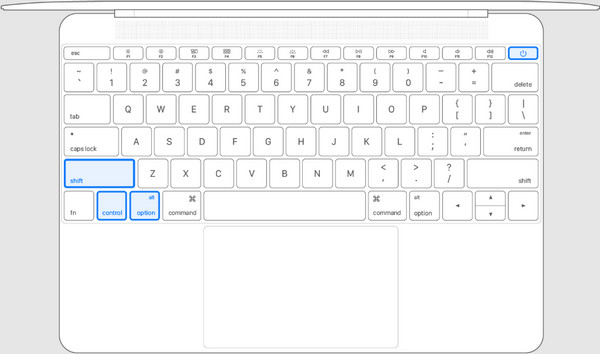
Step 1Shut down your Mac, then long-press Control + Option + Shift for 7 seconds.
Step 2Keep holding the keys and press the Power button as well for another 7 seconds before releasing everything at once. Finally, press Power again to turn the MacBook back on.
Part 4. Reset NVRAM/PRAM (Intel Macs Only)
You can also try resetting the NVRAM or PRAM if the previous methods can’t help, but first, this one is for Intel Macs only. That said, NVRAM, or PRAM, is a small memory area on Intel Macs that stores settings such as display resolution, startup disk, and volume. However, it could get corrupted, so if that happens, reset it to restore everything to its defaults.
Step 1Power the MacBook off completely. Afterward, press Power to turn it on, then immediately long-press Option + Command + P + R on the keyboard.
Step 2Keep holding the keys for 20 seconds before finally releasing them. Your MacBook will then restart, and the display settings will be reset to their defaults, fixing the black screen.

Part 5. Test with an External Display
What if the problem is not really software-related? Find out by testing your MacBook with an external display so you’ll know exactly where the problem is. First, plug in an external monitor or TV using an HDMI or USB-C cable. If the external display works, then your Mac is running fine, and the issue is likely with the internal display or its cable. But if both screens stay black, the problem is probably software-related or involves the logic board.
Part 6. Recover Your Data Before Repairs
Once you have tried everything and nothing works, it’s time to rely on a professional by sending your MacBook in for repair. But before that, it’s best to recover your data first, since the risk of data loss is high. You can boot into Target Disk Mode by connecting your MacBook to another Mac using a cable, so it will appear as an external drive. Then, use FoneLab Data Retriever.
FoneLab Data Retriever - recover the lost/deleted data from computer, hard drive, flash drive, memory card, digital camera and more.
- Recover photos, videos, documents and more data with ease.
- Preview data before recovery.
That’s right! Install this MacBook data recovery software on another functional Mac to recover your important files beforehand. It can help you back up your cherished media files, crucial documents, emails, and more. It doesn’t matter whether you’re a first-time user or what caused the data loss, since this tool’s intuitive interface and features can help you recover files easily.
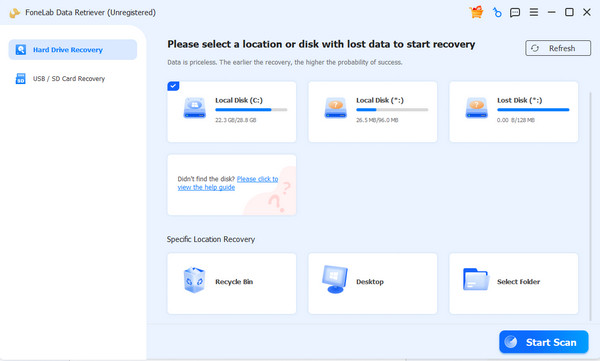
Step 1Start by acquiring the FoneLab Data Retriever. Simply click Free Download, and it will shortly be available in your Downloads. Open it to start the installation. When finished, launch the program’s main interface. From there, pick your MacBook drive and select Start Scan.
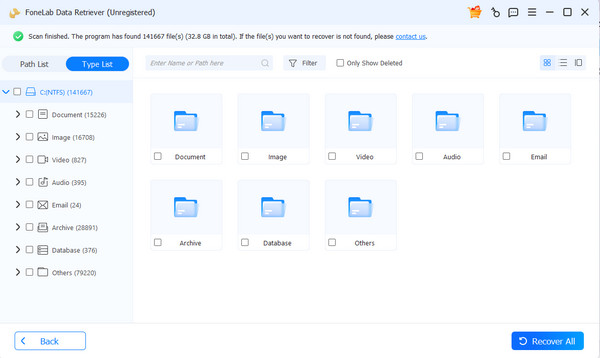
Step 2It won’t be long until you see the results: the lost files will be in their designated data-type folder. Explore them as needed, and once you locate the files you want to recover, check their checkboxes. After that, restore the data by choosing Recover All.
Part 7. FAQs about Why Is My MacBook Screen Black
Why is my MacBook screen black but still running?
A MacBook with a black screen that still runs usually means it is on and working, but the problem lies with the display. It may be due to a sleep glitch, low brightness, or other issues.
How do I fix a black screen on a MacBook Pro?
Fixing a black screen on MacBooks is usually the same for different models. So, if you use a MacBook Pro, you can also rely on the solutions above.
Will I lose my data if the screen is black?
No, you won’t. Your data will be safe since a black screen is often just a display problem, not a storage issue.
Troubleshooting a black screen on your MacBook can be confusing at first, but as long as you follow the steps listed above, you won’t have a problem. Besides, FoneLab Data Retriever is here as a safety net if you’re worried about your data.


