
 iPhone Data Recovery
 iOS System Recovery
 iOS Data Backup & Restore
 iOS Unlocker
 iPhone Password Manager
 Location Changer
 Android Data Recovery
 Broken Android Data Extraction
 Android Data Backup & Restore
 Android Unlocker
 FoneTrans for iOS
 iPhone Data Eraser
 iPhone Cleaner
 HEIC Converter
 HyperTrans
 WhatsApp Transfer for iOS
 Mac Sweep
 Data Retriever
 Mac Data Retriever
 Video Converter Ultimate
 Screen Recorder
 Phone Mirror
- Empty Trash
- Delete Mail App
- Clear Cache on Mac
- Get More Storage on Mac
- Make Chrome Use Less RAM
- Where is Disk Utility on Mac
- Check History on Mac
- Control + Alt + Delete on Mac
- Check Memory on Mac
- Check History on Mac
- Delete An App on Mac
- Clear Cache Chrome on Mac
- Check Storage on Mac
- Clear Browser Cache on Mac
- Delete Favorite on Mac
- Check RAM on Mac
- Delete Browsing History on Mac
How to Reset SMC on MacBook: Effective and Easy Techniques
 Updated by
 Greetings! How to reset SMC on MacBook Air? I have been experiencing performance issues, and I cannot use the MacBook as I should. I do not know how to perform the process. I hope you can help me. Thank you in advance!
SMC, or System Management Controller, is a small chip inside your Intel-based MacBook. It is designed to control multiple low-level hardware functions on the mentioned Apple device. Sometimes, you need to reset it. But why? You will learn the reasons why, along with the best guide to reset it. Continue browsing to know more about the interesting topic.

Guide List
Part 1. When to Reset SMC on MacBook
The SMC does not need to be reset when it is functioning well. But some issues may require a reset. You need to reset the SMC if the MacBook cannot charge. Also, you need to examine the charging light of your MacBook. Additionally, you need to reset the MacBook SMC when the battery percentage is inaccurate.
Also, the Not Charging error message might appear. These issues commonly occur on MacBook Air and MacBook Pro. These problems can cause the fan to face issues and overheating. Additionally, there will be problems with the sleep and wake issues on your MacBook. The keyboard and lighting issues you may encounter. If you do not reset the MacBook SMC, you will experience slow programs, malware, storage issues, and more.
Part 2. How to Reset SMC on MacBook
Resetting the SMC on a MacBook is easy. However, you need to determine the model of the mentioned Apple device first. Multiple reset processes can be performed depending on the MacBook Model. See the list below for the proper method for your MacBook.
- • Apple Silicon Mac: Shut down MacBook. Turn it back on after 30 seconds. You can also disconnect its accessories.
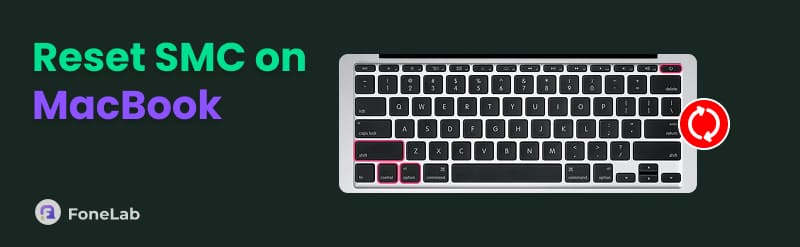
- • Intel MacBook With T2 Security Chip: Shut down the MacBook. Press and hold Control + Option + Shift. While holding the keys, push Power. Release everything afterward. Turn on the MacBook afterward.
- • Intel MacBook Without T2 Chip: Shut down your MacBook. Hold Shift + Control + Option. Press and hold Power. Release it and turn the MacBook back on.
Part 3. How to Free Up Space on MacBook
The System Management Controller on your MacBook will have a hard time if your storage is full. We recommend that you free up space on the mentioned Apple device. Below are the 3 easy methods to free up space on your MacBook without professional skills required.
1. Empty MacBook Trash
The recently deleted files on your MacBook will be stored in the Trash. This data still takes up storage space on your MacBook. Deleting the recently deleted files will help free up space on the mentioned device.
Go to the MacBook Dock. Then, locate the Trash button in the main interface. After that, please press the Command + Shift + Delete key combination on your keyboard. Confirm the process afterward.
2. Uninstall Unused Programs
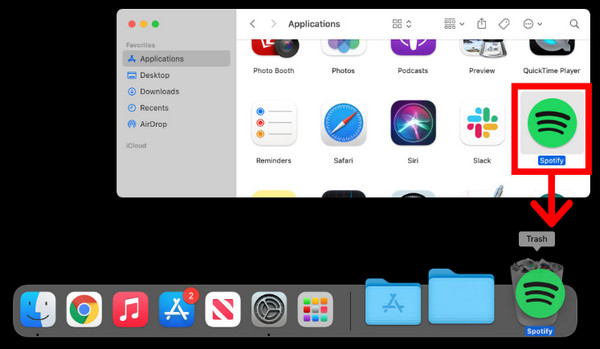
Programs on your MacBook are major contributors to your storage. So, deleting the unused ones can greatly help you gain enough storage.
Go to the Finder tool. After that, click the Applications folder on the left side of the screen. Later, locate the program you want to delete. Please drag and drop the application program to the Trash Bin. Confirm the deletion afterward.
3. FoneLab Mac Sweep
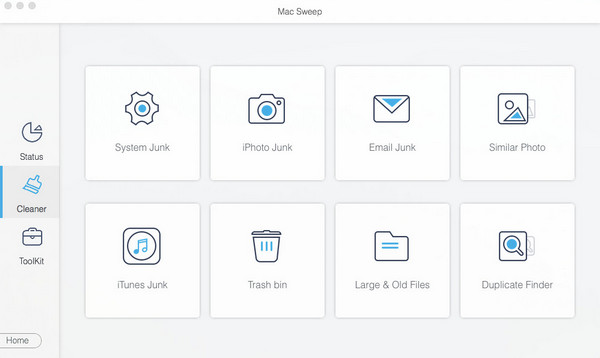
FoneLab Mac Sweep is a third-party tool that can free up space on your Mac. It can delete similar and duplicate files that take up your storage. Additionally, you can use it to empty the MacBook Trash Bin. Besides that, clearing the system, iTunes junk files, emails, and photos is also possible.

With FoneLab Mac Sweep, you will Clear system, email, photo, iTunes junk files to free up space on Mac.
- Manage similar photos and dulplicate files.
- Show you the detailed status of Mac with ease.
- Empty trash bin to get more storage.
Moreover, you can also encrypt and hide files from your MacBook. In this case, you can secure your data from unauthorized access when the MacBook is left unattended. Please use the steps below to learn how to use the tool to free up space on Mac.
Step 1Please tick the Free Download button on the screen. Then, downloading it will take place. Locate the downloaded file and set it up. Later, please install and open it on your computer to start the process.
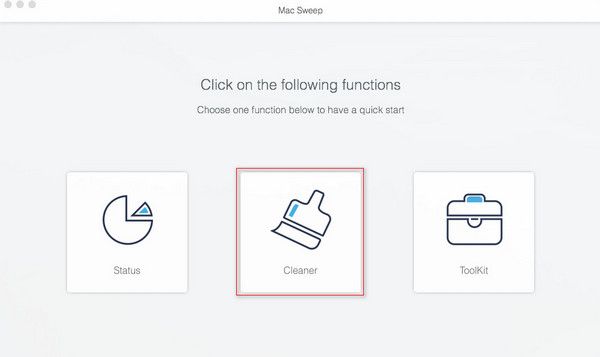
Step 2The supported features will appear on the main interface. Then, choose the Cleaner button in the center. After that, choose the feature you prefer.
Step 3Click the Scan option at the bottom to locate your files. Click the View button to see the results on the screen. Select the files you want to delete. Finally, please click the Clean button in the bottom corner. Wait for the MacBook to finish deleting the files.
Part 4. Recover Data on Mac After Resetting
After resetting the MacBook SMC, you might lose important data. If you have a backup, you can use it to retrieve your data! You can use the external hard drive used for your Time Machine backup and restore it during the MacBook setup process.
If you find Time Machine recovery too complicated, try FoneLab Mac Data Retriever — it offers simple one-click recovery without tricky operations.
Please note that this process requires professional skills. Beginners might have difficulty performing it, but we've got your back! Below are the detailed steps to restore your backup from Time Machine.
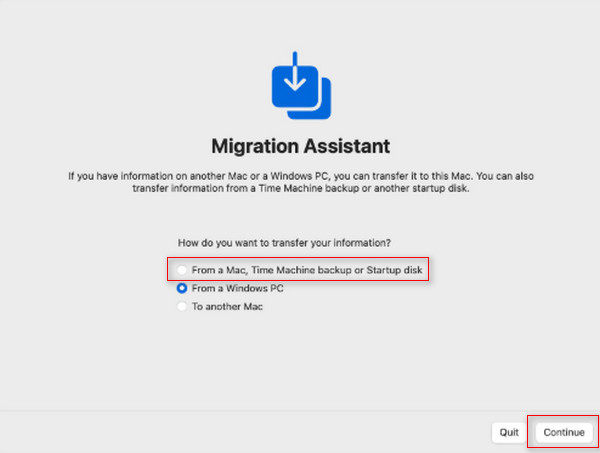
Step 1Step 1. Please plug in or connect the Time Machine backup external hard drive. Then, open the Finder tool and click the Applications button. From the applications list, please click the Utilities button to open it. Later, select the Migration Assistant button. Then, choose the From a Mac, Time Machine Backup, or Startup Disk button. Click the Continue button to proceed.
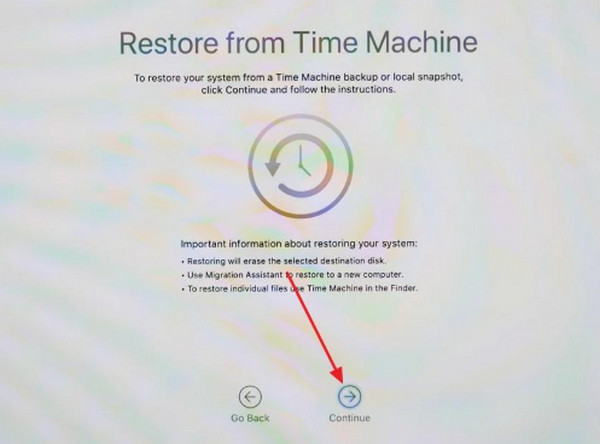
Step 2Step 2. Click the Continue button once more. Please select a backup. Then, choose the files you want to restore to your MacBook. Wait for the restore process to be completed afterward.
Part 5. FAQs about How to Reset SMC on MacBook
Does resetting SMC delete everything?
Resetting the SMC on your MacBook does not delete personal data, programs, documents, or other data types. Only the hardware management and system-level settings are the ones that are affected.
What kills MacBook battery life?
The most common reasons why your MacBook battery drains are multiple applications running in the background. Additionally, faulty battery settings can be the cause. It includes a Bluetooth that is turned on, but not being used.
This post teaches you how to reset SMC on MacBook Pro and other models. It includes other operations, including ways to free up space on a MacBook. FoneLab Mac Sweep is a third-party tool that can free up space on your MacBook using its Cleaner feature. The tool can also be used to check the MacBook's status. Download the tool now on your Mac to explore it more!



