
 iPhone Data Recovery
 iOS System Recovery
 iOS Data Backup & Restore
 iOS Unlocker
 iPhone Password Manager
 Location Changer
 Android Data Recovery
 Broken Android Data Extraction
 Android Data Backup & Restore
 Android Unlocker
 FoneTrans for iOS
 iPhone Data Eraser
 iPhone Cleaner
 HEIC Converter
 HyperTrans
 WhatsApp Transfer for iOS
 Mac Sweep
 Data Retriever
 Mac Data Retriever
 Video Converter Ultimate
 Screen Recorder
 Phone Mirror
 Recover PC Data Now
Recover the lost/deleted data from computer, hard drive, flash drive, memory card, digital camera and more.
USB Flash Drive Not Showing Up: 3 Ways to Troubleshoot
 Updated by
A USB flash drive, also known as a memory stick, is a portable, compact storage device that plugs into computers via USB ports and allows users to store data files. Its main purpose is to contain important data files and allow users to transfer files between devices for easy file sharing. Since USB file transfer works by plugging the drive into the computer, what should you do if your USB drive isn't showing up in File Explorer? This article will show all the possible approaches a user can take to get the USB drive to appear on their computer, from quick hardware checks to deep-dive troubleshooting, to ensure the USB drive works again.
As data files are important, losing them because the USB drive isn't showing up on the computer is a hassle; hence, this guide also includes backup methods using a data recovery tool, just in case the user's data files get lost while getting their USB drive to appear on the computer.


Guide List
Part 1. Basic Hardware Check Method
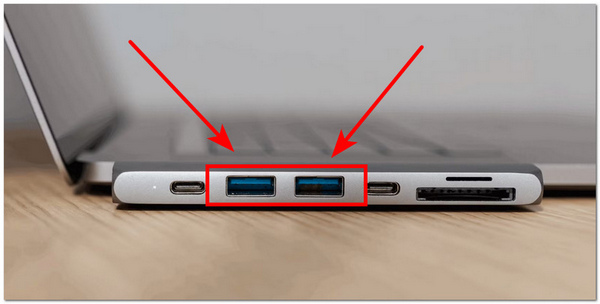
An immediate action a user needs to take when their USB hard drive is not showing up is to perform a quick hardware check on the device they are trying to plug it into. With a quick hardware check, users can determine whether the problem is rooted in the USB drive itself or the computer. This also serves as the diagnostic phase for determining the problem.
- • Try a different USB port. As computers have multiple USB ports, those ports sometimes get a little dusty, resulting in the USB drive not being properly read; thus, if the user finds that their USB drive does not appear on the computer when plugged into a USB port, they may try other USB ports to see if the drive gets read.
- • Test on a different computer. If, after trying multiple ports on the computer, the user is still unable to get their USB drive read, another quick action to confirm whether their USB is the problem is to try another computer or laptop. In this way, the user will later have an idea of what troubleshooting steps to take if their USB has a problem.
Part 2. How to Perform Computer Disk Software Diagnostics
Disk Management:
One main reason users ask, ‘Why is my USB drive not showing up?’ is that they often forget to assign a drive letter to it. Assigning a drive letter to the USB can help it appear not just on the user's personal computer but also on other computers.
Step 1Plug your USB drive into your computer.
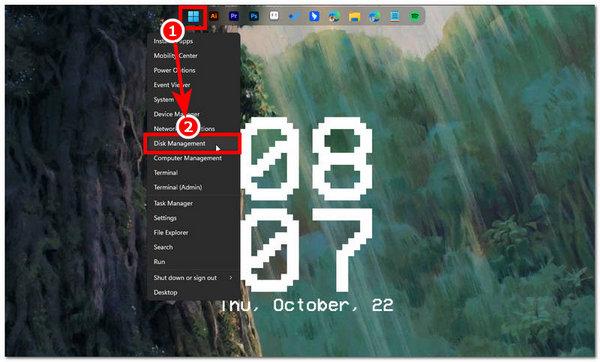
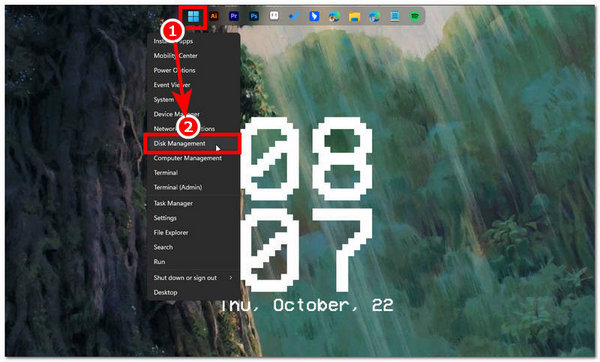
Step 2After plugging in your USB drive, navigate to your Start Menu icon, right-click it, and select Disk Management to open your disk management settings.
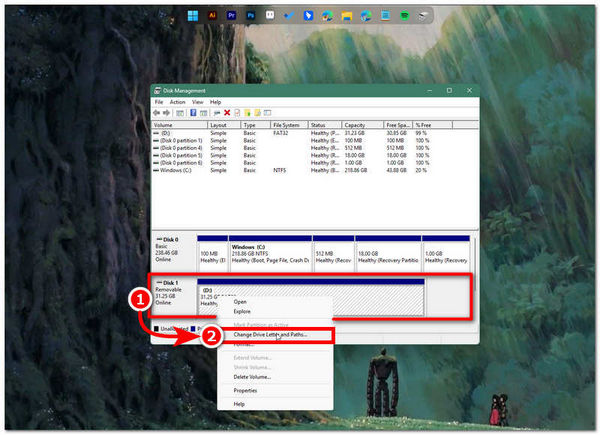
Step 3Once your Disk Management window appears on your screen, your plugged-in USB drive should appear in the lower pane. From there, right-click your USB drive and select the Change Drive Letter and Paths option.
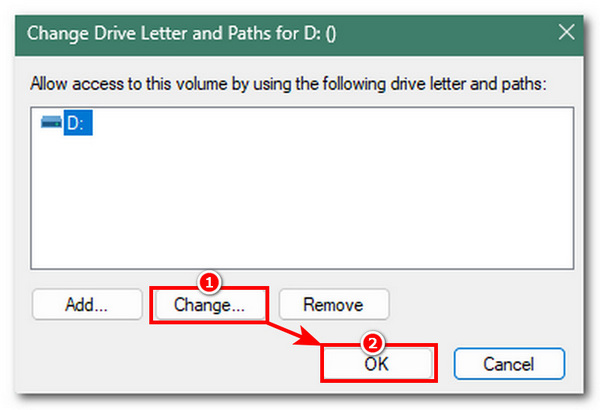
Step 4After clicking the Change Drive Letter and Paths option, a new window will open on your screen; from there, feel free to assign a new drive letter to your USB drive. Once done, click the OK button to save the changes.
Device Manager:
If you are wondering why ‘my USB drive is not showing up’ on your computer but appears to others, it may be a driver issue. One solution is to uninstall the USB driver from your computer.
Step 1Plug your USB drive into your computer.
Step 2After plugging in your USB drive, navigate to your Start Menu icon, right-click it, and select Disk Management to open your disk management settings.
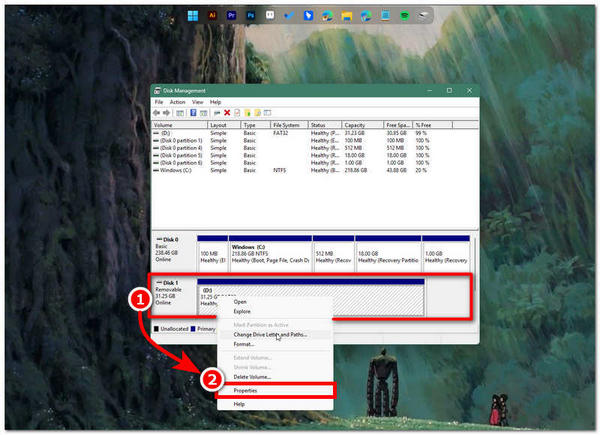
Step 3In your Disk Management settings, select your USB drive in the lower pane of the window. Right-click it, then select the Properties option.
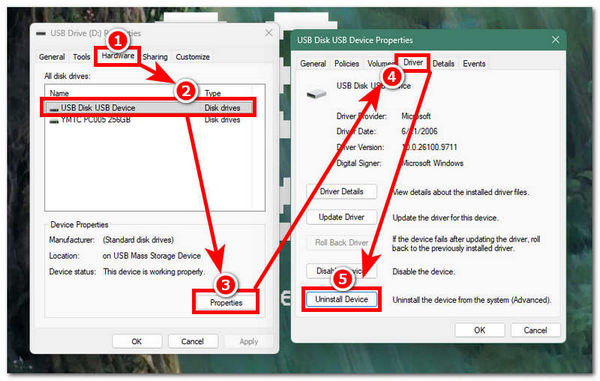
Step 4A new window will appear on your screen. From there, go to Hardware settings, then click your USB drive’s Properties. After that, a new window will pop up on your screen. From there, go to the Driver section in your USB drive's properties, then click Uninstall Device to start uninstalling it.
Step 5Once done, restart your computer, then unplug and plug your USB drive back in. Your computer should then recognize your USB drive, as it will automatically reinstall the driver the moment you plug it in.
Part 3. Advanced USB Drive Troubleshooting
If performing software diagnostics still doesn't resolve the issue of your USB drive not appearing in Windows 10 or 11, it is time to run advanced diagnostics using your computer’s built-in DiskPart command-line tool. This allows you to scan in depth and check your USB drive’s status.
Step 1Plug your USB drive into your computer.
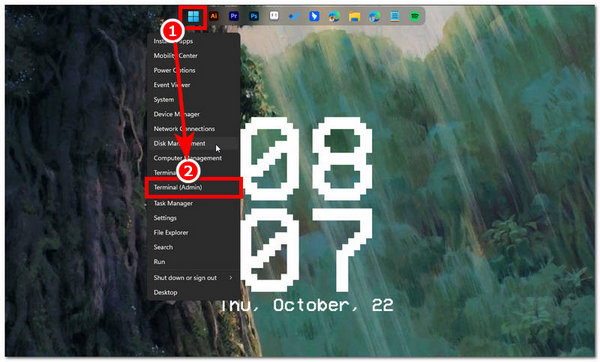
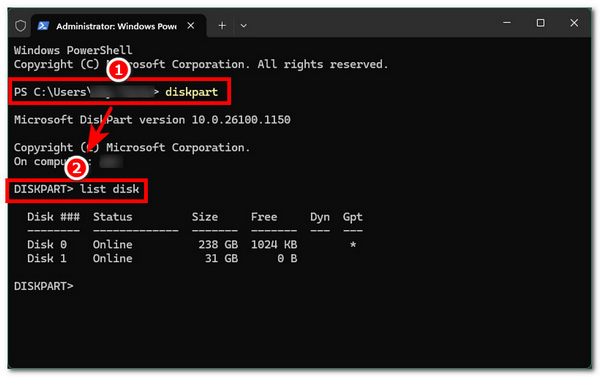
Step 2After plugging in your USB drive, navigate to your Start Menu icon, right-click it, and select Terminal (Admin) to open the terminal.
Step 3Once Terminal (Admin) is open, type diskpart and press Enter to proceed. After that, you should be able to see the DISKPART> text. At the DISKPART> prompt, type list disk and press Enter to show your USB drive’s size information.
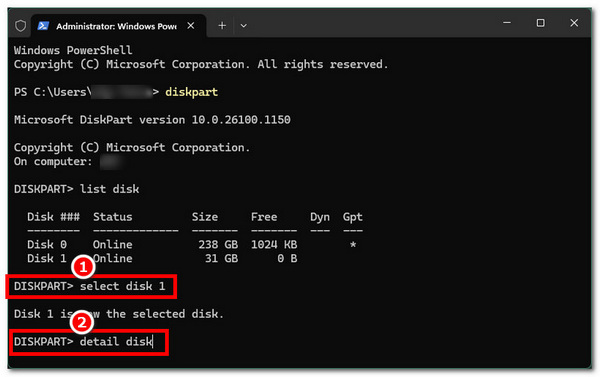
Step 4From the list of disk information, look for your USB drive by its size. Assuming your USB drive is Disk 1, type select disk 1, press Enter, then type detail disk and press Enter to continue.
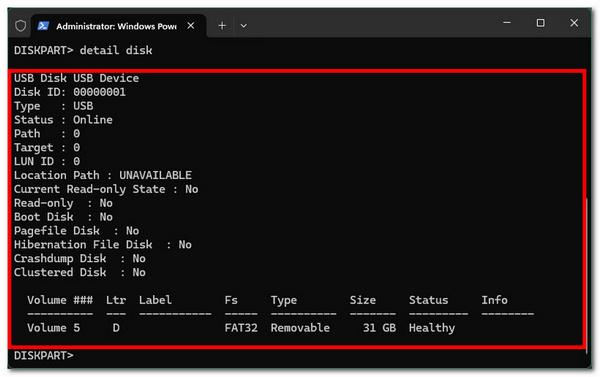
Step 5After you type the disk details of your USB drive, the command-line tool will display information about it, including its path, type, size, and status. Perform a thorough check of your USB drive's information, and if anything looks wrong, uninstall or reformat the drive.
Part 4. What to Do When Your USB Files Are Missing?
If you have resolved your problem with the USB drive not showing Mac or Windows, and suddenly you find out that you have missing data files on your USB drive, then the use of a data recovery tool like FoneLab Data Retriever is what you need for the job. A data retriever allows users to retrieve or restore missing data files on their device, and in this case, on their USB drive.
FoneLab Data Retriever - recover the lost/deleted data from computer, hard drive, flash drive, memory card, digital camera and more.
- Recover photos, videos, documents and more data with ease.
- Preview data before recovery.
FoneLab acts as a Windows Data Recovery tool to ensure that after the user has performed various troubleshooting methods in attempting to determine why their USB drive does not appear on another computer, their data files will not be completely lost, as FoneLab can retrieve them with ease through a deep scan feature that even scans floating data on the drive that has not been overwritten and restores them for the user.
Step 1Download and install the FoneLab Data Retriever software on your desktop device (macOS or Windows).
Step 2Open the software tool and, from FoneLab Data Retriever’s interface, select the USB drive you want to recover your missing data files from. After selecting your USB drive, click the Scan button to proceed.
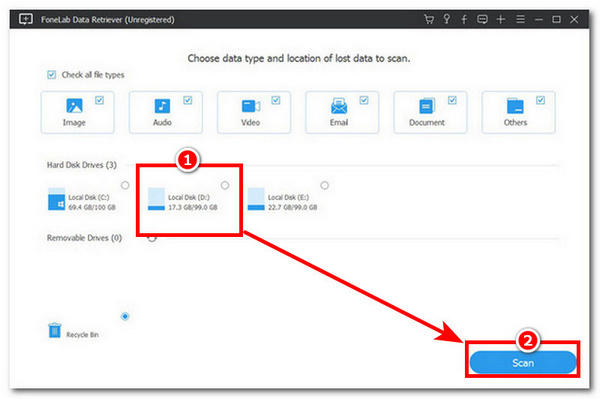
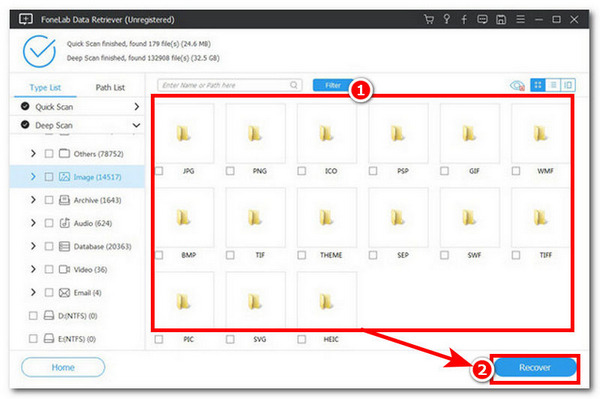
Step 3FoneLab will automatically deep-scan your USB drive for all recoverable data and, once done, show you all the data files you can recover. From there, browse and check each file, then click the Recover button once you have found your data files. And just like that, you have effectively recovered deleted files on your PC with your USB drive.
Part 5. Conclusion & Prevention
In conclusion, anyone can troubleshoot USB drive problems if they know the right steps. Most issues with USB drives not appearing in Windows 11 or 10 can be fixed by checking the hardware. It's also helpful to understand how to do software diagnostics and detailed scans of your USB drive to find the problem. Once you identify the issue, you can work on a solution. This guide covers methods such as uninstalling the USB driver and assigning it a drive letter to help you resolve the issue. Furthermore, the following prevention tips will help users avoid similar issues in the future; be sure to keep them in mind.
- • Always eject your USB drive the right way from your computer's disk manager.
- • Assign a drive letter to your USB drive as soon as possible.
- • Know the status of your USB drive through the Terminal (Admin) method.
- • Use a reliable data recovery tool to recover missing data files from your USB drive and avoid further damage or data loss.
Part 6. FAQs
Why does my USB drive keep connecting and disconnecting?
Sudden connecting and disconnecting of a USB drive may be caused by a loose USB connection due to a damaged USB port on the computer or in the USB drive itself. This can happen after a USB drive has been used many times.
Can a USB drive be detected but not appear in File Explorer?
Yes, a USB drive can still be detected by the computer but may not appear in File Explorer. That’s when digging deeper with the computer’s Terminal (Admin) is important, as it helps users investigate how to properly resolve their USB drive issue rather than simply reformatting it.


