
 iPhone Data Recovery
 iOS System Recovery
 iOS Data Backup & Restore
 iOS Unlocker
 iPhone Password Manager
 Location Changer
 Android Data Recovery
 Broken Android Data Extraction
 Android Data Backup & Restore
 Android Unlocker
 FoneTrans for iOS
 iPhone Data Eraser
 iPhone Cleaner
 HEIC Converter
 HyperTrans
 WhatsApp Transfer for iOS
 Mac Sweep
 Data Retriever
 Mac Data Retriever
 Video Converter Ultimate
 Screen Recorder
 Phone Mirror
- Part 1. The Panic Moment & The Golden Rules
- Part 2. Diagnosis (Logical vs. Physical Failure)
- Part 3. DIY Software Recovery Step-by-Step - FoneLab Data Retriever
- Part 4. Free Windows Logical Fixes
- Part 5. When to Call the Professionals
- Part 6. Future-Proofing Your Data
- Part 7. FAQs about External Hard Drive Recovery
 Recover PC Data Now
Recover the lost/deleted data from computer, hard drive, flash drive, memory card, digital camera and more.
Reliable Ways to Recover Data from External Hard Drive
 Updated by
 Looking for solutions for data recovery from external hard drive? As you know, these drives are portable and often used frequently, making them prone to physical damage, accidental drops, or sudden disconnections. When that happens, data loss sometimes occurs, and your files, whether photos, documents, or videos, can seem lost forever. Besides, this situation can feel more frustrating if you use the drive as a backup storage, yet it fails to serve its purpose.
The thing is, data loss has become such a universal problem that several developers have created effective ways to perform data recovery. It almost doesn’t even matter how you lost the files since various recovery methods are available, and you need only choose the most convenient or suitable method for your situation. That said, check out each part below to learn the necessary actions when data loss occurs, and how to recover your external hard drive data efficiently.

Guide List
- Part 1. The Panic Moment & The Golden Rules
- Part 2. Diagnosis (Logical vs. Physical Failure)
- Part 3. DIY Software Recovery Step-by-Step - FoneLab Data Retriever
- Part 4. Free Windows Logical Fixes
- Part 5. When to Call the Professionals
- Part 6. Future-Proofing Your Data
- Part 7. FAQs about External Hard Drive Recovery
Part 1. The Panic Moment & The Golden Rules
When you suddenly find your files are lost after trying to view your external hard drive data, panic is usually the initial reaction, and that is completely understandable. Most people have been there. You might even see a message saying you need to format the drive before you can use it, making it seem as if you have permanently lost all your data. But here’s the thing. What you do in those first minutes is critical, especially in external hard disk recovery.
Acting too quickly or out of frustration can make everything worse, so before doing anything else, it’s important to remember the golden rules. First, you should unplug the drive or stop using it completely, because if it’s still running, you risk overwriting your lost files. Second, don't format it. Although the computer keeps prompting you to do so, it is not recommended to format the drive on a whim. Third, handle the drive carefully. These rules are basic yet very important.
Part 2. Diagnosis (Logical vs. Physical Failure)
In addition to the golden rules, diagnosing your external hard drive's issue is also important before choosing a solution. You need to figure out what kind of problem you're dealing with because not all data loss is the same. Hence, the right method will vary depending on whether it is a logical or a physical failure. Knowing which one you have will save you a lot of time.
To put it simply, logical failure means your drive is working fine physically, but something went wrong with the system or software. Perhaps the file system got corrupted, you accidentally deleted some files, or the drive was ejected improperly. The drive also still spins, lights up, and your computer might even detect it. This type of problem is usually fixable with software.
Meanwhile, physical failure is a whole different story, as it means something inside the drive is broken. Maybe the read/write head got damaged, the motor stopped working, or the drive took a hard fall. You might hear clicking, grinding, or beeping sounds, and the drive might not spin up at all. In this case, the drive itself is broken, and software alone won't fix it.
Part 3. DIY Software Recovery Step-by-Step - FoneLab Data Retriever
After taking the initial action, which are the golden rules, and diagnosing what type of problem your external drive has, we recommend FoneLab Data Retriever as a highly reliable tool for getting your data back. Whether you want to perform an external or internal hard drive data recovery, this is the program you can easily run to restore your lost data safely.
FoneLab Data Retriever is among the most competent yet beginner-friendly tools, so no worries about technicalities if you plan to recover deleted file on PC, external hard drive, or other storage devices. It works with an extensive range of file types, like documents, photos, audio, emails, and more. Additionally, its other features, such as deep scan and preview, are helpful.
FoneLab Data Retriever - recover the lost/deleted data from computer, hard drive, flash drive, memory card, digital camera and more.
- Recover photos, videos, documents and more data with ease.
- Preview data before recovery.
Follow the simple steps below to learn how to use the best external hard drive recovery software, FoneLab Data Retriever:
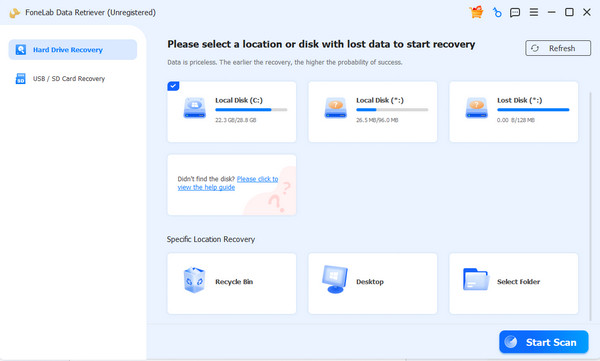
Step 1Click the Free Download button to obtain a copy of FoneLab Data Retriever. Install and launch the program. Then, connect your external hard drive, select it from the list, and click Start Scan.
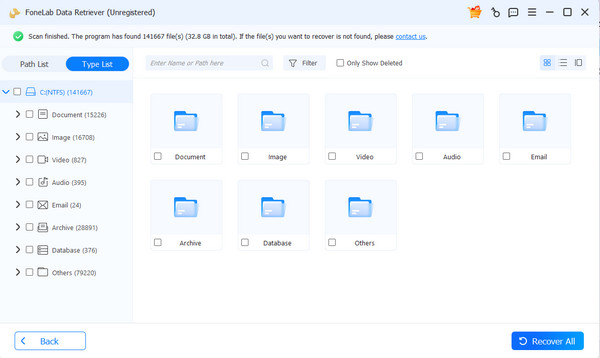
Step 2Allow the tool a few moments to scan and display your drive's data. Data type folders will appear for you to explore. Open them to find and select the lost files you wish to retrieve. Then, continue with the Recover All option, restoring them.
Part 4. Free Windows Logical Fixes
Multiple free logical fixes are available for Windows, but you don't need to search elsewhere, as we have listed the most trustworthy ones below.
Option 1. Fix a Missing Drive Letter
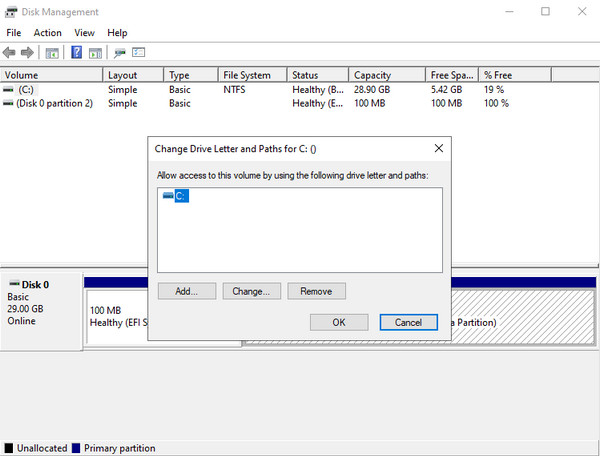
Does your external hard drive seem to be working fine, but you cannot view it? If so, your computer may not have given it a letter; that’s why it doesn’t show up. This happens sometimes after a system update or when plugging into a new computer, so no worries. It can be easily fixed. Simply right-click your desktop’s Start option and choose Disk Management. When the window pops up, right-click your external drive from the list to select Change Drive Letter and Paths. Following that, hit Add and pick any available letter from the dropdown, then click OK.
Option 2. Driver Reinstallation
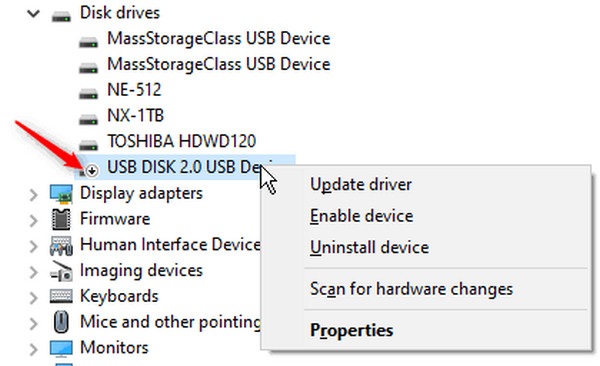
Sometimes the problem lies in a corrupted driver and not the drive itself. This can happen after a system update or a sudden disconnect. When drivers break, your computer won't detect the drive properly. To fix it, open Device Manager by right-clicking Start. Next, right-click your drive under Disk Drives to view further options and select Uninstall device. Once done, restart your computer and plug the driver back in. Windows will then reinstall it automatically.
Option 3. The CHKDSK Warning
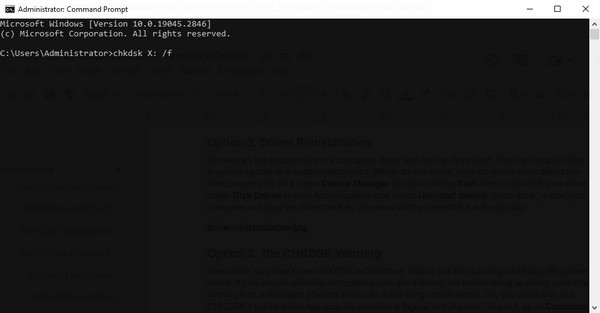
Meanwhile, you may know CHKDSK as Windows’ built-in tool for scanning and fixing file system errors. It can also be effective for repairing corrupted drives, but before doing anything, note that running it on a damaged physical drive can make things much worse. So, you must only use CHKDSK if you're sure the problem is logical, not physical. To run it, open Command Prompt as administrator and type chkdsk X: /f (replace X with your drive letter). Afterward, press Enter and let the scan run. If the issue is logical, the tool will find and fix the error on your external drive.
Part 5. When to Call the Professionals
Unfortunately, not every data loss situation can be fixed by yourself. If your external hard drive makes clicking or grinding noises, or if you've tried the basic fixes and nothing worked, it's time to call a professional. They have specialized tools and rooms to resolve the issue, and although it is pricey, it will be worth it for your treasured files.
Part 6. Future-Proofing Your Data
As they say, prevention is better than a cure. So, to ensure you won’t experience data loss again in the future, always eject your drive properly before unplugging, invest in a quality drive, and save more backups if possible. A little effort now saves a huge headache later.
Part 7. FAQs about External Hard Drive Recovery
Can I recover data from my dead external hard drive?
It depends. If death means it won't spin or power on, that's physical failure, which requires professional help. But if it still powers on and isn’t detected, the methods above can help.
Can I open my external drive myself?
Yes, you can, but it is strongly suggested not to. Hard drives are delicate and require clean room conditions to open, opening it yourself risks permanently losing your data.
Regardless of the situation, choosing the right approach—whether one of the quick fixes above or FoneLab Data Retriever—will save your files.



