
 iPhone Data Recovery
 iOS System Recovery
 iOS Data Backup & Restore
 iOS Unlocker
 iPhone Password Manager
 Location Changer
 Android Data Recovery
 Broken Android Data Extraction
 Android Data Backup & Restore
 Android Unlocker
 FoneTrans for iOS
 iPhone Data Eraser
 iPhone Cleaner
 HEIC Converter
 HyperTrans
 WhatsApp Transfer for iOS
 Mac Sweep
 Data Retriever
 Mac Data Retriever
 Video Converter Ultimate
 Screen Recorder
 Phone Mirror
- Part 1. The Easiest Way – Use the Built-in Windows Update Troubleshooter
- Part 2. The Definitive Way – Reset Windows Update via Command Prompt (CMD)
- Part 3. Reset Windows Update via an Automated Script (.BAT)
- Part 4. Safety Net: What if the System Glitches and You Lose Files?
- Part 5. Advanced Troubleshooting: If the Reset Didn't Fix the Error
- Part 6. FAQs about Resetting Windows Update
 Recover PC Data Now
Recover the lost/deleted data from computer, hard drive, flash drive, memory card, digital camera and more.
Efficient Guide to Reset Windows Update Conveniently
 Updated by
 A Windows update reset is usually done when updates repeatedly fail to install, get stuck at a certain percentage, or cause your system to slow down. This situation could be caused by an issue, of course, but rather than wasting hours searching for the root cause, resetting the update would be the better answer, as it forces the update components to start fresh.
The corrupted files and stalled processes will be cleared out with a reset, and the best part is you don't need to be a tech expert to do it. There are effective ways to reset Windows Update, ranging from solutions that only take a few clicks to more advanced command-line methods. All you need to do is choose the most suitable process for your situation and perform its steps correctly, or you can also start with the simplest one. The choice is yours. Once done, we've also included further information, like a safety net for data loss, so don’t miss it in case you need it.


Guide List
- Part 1. The Easiest Way – Use the Built-in Windows Update Troubleshooter
- Part 2. The Definitive Way – Reset Windows Update via Command Prompt (CMD)
- Part 3. Reset Windows Update via an Automated Script (.BAT)
- Part 4. Safety Net: What if the System Glitches and You Lose Files?
- Part 5. Advanced Troubleshooting: If the Reset Didn't Fix the Error
- Part 6. FAQs about Resetting Windows Update
Part 1. The Easiest Way – Use the Built-in Windows Update Troubleshooter
The easiest way to reset Windows Update is to use the built-in Windows Update Troubleshooter. It's already built into your computer, waiting to scan for problems and fix them automatically, so no additional tool needs to be installed. This troubleshooting feature targets the usual reasons behind update failures, including things like corrupted temporary files, incorrect service settings, stuck background processes, etc. Since it's an official Microsoft tool, all you have to do is click a few buttons and let it run without worrying about it messing with your personal files or settings.
Follow the steps below to learn how to reset Windows update with Windows’ built-in update troubleshooter:
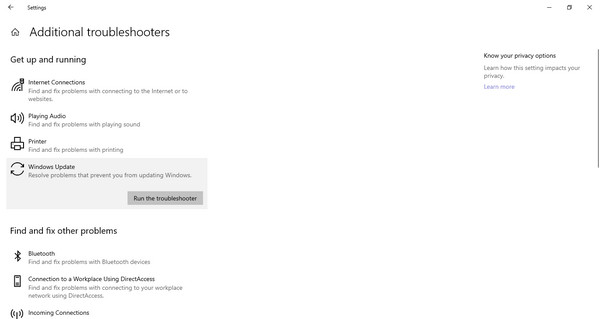
Step 1View your Windows Settings’ interface and navigate to the Update & Security section. After that, click on Troubleshoot > Additional troubleshooters. You will see Windows Update from the list, so choose it, then click Run the troubleshooter.
Step 2Wait while the troubleshooter scans your system for some update issues. If it finds a problem, follow any on-screen prompts to fix it. When done, restart the computer to try again.
Part 2. The Definitive Way – Reset Windows Update via Command Prompt (CMD)
Since the troubleshooter serves as a first aid solution, it may fail to fix more advanced issues. In this case, try using Command Prompt to reset Windows Update. By running the right commands, you can manually stop critical update services, clear out the temporary update cache, and restart everything from scratch. The process is more thorough because you're directly controlling each component instead of relying on an automated scan.
Follow the directions below to reset Windows update via Command Prompt or CMD:
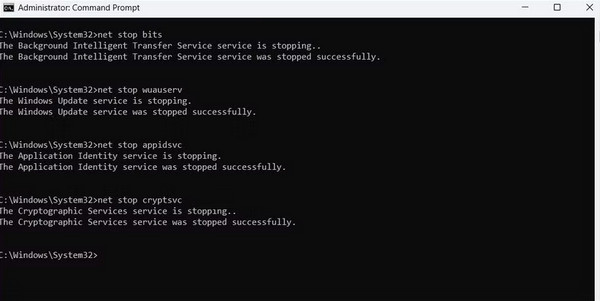
Step 1Initialize Command Prompt as an administrator, then enter these commands in succession: net stop wuauserv, net stop cryptSvc, net stop bits, and net stop msiserver to stop all the key update services. After that, enter ren C:\Windows\SoftwareDistribution SoftwareDistribution.old and ren C:\Windows\System32\catroot2 catroot2.old next.
Step 2They will let you rename the two folders where Windows stores update files and logs. When done, enter these again: net stop wuauserv, net stop cryptSvc, net stop bits, and net stop msiserver to restart the stopped services before restarting your PC.
Part 3. Reset Windows Update via an Automated Script (.BAT)
Typing a command can feel intimidating, especially with the risk of something going wrong when you make a single mistake. Hence, here's another technique—an automated script (.BAT)—that offers a balance of convenience and thoroughness. It offers the same premise as the Command Prompt, but instead of running commands, it uses a pre-written script, which is a small file with a .BAT extension. Simply running it delivers the same thorough reset as the manual command method, but without the risk of mistyping anything.
Follow the operation below for a Windows update reset via an automated script:
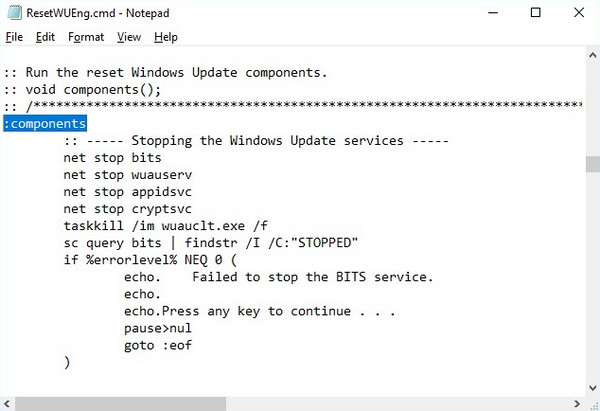
Step 1First, find a pre-made Windows Update reset script online. You may download the file or use Notepad to copy and paste the script manually. You must only ensure it is saved with the .BAT extension.
Step 2Once the file is ready, right-click it and pick Run as administrator from the menu. It will then automatically run to do the reset, so simply wait for it to finish, then restart the computer.
Part 4. Safety Net: What if the System Glitches and You Lose Files?
Even with the smoothest reset process, the small chance of something going wrong is always there. Maybe a power outage mid-process, a system freeze, or an unexpected glitch causes your files to go missing or become corrupted. It rarely happens, but it’s never wrong to be ready. Here's FoneLab Data Retriever, just in case. Losing important documents, photos, or work files can be stressful, but with a competent tool like this, recovering them becomes easy.
It is a well-known deleted computer data recovery tool that is developed to scan a computer or external drives to find and restore lost data. FoneLab Data Retriever supports diverse recoverable scenarios, such as a system crash, virus attack, accidental deletion, unwanted format, etc. While it works professionally, its intuitive design and functions are easy to use, even for beginners. Not to mention, it also offers a preview feature to help you ensure the right files.
FoneLab Data Retriever - recover the lost/deleted data from computer, hard drive, flash drive, memory card, digital camera and more.
- Recover photos, videos, documents and more data with ease.
- Preview data before recovery.
Recognize the procedure below as a pattern to recover files with FoneLab Data Retriever:
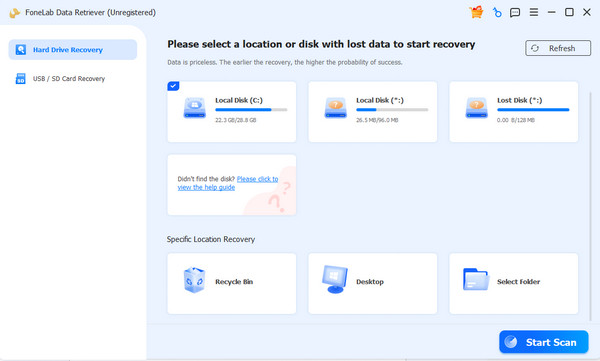
Step 1Download the FoneLab Data Retriever file using the Free Download tab. It will be in your Downloads folder shortly. Run the file to install the program, then launch it when done. Your disks will be listed on the interface; thus, select accordingly and click Start Scan.
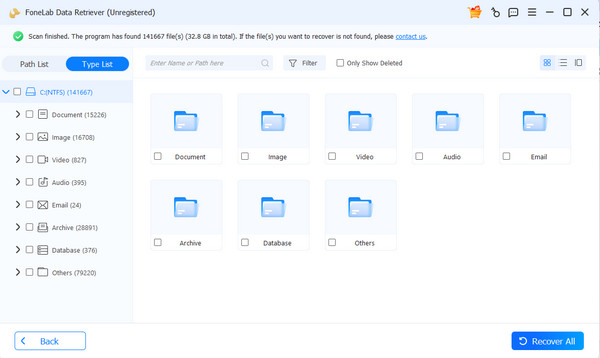
Step 2The scanning results will be on the following interface, containing the folders for various data types. Access them to locate your lost files, then tick their checkboxes. When you finish checking your desired items, select Recover All to finish.
Part 5. Advanced Troubleshooting: If the Reset Didn't Fix the Error
If the Windows update reset didn't fix the error, advanced troubleshooting may be needed. In this regard, try running the System File Checker command to repair corrupted system files. You can do this by initializing Command Prompt as an administrator, typing sfc /scannow, and pressing Enter. This action will scan all protected system files and replace the damaged ones with a cached copy. Let the scan finish, then restart your PC and check if updates work again.
Part 6. FAQs about Resetting Windows Update
Is admin privilege required to reset Windows Update?
Yes, it is. Both the Command Prompt and the .BAT script require administrator access to stop and restart system services for your Windows update.
How often should I reset the update on my Windows?
There's no need to reset it regularly, so do it only when updates are stuck or failing.
With the help of these methods, you can confidently handle almost any Windows Update issue and keep your PC running smoothly. Additionally, you have FoneLab Data Retriever as a safety net for your files



