
 iPhone Data Recovery
 iOS System Recovery
 iOS Data Backup & Restore
 iOS Unlocker
 iPhone Password Manager
 Location Changer
 Android Data Recovery
 Broken Android Data Extraction
 Android Data Backup & Restore
 Android Unlocker
 FoneTrans for iOS
 iPhone Data Eraser
 iPhone Cleaner
 HEIC Converter
 HyperTrans
 WhatsApp Transfer for iOS
 Mac Sweep
 Data Retriever
 Mac Data Retriever
 Video Converter Ultimate
 Screen Recorder
 Phone Mirror
- Part 1. Hard Reset vs. Factory Reset
- Part 2. How to Hard Reset a Frozen PC
- Part 3. How to Hard Reset Windows to Factory Settings
- Part 4. What If a Hard Reset Corrupted or Wiped Your Files?
- Part 5. Troubleshooting: What if Your PC Won't Turn On at All After a Hard Reset?
- Part 6. FAQs about How to Hard Reset PC
 Recover PC Data Now
Recover the lost/deleted data from computer, hard drive, flash drive, memory card, digital camera and more.
Painless Guide on How to Hard Reset PC Proficiently
 Updated by
 Learning how to hard reset a PC is an essential skill all users should have. While it may sound intimidating, it's actually a simple procedure that can be easily learned. That’s because, whether you have already experienced it or not, there are times when a computer freezes or becomes completely unresponsive. Perhaps the mouse refuses to move, no keyboard shortcuts work, and even Task Manager can’t open. In those moments, a hard reset is the quickest solution.
That said, this article will provide you with the proficient methods for hard resetting a PC. The following sections cover all the necessary information you need to understand what this action actually means and does. The step-by-step procedures in each section will guide you through the process painlessly. Aside from that, you can also expect a powerful recovery program in case something goes wrong and causes you to lose your files.

Guide List
- Part 1. Hard Reset vs. Factory Reset
- Part 2. How to Hard Reset a Frozen PC
- Part 3. How to Hard Reset Windows to Factory Settings
- Part 4. What If a Hard Reset Corrupted or Wiped Your Files?
- Part 5. Troubleshooting: What if Your PC Won't Turn On at All After a Hard Reset?
- Part 6. FAQs about How to Hard Reset PC
Part 1. Hard Reset vs. Factory Reset
Before diving into the procedures, let us first clear up a common confusion. There is a difference when you say you want a “hard reset PC” or “factory reset PC.” Yes, you read that right. Please understand that a hard reset is simply a forced restart, cutting the power to your PC and rebooting it without deleting or changing anything in your files, settings, or programs. Basically, it's a hardware-level action used when your system freezes or becomes unresponsive.
Meanwhile, a factory reset is a software process that wipes everything and restores your PC to its original state, like when you first turned it on. It erases all your personal data, installed programs, and customized settings, so it has a very different purpose than a hard reset. Knowing the difference is necessary because mixing them up could lead to accidental data loss. Maybe your only plan is to force-reboot the computer, but you end up deleting everything—all because you unintentionally performed a factory reset rather than a hard reset.
Part 2. How to Hard Reset a Frozen PC
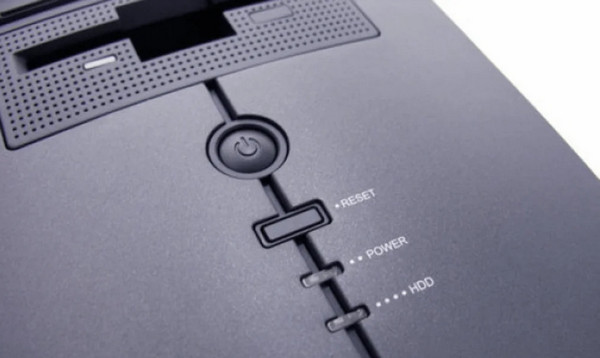
Now that the distinction between the two resets is clear, it’s time to get into the process. The first one you should learn is the physical method, which is especially helpful when your PC freezes completely. It will force the hardware to cut power and restart, bypassing the frozen state. You must simply press and hold the physical Power button on your computer or laptop for about 5 to 10 seconds until the system shuts down completely. After a few seconds, press the Power button again to turn your PC back on.
Meanwhile, if you use a desktop PC, you might find a Reset button, smaller than the Power button. If available, it performs the same function; thus, you may use it instead. Just note that a hard reset should only be used when no other option works. It’s not a proper shutdown process, so it won’t give the programs currently running on your computer the time to save progress or close properly. That’s why it is only recommended as a last resort.
Part 3. How to Hard Reset Windows to Factory Settings
Unlike the physical hard reset in the previous section, this one uses the software method to hard reset your Windows computer to its factory settings. It is performed within Windows, specifically in Settings, so it works best when the computer is experiencing slow performance or slight lagging instead of being completely frozen. It works by reinstalling a fresh copy of the operating system while giving you the choice to either keep your personal files or remove everything.
Follow the process below to learn how to hard reset PC to factory settings:
Step 1Present the Settings interface by pressing Windows + I, then proceed to the Update & Security section. Next, click Recovery on the left and click Get Started under Reset this PC.
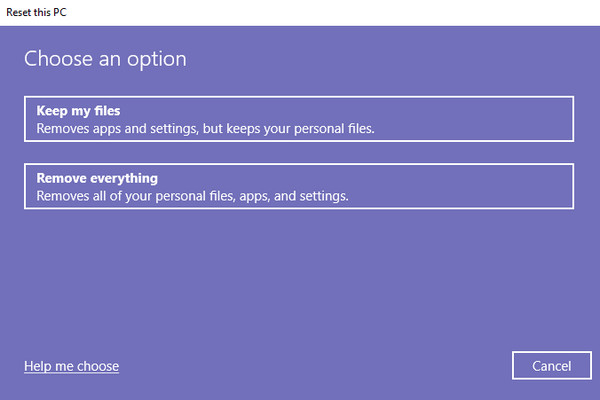
Step 2Once the Choose an option screen appears, click Keep my files and pick again between Cloud download or Local reinstall accordingly. Then, follow the prompts to finish.
Part 4. What If a Hard Reset Corrupted or Wiped Your Files?
While a hard reset doesn't typically erase your data, situations where things go wrong and cause data loss are not impossible. For instance, a sudden power interruption during a system update, an improper shutdown, or a failed restart attempt can sometimes lead to corrupted files or, worse, lost documents, photos, and other data. In such cases, preparing a capable recovery tool, like FoneLab Data Retriever, is helpful, or even necessary.
It is created to recover deleted file on PC, supporting almost any data type in numerous formats. The program even offers a deep scan to recover specific files that even other recovery methods can’t find due to its thorough searching capability. Additionally, it has a high success rate. Although it was designed professionally, you don’t need to be intimidated, as its interface and functions are beginner-friendly. Besides, more helpful features are available.
FoneLab Data Retriever - recover the lost/deleted data from computer, hard drive, flash drive, memory card, digital camera and more.
- Recover photos, videos, documents and more data with ease.
- Preview data before recovery.
Follow the instructions below as a pattern to recover your wiped files with FoneLab Data Retriever:
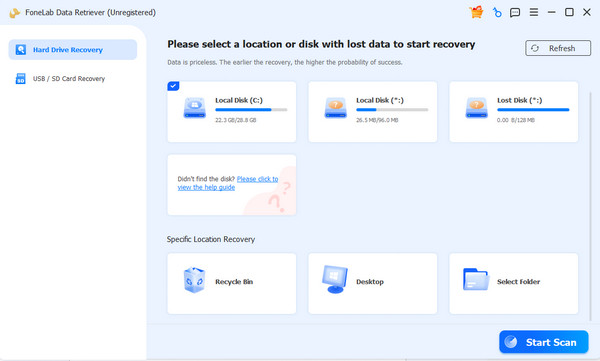
Step 1To download FoneLab Data Retriever is the Free Download button. Click it, and once you have the file, use it for the installation. You may immediately start the program afterward. Launch it, click your drive on the main interface, then click Start Scan.
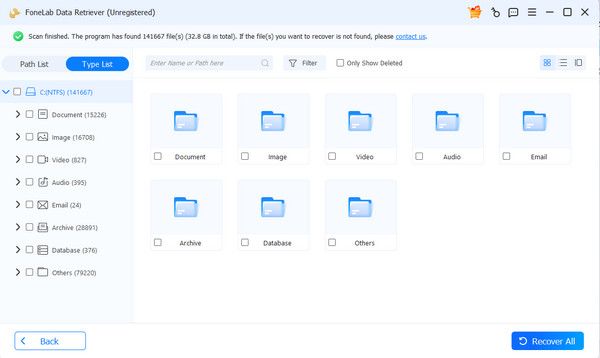
Step 2The scanning results will then appear, presenting a specific folder for each data type. Start browsing them for the files you want to restore, and once you find the items, mark their checkboxes. Then, you can click Recover All to start the recovery process.
Part 5. Troubleshooting: What if Your PC Won't Turn On at All After a Hard Reset?
If your PC still refuses to power on after a hard reset, don't be alarmed just yet. If it has no lights, no fan noise, no display, etc., the issue could be due to a drained battery (for laptops), so the first thing to do is try charging it. Meanwhile, a loose connection or faulty power cable could also be the reason. Try disconnecting and unplugging everything, then hold down the Power button for about 30 seconds. This way, any residual charge will be drained. Afterward, plug everything back in and attempt to power on again.
Part 6. FAQs about How to Hard Reset PC
Is a hard reset bad for my computer?
Doing a hard reset occasionally is fine. However, doing it frequently can increase the risk of file corruption or hard drive damage, so you should only use it when necessary.
Can I hard reset my PC if it's infected with a virus?
A physical hard reset may temporarily stop the virus from running, but it won't remove it. A factory reset or using an antivirus is recommended for such concerns.
A hard reset is a simple yet powerful skill that every PC user should master. Just make sure to use it wisely to avoid unfortunate circumstances like data loss. But if it's inevitable, don't worry—FoneLab Data Retriever can be installed at any time.



