
 iPhone Data Recovery
 iOS System Recovery
 iOS Data Backup & Restore
 iOS Unlocker
 iPhone Password Manager
 Location Changer
 Android Data Recovery
 Broken Android Data Extraction
 Android Data Backup & Restore
 Android Unlocker
 FoneTrans for iOS
 iPhone Data Eraser
 iPhone Cleaner
 HEIC Converter
 HyperTrans
 WhatsApp Transfer for iOS
 Mac Sweep
 Data Retriever
 Mac Data Retriever
 Video Converter Ultimate
 Screen Recorder
 Phone Mirror
 Get Mac Data Recovery Now
Recover the lost/deleted data from computer, hard drive, flash drive, memory card, digital camera and more.
All About Mac Recovery Key: A Comprehensive Guide
 Updated by
 Do you need your Mac or MacBook recovery key? Whether you’re setting up FileVault for the first time or troubleshooting a login issue, this string of characters can be the perfect solution. Many Mac users browse their security settings without fully understanding what this key does or why it matters — until an urgent situation forces them to search for it.
If you're interested in learning what this Mac recovery key is all about, feel free to read this guide. The following sections cover everything you need to know about the key and how to use it when needed. Don't go away — we've also included additional methods to help if you lose your Mac data. All necessary information — including details and processes — will be covered.


Guide List
Part 1. What is Mac Recovery Key
Simply put, the Mac OS recovery key is a randomly generated set of letters and numbers that provides an additional layer of security for your device. Apple automatically creates this key when you turn on FileVault, which is the disk encryption program built into macOS. If this is your first time hearing about it, the recovery key serves as a master emergency key that can unlock your hard drive if you forget your regular login password.
The main purpose of this key is to give you access to your Mac when standard recovery methods fail. So, if you can’t use your iCloud account for recovery, the recovery key is a good alternative. Meanwhile, every recovery key is unique to the device it belongs to. Hence, you can’t use one Mac’s recovery key to unlock another. Think of it as your final safety net. As long as you have it, you will be able to regain control of your Mac even after forgetting the password.
Part 2. How to Use Mac Recovery Key
Now that you understand what the Mac recovery key is, the next logical question is, how would you actually use it when the time comes? Many users assume that using the recovery key is complicated or technical, but the good news is that Apple has designed the process to be straightforward. All you need to do is locate your recovery key and use it when resetting a forgotten login password on a FileVault-encrypted Mac.
Follow the painless task below to learn how to use the Mac recovery key:
Step 1Restart your Mac and immediately hold down Command + R until the Apple logo is presented, which boots you into macOS Recovery. When the Recovery screen loads, select your user account and choose Forgot all passwords?.
Step 2Once prompted to use your Apple credentials, select Use Recovery Key instead of using your Apple ID, then type the key accordingly. Once verified, you can create a new login password to restart and log in to your Mac with it.
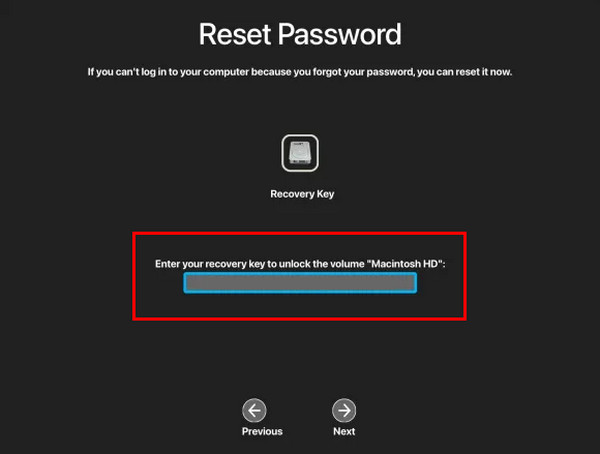
If you don’t know where to find the key, head to System Settings. Then, select Apple ID > Password & Security, and hit Manage next to Recovery Key. Finally, authenticate your password to view the key.
Part 3. What to Do When You Lose Data on Mac
Aside from losing access, losing data is also frequent when users get locked out of their Mac computers. Therefore, we've prepared some helpful solutions in case your Mac loses data — whether due to being locked out or other situations.
Option 1. Use Time Machine
Time Machine is Apple's built-in backup feature that comes free with every Mac. If you have ever connected an external hard drive to your Mac and turned on Time Machine, chances are your system has been quietly saving copies of your files in the background. It makes it the first and most straightforward option to consider when you lose data. However, Time Machine works best when set up in advance. If you have never connected a backup drive or enabled the feature, this option may not be available.
Follow the convenient directions below to recover files with Time Machine when you lose data on a Mac:
Step 1Connect your Time Machine backup drive to your Mac, then open the folder where your deleted or lost files were originally stored. Afteward, click the Time Machine icon in the menu bar and select Enter Time Machine.
Step 2Once you enter, scroll through the available backups until you find the version of your file or folder that you want to restore. Then, select the item and hit Restore to recover it.

Option 2. Try FoneLab Mac Data Retriever
Suppose you haven’t enabled any backup, like Time Machine, no worries. Professional recovery programs, like FoneLab Mac Data Retriever, exist specifically for situations like this. Unlike Time Machine, which relies on having pre-existing backups, this deleted computer data recovery tool scans your Mac's storage drive directly to find files that have been deleted or lost.
Besides, FoneLab Mac Data Retriever is designed to handle a variety of data loss scenarios, not just those caused by being locked out of your Mac. Whether you accidentally emptied the Trash, formatted a drive, lost files due to a system crash, etc., this tool will be able to help. That’s not all. Among its main advantages is its simplicity, since you don’t need to be an expert to use it. Its interface is designed to guide you through the recovery process step by step.
FoneLab Data Retriever - recover the lost/deleted data from computer, hard drive, flash drive, memory card, digital camera and more.
- Recover photos, videos, documents and more data with ease.
- Preview data before recovery.
Grasp the easy operation below to recover data on a Mac with FoneLab Mac Data Retriever:
Step 1Using the Free Download button, download FoneLab Mac Data Retriever’s installer and launch it from your Downloads folder to set up the program. Later, pick the appearing Start button and let it run and launch on your desktop. Then, mark your file types on the interface.
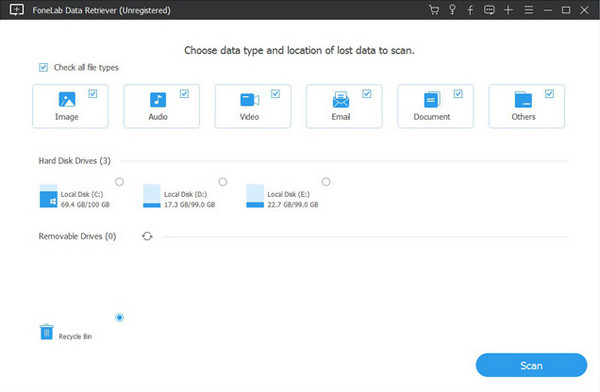
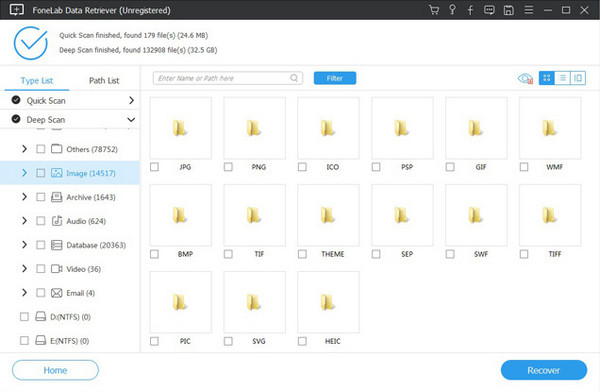
Step 2Following that, select the drive that formerly contained your deleted data before proceeding with the Scan button. When ready, open each folder that appears to find and select the items you wish to return. Then, select Recover to restore them.
Part 4. FAQs about Mac Recovery Key
What happens if I lose my Mac recovery key?
If you lose your recovery key and also forget your login password, you will be locked out of your Mac because there is no way to reset the password without it.
Can I change my Mac recovery key?
Yes, you can generate a new recovery key at any time by going to System Settings > Apple ID > Password & Security, then turning off and back on the recovery key option.
Keep your Mac recovery key safe and accessible, as it can help you access your Mac if you ever forget your password. Meanwhile, rely on Time Machine or a specialized tool like FoneLab Mac Data Retriever to recover your deleted or lost data safely.



