
 iPhone Data Recovery
 iOS System Recovery
 iOS Data Backup & Restore
 iOS Unlocker
 iPhone Password Manager
 Location Changer
 Android Data Recovery
 Broken Android Data Extraction
 Android Data Backup & Restore
 Android Unlocker
 FoneTrans for iOS
 iPhone Data Eraser
 iPhone Cleaner
 HEIC Converter
 HyperTrans
 WhatsApp Transfer for iOS
 Mac Sweep
 Data Retriever
 Mac Data Retriever
 Video Converter Ultimate
 Screen Recorder
 Phone Mirror
- Part 1. Quick Diagnostic: Is It Your Laptop or Your Router?
- Part 2. Toggle Airplane Mode On and Off
- Part 3. Check WiFi Driver Status in Device Manager
- Part 4. Run Windows Network Troubleshooter
- Part 5. Reset Network Settings
- Part 6. Remove & Forget WiFi Network
- Part 7. Check for Hardware Switches
- Part 8. Recover Lost Data Using FoneLab Data Retriever
- Part 9. FAQs about Laptop Not Connecting to WiFi
 Recover PC Data Now
Recover the lost/deleted data from computer, hard drive, flash drive, memory card, digital camera and more.
6 Trustworthy Fixes for Laptop Not Connecting to WiFi
 Updated by
 Why won’t my laptop connect to WiFi? A friend recently returned my laptop, which he had borrowed a few weeks ago for school. However, it fails to connect to my WiFi, and I have no idea whether the issue is with the laptop or the router. Will anybody please help me figure this out? I’m gonna use it at work soon, so I must connect it as quickly as possible.
There are various possible causes of a laptop that can’t connect to WiFi, from simple glitches and outdated settings to more serious hardware or network problems. Luckily, there are multiple solutions to this problem, and it’s only a matter of choosing the one that suits your laptop’s situation. That said, the following sections will walk you through 6 reliable fixes to help you get your laptop back online. Perform the methods step by step to ensure success.

Guide List
- Part 1. Quick Diagnostic: Is It Your Laptop or Your Router?
- Part 2. Toggle Airplane Mode On and Off
- Part 3. Check WiFi Driver Status in Device Manager
- Part 4. Run Windows Network Troubleshooter
- Part 5. Reset Network Settings
- Part 6. Remove & Forget WiFi Network
- Part 7. Check for Hardware Switches
- Part 8. Recover Lost Data Using FoneLab Data Retriever
- Part 9. FAQs about Laptop Not Connecting to WiFi
Part 1. Quick Diagnostic: Is It Your Laptop or Your Router?
As mentioned, the problem may lie with either your laptop or your router. Before trying any fixes, run a quick diagnostic. The fastest way to do this is to check whether your other devices, such as your phone or tablet, can connect to the same WiFi network. If they connect properly, the issue is likely with your laptop. Meanwhile, if none of your devices can connect, the problem is probably with the router or internet service. You can also try connecting your laptop to a different WiFi network, such as a hotspot, to see if it works.
Part 2. Toggle Airplane Mode On and Off
Starting with the simplest solution, you can toggle Airplane mode on and off. The laptop's WiFi adapter can occasionally get stuck, so doing this could reset its connection. It is among the easiest solutions to try when your laptop WiFi not connecting on laptop.
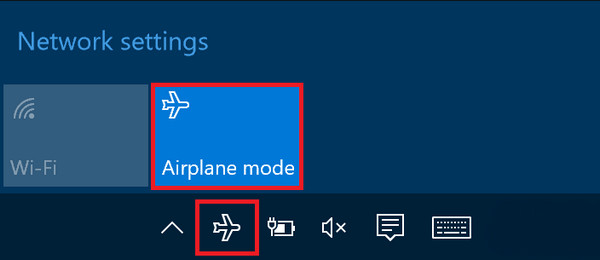
Step 1Click the WiFi icon in the bottom-right of your taskbar to open the quick settings panel.
Step 2The Airplane mode symbol is on the lower display, so click it to turn the feature on. Wait for a few seconds before clicking it again to turn it off and see if you connect to WiFi.
Part 3. Check WiFi Driver Status in Device Manager
Meanwhile, Device Manager is a built-in Windows tool that shows you all the hardware connected to your laptop, including your WiFi adapter. If your WiFi driver is disabled, outdated, or has a warning symbol next to it, it could be why your laptop won’t connect. Checking this section will help you confirm if you need to reinstall or update the WiFi driver.
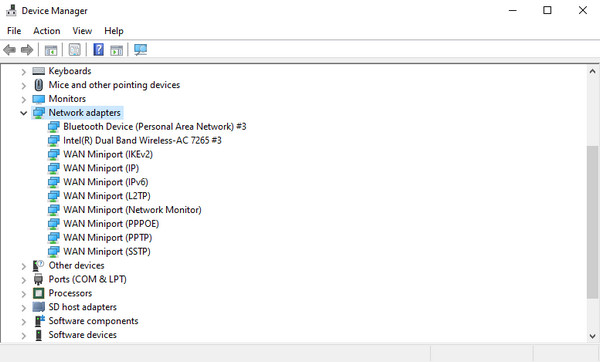
Step 1Right-click the Start menu to view and select the Device Manager option. When the window appears, expand the Network adapters section to find your WiFi adapter.
Step 2Check if there's a warning symbol next to it, and if so, right-click the adapter and choose Enable device or Update driver to fix your WiFi issue.
Part 4. Run Windows Network Troubleshooter
Windows also offers a built-in tool called the Network Troubleshooter that can help when your laptop can’t connect to WiFi. It can automatically detect and fix common WiFi problems by scanning your network settings, adapter, and connection when issues arise. This option is suitable if you’re not comfortable manually handling the more advanced methods.
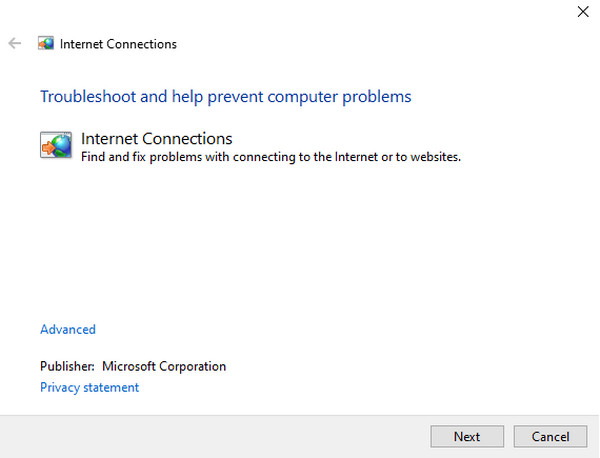
Step 1Search for “network troubleshooter” using your laptop’s Start menu, then select Find and fix network problems from the results.
Step 2On the upper part of the window, select Troubleshoot and help prevent computer problems. Then, let the on-screen prompts guide you in fixing the problem.
Part 5. Reset Network Settings
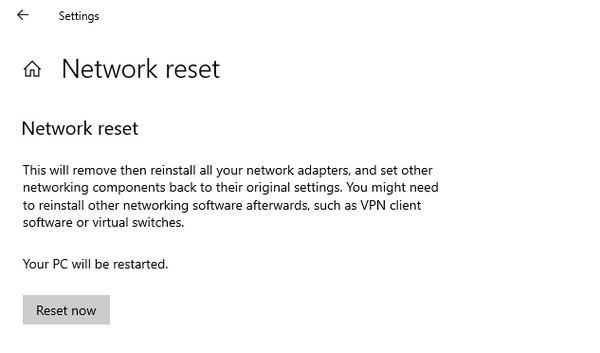
Resetting your network settings is also an option. It removes any saved WiFi networks, passwords, and custom settings that may have become corrupted over time, restoring your laptop’s network settings to their default state. Although it requires you to reconnect to the WiFi and enter the password again afterward, it resolves the issue your laptop is facing.
Step 1Open Settings, and once the window appears, go to the Network & Internet option.
Step 2At the bottom of Advanced network settings, select Network reset, then click the Reset now button on the following screen.
Part 6. Remove & Forget WiFi Network
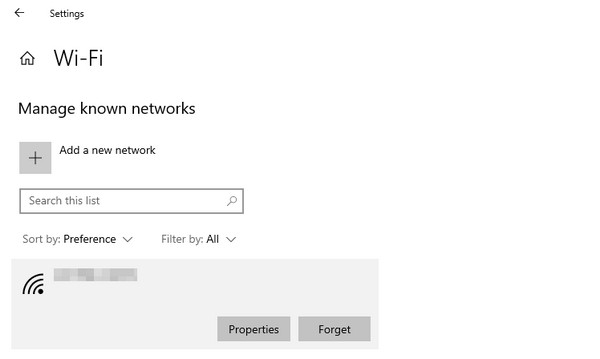
Sometimes your laptop remembers an old or corrupted version of your WiFi network, preventing it from connecting properly. In this case, a suitable solution is to remove and forget the WiFi network. This way, all saved details, including data and settings, will be removed, along with any corruption or issues that may be the cause of your laptop not connecting to internet.
Step 1Launch Settings, then go to the Network & Internet section. Next, select Wi-Fi in the left column and click Manage known networks.
Step 2Once the list of networks you've connected to appears, select your WiFi network and tap Forget. After a few moments, reconnect using the password.
Part 7. Check for Hardware Switches
On the other hand, some laptops have a physical switch or a keyboard shortcut that turns WiFi on and off. So, if it accidentally gets bumped or toggled, you won’t be able to connect to any network. Taking a moment to check can save you from unnecessary troubleshooting. Simply look along the sides and front edge of your laptop for a physical WiFi switch and make sure it's turned on. You can also check your keyboard for a WiFi function key.
Part 8. Recover Lost Data Using FoneLab Data Retriever
Being unable to connect to the WiFi is a network issue, but, like other problems, it could lead to unpredictable results. Hence, we included FoneLab Data Retriever as a safety net, letting you recover files if you experience sudden data loss, whether due to a WiFi issue or a failed solution. This tool is known to be effective for Windows data recovery.
FoneLab Data Retriever - recover the lost/deleted data from computer, hard drive, flash drive, memory card, digital camera and more.
- Recover photos, videos, documents and more data with ease.
- Preview data before recovery.
If you’re worried about complications, no worries, because FoneLab Data Retriever is designed for beginners, offering a user-friendly interface and functions. It can recover deleted files on PC, including videos, documents, photos, emails, and more. Whether the data loss is due to corruption, formatting, or another issue, this tool can recover your files.
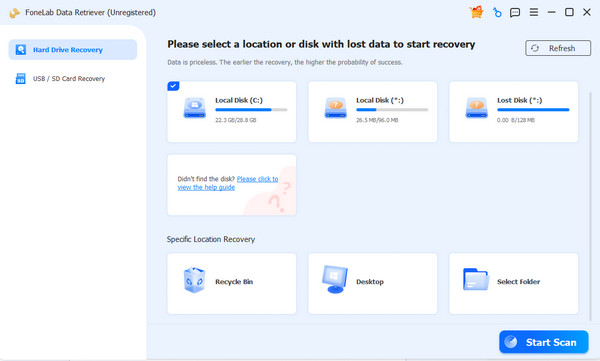
Step 1Using Free Download, save the FoneLab Data Retriever file, then complete the installation in the Downloads section. When done, start the program and select your drive on the upper interface. Afterward, click Start Scan.
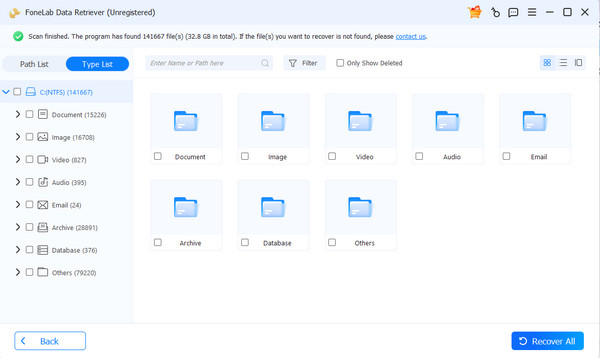
Step 2The following screen will display the data-type folders for your deleted files. Explore them to find the items you intend to restore, then click their checkboxes. Finally, hit Recover All.
Part 9. FAQs about Laptop Not Connecting to WiFi
Does resetting network settings delete my files?
No, it doesn’t. It only removes saved WiFi networks and resets network-related settings. Your personal files won’t be affected.
How often should I update my WiFi driver?
You don't need to update it often—only update when you're having connection problems or when Windows recommends it.
With these six trustworthy fixes, you should be able to get your laptop back online quickly. And if data loss occurs, FoneLab Data Retriever will be there to help.



