
 iPhone Data Recovery
 iOS System Recovery
 iOS Data Backup & Restore
 iOS Unlocker
 iPhone Password Manager
 Location Changer
 Android Data Recovery
 Broken Android Data Extraction
 Android Data Backup & Restore
 Android Unlocker
 FoneTrans for iOS
 iPhone Data Eraser
 iPhone Cleaner
 HEIC Converter
 HyperTrans
 WhatsApp Transfer for iOS
 Mac Sweep
 Data Retriever
 Mac Data Retriever
 Video Converter Ultimate
 Screen Recorder
 Phone Mirror
 Recover PC Data Now
Recover the lost/deleted data from computer, hard drive, flash drive, memory card, digital camera and more.
Notable Fixes for File Explorer Not Responding with Guide
 Updated by
 “Why is my File Explorer not responding?” It's a question that has likely crossed your mind while waiting too long for File Explorer to load. Perhaps you double-clicked a folder, and the little blue loading circle spins, but nothing happens. Instead of proceeding with your navigation, the screen freezes, leaving you annoyed and wasting your time.
Unfortunately, this is one of the most common issues on Windows that halts users’ productivity in an instant. But before you get more frustrated or even alarmed, thinking it will lead to a worse issue on your computer, here’s some good news. An unresponsive or frozen File Explorer can be resolved using different techniques. Whether the reason this happens is a minor glitch, cache corruption, or an incorrect setting, you can rely on the solutions provided in the following sections. You are also welcome to learn about the suggested recovery tool for potential data loss later in this article.

Guide List
Part 1. How to Unfreeze File Explorer Instantly
Below are the simplest solutions to instantly unfreeze your File Explorer that isn’t responding. They work without rebooting the Windows computer, so expect a quick fix.
Step 1: The Task Manager Route
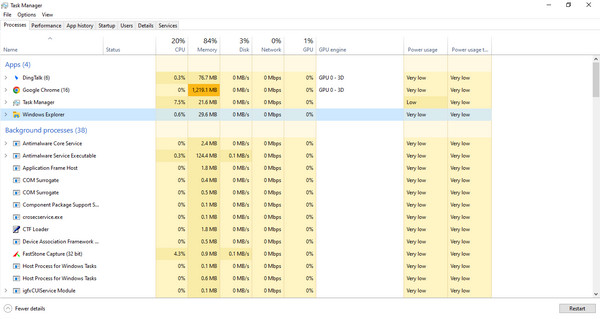
Task Manager is a built-in Windows utility that shows the programs and processes currently running on your computer. It allows you to see which ones are active at the moment and how much memory or CPU power each item is using. Now, the good news is that it also offers an option that can easily force-stop and refresh any of the processes, including the ones that are misbehaving, like your File Explorer. So, instead of restarting your PC, you can do this to restart the utility.
The process is simple: press Windows + Alt + Delete first, then choose Task Manager. Once the Task Manager window is presented, find and select Windows Explorer under the Apps section. Then, select Restart at the bottom right. Your screen may flicker briefly, but that is normal. It will reload Windows Explorer not responding for it to work properly again.
Step 2: The Command Prompt (CMD) Force-Restart
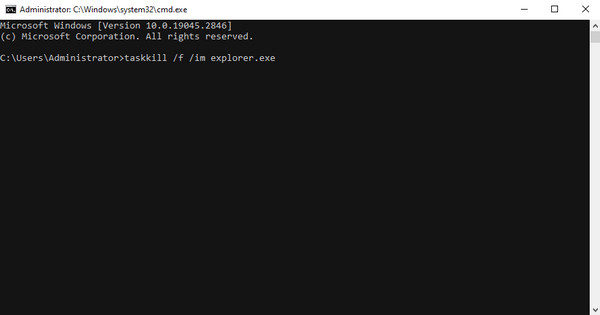
Command Prompt or CMD is Windows’ built-in text-based interface, where you can run specific commands for fixing issues and managing some aspects. Hence, you can use it to perform tasks that are not usually accessible on regular utilities with a graphical interface. In this case, you can use a specific command to end and restart your File Explorer manually.
Simply open your Command Prompt as an administrator, then enter the taskkill /f /im explorer.exe command. The File Explorer will then forcefully end. To relaunch it, type start explorer.exe and press Enter. The screen may flicker briefly.
Part 2. Step-by-Step Fixes for Permanent File Explorer Freezes
If the problem persists despite performing the instant solutions, it's time to try step-by-step fixes for permanent File Explorer freezing issues.
Method 1: Clear File Explorer History & Quick Access Cache
This method clears the stored data that File Explorer uses to display your recent files and frequently accessed folders. Over time, the cache and history can pile up and become corrupted or overloaded, causing the program to lag or freeze when you’re trying to load it. Clearing the File Explorer history and Quick Access cache gives File Explorer a fresh start.
Follow the guide below to fix File Explorer not responding by clearing history and cache:
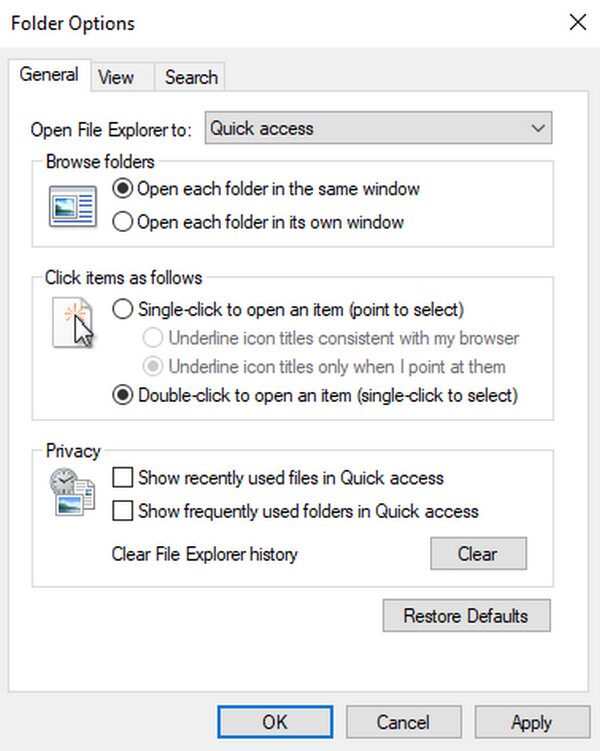
Step 1Open File Explorer and click the View tab at the top. When the View section is displayed, select Options from the far right. A dialogue box will pop up next.
Step 2In the General tab, focus on the Privacy section to click the Clear button, erasing the File Explorer History. In the same section, uncheck both Quick Access options, then click Apply.
Method 2: Disable Third-Party Shell Extensions
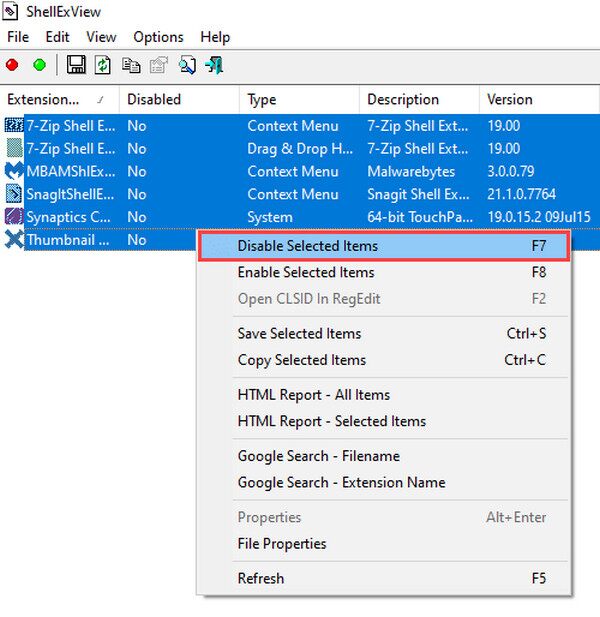
Third-party Shell extensions are small add-ons integrated with File Explorer, adding extra features, such as context menu options or file previews. Naturally, they are designed to be useful, but if poorly coded or outdated, they could disrupt File Explorer's normal operation, leading to frequent freezes or unresponsiveness. So, disable them and see if it fixes the issue.
Follow the directions below to repair Windows File Explorer not responding by disabling third-party Shell extensions:
Step 1Download and run ShellExView on the desktop, and when the interface is presented, click View > Options from the top menu.
Step 2After that, select all non-Microsoft extensions, right-click them, and choose Disable Selected Items, then restart your computer for the changes to take effect.
Method 3: Turn Off Preview Pane and Details Pane
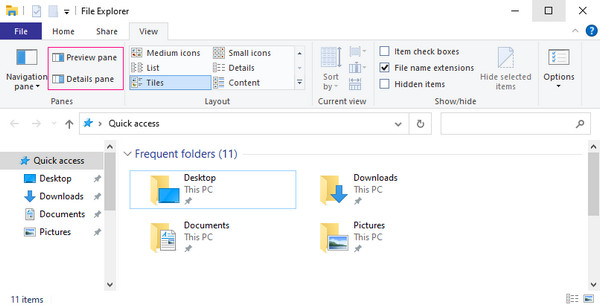
The Preview Pane and Details Pane are convenient built-in features on File Explorer that let you view a thumbnail or file information without opening the actual file. However, they require the program to continuously read and load your data in real time, which may strain system resources and cause delays or freezes. Turning them off reduces resource usage, making File Explorer run more smoothly.
Follow the procedure below to fix Windows Explorer not responding by turning off the Preview Pane and Details Pane:
Step 1Open File Explorer, then hit the View tab at the top. Following that, locate the Preview Pane and Details Pane options in the upper left section.
Step 2Click each one to toggle the features off. Once they’re no longer highlighted, close and reopen File Explorer to see if the issue is now resolved.
Part 3. What If File Explorer Crashed During a File Transfer?
It is frustrating when your File Explorer suddenly crashes during a normal workday. However, the timing couldn't be worse if it happens while you're transferring important files. That's because an interrupted file transfer is among the common causes of data loss—files can become corrupted, deleted, or simply disappear. In this case, FoneLab Data Retriever is highly recommended.
This program can recover deleted file on PC, regardless of your recovery situation. Images, videos, documents, emails, audio files, and more are supported and can be retrieved from various storage devices, including your computer's internal hard drive. It is also perfect for beginners, especially with its intuitive features, like preview, search, and filter functions.
FoneLab Data Retriever - recover the lost/deleted data from computer, hard drive, flash drive, memory card, digital camera and more.
- Recover photos, videos, documents and more data with ease.
- Preview data before recovery.
Follow the easy steps below to recover your files with FoneLab Data Retriever:
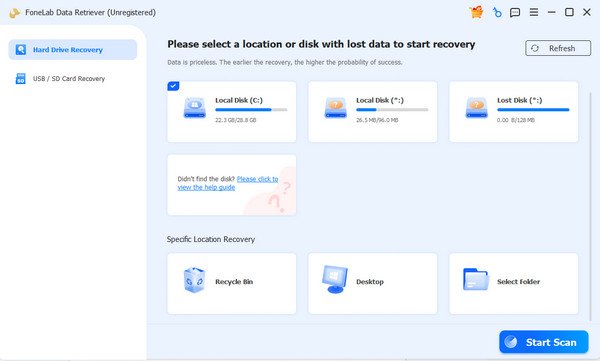
Step 1Begin FoneLab Data Retriever’s installation by choosing Free Download first. The saved file will let you set up and install the program, so when ready, click Start. The main interface will appear next; thus, click your drive from the options, then select Start Scan.
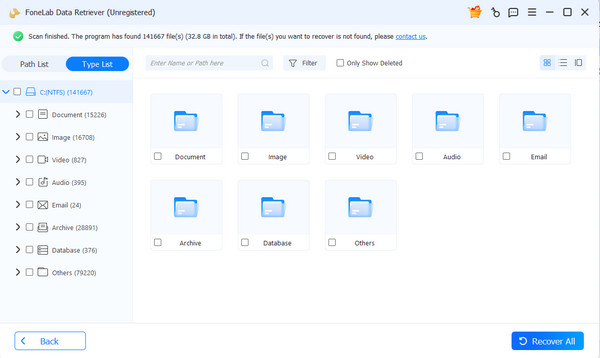
Step 2After scanning, the interface containing the results will show folders for each data type. Delve into them to find the files you wish to recover, then click their checkboxes. Once satisfied, choose Recover All for restoration.
Part 4. FAQs about File Explorer Not Responding
Does restarting File Explorer delete my files?
No, it doesn’t. Restarting File Explorer only refreshes the program itself. Your files and folders remain completely safe.
Will clearing the Quick Access cache remove my pinned folders?
No, it won't. It only removes your recent file history, and your pinned folders will stay exactly where you placed them.
With these simple fixes and recovery options at your disposal, you can now handle any File Explorer freeze with confidence and get back to work without feeling alarmed.



