
 iPhone Data Recovery
 iOS System Recovery
 iOS Data Backup & Restore
 iOS Unlocker
 iPhone Password Manager
 Location Changer
 Android Data Recovery
 Broken Android Data Extraction
 Android Data Backup & Restore
 Android Unlocker
 FoneTrans for iOS
 iPhone Data Eraser
 iPhone Cleaner
 HEIC Converter
 HyperTrans
 WhatsApp Transfer for iOS
 Mac Sweep
 Data Retriever
 Mac Data Retriever
 Video Converter Ultimate
 Screen Recorder
 Phone Mirror
 Recover PC Data Now
Recover the lost/deleted data from computer, hard drive, flash drive, memory card, digital camera and more.
How to Restart Computer Using Windows & macOS
 Updated by
Restarting or shutting down a desktop device (macOS or Windows) is an easy task everyone is familiar with. However, as users continue to use their desktop devices, various problems can arise, and users must know how to resolve them.
For example, the device may suddenly freeze, or it may do nothing when you try to shut down or restart it. So this guide is the perfect opportunity to learn other ways to restart a computer, including standard methods, keyboard shortcuts, emergency restarts, and more. This article covers everything a user needs to know about restarting their PC with ease.


Guide List
Part 1. The Standard Methods for Restarting Windows & macOS
How to Restart a Windows Computer
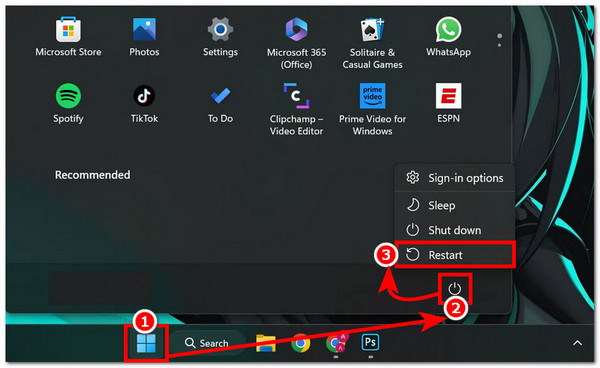
To restart a Windows computer, the simplest way is to access the computer’s Start Menu.
Step 1Simply click the Start Menu icon in the lower-left corner of your Windows screen, then find and click the Power icon, usually located at the bottom or edge of the Start Menu.
Step 2Once you have found the Power icon and clicked on it, it will expand and show you all the things you may do with it. To reboot your Windows computer, simply select the Restart option, and your Windows device should restart automatically.
How to Restart a macOS Computer
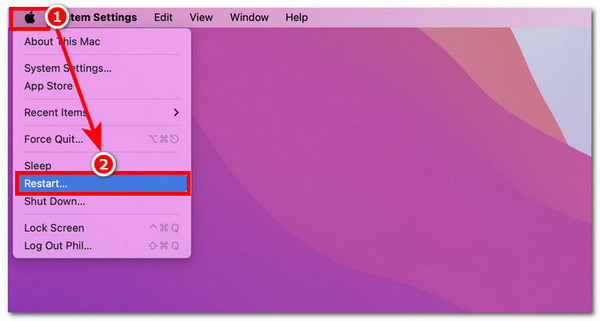
Step 1To restart a macOS computer, simply head over to the upper-left corner of your screen and click the Apple logo to access your macOS Apple Menu.
Step 2Once you have clicked the Apple Menu, a drop-down will appear on your screen, showing various functions you can perform on your macOS device.
Step 3To restart your macOS computer, simply click the Restart button, and your device should automatically restart.
Part 2. The Use of Pro Keyboard Shortcuts
Aside from the standard method of restarting a computer, we will demonstrate professional keyboard shortcuts users may want to keep in mind, which can be helpful when things don’t work as they should.
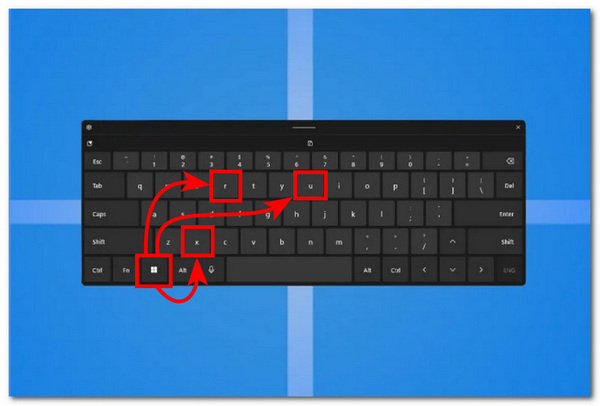
The Power User Menu:
Windows Key + X - Opens the Quick Link menu, a shortcut that provides access to tools like Device Manager, Disk Management, Task Manager, Terminal/Command Prompt, Settings, File Explorer, Shut down or sign out.
Windows Key + U - Opens Accessibility Settings, where users can configure and access features like (Narrator, Magnifier, High Contrast, Closed Captions, Speech and Keyboard accessibility options).
Windows Key + R - Opens the Windows Run Dialog Box, which allows users to launch programs, Windows tools, and folders by inputting a specific command like (cmd → iCommand Prompt, msconfig → System Configuration, regedit → Registry Editor, notepad → Notepad, control → Control Panel)
The Universal Escape:
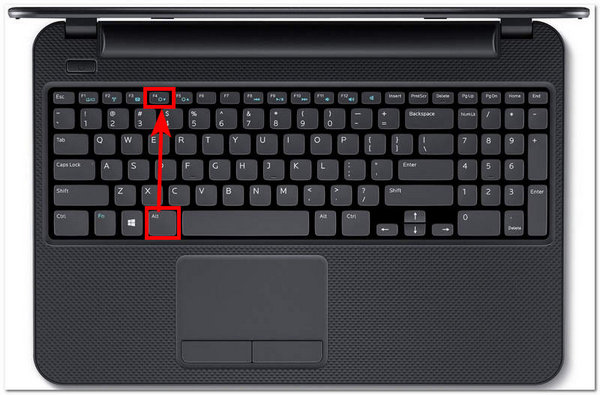
Alt Key + F4 allows users to immediately close a window or application when the user’s mouse is unresponsive. Sometimes too many running applications and tabs can put pressure on the device hardware, which may result in lag or freezing. Using the shortcut could help free up resources, allowing the computer to run more smoothly.
The Command Line Ninja:
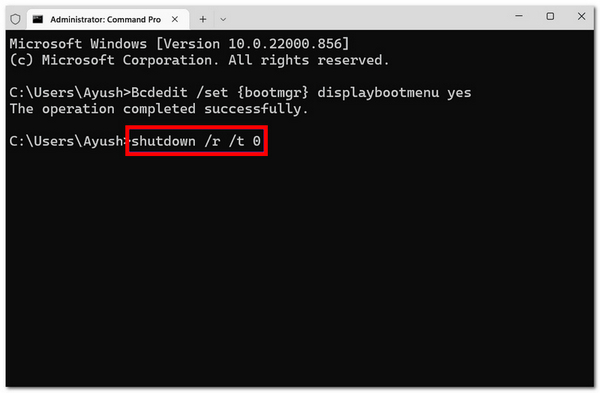
Using Command Prompt or Windows Terminal to execute commands without navigating the Start menu manually. The command shutdown /r /t 0 restarts the computer immediately. shutdown is the command, /r specifies a restart, and /t 0 sets the timeout to zero seconds, so the action happens immediately.
Part 3. The Emergency Restart Method
Ctrl + Alt + Del Key:
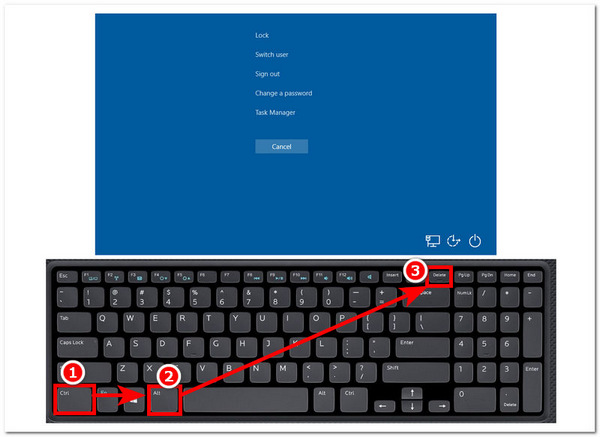
How to restart PC with keyboard? Pressing the Ctrl + Alt + Del keys at once will open the Windows Security Screen, which gives users instant access to important system options like lock, switch user, and sign out, as well as shutdown and restart.
The Hard Reboot:
The last resort for rebooting a computer if the keyboard shortcuts and standard method fail or don’t work is a hard reboot. To do it, simply press your computer’s power button for at least 5 seconds until the screen turns off. After that, wait another 5 to 10 seconds before powering on your computer again, and just like that, you have performed a hard reboot of your computer.
Remember to do this only as a last resort. This method forces a restart through an improper shutdown, and doing it frequently is not ideal, as it could affect your device's performance.

Part 4. What to Do When Your Computer Still Freezes?
If the user's device becomes unresponsive or lags due to multiple open windows, this section suggests effective ways to minimize the issues or get their computer back to normal.
- • You can wait a minute or so for your device to finish processing.
- • Try closing some open tabs or applications to free up RAM by pressing Ctrl + Shift + Esc to open Task Manager.
- • Use the Command Prompt method described above.
Part 5. How to Recover Lost Files with FoneLab Data Retriever
When you restart your computer and suddenly notice that some files you were working on are missing, they may have been lost or accidentally deleted. Although this is rare, it can happen, and if it doe 65s, you can rely on third-party software for data recovery, such as FoneLab Data Retriever.
FoneLab Data Retriever - recover the lost/deleted data from computer, hard drive, flash drive, memory card, digital camera and more.
- Recover photos, videos, documents and more data with ease.
- Preview data before recovery.
FoneLab is a versatile Windows Data Recovery tool that can quickly and precisely extract and recover deleted or removed files from computers, USB flash drives, and more. It supports a wide range of file formats, including images, documents, emails, and videos. Its quick and deep scanning capabilities ensure users can recover deleted files on PC without a problem, especially files lost during a reboot or restart.
Step 1Download the FoneLab Data Retriever software on your desktop device (macOS or Windows), then open the tool.
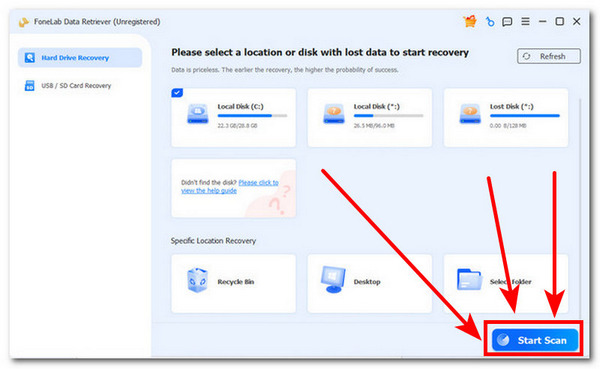
Step 2From the FoneLab Data Retriever’s interface, click the Start Scan button to scan your desktop device's hard drive for any data files that were lost or deleted when you restarted your computer.
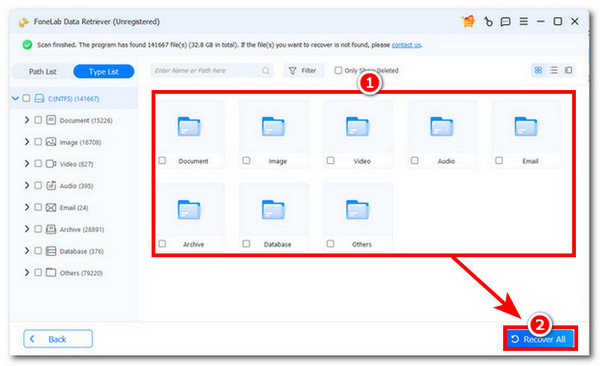
Step 3The FoneLab interface will show all folders containing files that were lost or deleted when you restarted your computer. You may check a specific folder or restore all data by clicking the Recover All button.
Part 6. FAQs about How to Restart a Computer
What is the difference between restarting and shutting down a computer?
Restarting a computer closes all running Windows sessions and restarts the system, similar to a quick refresh. Shutting down the computer, by contrast, powers it off completely.
Is it safe to restart a computer using Command Prompt?
Yes. It is a built-in Windows command that is safe to use and can force a restart when the standard Start menu method doesn't work.
This article lists all possible ways a user can safely restart a computer. It covers the standard and most basic restart method, the use of shortcut keys on the computer keyboard, and even the desktop’s command-line prompt for a more advanced way to force a reboot when the device becomes unresponsive or stuck.
As comprehensive as this guide is, a file may still be lost when restarting the computer. If this happens, this guide also includes a data recovery tool like FoneLab Data Retriever to recover deleted and lost files on your computer with ease.


