
 iPhone Data Recovery
 iOS System Recovery
 iOS Data Backup & Restore
 iOS Unlocker
 iPhone Password Manager
 Location Changer
 Android Data Recovery
 Broken Android Data Extraction
 Android Data Backup & Restore
 Android Unlocker
 FoneTrans for iOS
 iPhone Data Eraser
 iPhone Cleaner
 HEIC Converter
 HyperTrans
 WhatsApp Transfer for iOS
 Mac Sweep
 Data Retriever
 Mac Data Retriever
 Video Converter Ultimate
 Screen Recorder
 Phone Mirror
- Part 1. Force Quit Windows Using the Fast Shortcut
- Part 2. How to Force Quit Windows with Task Manager
- Part 3. Force Quit on Windows via the Command Line
- Part 4. The Last Resort for Windows Force Quit
- Part 5. Comparative Table of Ways to Force Quit on Windows
- Part 6. How to Recover Lost Files with FoneLab Data Retriever
- Part 7. FAQs about How to Force Quit on Windows
 Recover PC Data Now
Recover the lost/deleted data from computer, hard drive, flash drive, memory card, digital camera and more.
Professional Ways to Force Quit Windows with a Guide
 Updated by
 Greetings! Can someone please share their knowledge on how to force close an app on Windows? I was using an editing program that is fairly resource-intensive, and it seemed to work fine at the start. However, over time, it gradually slowed down until it eventually became unresponsive. Is there a way to quit the program forcibly? Any help or advice would be appreciated.
Various issues, such as lagging and freezing, can occur on Windows when using certain programs, especially resource-intensive ones like editing software. And when it becomes unresponsive, it can be frustrating, since the issue prevents you from continuing your work, closing the program, or even shutting down the computer normally. Fortunately, Windows offers several ways to force quit an unresponsive program or window. We will guide you through the professional methods, so keep reading to learn more.

Guide List
- Part 1. Force Quit Windows Using the Fast Shortcut
- Part 2. How to Force Quit Windows with Task Manager
- Part 3. Force Quit on Windows via the Command Line
- Part 4. The Last Resort for Windows Force Quit
- Part 5. Comparative Table of Ways to Force Quit on Windows
- Part 6. How to Recover Lost Files with FoneLab Data Retriever
- Part 7. FAQs about How to Force Quit on Windows
Part 1. Force Quit Windows Using the Fast Shortcut
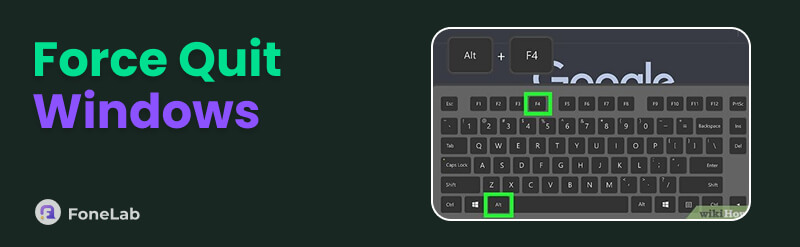
The quickest way to force close Windows programs is to use a shortcut. Simply put, it is a keyboard shortcut that instantly and forcibly closes the program currently open on your desktop. It is the classic close command that many users rely on when something stops responding. To use it, you first need to make sure the program’s window is active by clicking it or pressing Alt + Tab. Once displayed, press Alt + F4 to close the program immediately. Meanwhile, if it prompts you to end the task, end it to proceed with force quitting.
Part 2. How to Force Quit Windows with Task Manager
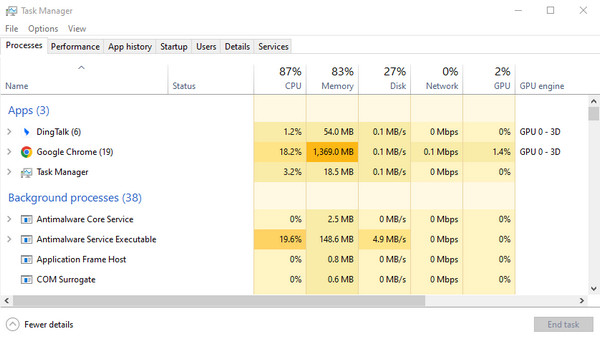
When the fast shortcut doesn't work, or you need more control over which program to close, Task Manager is the tool to rely on. It is a built-in Windows utility that displays the list of programs and processes currently running on your computer. You can then identify frozen tasks or those with a Not Responding status, letting you force-quit them. It is especially useful when multiple tasks are unresponsive since you can easily choose which ones to end.
Follow the guides below to determine how to force quit an app on Windows with the Task Manager:
Step 1First, right-click your taskbar and choose Task Manager from the menu. The list of programs and background processes will immediately appear in the window.
Step 2You can select the frozen program and click End Task to force-quit it, or click Status at the top first to see which processes are stuck before ending them.
Part 3. Force Quit on Windows via the Command Line
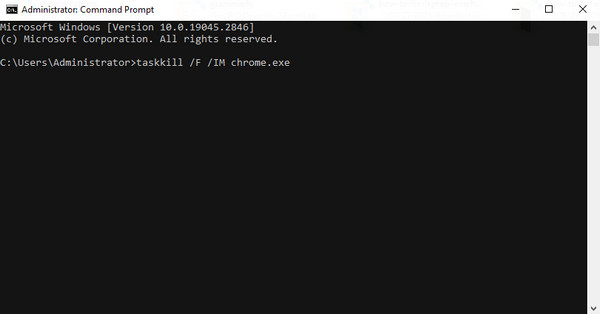
Despite being a professional utility, Task Manager can still fail to end stubborn programs and processes. Hence, this is where the Command Line comes in. Like the previous tool, you won’t need to install anything, since the process will run through a built-in utility, Command Prompt. All you must do is run the taskkill command, and it will immediately end the stubborn program or process you specify. Just note that this is more technical than the other ways, so be careful when entering the command. One wrong letter could lead to a failed process.
Follow the task below to grasp how to force quit Windows via the Command Line:
Step 1Start Command Prompt by entering “cmd” in the Start menu, and when the utility appears, click Run as administrator to launch the command line interface.
Step 2Afterward, type taskkill /f /im [processname].exe, replacing [processname] with the name of the program you want to close to force quit it.
Part 4. The Last Resort for Windows Force Quit
If the program remains unresponsive despite multiple attempts to fix the issue, try the succeeding methods as a last resort to force-quit your Windows program or process.
Method 1. Restart the Windows Computer
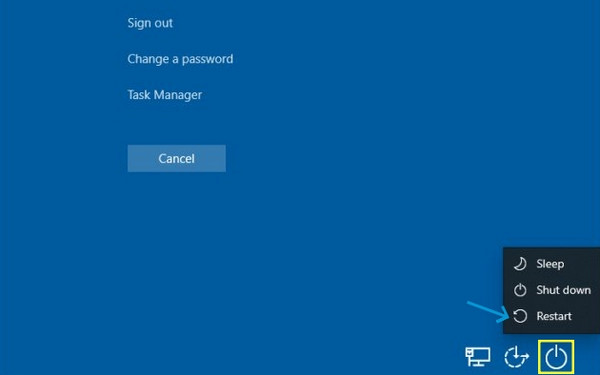
The first one is restarting your Windows computer. Yes, you read that right! Another classic way to handle performance issues is a restart, and it has always been effective. But as you may know, this will quit not only the frozen program, but also the other active ones, giving your computer a fresh start. You may do it via the Start menu or the keyboard shortcut.
Using the Start Menu: Click Start menu in the bottom right corner of your desktop, then select the Power button. When options appear, choose Restart to end the tasks and restart Windows.
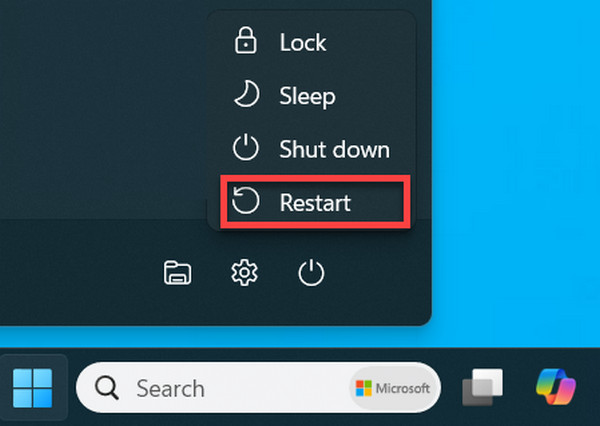
Using the Keyboard Shortcut: Press Control + Alt + Delete, and a blue screen will appear. Click the Power button at the bottom, followed by Restart.
Method 2. Perform a Hard Reboot
Sometimes, an unresponsive program affects the overall performance of the computer, making even the standard restart process difficult. In this case, you can do a hard reboot instead. It completely cuts off the power and forces all the processes to end immediately. You must simply long-press the physical Power button until the device shuts down. A few moments afterward, press the button again to restart your Windows computer.
Part 5. Comparative Table of Ways to Force Quit on Windows
| Method | Fast Shortcut | Task Manager | Command Line | Restart / Hard Reboot |
| Best For | Quickly closing the active program | Freezing programs that won't respond | Stubborn programs or advanced users | When nothing else works |
| Difficulty | Easy | Easy | Moderate | Easy |
| Speed | Fastest | Fast | Fast | Slowest |
| Closes Other Apps | No | No | No | Yes |
| Requires Restart | No | No | No | Yes |
| Success Rate | High | High | Very High | Very High |
Part 6. How to Recover Lost Files with FoneLab Data Retriever
Unlike the normal process of closing programs, force-quitting carries a risk of data loss. That’s because when you forcibly exit a program, any unsaved work in it may be lost. Or, if anything goes wrong, you could even lose your personal files. Thus, here is FoneLab Data Retriever.
FoneLab Data Retriever - recover the lost/deleted data from computer, hard drive, flash drive, memory card, digital camera and more.
- Recover photos, videos, documents and more data with ease.
- Preview data before recovery.
This tool is one of the best data recovery software available, offering a user-friendly design and useful features. You can rely on its high success rate to recover Windows data, such as videos, photos, and more, whether you experienced corruption, formatting, or other issues.
Follow the operation below to recover lost files with FoneLab Data Retriever:
Step 1Start by selecting Free Download to obtain the FoneLab Data Retriever file. It will be in your Downloads folder, so open it there and install the program. Once the program is ready, launch it and select your drive in the main interface. Then, click Start Scan.
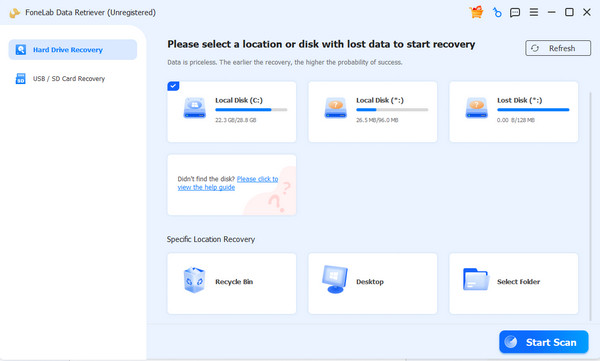
Step 2Once the tool finishes scanning your lost and deleted data, navigate to the folders organized by data type. Simply explore the contents, and when you find your files, click their boxes and choose Recover All.

Part 7. FAQs about How to Force Quit on Windows
Is it safe to force-quit a program on Windows?
It is generally safe, but as mentioned, you may lose any unsaved work in that program, so use it only when necessary.
What if my whole computer is frozen?
If the entire computer is frozen, including all active programs, tasks, and processes, the best solution is a hard reboot, which you can perform using the guidelines in Part 4.
Force quitting on Windows doesn't have to be a headache. With the right method for your situation, you can quickly get back to work and even safeguard your files with FoneLab Data Retriever.



