
 iPhone Data Recovery
 iOS System Recovery
 iOS Data Backup & Restore
 iOS Unlocker
 iPhone Password Manager
 Location Changer
 Android Data Recovery
 Broken Android Data Extraction
 Android Data Backup & Restore
 Android Unlocker
 FoneTrans for iOS
 iPhone Data Eraser
 iPhone Cleaner
 HEIC Converter
 HyperTrans
 WhatsApp Transfer for iOS
 Mac Sweep
 Data Retriever
 Mac Data Retriever
 Video Converter Ultimate
 Screen Recorder
 Phone Mirror
- Part 1. Important: Backup Your Data First
- Part 2. Resetting from Windows Settings
- Part 3. Resetting When Windows Won’t Boot
- Part 4. Using Dell SupportAssist OS Recovery
- Part 5. Crucial Checklist Before You Start
- Part 6. What If You Reset Your Laptop and Lost Important Data
- Part 7. FAQs about How to Reset Dell Laptop
 Recover PC Data Now
Recover the lost/deleted data from computer, hard drive, flash drive, memory card, digital camera and more.
Outstanding Guide on How to Reset a Dell Laptop Easily
 Updated by
 How do you reset a Dell laptop? It’s a question that comes up for various reasons. Maybe your laptop is running very slowly because old files you no longer need have piled up. Perhaps you’re planning to sell it or hand it down to a family member and want to wipe your personal data. Or you may be experiencing a software issue that just won’t go away, causing the laptop to malfunction. Regardless of the reason, a reset is the best solution to try.
The good news is that resetting a Dell laptop isn't as complicated as it might sound. And to put you at ease, this guide covers everything you need to know, from the first crucial action to reset methods and, if needed, the recovery process. This way, you can transition smoothly without worrying about data loss or any other issue. Thus, continue reading.


Guide List
- Part 1. Important: Backup Your Data First
- Part 2. Resetting from Windows Settings
- Part 3. Resetting When Windows Won’t Boot
- Part 4. Using Dell SupportAssist OS Recovery
- Part 5. Crucial Checklist Before You Start
- Part 6. What If You Reset Your Laptop and Lost Important Data
- Part 7. FAQs about How to Reset Dell Laptop
Part 1. Important: Backup Your Data First
A Dell laptop reset is a significant process, and, like any major change, it carries risks. The biggest one is losing personal files you never intended to be included in the reset, such as your treasured family pictures, video memories, important work documents, and more. Hence, backing up is not only a suggestion but a must-do step. Take a few minutes to connect an external drive or sign into your preferred cloud storage to safeguard your most important data before running a reset. This way, you will also have peace of mind.
Part 2. Resetting from Windows Settings
Resetting a Dell laptop through Windows Settings is the most common method for many users. That’s because the reset option is already built into Windows, and you don’t need to install any other software or boot into any special mode. Instead, you will only need to make a few simple choices on the interface, and your Dell laptop will be reset smoothly. It's user-friendly, and guided steps are ideal for casual users in typical reset situations.
Follow the process below to understand how to reset Dell laptop from Windows Settings:
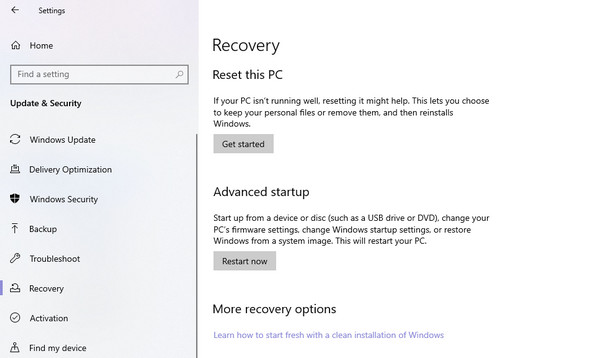
Step 1Click the Start menu on your Dell laptop’s desktop, then open Settings from there. Afterward, choose Update & Security, then Recovery in the left-hand sidebar.
Step 2Under Reset this PC, opt for the Get started button to begin the process. Next, you must pick between Keep my files or Remove everything, then complete the reset.
Part 3. Resetting When Windows Won’t Boot
What if you’re trying to boot the Dell laptop, but the issue won’t even let you reach the Windows login screen? Perhaps it’s stuck on a loading loop, displaying an error message, or showing a black screen. In this case, Settings won't be an option, but don’t worry. Windows has a special recovery environment you can access, even when the system fails to start properly. Instead of the usual Windows features, it relies on the Advanced Startup Options menu, which lets you reset your laptop without accessing Windows itself.
Follow the instructions below to reset Dell laptop when Windows won’t boot:
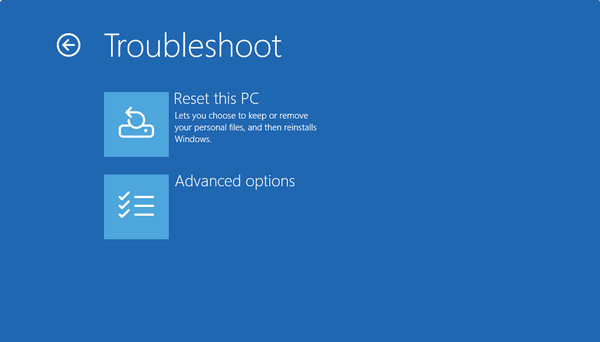
Step 1Power on your Dell laptop, then immediately press the F11 key multiple times as soon as the Dell logo appears. Shortly, the Windows Recovery Environment screen will appear.
Step 2From the Advanced Startup Options, select Troubleshoot, then choose Reset this PC. Further options will appear, so follow the prompts until the reset process completes.
Part 4. Using Dell SupportAssist OS Recovery
If the Windows recovery tools aren't working or you prefer a solution built specifically for Dell, SupportAssist OS Recovery is your go-to option. It is a dedicated recovery tool that comes pre-installed on newer Dell laptops and runs independently of your Windows operating system. Hence, it can step in when Windows won't boot or when other methods fail, making it a helpful safety net for resetting, troubleshooting, etc. Aside from that, it is especially useful because it can also check your hardware for issues, providing a clear picture of what's going on.
Follow the steps below for a Dell laptop reset using its SupportAssist OS Recovery:
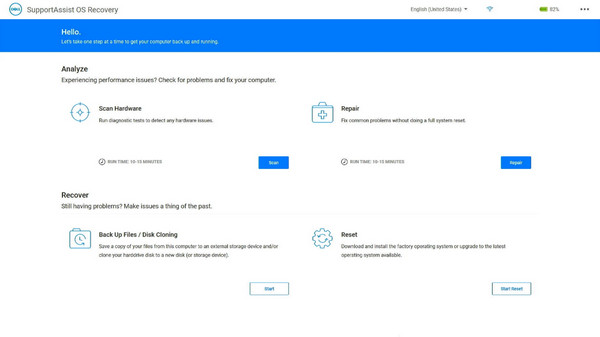
Step 1Turn on or restart your Dell laptop, then repeatedly press F12 once the Dell logo appears. This will open the Boot Menu, so choose SupportAssist OS Recovery from the list.
Step 2Once the recovery tool loads, click Reset and follow the on-screen prompts. As with the previous processes, options will be shown; follow them to complete the reset.
Part 5. Crucial Checklist Before You Start
After successfully resetting your Dell laptop, it’s time to start over. But before that, there are a few important steps to take to help you get everything running smoothly again.
Checklist:
- • Go through the initial Windows setup screen and sign in with your Microsoft account.
- • Restore your backup files from your external drive or cloud storage.
- • Reinstall the necessary apps, especially the ones you have paid for.
- • Run Windows Update to keep everything on your PC up to date.
- • Personalize your settings, such as display, wallpaper, and privacy preferences.
Part 6. What If You Reset Your Laptop and Lost Important Data
Unfortunately, things may still go wrong, even with the best preparation. You may have forgotten to back up a specific folder containing your treasured images or documents, or the reset may not have gone smoothly, causing some of your data to be lost. Such a situation can be stressful, but with FoneLab Data Retriever, you no longer have to worry about unintentional data loss.
FoneLab Data Retriever - recover the lost/deleted data from computer, hard drive, flash drive, memory card, digital camera and more.
- Recover photos, videos, documents and more data with ease.
- Preview data before recovery.
Whether your Dell laptop suffered from corruption, unwanted formatting, a reset, or a damaged disk, this tool can scan and recover deleted files on PC. You shouldn’t worry if it’s your first time using a recovery tool, since its interface is designed for all types of users. Among its features is Deep Scan, which offers a better chance of finding older and harder-to-locate files.
Follow the guidelines below to recover your lost important data with FoneLab Data Retriever:
Step 1Download a file copy of FoneLab Data Retriever through Free Download. It will be saved to your computer, so open it to launch the installation. The following Start option will prompt the main interface to appear. Choose your disk from there, then select Start Scan.
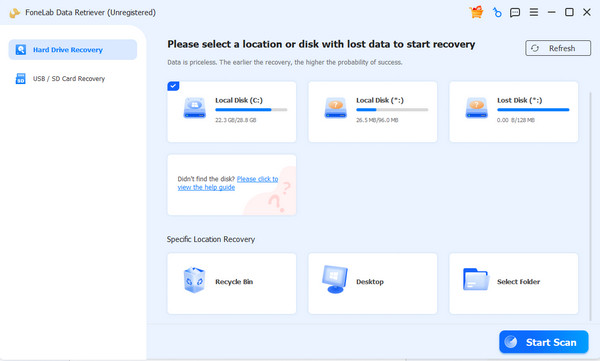
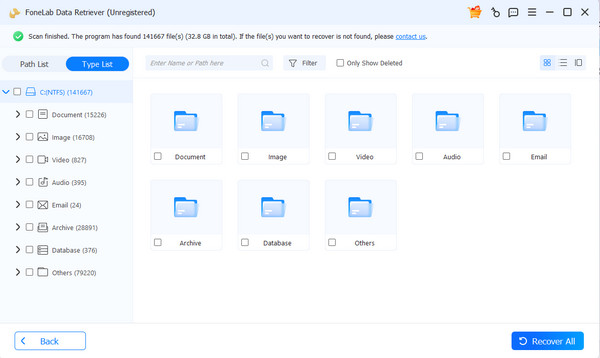
Step 2Once scanning completes, feel free to explore the results. Open each data folder and scroll around until you find the files you need. Next, check their boxes and hit Recover All.
Part 7. FAQs about How to Reset Dell Laptop
Will I lose my Windows license after resetting?
No, you won’t. Your Windows license will automatically activate once the reset is complete and you're connected to the internet.
Can I reset my Dell laptop without a password?
Yes, you can use SupportAssist OS Recovery or Advanced Startup Options. However, you'll still need your password afterward to set things up again.
Resetting your Dell laptop is straightforward when you follow the right steps, but if you ever find yourself with lost files, FoneLab Data Retriever can help recover them.



