
 iPhone Data Recovery
 iOS System Recovery
 iOS Data Backup & Restore
 iOS Unlocker
 iPhone Password Manager
 Location Changer
 Android Data Recovery
 Broken Android Data Extraction
 Android Data Backup & Restore
 Android Unlocker
 FoneTrans for iOS
 iPhone Data Eraser
 iPhone Cleaner
 HEIC Converter
 HyperTrans
 WhatsApp Transfer for iOS
 Mac Sweep
 Data Retriever
 Mac Data Retriever
 Video Converter Ultimate
 Screen Recorder
 Phone Mirror
- Part 1. Identify Your Problem First
- Part 2. Dell Power Reset For Frozen or Non-Responsive Laptops
- Part 3. Dell Factory Reset with SupportAssist OS Recovery
- Part 4. Resetting via Windows Settings For Functional Laptops
- Part 5. Comparison of Solutions to Hard Reset a Dell Laptop
- Part 6. Recover Lost Data Using FoneLab Data Retriever
- Part 7. FAQs about How to Hard Reset Dell Laptop
 Recover PC Data Now
Recover the lost/deleted data from computer, hard drive, flash drive, memory card, digital camera and more.
Efficient Guide on How to Hard Reset a Dell Laptop
 Updated by
 Need to do a hard reset on Dell laptop? It might sound like a complicated process, but it's actually a simple and effective way to fix many common problems on a laptop. Whether your device is frozen, running slowly, or you simply want a fresh start, a reset can often solve the issue. The good news is that you don't need to be a tech expert to do it yourself.
This article will walk you through the different methods for resetting your Dell laptop. From identifying the problem to choosing the right solution, we’ll cover everything you need to complete the hard reset process. Additionally, a data recovery tool will be introduced so that you’ll be ready to retrieve the important files you may lose during the process.

Guide List
- Part 1. Identify Your Problem First
- Part 2. Dell Power Reset For Frozen or Non-Responsive Laptops
- Part 3. Dell Factory Reset with SupportAssist OS Recovery
- Part 4. Resetting via Windows Settings For Functional Laptops
- Part 5. Comparison of Solutions to Hard Reset a Dell Laptop
- Part 6. Recover Lost Data Using FoneLab Data Retriever
- Part 7. FAQs about How to Hard Reset Dell Laptop
Part 1. Identify Your Problem First
Before learning how to do a hard reset on Dell laptop, take a moment to figure out what's actually wrong with the laptop that led you to decide to perform a hard reset. Is it completely frozen and unresponsive? Does it keep crashing or showing errors? Or is it just running slowly, and you want a clean start? The answer is important because it will help you determine the most appropriate reset method for your situation. That said, start browsing the following solutions to choose and perform the right hard reset process for your laptop.
Part 2. Dell Power Reset For Frozen or Non-Responsive Laptops
People usually perform a hard reset when the laptop freezes or becomes unresponsive. If this is the situation you’re facing, a power reset is usually the first and best solution to try. It is simple and quick, and it does not erase any of your files or settings, so it’s even better if you only plan to resolve the problem without clearing your data. It works by draining the remaining power from your laptop, which can clear temporary glitches that may have caused the issue.
Follow the procedure below to understand how to hard reset Dell laptop using the Dell power reset:
Step 1Turn off your laptop completely, then unplug the AC adapter and remove any external devices such as USB drives or SD cards. If it also has a removable battery, take it out.
Step 2Next, press and hold the power button for 15 to 20 seconds to drain any leftover power. Then, reconnect the battery and AC adapter, and turn your laptop back on.
Part 3. Dell Factory Reset with SupportAssist OS Recovery
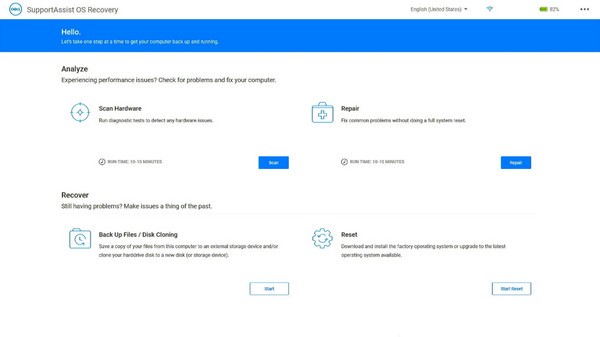
If a power reset doesn't resolve the issue, try performing a Dell factory reset using SupportAssist OS Recovery. It restores your laptop to its original condition by removing all files, apps, and settings, which also eliminates the issue your Dell laptop is experiencing. It's the go-to solution when your system is badly corrupted, won't boot into Windows, or has serious software issues that can't be fixed easily. Since SupportAssist OS Recovery is built directly into most Dell laptops, no installation is required.
Follow the instructions below for a Dell laptop hard reset with SupportAssist OS Recovery:
Step 1Restart your laptop and press F12 repeatedly when the Dell logo appears to view the boot menu. From there, select SupportAssist OS Recovery and press Enter.
Step 2On the following screen, click Reset, then choose Reset to Factory Settings. You can then proceed with the prompts until the reset completes.
Part 4. Resetting via Windows Settings For Functional Laptops
A hard reset is usually done when you're experiencing issues like the ones above. However, it would also be helpful to learn how to reset your Dell laptop in Windows Settings if it is functioning properly. This way, you’ll be able to resolve issues without booting into a special mode. The process is much simpler because it only requires selecting the appropriate options in the Settings interface. Besides, you will have the choice to keep or erase your data.
Follow the process below to reset your functional Dell laptop via Windows Settings:
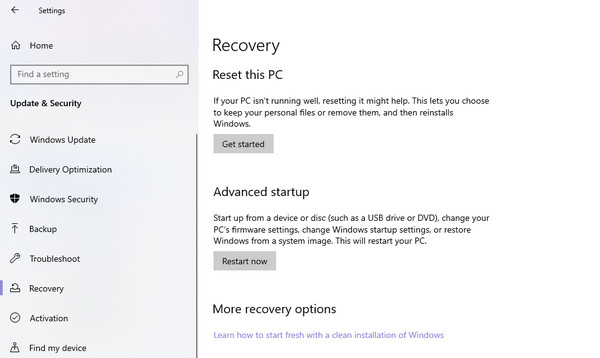
Step 1Pick Settings on your Start menu, then open the System section and click Recovery.
Step 2Under Reset this PC, click the Reset PC button, then select either Keep my files or Remove everything. Then, let the prompts guide you to finish the process.
Part 5. Comparison of Solutions to Hard Reset a Dell Laptop
| Method | Power Reset | SupportAssist OS Recovery | Windows Settings Reset |
| Best For | Frozen or non-responsive laptops | A corrupted system or laptop won't boot | Functional laptops needing a fresh start |
| Data Loss | None | All data erased | Optional |
| Difficulty | Very Easy | Moderate | Easy |
| Works Without Booting Windows | Yes | Yes | No |
| Fixes Software Corruption | No | Yes | Yes |
| Keeps Personal Files | Yes | No | Optional |
| Needs Internet Connection | No | Sometimes (for updates) | Sometimes (for updates) |
Part 6. Recover Lost Data Using FoneLab Data Retriever
As a bonus, here’s FoneLab Data Retriever to help you recover lost data. Perhaps you were forced to perform a reset to fix the problem, and accidentally lost important files. Or, even if you chose to keep your data, something went wrong during the process, resulting in data loss. No matter the reason, you can turn to this program for effective Windows data recovery.
FoneLab Data Retriever - recover the lost/deleted data from computer, hard drive, flash drive, memory card, digital camera and more.
- Recover photos, videos, documents and more data with ease.
- Preview data before recovery.
FoneLab Data Retriever is a reliable tool known for handling data loss with ease. Whether you have experience with data recovery or not, this tool will be reliable thanks to its intuitive interface. Various data types are also supported, including images, audio, and documents. It can restore files even after they are lost due to formatting, deletion, corruption, or other issues.
Follow the steps below for your lost data recovery using FoneLab Data Retriever:
Step 1Begin with the Free Download tab to save FoneLab Data Retriever’s file. You can launch it from the Downloads section and proceed with the installation immediately. Once done, select your laptop’s drive in the main interface, then click Start Scan.
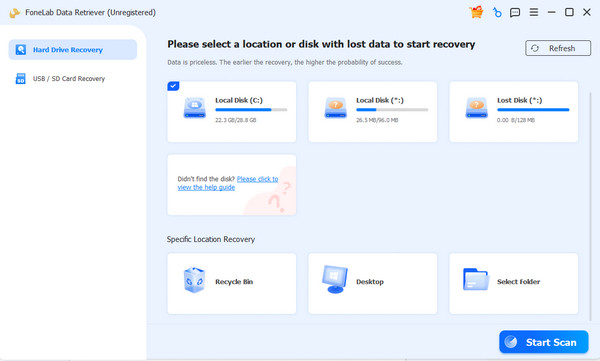
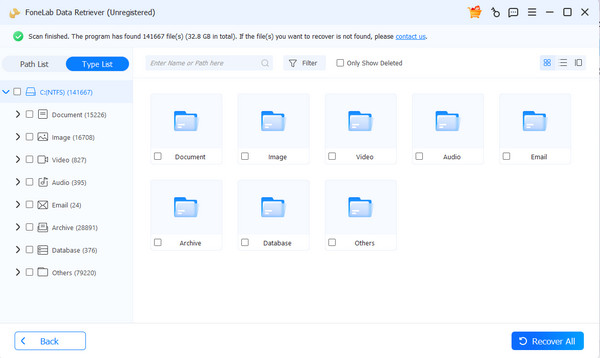
Step 2Following that, open the folders presented on the results interface. Simply browse the items until you find the files you intend to restore. Mark their checkboxes, and when you’re satisfied with the selections, finish by choosing the Recover All option.
Part 7. FAQs about How to Hard Reset Dell Laptop
How long does a Dell hard reset take?
A power reset takes only a few minutes since it basically reboots your laptop properly. Meanwhile, a factory reset or Windows reset usually takes 30-60 minutes.
Do I need a USB drive to reset my Dell laptop?
Not usually. As mentioned, SupportAssist OS Recovery and Windows Settings are both built into your laptop, so no external tools are needed.
Hard resetting a Dell laptop doesn't have to be complicated, especially if you identify the problem correctly. From there, you can use the most suitable method, and if anything goes wrong, FoneLab Data Retriever is here to safeguard your important files.



