
 iPhone Data Recovery
 iOS System Recovery
 iOS Data Backup & Restore
 iOS Unlocker
 iPhone Password Manager
 Location Changer
 Android Data Recovery
 Broken Android Data Extraction
 Android Data Backup & Restore
 Android Unlocker
 FoneTrans for iOS
 iPhone Data Eraser
 iPhone Cleaner
 HEIC Converter
 HyperTrans
 WhatsApp Transfer for iOS
 Mac Sweep
 Data Retriever
 Mac Data Retriever
 Video Converter Ultimate
 Screen Recorder
 Phone Mirror
 Recover PC Data Now
Recover the lost/deleted data from computer, hard drive, flash drive, memory card, digital camera and more.
Proper Guide on How to Fix Windows Update Error Easily
 Updated by
 Wondering how to fix Windows update error? Well, it is a universal problem. Many Windows users encounter update problems caused by various situations, and if you also experience this, don’t worry. The good news is that this error can be resolved in several ways, whether the update is stuck, fails to download, or displays a confusing error code.
In this guide, we'll walk you through the right steps to properly address the Windows Update error. From quick troubleshooting to cleanup methods and error code fixes, you'll learn how to get your updates working again quickly. We'll also cover what to do if an update fails and you need to recover important files. That said, get started and make the most of the information provided.

Guide List
Part 1. Windows Update Troubleshooter
One of the simplest and safest methods is the Windows Update Troubleshooter. It is a built-in tool on your computer that helps you automatically identify and fix common update problems. Instead of manually looking for the problem, it scans your system for issues that cause the update error and attempts to fix them automatically. Meanwhile, this option is especially helpful when you’re not sure exactly what the problem is, since it’s designed to detect and fix it automatically.
Follow the operation below to understand how to fix Windows update error via Windows Update Troubleshooter:
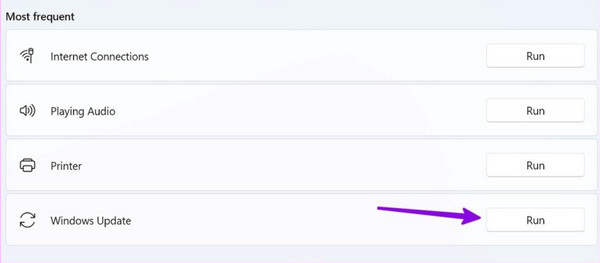
Step 1Start on the Settings interface, then proceed to System. Following that, select Troubleshoot > Other troubleshooters.
Step 2The next screen will show a list that includes Windows Update. Click the Run button next to it, then follow the on-screen prompts to complete the process.
Part 2. Clearing the Windows Update Cache
Clearing the Windows Update cache can also prevent the error, as it removes the temporary files Windows uses when downloading and installing updates. This data can become corrupted or outdated over time, so erasing them will help give Windows a fresh start afterward. But unlike the previous option, this one is more hands-on since you will need to clear the Windows Update cache manually. Don’t worry, though. The process isn’t overly technical.
Follow the task below to know how to fix Windows update error by clearing the cache:
Step 1First, stop the update properly by pressing Windows + R and entering services.msc in the Run dialog. Next, simply find and right-click Windows Update, then hit Stop.
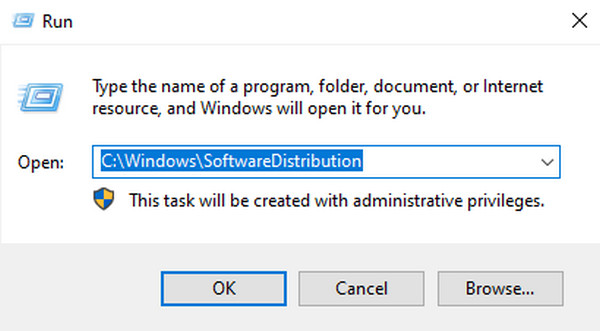
Step 2Afterward, press Windows + R again to enter the C:\Windows\SoftwareDistribution directory. Select all files and folders there, then right-click and choose Delete.
Part 3. Resolving Common Update Error Codes
As you may have noticed, Windows sometimes updates fail with a specific error code. Well, each error code indicates a different underlying problem, so each also has a designated solution. Below are guides on how to fix Windows update errors for common error codes. Check them out.
Method 1. Network Related: 0x80244017
The 0x80244017 error usually appears when the issue is network-related. Simply put, your computer can't connect properly to the Windows Update server, indicating that a network or proxy issue is blocking the update from continuing. If this is the case, you can resolve the problem by running the right command in Command Prompt.
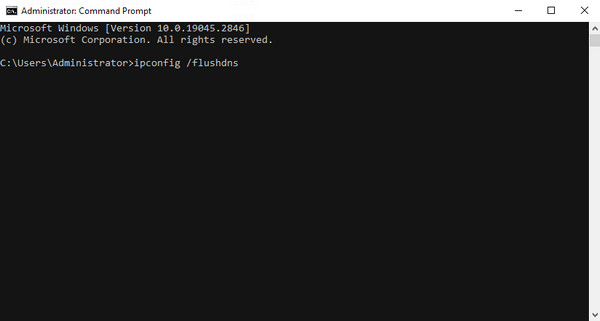
Step 1Run Command Prompt on your desktop as an administrator, then type and enter ipconfig /flushdns > netsh winsock reset > netsh int ip reset successively.
Step 2When done, restart the computer and check for updates later.
Method 2. Permission Related: 0x80070005
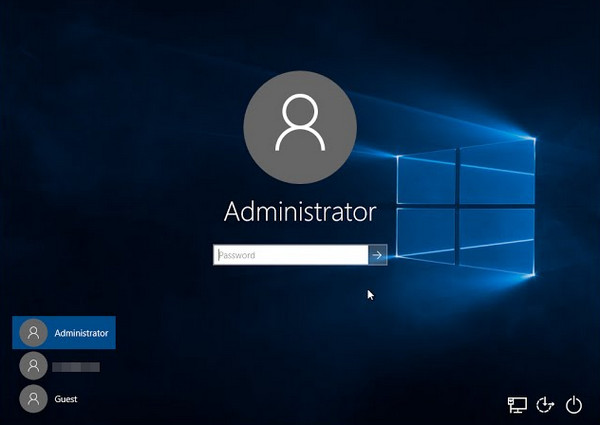
The 0x80070005 error, on the other hand, is permission-related. You may have seen an “Access Denied” message, which is expected if your account lacks the necessary access or if certain system files are locked. The good news is that the solution is simply to log in with your administrator account. So, if you’re using another account, just press Start and tick your Profile. Afterward, choose the profile labeled “Administrator” to use Windows administrative privileges.
Part 4. When Software Update Fails – The Deep Clean
If your Windows update still results in an error, it’s time to try a more advanced solution. You may need to perform a reset to deep clean Windows. This way, all damaged files and existing issues will be removed, allowing the update to complete properly. However, keep in mind that this will erase not only the problematic files but also your personal files, programs, and other data. Thus, it would be best to prepare with a backup, or, if you don’t have enough time, use the following program to recover deleted files on PC.
Follow the steps below when the software update still fails and a deep clean is needed:
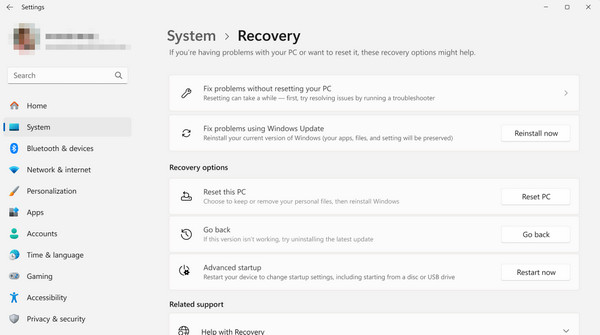
Step 1Open Settings > System > Recovery, then click Reset PC next to Reset this PC.
Step 2Next, choose Remove everything and finish the process to clean it completely.
Part 5. Recover Files with FoneLab Data Retriever
For Windows data recovery, FoneLab Data Retriever is undoubtedly among the most effective programs to rely on. It offers broad file compatibility, allowing you to recover almost any data type you have lost, whether due to update failures, formatting, corruption, deletion, or other issues. So feel free to bring back your important photos, documents, videos, etc., with ease.
FoneLab Data Retriever - recover the lost/deleted data from computer, hard drive, flash drive, memory card, digital camera and more.
- Recover photos, videos, documents and more data with ease.
- Preview data before recovery.
Additionally, the Secure Preview feature in FoneLab Data Retriever lets you view files before recovery to ensure you recover the correct items. You don’t even need to be an expert to explore the tool’s capabilities and features since its interface is designed to be beginner-friendly. Also, Deep Scan is available if you prefer a thorough recovery of your lost and deleted files.
Follow the method below to recover your files with FoneLab Data Retriever:
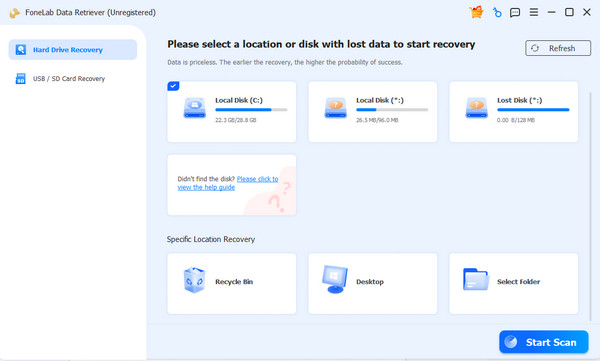
Step 1Save the file needed to install FoneLab Data Retrieve via the Free Download tab. Once it’s in the Downloads section, launch it and finish the installation before starting the program. Then, on the main interface, click your disk drive and Start Scan.
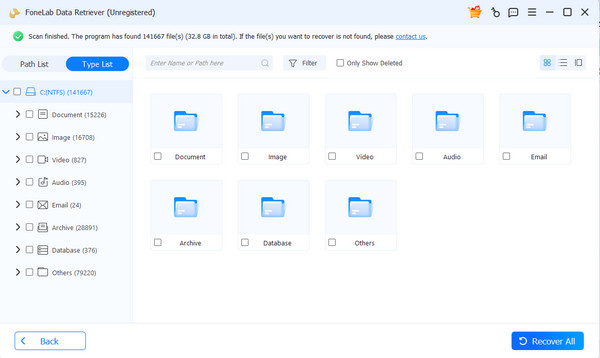
Step 2The tool will quickly scan your deleted files and display the folders on screen shortly. Access them as needed, and once you find the items you want, check the boxes next to them to select the files. Once you’re satisfied with the chosen items, hit Recover All.
Part 6. FAQs about How to Fix Windows Update Error
Can I fix Windows update errors without technical skills?
Yes, you can. The provided solutions in this article are user-friendly, so you don’t have to worry about complexities, especially with the guidelines included for each method.
How long does it take to fix a Windows Update error?
It depends on the method. The troubleshooter takes only a few minutes, and clearing the cache takes about 5–10 minutes. Meanwhile, resetting your PC can take 30 minutes to over an hour.
While Windows Update errors can be frustrating, with enough patience and proper handling, this issue can be resolved quickly using the suggested methods. Additionally, a safety net for your data, FoneLab Data Retriever, is available anytime.



