
 iPhone Data Recovery
 iOS System Recovery
 iOS Data Backup & Restore
 iOS Unlocker
 iPhone Password Manager
 Location Changer
 Android Data Recovery
 Broken Android Data Extraction
 Android Data Backup & Restore
 Android Unlocker
 FoneTrans for iOS
 iPhone Data Eraser
 iPhone Cleaner
 HEIC Converter
 HyperTrans
 WhatsApp Transfer for iOS
 Mac Sweep
 Data Retriever
 Mac Data Retriever
 Video Converter Ultimate
 Screen Recorder
 Phone Mirror
- Part 1. The Critical Checklist:
- Part 2. Resetting via Windows 11 Settings (The Standard Way)
- Part 3. Resetting When You Can’t Boot into Windows
- Part 4. Clean Install (The Pro Alternative) - Media Creation Tool
- Part 5. Troubleshooting Common Reset Errors
- Part 6. Post-Reset Checklist: What to Do Next
- Part 7. Recover Lost Data Using FoneLab Data Retriever
- Part 8. FAQs about How to Factory Reset Windows 11
 Recover PC Data Now
Recover the lost/deleted data from computer, hard drive, flash drive, memory card, digital camera and more.
Simple Guide on How to Factory Reset Windows 11 Properly
 Updated by
 Are you trying to reset Windows 11 to its factory defaults? Whether you're selling your computer, fixing performance issues, or simply giving it a fresh start, a factory reset is often the best solution. However, diving in without preparation can lead to unnecessary issues, such as losing important files or encountering errors halfway through the process.
Therefore, we have compiled the necessary methods and information you should follow in the following sections to reset your Windows 11 computer properly. From essential pre-reset checks and main reset methods to recovery solutions, we have everything covered. So don’t hesitate to get started as we lead you through the hassle-free Windows reset process.

Guide List
- Part 1. The Critical Checklist:
- Part 2. Resetting via Windows 11 Settings (The Standard Way)
- Part 3. Resetting When You Can’t Boot into Windows
- Part 4. Clean Install (The Pro Alternative) - Media Creation Tool
- Part 5. Troubleshooting Common Reset Errors
- Part 6. Post-Reset Checklist: What to Do Next
- Part 7. Recover Lost Data Using FoneLab Data Retriever
- Part 8. FAQs about How to Factory Reset Windows 11
Part 1. The Critical Checklist:
Before you begin any reset process, take a moment to go through this short but essential checklist. Unfortunately, skipping these steps is the leading reason users encounter trouble after a factory reset, so don’t miss anything for a smooth reset later.
- • Backup Your Files - A factory reset erases everything, including apps, settings, and personal files. Copy your important data to an external drive or cloud storage and double-check that your backup is complete before proceeding.
- • Plug Into Power - Never reset a laptop on battery. A dead battery during the process can corrupt your system and leave it unbootable.
- • Secure Your BitLocker Recovery Key - If your drive is encrypted, Windows will prompt you for this key after the reset. Without it, you're locked out. Find it now and check your Microsoft account online or wherever you saved it.
Part 2. Resetting via Windows 11 Settings (The Standard Way)
Some users reset Windows to fix issues, but if yours still starts and you can access the desktop, performing the standard reset in Windows 11 Settings is the most straightforward method. After all, the option is built into the computer, requiring no external tools or installation, and everything you need is already on the system. Additionally, the Settings interface features a user-friendly design that guides you through the process step by step, making it accessible even to those with limited technical experience.
Follow the process below to learn how to factory reset PC Windows 11 on Settings:
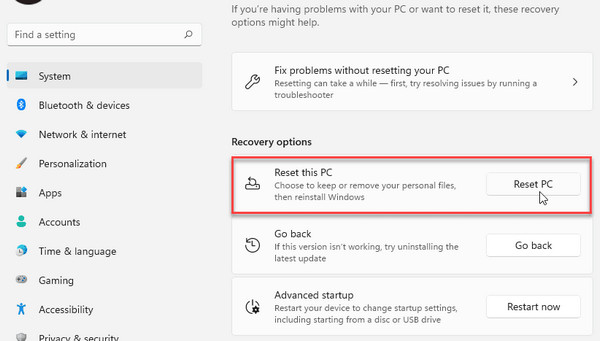
Step 1Open Settings from your desktop’s Start menu, then navigate to System > Recovery. Afterward, select Reset PC in the Reset this PC section.
Step 2After that, choose your preferred reset option and follow the on-screen instructions. Once prompted, confirm your selections and allow Windows 11 to reset.
Part 3. Resetting When You Can’t Boot into Windows
As mentioned, some users deal with Windows issues that may prevent users from booting the computer. Perhaps it is stuck on the loading screen, crashes repeatedly, or simply won't start up at all. In this case, Windows 11’s built-in recovery environment is more suitable for a reset, as it loads independently of your main system, giving you access to reset tools even when Windows itself won't boot. But don't worry—it doesn’t require technical knowledge either.
Follow the instructions below to reset Windows 11 to factory defaults through the recovery environment when you can’t boot into Windows:
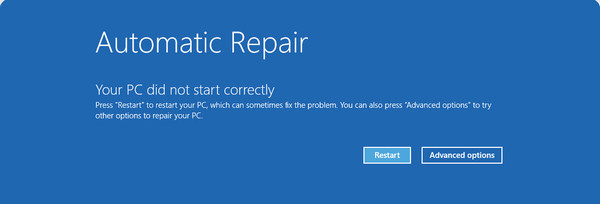
Step 1Turn on your PC, then immediately hold down the Power button to force it to shut off as soon as you see the Windows logo. Repeat this two more times, and on the third boot, Windows will detect a problem, as it did not start correctly.
Step 2Shortly, the Automatic Repair screen will load, so click Advanced options from there. Then, choose Troubleshoot, followed by Reset this PC. Follow the on-screen prompts and let the PC restart multiple times during the process. Just be patient until it completes.
Part 4. Clean Install (The Pro Alternative) - Media Creation Tool
On the other hand, if you're looking for the most thorough reset, or the standard methods simply aren't working, a clean install is your best option. This approach involves wiping your entire hard drive and installing a fresh Windows 11 from scratch using Microsoft's Media Creation Tool.
It's the preferred choice for advanced users, IT professionals, or anyone dealing with deeper system issues that a standard reset can't fix. Just note that it requires a bootable USB drive, so it takes more effort, but it guarantees the cleanest possible start for your Windows 11.
Follow the steps below for a Windows 11 factory reset by performing a clean install using the Media Creation Tool:
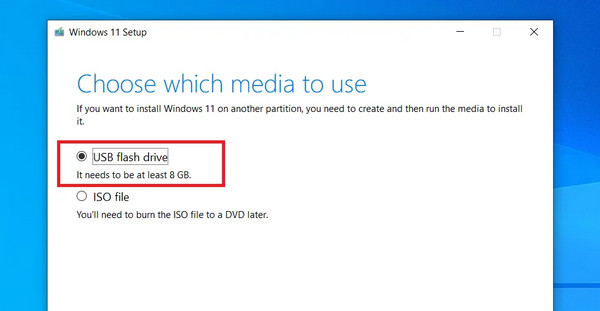
Step 1Using another working PC, install the Media Creation Tool from Microsoft's official website, run it, and select Create installation media for another PC. Next, configure the settings, then connect your USB flash drive. Select it as the media type, and let it create a bootable drive.
Step 2Once your bootable USB drive is ready, plug it into the Windows 11 PC you wish to reset, then start it. Quickly press F12, ESC, or Del during startup to access the boot menu. Then, follow the prompts and choose the appropriate options until your PC resets.
Part 5. Troubleshooting Common Reset Errors
Even with proper preparation, things don't always go as planned. Sometimes the reset process gets stuck halfway through, displays an error code, or fails to complete for no apparent reason. Here are the most common reset errors and how to fix them:
- • "There was a problem resetting your PC" - Try running the reset again. If it still fails, use the Media Creation Tool for a clean install instead.
- • Reset gets stuck - Wait at least 2 hours. If still stuck, hold the power button to restart.
- • "Unable to find recovery environment" - Use the Media Creation Tool to make a bootable USB flash drive and perform a clean install.
- • "No changes were made" - Open Command Prompt as administrator and run sfc /scannow, then try the reset again.
- • Blue screen or crash during reset - Run a disk check by typing chkdsk /f in Command Prompt. If hardware is failing, have it repaired first.
Part 6. Post-Reset Checklist: What to Do Next
Once your PC is fresh after a Windows 11 reset to its factory defaults, here is a quick checklist of steps to ensure your system is secure, up to date, and ready for daily use.
- • Run Windows Update - Install the latest security patches, drivers, and feature updates.
- • Restore Your Files - Restore your personal documents, photos, etc., from your backup.
- • Reinstall Essential Apps - Install necessary programs, such as browsers and Office.
- • Sign Back Into Accounts - Log in to your email, Microsoft, and other accounts.
- • Adjust Personal Settings - Modify your display and more to suit your preferences.
- • Create a Restore Point - Set up a restore point as a safety net for future issues.
Part 7. Recover Lost Data Using FoneLab Data Retriever
No matter how much you prepare, accidents may still happen. Some of your files may get overlooked, your backup may fail, or you might have chosen "Remove everything" without realizing the consequences. Thus, if you find yourself losing important documents, photos, etc., after a reset, it can be alarming, but don’t worry. FoneLab Data Retriever offers Windows data recovery.
FoneLab Data Retriever - recover the lost/deleted data from computer, hard drive, flash drive, memory card, digital camera and more.
- Recover photos, videos, documents and more data with ease.
- Preview data before recovery.
This recovery tool is well-known for scanning and recovering lost or deleted data from various computers, disks, and other storage devices. So, it will be the perfect solution to recover deleted files on PC if you have experienced data loss after a reset or formatting. Besides, it offers broad file compatibility and helpful features, such as the ability to view deleted files before recovery.
Follow the directions below to recover lost data using FoneLab Data Retriever:
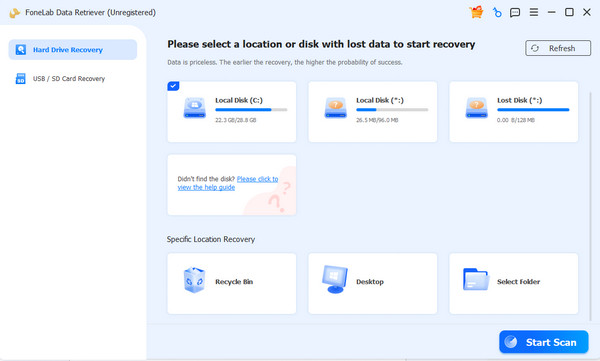
Step 1Begin by selecting Free Download. This action will deliver the FoneLab Data Retriever file; once it’s ready, use it to start the installation. It won’t be long until you see Start. Select it, and when the main interface appears, pick your disk and click the Start Scan button.
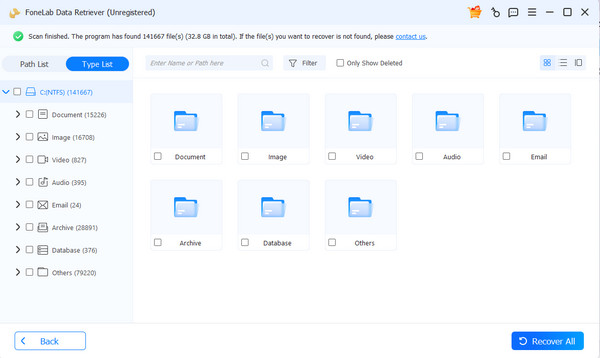
Step 2The next interface will shortly present the results in data type folders. Open each folder to find the file you need, then browse the content. Once you find the photos, documents, videos, or other data you want, select and restore them using Recover All.
Part 8. FAQs about How to Factory Reset Windows 11
Can I stop a reset once it starts?
Yes, it is possible, but definitely not recommended. Interrupting the process can corrupt your system and leave your PC unbootable, only worsening the situation.
How long does a Windows factory reset take?
Generally, it takes 30 minutes to 1 hour. It also heavily depends on your system speed, data, and the reset method you choose.
With the right preparation and the steps outlined above, resetting Windows 11 is straightforward. If you accidentally lose important data along the way, don’t hesitate to turn to FoneLab Data Retriever.



