
 iPhone Data Recovery
 iOS System Recovery
 iOS Data Backup & Restore
 iOS Unlocker
 iPhone Password Manager
 Location Changer
 Android Data Recovery
 Broken Android Data Extraction
 Android Data Backup & Restore
 Android Unlocker
 FoneTrans for iOS
 iPhone Data Eraser
 iPhone Cleaner
 HEIC Converter
 HyperTrans
 WhatsApp Transfer for iOS
 Mac Sweep
 Data Retriever
 Mac Data Retriever
 Video Converter Ultimate
 Screen Recorder
 Phone Mirror
- Part 1. What Chrome Cache Stores and Why It Matters
- Part 2. Clear Chrome Cache with the Keyboard Shortcut
- Part 3. Clear Chrome Cache Through Settings
- Part 4. Clear Cache for a Single Site in Chrome
- Part 5. Auto-Clear Cache on Exit in Chrome
- Part 6. Clear Chrome Cache with FoneLab Mac Sweep
- Part 7. If Chrome Is Still Slow After Clearing Cache
- Part 8. Recover Lost Files with FoneLab Data Retriever
- Part 9. FAQs about Clearing Cache on Chrome
 Recover PC Data Now
Recover the lost/deleted data from computer, hard drive, flash drive, memory card, digital camera and more.
Eminent Guide on How to Clear Cache in Chrome Smoothly
 Updated by
Has your Chrome browser been slow lately? If so, you may need to learn how Chrome clear cache to get it running smoothly again. In case you missed it, Chrome stores temporary files called cache files to help sites load faster. However, even if it is helpful, this type of data can pile up and cause issues, such as slow browsing or errors—the opposite of its intended purpose.
Therefore, clearing the cache is a very reasonable option, especially if the problem is already affecting your browsing activities. In this guide, we will take a deep dive into what caches are and how to clear them to improve your Chrome browser's performance. The most effective methods will be covered, along with additional information that will be useful later. Moreover, a safety net for your personal files will be introduced in case anything goes wrong, allowing you to recover data.

Guide List
- Part 1. What Chrome Cache Stores and Why It Matters
- Part 2. Clear Chrome Cache with the Keyboard Shortcut
- Part 3. Clear Chrome Cache Through Settings
- Part 4. Clear Cache for a Single Site in Chrome
- Part 5. Auto-Clear Cache on Exit in Chrome
- Part 6. Clear Chrome Cache with FoneLab Mac Sweep
- Part 7. If Chrome Is Still Slow After Clearing Cache
- Part 8. Recover Lost Files with FoneLab Data Retriever
- Part 9. FAQs about Clearing Cache on Chrome
Part 1. What Chrome Cache Stores and Why It Matters
Before attempting to clear Chrome cache, let us first discuss what this data is and why it matters. Well, Chrome cache is actually made up of temporary files like images, scripts, and other data from websites you visit. The browser saves these files so that the next time you open the same website, it can load faster without downloading everything again.
That’s why, if you notice, browsing feels quicker and smoother when you visit a site a second or third time. But as mentioned, when these saved files pile up or become outdated, they can cause problems. You might see broken pages, old content that won't update, or a browser that loads slowly. Hence, clearing caches once in a while also matters.
Part 2. Clear Chrome Cache with the Keyboard Shortcut
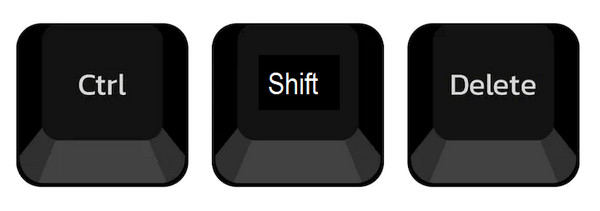
The fastest way to clear your Chrome cache is to use a simple keyboard shortcut. Like other shortcuts, this method skips menus and takes you straight to the relevant window—in this case, the clear browsing data window. It works on both Windows and Mac, making it a convenient option for computer users. So, if you want clearing cache in Chrome more quickly, this is a good option.
Step 1Use the Ctrl + Shift + Delete keyboard shortcut on Windows and Cmd + Shift + Delete on Mac. The Clear browsing data window will then immediately appear.
Step 2From there, ensure you select cache and the time range before clicking Delete.
Part 3. Clear Chrome Cache Through Settings
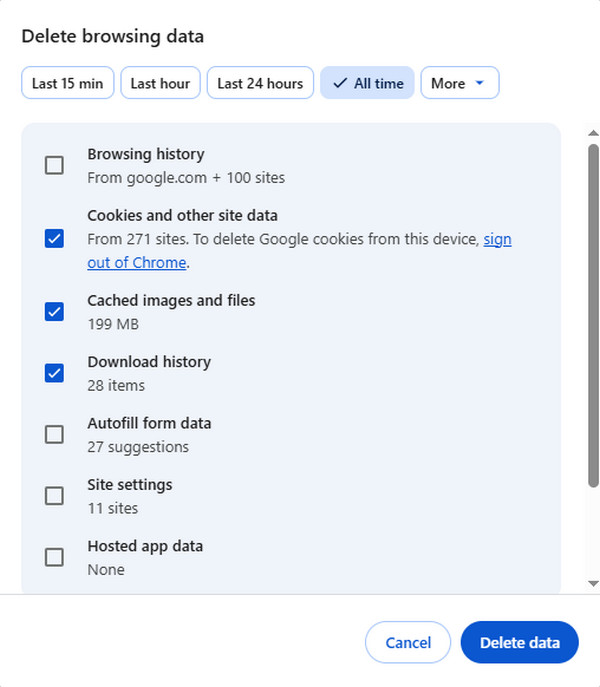
If you prefer a more guided approach, you can clear your Chrome cache through the browser's Settings menu. This method is helpful if you want to see all the available options before clearing the caches, or other unnecessary data. You will also be able to choose more data to remove and how far back you want to go, making it better suited to those who want more control.
Step 1Choose the three-dot menu in the top-right corner of your Chrome, then select Settings. Afterward, go to Privacy and security and click Delete browsing data.
Step 2When the window appears, check Cached images and files, as well as any other data you may want to include. You should also pick the time range at the top, then hit Delete data.
Part 4. Clear Cache for a Single Site in Chrome
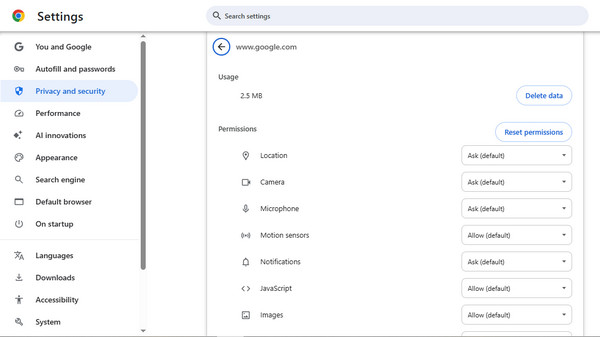
What if only one website is causing problems in your Chrome, while the rest are running fine? In that case, you don't need to clear everything. The good news is that it’s possible to clear cache Chrome on Mac or Windows for just that single site. This is useful when only one page runs slowly or shows outdated content, and you want to fix it without affecting your other saved data.
Step 1First, visit the site you wish to fix, then select the icon next to the URL in the address bar. From the dropdown menu, select Site settings.
Step 2A new tab will open quickly; under the Usage section, click Delete data.
Part 5. Auto-Clear Cache on Exit in Chrome
Meanwhile, clearing caches automatically is also possible if you want to prevent your Chrome from accumulating it over time. That’s right! An auto-clear feature is available, saving you time and effort and the hassle of remembering to clear cache in Chrome manually. Just keep in mind that it will also clear cookies and site data, so you may need to log in to websites again.
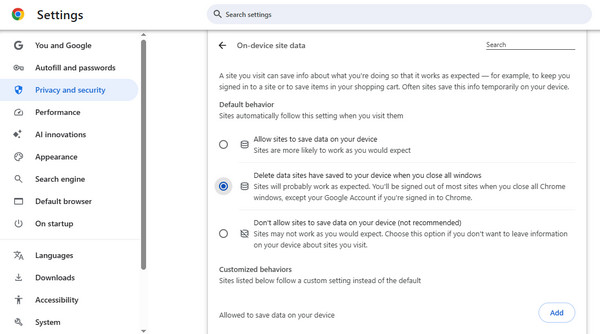
Step 1Click the three-dot menu and choose Settings. In the Privacy and security section, pick Site settings, then scroll down and click Additional content settings.
Step 2On the lower part of the following screen, choose On-device site data. From there, finally select Delete data sites have saved to your device when you close all windows.
Part 6. Clear Chrome Cache with FoneLab Mac Sweep
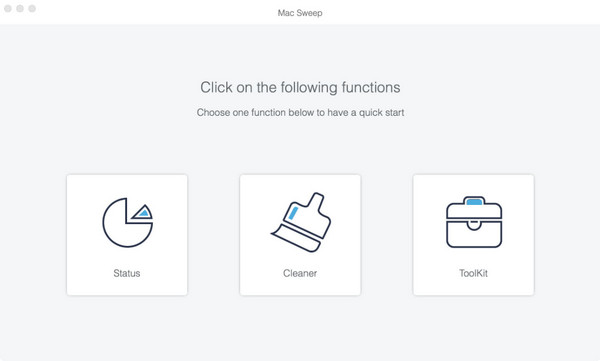
FoneLab Mac Sweep is another excellent solution to clear caches if you use Chrome on your Mac. It scans junk files, such as caches and logs, including the ones in your browsers, allowing you to remove them afterward. The good news is that the process is straightforward: you only need to choose Free Download and install it accordingly. Once you’re on the interface, select the suitable cleaning mode, whether Cleaner or ToolKit, to run a scan afterward. Finally, review the results and select the caches or other junk you wish to clear.
Part 7. If Chrome Is Still Slow After Clearing Cache
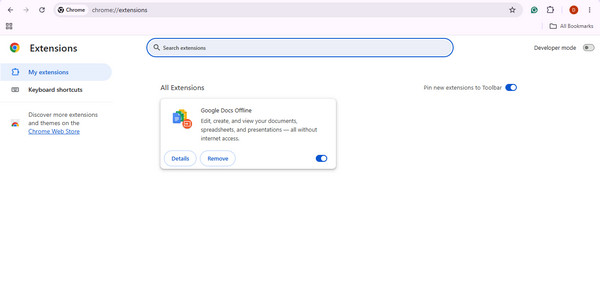
At times, clearing caches is not enough, and you may find your Chrome running slowly. If that happens, don’t worry, because there are still a few other things you can check. For instance, you can disable your extensions, since some of them may be slowing things down. Simply head to chrome://extensions and disable the unnecessary extensions from the list.
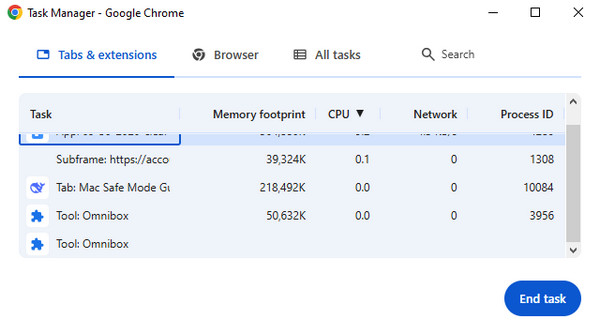
Also, ensure your Chrome is up to date, as updates often fix performance issues. Just click the three-dot menu > Help > About Google Chrome, then update it in the window. Apart from that, if Chrome is using too much memory, you can open Chrome's Task Manager by pressing Shift + Esc, then select End Task for the memory-hungry tabs.
Part 8. Recover Lost Files with FoneLab Data Retriever
Sometimes, while clearing your Chrome cache or cleaning other data, you may accidentally lose important files. It can also happen if your browser or computer encounters a problem during the process, so as a safety net, we recommend FoneLab Data Retriever.
FoneLab Data Retriever - recover the lost/deleted data from computer, hard drive, flash drive, memory card, digital camera and more.
- Recover photos, videos, documents and more data with ease.
- Preview data before recovery.
Among the recovery solutions we have tested, this program stands out for its high success rate and overall performance, whether the data loss is due to corruption or update failures. It can restore your important documents, media files, and more with its user-friendly features.
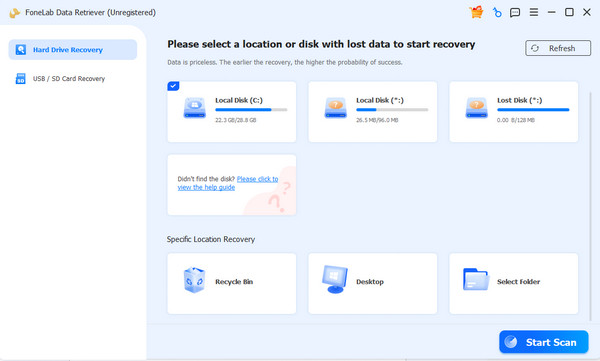
Step 1Get the FoneLab Data Retriever with Free Download, and you can immediately install the program by opening the file from the Downloads section. Once ready, launch the program and select your drive, followed by the Start Scan option.
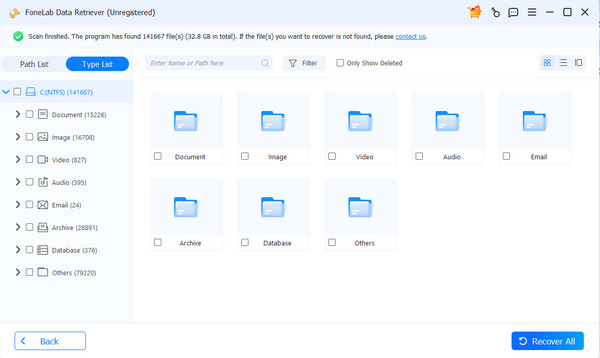
Step 2Folders for the results will be displayed shortly, allowing you to explore the list of lost files on the computer. Find and check your items from there, then hit Recover All.
Part 9. FAQs about Clearing Cache on Chrome
Does clearing Chrome cache delete bookmarks?
No, it doesn’t. Clearing your cache only removes temporary files, so your bookmarks and saved passwords will stay safe.
Why is Chrome's cache so large?
Chrome saves images, scripts, and files from every site you visit. Over time, these files accumulate and take up a lot of space.
How to clear cache on Chrome mobile?
It’s almost the same as the process in the computer. Open Chrome, tap the three-dot menu > History > Clear browsing data. Then, check Cached images and files, and tap Clear data.
With this guide, you can now clear your Chrome cache easily and keep your browser running smoothly. And with the assistance of FoneLab Data Retriever, data recovery has become hassle-free.


