
 iPhone Data Recovery
 iOS System Recovery
 iOS Data Backup & Restore
 iOS Unlocker
 iPhone Password Manager
 Location Changer
 Android Data Recovery
 Broken Android Data Extraction
 Android Data Backup & Restore
 Android Unlocker
 FoneTrans for iOS
 iPhone Data Eraser
 iPhone Cleaner
 HEIC Converter
 HyperTrans
 WhatsApp Transfer for iOS
 Mac Sweep
 Data Retriever
 Mac Data Retriever
 Video Converter Ultimate
 Screen Recorder
 Phone Mirror
 Recover PC Data Now
Recover the lost/deleted data from computer, hard drive, flash drive, memory card, digital camera and more.
Remarkable Fixes for Microsoft Word Not Responding
 Updated by
 What to do when Word is not responding? A simple question people ask when the screen freezes or the cursor keeps spinning while using the Microsoft Word program. We understand the sudden worry and alarm, as an unresponsive Word could mean losing the document you are currently working on and haven’t yet saved. Whether you are finishing an important document, a project, or simply writing some notes, the priority is not to lose it.
Luckily, there are various ways to fix Word when it is not responding. But before taking any drastic action, it’s important to follow the golden rule: wait. Yes, that’s right! Don’t click anything else, and don’t close the program immediately. This gives Word more time to try to save the current changes to the document. Repeatedly clicking could also make things worse, so it's best to leave it alone for a few moments. However, if nothing happens after waiting, that's the time to use the most reliable solutions, which are discussed below. Check them out, along with a bonus data recovery recommendation. You'll be guided throughout.


Guide List
Part 1. How to Rescue Unsaved Content BEFORE Closing Word
As mentioned, it is not recommended to close Word immediately. There are still some things you can do beforehand to rescue your unsaved content, which are outlined below.
Step 1: Use the Task Manager Analyze Wait Chain
Using the Analyze Wait Chain option in Task Manager is the first step in trying to rescue your unsaved Word document before closing the program. It allows you to check what's preventing Word from responding—whether it's stuck waiting on another process or overwhelmed by too many running operations.
Follow the process below to rescue unsaved content using the Task Manager:
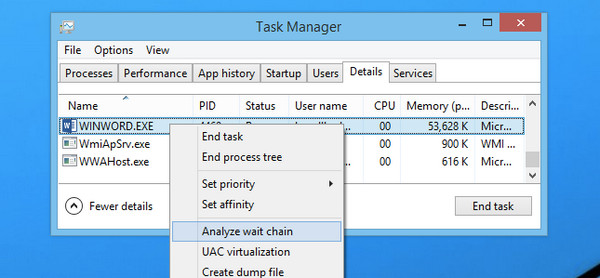
Step 1Press Ctrl + Shift + Esc to run Task Manager, then head to the Details tab. From there, find and right-click WINWORD.EXE before selecting Analyze Wait Chain.
Step 2If you see any blocked processes in the pop-up window, select them and click End Process to stop them from making your Word unresponsive.
Step 2: Check the ASD (AutoRecover) Directory Manually via File Explorer
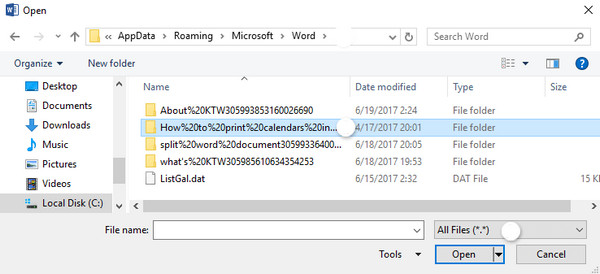
Meanwhile, Word may be completely frozen and won't let you do anything. If so, manually checking the AutoRecover Directory will be your second chance to rescue the document’s unsaved content. If you’re unaware, Word automatically saves backup copies of your document in a hidden folder, and you can find that folder using File Explorer.
It is especially effective since AutoRecover is enabled by default, but it only works if the file has been saved at least once. That said, simply copy and paste this path—C:\Users
Part 2. Step-by-Step Fixes for Microsoft Word Freezing Issues
Below are step-by-step fixes if your Microsoft Word continues to freeze.
Method 1: Launch Word in Safe Mode
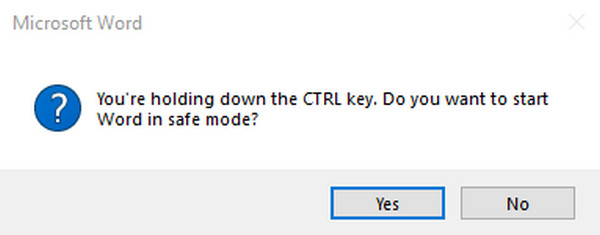
Launching Word in Safe Mode will let the program run with only its core functions, turning off all extra features and add-ins temporarily. So, if it works fine in this mode, you’ll know that the issue is likely caused by a third-party add-in or extension rather than Word itself. You can do this by holding Ctrl while double-clicking Word, then choosing Yes when prompted. It will then run in Safe Mode.
Method 2: Disable Faulty COM Add-ins
Once you confirm that faulty COM add-ins are the ones causing the problem, the best course of action is to disable them. They are small programs that integrate with Word to add extra functionality and are also the most common reason behind freezing issues. A poorly coded, outdated, or incompatible add-in can easily bring Word to a halt without you even realizing it.
Follow the instructions below to fix Word not responding by disabling faulty COM add-ins:
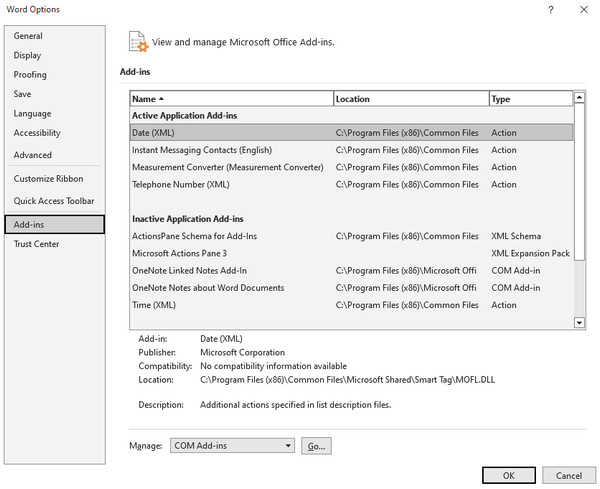
Step 1Open Word normally and tick File > Options > Add-ins. When the window appears, scroll down to set Manage to COM Add-ins, then click Go.
Step 2After that, uncheck all the add-ins in the list and click OK to disable them. Once done, restart Word to see if the freezing stops.
Method 3: Reset the Global Template
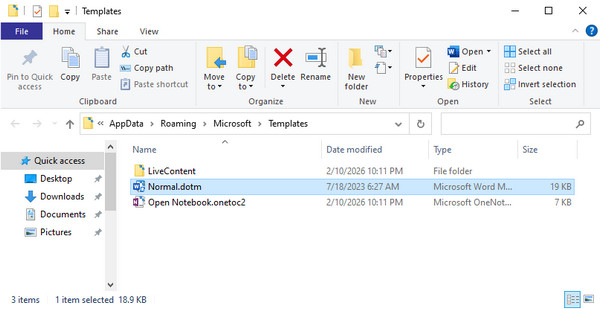
The global template, usually Normal.dotm, stores your default settings, customizations, etc., for Word. When this file becomes corrupted or overloaded, it can cause Word to freeze immediately after opening. Resetting it restores Word to its factory defaults, clearing out any corrupted settings that might be causing problems. It is specifically effective for freezing issues that occur at startup.
Follow the steps below to fix Microsoft Word not responding by resetting the global template:
Step 1First, close Word completely. Following that, press Windows + R to type %appdata%\Microsoft\Templates, and hit Enter.
Step 2On the pop-up folder, find Normal.dotm and rename it to Normal.old. Then, restart Word, and a fresh template will be created automatically.
Method 4: Change the Default Printer
What if your Word is freezing in the Print Layout? One thing you may not know is that Word constantly communicates with your default printer to display accurate page layouts. If your printer driver is outdated, offline, or malfunctioning, Word can freeze whenever you switch to Print Layout view or try to print. Thus, changing the default printer can resolve this issue.
Follow the operation below to learn what to do when Word is not responding, which is to change the default printer:
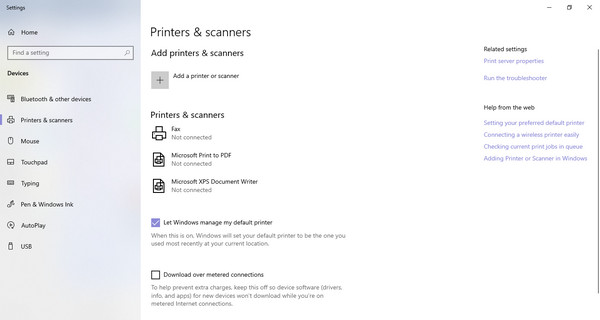
Step 1Open the Windows Start menu to type and select Printers and Scanners.
Step 2Under Printers & scanners, pick a different printer or select Microsoft Print to PDF. Then, click the Set as default option.
Part 3. What If Word Crashed and Wiped Your File?
Sometimes, such situations can take a turn for the worse. Unfortunately, a simple freezing issue can cause a crash, eliminating any chance of recovery through built-in methods. In this case, the best chance of rescuing your file is with FoneLab Data Retriever, a dedicated recovery tool designed to recover deleted file on PC, which also lets you recover a deleted Word document.
Unlike other methods, this tool’s Deep Scan function digs deeper into your hard drive, memory cards, or external devices to locate documents or other data. Numerous file types are supported, including emails, photos, videos, etc., and you can recover them easily.
FoneLab Data Retriever - recover the lost/deleted data from computer, hard drive, flash drive, memory card, digital camera and more.
- Recover photos, videos, documents and more data with ease.
- Preview data before recovery.
Discern the easy steps below as a model to recover your wiped files with FoneLab Data Retriever:
Step 1Download and install FoneLab Data Retriever through the Free Download tab, then launch the program. On the appearing interface, choose your drive and select Start Scan.
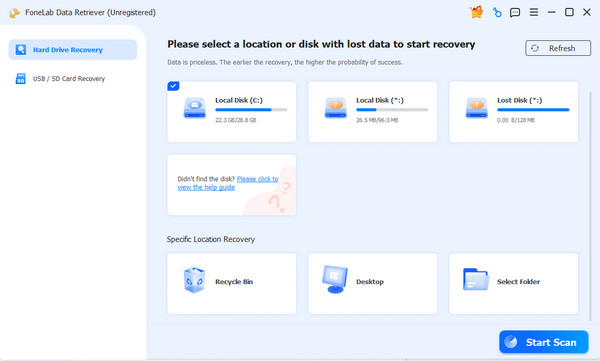
Step 2Once the scan finishes, browse through the results by opening the Documents folder. Locate and select your desired Word file from there, and when ready, opt for Recover All.

Part 4. FAQs about Word Not Responding
How often does AutoRecover save my document?
By default, it is every 10 minutes, but you can adjust this in File > Options > Save.
Should I reinstall Office if nothing works?
As a last resort, you can. However, doing this will lessen your chances of data recovery.
If Word keeps freezing, start with the simple fixes and always remember to save often. And if disaster strikes, don't worry—recovery tools like FoneLab Data Retriever still have your back.



