
 iPhone Data Recovery
 iOS System Recovery
 iOS Data Backup & Restore
 iOS Unlocker
 iPhone Password Manager
 Location Changer
 Android Data Recovery
 Broken Android Data Extraction
 Android Data Backup & Restore
 Android Unlocker
 FoneTrans for iOS
 iPhone Data Eraser
 iPhone Cleaner
 HEIC Converter
 HyperTrans
 WhatsApp Transfer for iOS
 Mac Sweep
 Data Retriever
 Mac Data Retriever
 Video Converter Ultimate
 Screen Recorder
 Phone Mirror
- Part 1. Recover Unsaved PowerPoint With The Recover Unsaved Presentations Button
- Part 2. Recover Unsaved PowerPoint by Checking the AutoRecover Folder
- Part 3. Recover Unsaved PowerPoint by Restoring via OneDrive
- Part 4. Recover Unsaved PowerPoint by Searching for Temporary Files
- Part 5. Recover Unsaved PowerPoint With FoneLab Data Retriever
- Part 6. Comparison Table of Methods to Recover Unsaved PowerPoint
- Part 7. Best Practices for Future PowerPoint Protection
- Part 8. FAQs about How to Recover Unsaved PowerPoint
 Recover PC Data Now
Recover the lost/deleted data from computer, hard drive, flash drive, memory card, digital camera and more.
Recover Unsaved PowerPoint on Mac and Windows in Proven Ways
 Updated by
 Greetings! Can you help me recover unsaved PowerPoint presentation? I did not have the chance to save it a while ago because my computer just shut down out of nowhere. I hope you can assist me with this issue. Thank you!
A PowerPoint is commonly used for school or work presentations. Creating it is very time-consuming. So, it is frustrating to be unable to save it on your computer. Luckily, this article shows the leading ways to recover an unsaved PowerPoint presentation. See them from the sections below.


Guide List
- Part 1. Recover Unsaved PowerPoint With The Recover Unsaved Presentations Button
- Part 2. Recover Unsaved PowerPoint by Checking the AutoRecover Folder
- Part 3. Recover Unsaved PowerPoint by Restoring via OneDrive
- Part 4. Recover Unsaved PowerPoint by Searching for Temporary Files
- Part 5. Recover Unsaved PowerPoint With FoneLab Data Retriever
- Part 6. Comparison Table of Methods to Recover Unsaved PowerPoint
- Part 7. Best Practices for Future PowerPoint Protection
- Part 8. FAQs about How to Recover Unsaved PowerPoint
Part 1. Recover Unsaved PowerPoint With The Recover Unsaved Presentations Button
The Recover Unsaved Presentations button is used when the computer shuts down unexpectedly. Microsoft also uses it to recover an unsaved Word document. However, it cannot guarantee that you will recover your PowerPoint file.
Open the Microsoft PowerPoint. Then, select the File button. Later, choose the Open button from the screen. After that, please choose the Recover Unsaved Presentations button. The unsaved files will appear. Select the Open button afterward.

Part 2. Recover Unsaved PowerPoint by Checking the AutoRecover Folder
PowerPoint stores your unsaved presentations if the AutoRecover feature is on. So, you can check the AutoRecover File folder from your Mac Finder or Windows File Explorer.
You only need to open the mentioned tools, which are Finder and File Explorer. Then, search for the C:\Users\YourUsername\AppData\Local\Microsoft\Office\UnsavedFiles folder on your Windows File Explorer. On your Mac, search for the ~/Library/Containers/com.microsoft.Powerpoint/Data/Library/Preferences/AutoRecovery folder.
Part 3. Recover Unsaved PowerPoint by Restoring via OneDrive
If OneDrive is used for the PowerPoint file, you can also check this service’s version history. Stop using the program and have a quick check. This way, you can still recover the recently unsaved PowerPoint documents. See how with the detailed steps below.
Go to the OneDrive website. Then, find the PowerPoint file and right-click on it. Later, choose the Version History button.

Part 4. Recover Unsaved PowerPoint by Searching for Temporary Files
Besides the AutoRecover folder, your computer also stores temporary files. In this case, it can hold the data or files currently being created. You can search for the folder to find the PowerPoint files that are unsaved from your computer using the steps below.
Windows: Press the Windows + R combination keys. Then, type the %temp% button. Press your Enter key afterward. Your temporary files will appear afterward. Locate the .tmp, .ppt, .pptx, and .asd files afterward.
Mac: On your Mac, open Finder and press the Command + F combination. After that, search for the .tmp, .pptx, and PowerPoint keywords. The temporary files will appear afterward.
Part 5. Recover Unsaved PowerPoint With FoneLab Data Retriever
However, how to recover an unsaved PowerPoint when there are no temporary files or AutoSave folders? FoneLab Data Retriever is your best option! This tool can retrieve different types of documents, including PowerPoint, Word, and more. Besides that, it can recover images, videos, music, and other data types.
FoneLab Data Retriever - recover the lost/deleted data from computer, hard drive, flash drive, memory card, digital camera and more.
- Recover photos, videos, documents and more data with ease.
- Preview data before recovery.
The best thing about this tool is that it does not need a backup or internet connection for retrieving your data. How to recover deleted file on PC or Mac? Please refer to the steps below to know how to use this tool.
Step 1Click the Free Download option to download the tool on a Mac or Windows. Then, choose the downloaded file to set it up on your device. Later, install it from the small window. Your computer will launch it automatically afterward.
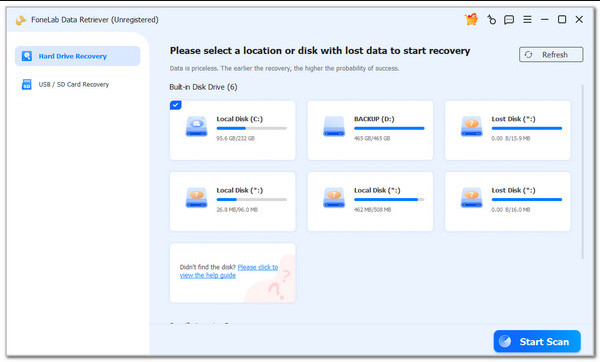
Step 2Choose the location where you think you lost the PowerPoint files. Then, click the Start Scan option at the bottom right. Later, the tool will start locating your files, including the unsaved PowerPoint files. Select the Documents button on the right. You can also choose the other data types after.
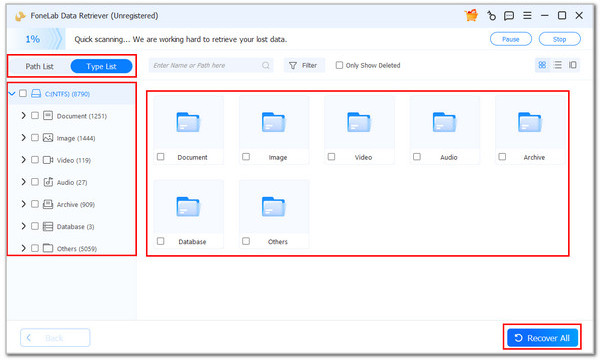
Step 3Locate the unsaved PowerPoint files on the right. Choose all of them. Then, select the Recover All button at the bottom right. The tool will begin recovering your PowerPoint files afterward. You only need to wait a few seconds or minutes, depending on the quantity and sizes of your PowerPoint files.
Part 6. Comparison Table of Methods to Recover Unsaved PowerPoint
| Method | Speed | Success Rate | Required Skills |
| The Recover Unsaved Presentations Button | Moderate | Moderate | Intermediate |
| Check the AutoRecover Folder | Moderate | Moderate | Intermediate |
| Restoring via OneDrive | Slow | Moderate | Intermediate |
| Searching for Temporary Files | Moderate | Low | Intermediate |
| FoneLab Data Retriever | Fast | High | Beginner |
Part 7. Best Practices for Future PowerPoint Protection
The unsaved PowerPoint presentation is common for multiple users. So, it is better to know the best practices for your future PowerPoint presentations. In this case, you do not need to recover them or worry whether they will be saved. See the list below for your reference.
1. Ensure that the AutoSave Feature is On
As mentioned in the previous section, the AutoSave feature is responsible for storing your current progress from the PowerPoint presentation. In this case, you can recover your data when your computer shuts down. You can still retrieve the PowerPoint presentations that were never saved to your computer.
2. Use a Backup Drive
The PowerPoint presentations can be deleted anytime due to human error or system issues. You can use a cloud storage, including iCloud and Google Drive. In this case, you can access the PowerPoint files when they are not available on the mentioned program.
3. Keep Copies on External Storage
Besides cloud storage, you can also keep copies on your external storage. These include USB drives, external SSDs, and external hard drives. They serve as a backup, similar to the cloud storage from the previous section.
Part 8. FAQs about How to Recover Unsaved PowerPoint
What to do if PowerPoint is not saving?
You need to check for a corrupted media added to the PowerPoint if it cannot be saved. As a solution, you can simply copy the whole presentation and paste it into another file. Alternatively, it is recommended to repair Microsoft Office to fix the issue.
Why does my PowerPoint not AutoSave?
PowerPoint does not autosave your presentation progress. It is a setting that needs to be manually modified. So, you need to turn on the AutoSave feature or the settings of the mentioned program.
In conclusion, you can recover unsaved PowerPoint file using the built-in ways or a third-party tool. FoneLab Data Retriever is a tool that can help you recover your unsaved PowerPoint and other documents. It can also retrieve your music, videos, photos, and other data types. Download the tool now if you want to explore it!



