
 iPhone Data Recovery
 iOS System Recovery
 iOS Data Backup & Restore
 iOS Unlocker
 iPhone Password Manager
 Location Changer
 Android Data Recovery
 Broken Android Data Extraction
 Android Data Backup & Restore
 Android Unlocker
 FoneTrans for iOS
 iPhone Data Eraser
 iPhone Cleaner
 HEIC Converter
 HyperTrans
 WhatsApp Transfer for iOS
 Mac Sweep
 Data Retriever
 Mac Data Retriever
 Video Converter Ultimate
 Screen Recorder
 Phone Mirror
- Part 1. Recover Deleted Files from Hard Disk via Recycle Bin / Trash
- Part 2. Recover Hard Disk through Windows File History
- Part 3. How to Recover Deleted Data from Hard Disk via Cloud Storage
- Part 4. Recover Files from Hard Disk Using FoneLab Data Retriever
- Part 5. How to Recover Hard Disk by Running CHKDSK
- Part 6. Comparison of Methods to Recover Files from Hard Disk
- Part 7. FAQs about Recovering Files from Hard Disk
 Recover PC Data Now
Recover the lost/deleted data from computer, hard drive, flash drive, memory card, digital camera and more.
5 Trustworthy Ways to Recover Files from Hard Disk
 Updated by
 Learn how to recover deleted data from hard disk with ease. Losing important files happens to everyone, but before you get alarmed, know that it’s still possible to get them back. Other than accidental deletion—the most common cause of data loss—other circumstances such as unwanted formatting, disk damage, and an emptied Recycle Bin can also occur. Knowing a few reliable recovery methods is helpful, especially since you can choose the most suitable one.
That said, browse the leading recommendations in the following sections. After exploring numerous features and tools from different platforms, we have compiled the most trustworthy ones. Feel free to review their information, along with the step-by-step procedures. Understand each method and choose the one that best fits your data loss situation.

Guide List
- Part 1. Recover Deleted Files from Hard Disk via Recycle Bin / Trash
- Part 2. Recover Hard Disk through Windows File History
- Part 3. How to Recover Deleted Data from Hard Disk via Cloud Storage
- Part 4. Recover Files from Hard Disk Using FoneLab Data Retriever
- Part 5. How to Recover Hard Disk by Running CHKDSK
- Part 6. Comparison of Methods to Recover Files from Hard Disk
- Part 7. FAQs about Recovering Files from Hard Disk
Part 1. Recover Deleted Files from Hard Disk via Recycle Bin / Trash
Your computer’s Recycle Bin or Trash is the very first place to check when you accidentally delete or lose files. Besides being hassle-free, it is also the quickest method available, as it is a built-in feature you can access anytime on your computer. You may not know this, but erasing your files doesn't mean they are immediately removed from your hard disk for good. They are only moved to the Recycle Bin or Trash folder, where they will remain until you delete them from there. The best part is that it offers a recovery option.
Follow the task below to learn how to recover deleted data from hard disk via the Recycle Bin/Trash:
Step 1Launch your desktop’s Recycle Bin or Trash to view your deleted files.
Step 2From the recoverable files, find the item you need, then right-click it to select Restore.
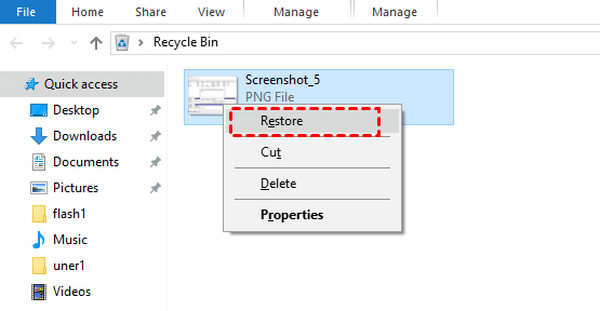
However, this method has clear limitations. It only works if you have not permanently deleted the file. Emptying the Recycle Bin or Trash removes files from this folder completely, making it impossible to recover your data with this specific technique.
Part 2. Recover Hard Disk through Windows File History
Windows File History is another built-in backup feature designed to restore lost files. The good news is that it doesn't matter if you have already emptied the Recycle Bin, since it relies on backups that let you access previous versions of your files. This is because when you enable this feature, Windows automatically saves copies of your documents, pictures, and other folders over time. Its main advantage is that it allows you to recover older versions of a file, and you can go through different backup dates to find the exact version you need.
Follow the directions below to recover deleted files from hard disk through Windows File History:
Step 1Find the folder where your file was previously stored, then right-click it.
Step 2When options appear, pick Restore previous versions, and the available versions of your files will be shown. Simply select it from there and hit Restore to finish.
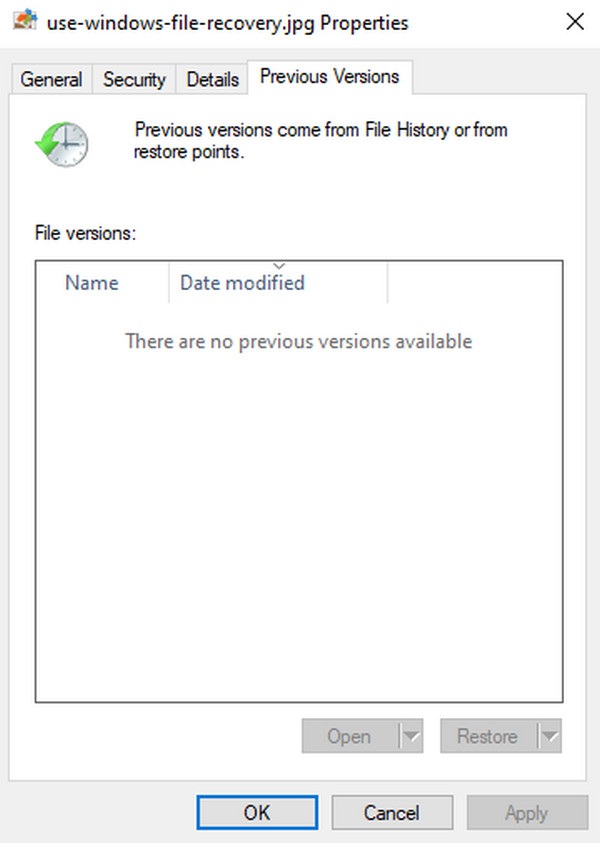
No older versions available for your chosen file? If so, it's likely because you haven't turned on File History. Unfortunately, many users don't enable this feature until they experience data loss and realize its importance—by which time it's too late.
Part 3. How to Recover Deleted Data from Hard Disk via Cloud Storage
You can also rely on cloud storage, like Google Drive, to recover your hard disk files. If you have synced your data to the cloud service, restoring files is easy, since deleted files often stay in the platform's Trash. Like the first method, it offers a recovery option, allowing you to restore your chosen files with ease. However, there are a few things to remember. First, the recoverable files are only available for 30 days before they permanently disappear from the Trash folder. Second, this method won't be effective if you haven't synced your files.
Follow the guide below to learn how to recover hard disk data via the cloud storage, Google Drive:
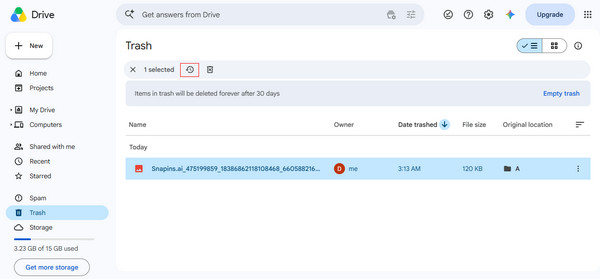
Step 1Go online to log into your Google Drive, then proceed to the Trash section.
Step 2Browse the deleted files to find the one you wish to recover, and once found, select it before clicking the Restore from trash symbol from the upper menu.
Part 4. Recover Files from Hard Disk Using FoneLab Data Retriever
A more professional yet painless technique to restore deleted files from your hard disk is FoneLab Data Retriever. Unlike built-in features and cloud services, programs like this offer more recovery functions and advantages that make the process more efficient. For instance, For instance, its deep scan detects deleted files on your computer's hard drive more thoroughly.
FoneLab Data Retriever also recovers different data types in a broad range of formats, including documents, photos, audio, emails, and more. It works whether you lost your files due to disk damage, accidental deletion, or unwanted formatting, without requiring pre-enabled features or other strict requirements. Moreover, you will be able to preview your files before recovery.
FoneLab Data Retriever - recover the lost/deleted data from computer, hard drive, flash drive, memory card, digital camera and more.
- Recover photos, videos, documents and more data with ease.
- Preview data before recovery.
Discern the navigation below as a pattern to recover files from hard disk with FoneLab Data Retriever:
Step 1Install FoneLab Data Retriever with the saved file by clicking Free Download. When ready, launch the tool and select your hard disk from the key interface.
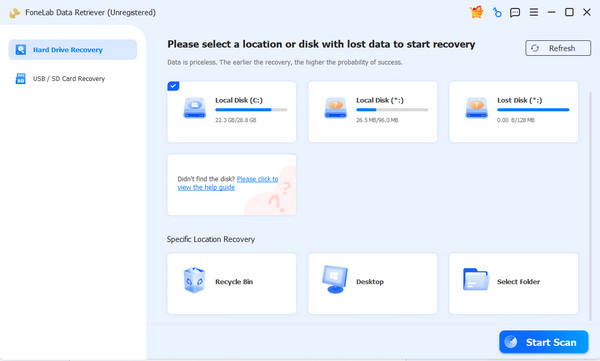
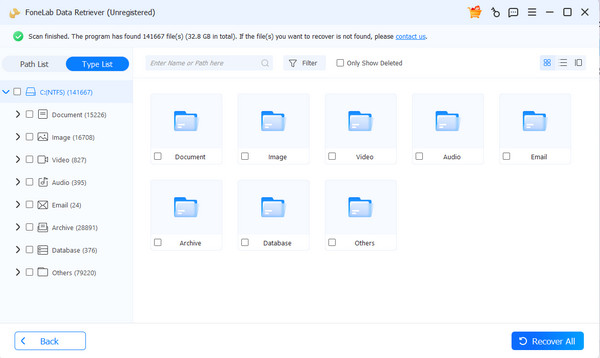
Step 2Click Start Scan next, then browse the data type folders on the results interface. Once you find your files, mark their boxes and tick Recover All to bring them back.
Part 5. How to Recover Hard Disk by Running CHKDSK
As mentioned, a damaged disk can also be the cause of data loss. In this case, running CHKDSK might help. However, unlike the previous techniques, this one doesn’t exactly recover deleted files. Instead, it fixes problems with your hard disk that make files unreadable or inaccessible. Just note that it cannot recover files that were permanently deleted, as this command-line tool only addresses logical disk problems.
Follow the operation below to learn how to recover data from damaged hard disk by running CHKDSK:
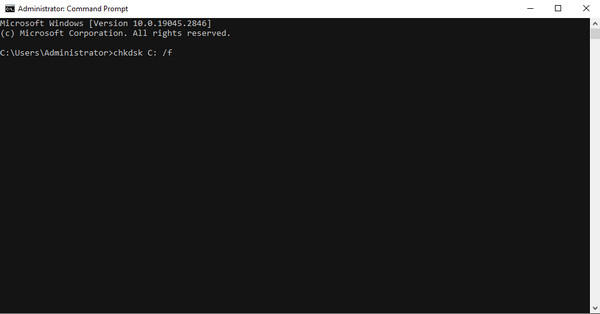
Step 1Start Command Prompt as administrator and type chkdsk X: /f (kindly replace X with your drive letter), then Enter for the tool to detect and fix any issues.
Step 2When done, restart your computer to check if your files are now accessible.
Part 6. Comparison of Methods to Recover Files from Hard Disk
| Method | Recycle Bin / Trash | Windows File History | Cloud Storage | FoneLab Data Recovery | CHKDSK |
| Ease of Use | Very easy | Easy | Very easy | Easy | Moderate |
| Requires Setup in Advance? | No | Yes | Yes | No | No |
| Recovers Permanently Deleted Files? | No | No | No | Yes | No |
| Success Rate | High | High (if enabled) | High (if synced) | Very high | Moderate |
| Best For | Recent accidental deletions | Restoring older versions of backed‑up files | Recovering synced files from anywhere | Deep recovery of permanently lost files | Fixing disk errors to access unreadable files |
Part 7. FAQs about Recovering Files from Hard Disk
Can I recover the files from my formatted hard disk?
Yes, you can, but only with a tool like FoneLab Data Retriever, since built-in methods, like Recycle Bin or File History, cannot recover files after formatting.
Will recovering files damage my hard disk?
Generally, no, because the methods recommended above are completely safe.
Choose the recovery technique that best fits your situation, and we suggest regularly backing up your important files to avoid future data loss.



