
 iPhone Data Recovery
 iOS System Recovery
 iOS Data Backup & Restore
 iOS Unlocker
 iPhone Password Manager
 Location Changer
 Android Data Recovery
 Broken Android Data Extraction
 Android Data Backup & Restore
 Android Unlocker
 FoneTrans for iOS
 iPhone Data Eraser
 iPhone Cleaner
 HEIC Converter
 HyperTrans
 WhatsApp Transfer for iOS
 Mac Sweep
 Data Retriever
 Mac Data Retriever
 Video Converter Ultimate
 Screen Recorder
 Phone Mirror
- Part 1. How to Recover Deleted Files by Checking the Recycle Bin/Trash
- Part 2. How to Recover Deleted Files by Restoring from Cloud Backups
- Part 3. How to Recover Deleted Files by Restoring from System Backups
- Part 4. How to Recover Deleted Files With FoneLab Data Retriever
- Part 5. Comparison Table of Methods to Recover Deleted Files
- Part 6. FAQs about How to Recover Deleted Files
 Recover PC Data Now
Recover the lost/deleted data from computer, hard drive, flash drive, memory card, digital camera and more.
How to Restore Deleted Files in 4 Convenient Practices
 Updated by
 Good day! I lost some of my important files on my device this morning. I do not know what happened because I just woke up and noticed it. How to recover deleted files? I hope you can help me with this issue. Thank you!
Data can be stored on Android, iPhone, iPad, Windows, Mac, and other devices. If you accidentally delete files, they will be eliminated from your device. Would you like to get them back without difficulty? This post provides the 4 leading methods to recover your data from the mentioned devices. Please continue browsing in this post to see the full details.


Guide List
- Part 1. How to Recover Deleted Files by Checking the Recycle Bin/Trash
- Part 2. How to Recover Deleted Files by Restoring from Cloud Backups
- Part 3. How to Recover Deleted Files by Restoring from System Backups
- Part 4. How to Recover Deleted Files With FoneLab Data Retriever
- Part 5. Comparison Table of Methods to Recover Deleted Files
- Part 6. FAQs about How to Recover Deleted Files
Quick Answer: Can You Recover Deleted Data
Recovering the files on your computer is easy, especially if they were recently deleted. You can use the Trash or the Recycle Bin on your devices. Most devices have one, including iPad, iPhone, Android, Mac, and Windows.
But how to recover permanently deleted files? Backups are necessary for this. You can use the built-in system backups or cloud backups. These methods will be explained in detail in the sections below.
Part 1. How to Recover Deleted Files by Checking the Recycle Bin/Trash
When you recently delete files on your devices, they go to the Recycle Bin or Trash Bin. The mentioned folder will store the deleted data for 30 to 40 days. So, you can recover files from Recycle Bin or Trash Bin within that time frame. Please refer to the steps below to recover deleted files free.
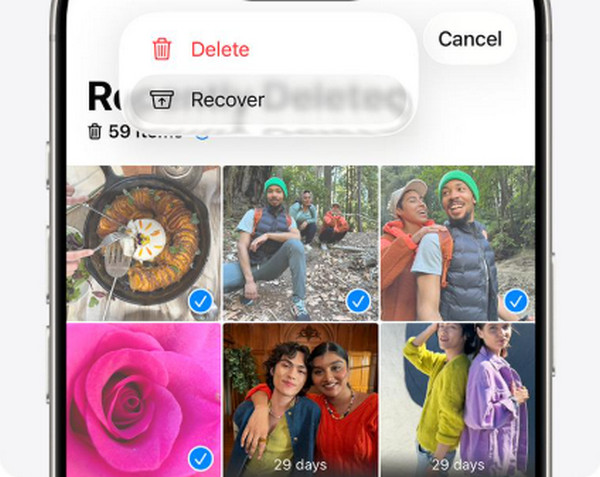
iPhone/iPad: Go to the Files app. Then, tap the Browse button on the screen. Later, tap the Recently Deleted folder. Select the files you need to recover. Finally, tap the Recover button.
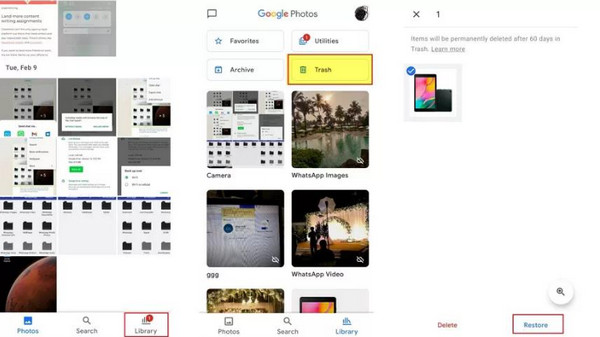
Android: Open the Files app. Then, select the Trash or Recycle Bin button. Choose the file you prefer to recover. Then, tap the Restore button at the bottom.
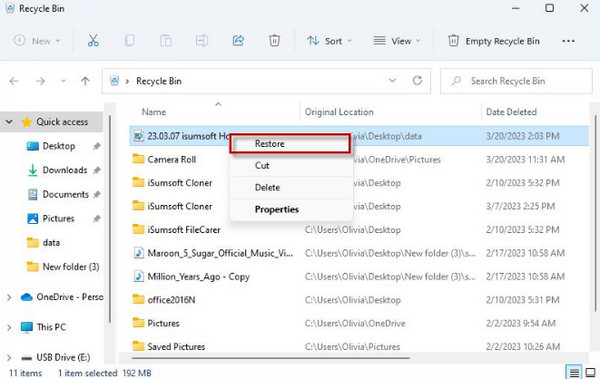
Windows: Open the Recycle Bin. Then, locate and choose the files you want to delete. Right-click the files and choose the Restore button from the options.
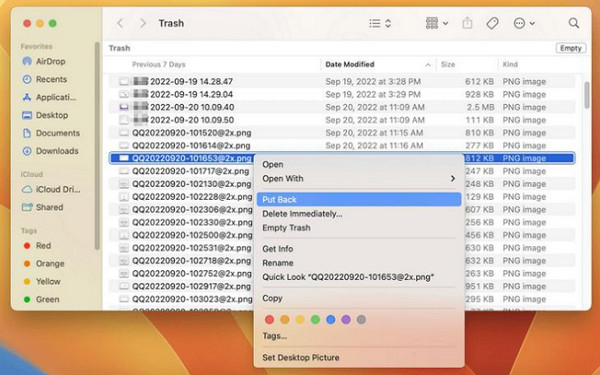
Mac: Access Trash. Then, please find and select the deleted data from the main interface. Right-click the files and choose the Put Back button from the main screen to retrieve your data.
Part 2. How to Recover Deleted Files by Restoring from Cloud Backups
How to recover permanently deleted files? Cloud backups are the best option. These include iCloud and Google Drive. Refer to the steps below to know how to restore cloud backups on your iPhone, iPad, Android, Windows, and Mac.
iPhone/iPad/Mac: Go to the iCloud website. Sign in with the Apple ID associated with the backup. Then, open the Drive section. Later, tap your account profile. Choose the Data Recovery button. Select the Restore Files button. Confirm the process by selecting Restore.

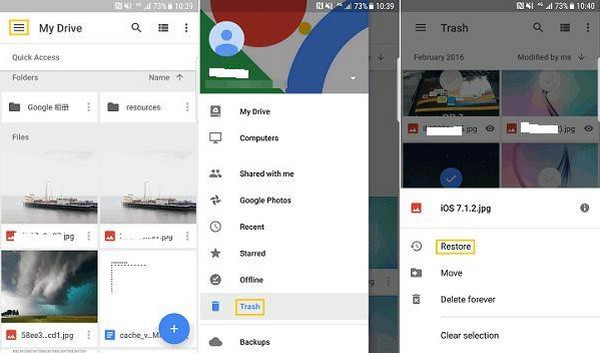
Android/Windows: Go to the Google Drive website. Then, select the files you want to retrieve from the folders. After that, please select the Three Dots button. More options will be seen. Select the Download button afterward. Alternatively, you can go to the Trash section. Then, select the files you want to retrieve. Finally, select the Restore button from the main interface.
Part 3. How to Recover Deleted Files by Restoring from System Backups
How do you recover deleted files if cloud backups are not available? You might have backed up your data with system backup tools. If so, you can follow the steps below.
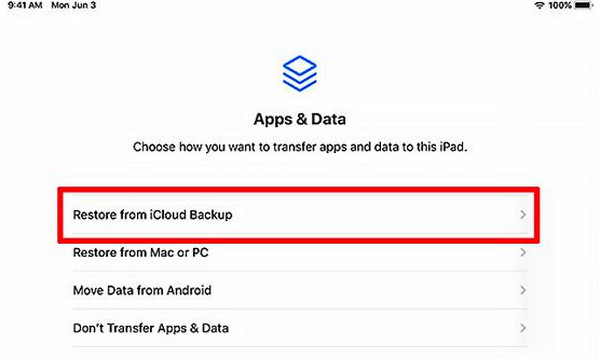
iPhone/iPad: You will need to factory reset the iPhone or iPad. Go to the Settings app and select the General button. Choose the Transfer or Reset iPhone/iPad button. Tap Erase All Content and Settings. Now, set up the iPhone or iPad. Tap the Restore from iCloud button. Enter your Apple ID account and choose a backup. The backup will be restored afterward.
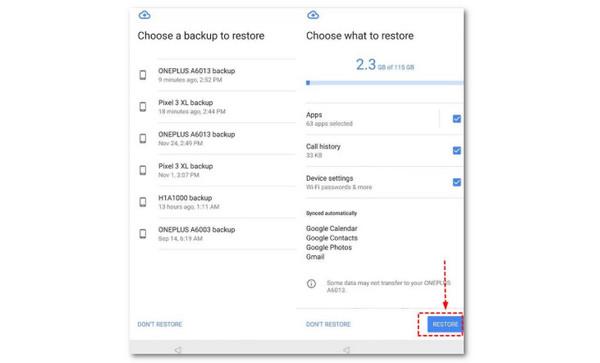
Android: Factory reset your Android phone. Go to the Settings app. Then, select the System button. Later, tap the Reset button from the list. Later, select the Erase All Data button. During the setup process, sign in to your Google account associated with the backup. Select the Restore from Backup button. Confirm the process by tapping the Restore button. Select your backup and wait for the files to be restored.
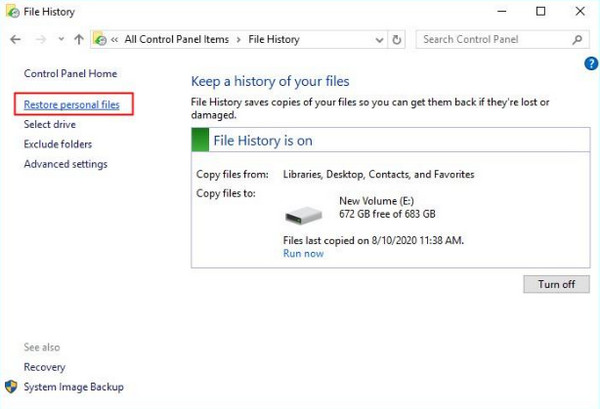
Windows: Open the Control Panel tool. Then, select the File History button. Select the Restore Personal Files button from the list. Later, browse the available folders. Choose the data you want to restore on your Windows. Later, please click the Restore button. The screen will load, and you only need to wait for the process to be completed. Usually, the process will last for a couple of minutes or hours.
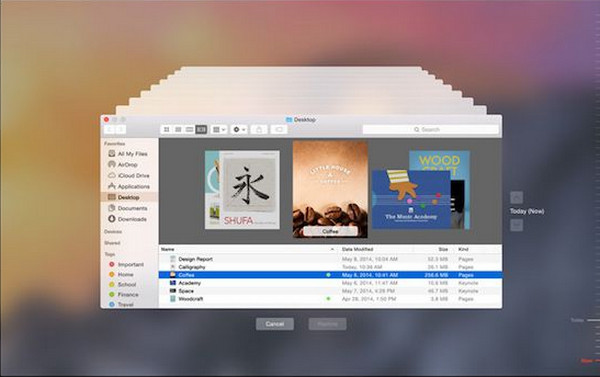
Mac: Ensure that the Time Machine backup drive is connected. Then, open the folder where the deleted files are located. Then, click the Time Machine on your Mac to open it. Later, browse the backups and choose the one you prefer to restore on your Mac. You can use the Arrows button on the right side of the tool. Finally, please click the Restore button at the bottom of the main interface.
Part 4. How to Recover Deleted Files With FoneLab Data Retriever
If the built-in methods did not work as expected, you can use FoneLab Data Retriever. It is a deleted computer data recovery tool that can retrieve data from your Mac and Windows computers. Documents, emails, videos, photos, and more data types are supported. It can recover from different locations on your computer or external devices, including a flash drive, a hard drive, a memory card, a digital camera, and more.
Also, the tool will not damage the original data, including its quality. If you want to use the tool to recover permanently deleted files, please refer to the steps below to know how to use it correctly.
FoneLab Data Retriever - recover the lost/deleted data from computer, hard drive, flash drive, memory card, digital camera and more.
- Recover photos, videos, documents and more data with ease.
- Preview data before recovery.
Step 1Click the Free Download option to get FoneLab Data Retriever on your computer. Wait for the downloading process to be completed. Set up the file from your web browser and install it on your computer to automatically open it afterward.
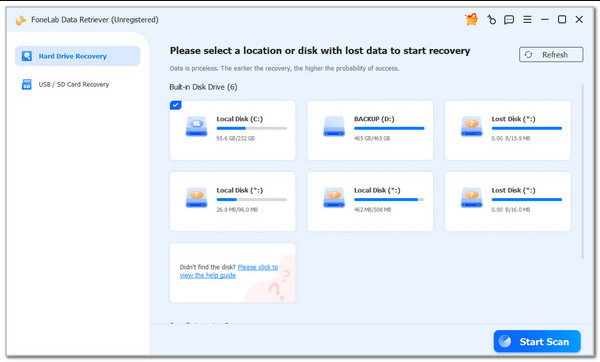
Step 2The supported location from your computer will appear. Please select one where you want to find your deleted data. Then, click the Start Scan option to scan the data on your computer.
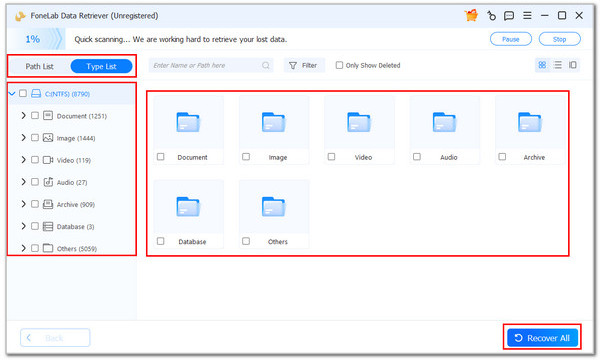
Step 3Wait for the results to be prompted. Then, select the data type on the left. Later, choose the data you want to retrieve. Finally, please click the Recover All button at the bottom right of the main interface.
Part 5. Comparison Table of Methods to Recover Deleted Files
All of the methods are convenient guides on how to retrieve deleted files. The table below will help you determine their differences. Please continue browsing the article to see it.
| Method | Connection Required | Time Duration | Cons |
| Recycle Bin/Trash Bin | None | A Few Seconds | It can only recover recently deleted files, not permanently deleted ones. |
| Cloud Backups | Strong Internet Connection | 15 Minutes to Hours | If backups are not made before the deletion, you cannot get back your data. |
| System Backups | None | 20 Minutes to Hours | You cannot retrieve the data that is not included in the backup. |
| FoneLab Data Retriever | USB Connection | A Few Seconds | You need to download the tool. |
Part 6. FAQs about How to Recover Deleted Files
Can Ctrl + Z restore deleted files?
Yes. The Ctrl + Z shortcut key can restore your deleted files. However, it can only be used in a few circumstances, including when the file was only deleted recently.
Are deleted files ever really gone?
No. The deleted data stays on your device— only the file's address is removed. The data will only be truly gone when it is overwritten with new data.
How to restore deleted files? In conclusion, you can do this process on your Mac, Windows, Android, iPad, iPhone, and other devices using built-in tools or third-party programs. FoneLab Data Retriever can help you recover data from your Mac and Windows computers, including images, documents, videos, and more data types. Download it and see for yourself!



