
 iPhone Data Recovery
 iOS System Recovery
 iOS Data Backup & Restore
 iOS Unlocker
 iPhone Password Manager
 Location Changer
 Android Data Recovery
 Broken Android Data Extraction
 Android Data Backup & Restore
 Android Unlocker
 FoneTrans for iOS
 iPhone Data Eraser
 iPhone Cleaner
 HEIC Converter
 HyperTrans
 WhatsApp Transfer for iOS
 Mac Sweep
 Data Retriever
 Mac Data Retriever
 Video Converter Ultimate
 Screen Recorder
 Phone Mirror
- Part 1. How to Recover SD Card by Checking If the Card is Physically Damaged
- Part 2. How to Recover SD Card by Restoring Deleted SD Card Files from Trash
- Part 3. How to Recover SD Card Using Windows Command Prompt
- Part 4. How to Recover SD Card With FoneLab Data Retriever
- Part 5. How to Recover SD Card Using Cloud Backup
- Part 6. Comparison Table of Methods to Recover SD Card
- Part 7. FAQs about How to Recover SD Card
 Recover PC Data Now
Recover the lost/deleted data from computer, hard drive, flash drive, memory card, digital camera and more.
Recover Files from SD Card in 5 Convenient Practices
 Updated by
 Our devices, like Android and Windows computers, come with built-in storage. Their availability depends on the model of the device. You cannot add additional built-in storage once it's full. The good thing is that you can use an SD card for additional storage. SD cards are also commonly used for backing up device data.
However, there are instances where users accidentally delete data from their SD cards. Is it attainable to recover data from SD card? Definitely, yes! This informative post will show you the 5 easy methods to recover SD card data. See them as you scroll below.

Guide List
- Part 1. How to Recover SD Card by Checking If the Card is Physically Damaged
- Part 2. How to Recover SD Card by Restoring Deleted SD Card Files from Trash
- Part 3. How to Recover SD Card Using Windows Command Prompt
- Part 4. How to Recover SD Card With FoneLab Data Retriever
- Part 5. How to Recover SD Card Using Cloud Backup
- Part 6. Comparison Table of Methods to Recover SD Card
- Part 7. FAQs about How to Recover SD Card
Part 1. How to Recover SD Card by Checking If the Card is Physically Damaged
SD cards are tiny drives that are easy to misplace. In fact, they need to be stored carefully due to their small size. If you think you've lost your files, it is better to check the SD card first. You may need to stop using the SD card immediately. Then inspect it for physical damage. If there is any damage, it means the SD card itself is the problem – not your files.
In this case, the SD card recovery becomes much harder. It is better to consult a professional data recovery service.. The reason is that the SD card may no longer be readable by computers or smartphones. So, you cannot restore deleted files from the SD card using standard device methods.
Part 2. How to Recover SD Card by Restoring Deleted SD Card Files from Trash
How do you recover deleted files from SD card on Android and Windows? Android and Windows computers are the most common devices that use SD cards. Files accidentally deleted from your SD card can be recovered easily if they're not permanently deleted yet. You still have around 30 days to recover them using the Trash folder or the Recycle Bin tool of your device. See how below.
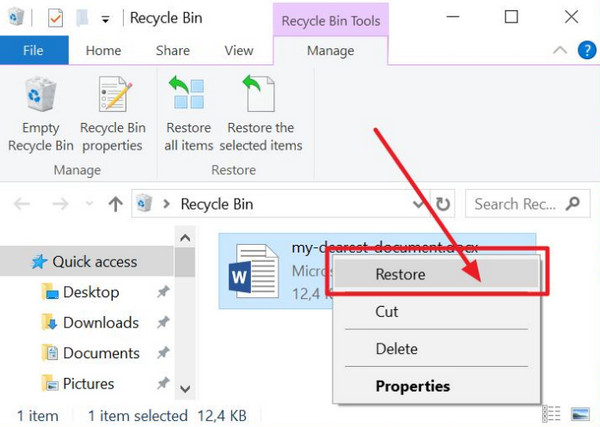
Windows Recycle Bin: Access the Recycle Bin tool of your Windows computer. Then, locate the files that were deleted from your SD card. Later, right-click the files, and the options will be prompted. Choose the Restore button from the list. Then, the files will be recovered immediately.
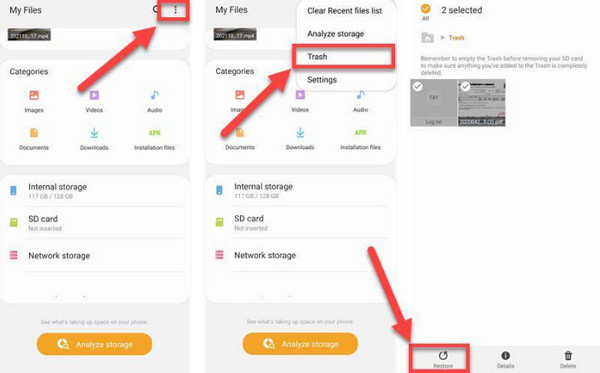
Android Trash Folder: Open the My Files app on your Android phone. Then, select the Three Dots button at the top right. Later, choose the Trash button from the drop-down options. The deleted files will appear. Please choose the files you want to recover and tap the Restore option at the bottom left corner.
Part 3. How to Recover SD Card Using Windows Command Prompt
You can also use advanced methods to recover deleted files on SD card. Command Prompt is one option for advanced users. Since an SD card can be inserted into your Mac and Windows, you can use command-line tools on either platform to attempt recovery. You can refer to the methods below to know how.
Mac Terminal: Ensure that the SD card is inserted into your Mac. Then, open Terminal. Open Finder and go to the Locations section, and check if the SD card is read. Please enter the diskutil repairDisk /dev/disk4 code. After the process completes, check if your files are accessible.
Windows Command Prompt: Open Command Prompt. Then, enter the chkdsk X: /f code. Press the Enter key to enter it. The computer will scan your SD card. Finally, check your SD card again to see if the issue has been fixed.
Part 4. How to Recover SD Card With FoneLab Data Retriever
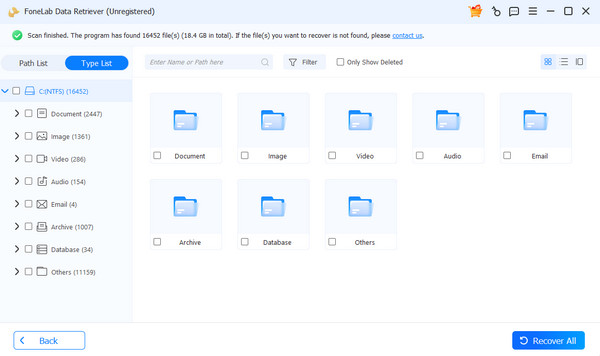
You might ask: How can I recover deleted files from SD card if the built-in methods did not work? FoneLab Data Retriever is a reliable third-party solution. This software recovers multiple data types from SD cards, including images, emails, audio, videos, documents, and more. It can be downloaded on Windows and Mac.
FoneLab Data Retriever - recover the lost/deleted data from computer, hard drive, flash drive, memory card, digital camera and more.
- Recover photos, videos, documents and more data with ease.
- Preview data before recovery.
Also, the tool works offline – no internet connection is required. Do you want to know how to recover deleted file on PC or a Mac? Please rely on the steps below.
Step 1Get the tool by clicking the Free Download option. Then, set up the file and install it from the small window. Later, let the computer launch it automatically.
Step 2Select the USB/SD Card Recovery button. Choose the location, and the tool will scan it for you by clicking the Start Scan button.
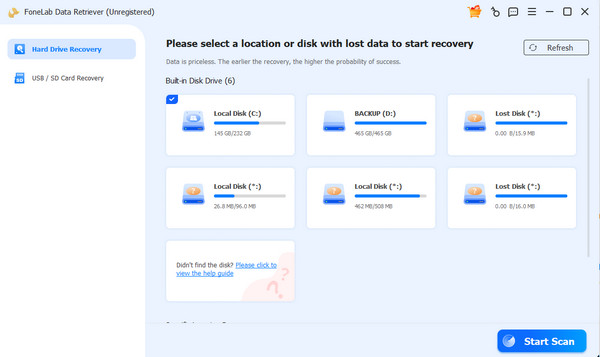
Step 3Please select all the files you want to retrieve. Finally, please click the Recover All button at the bottom right.
Part 5. How to Recover SD Card Using Cloud Backup
How to recover deleted files from SD card without software? You can use cloud backup services such as Google Drive, Dropbox, or OneDrive. Simply download the files from your cloud storage back to your SD card.
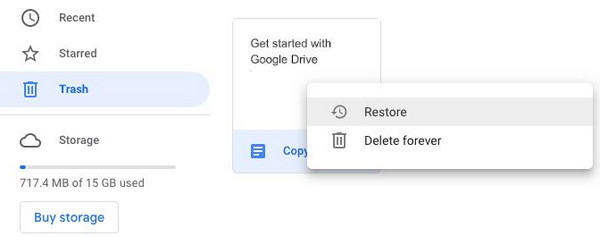
Open the Google Drive website. After that, sign in with the associated Google account. Tap the Menu button from the main interface. Later, select the Trash folder on the left side of the screen. Locate the deleted files you want to retrieve. Tap the More button and choose the Restore button from the list.
Part 6. Comparison Table of Methods to Recover SD Card
| Method | Success Rate | Difficulty | Time Duration |
| Check Physical Damages | Low | Hard | Hours |
| Restoring Deleted SD Card Files from Trash | Medium | Moderate | A Few Minutes |
| Command Prompt | Medium | Hard | 30 Minutes to Hours |
| FoneLab Data Retriever | High | Easy | A Few Seconds to Minutes |
| Cloud Backup | Medium | Moderate | 30 Minutes to Hours |
Part 7. FAQs about How to Recover SD Card
Why did my files disappear from my SD card?
There are several common reasons why files disappear on an SD card. One of the most common is a corrupted file system. Additionally, users might have accidentally formatted the mentioned device. Lastly, the data might be infected with viruses or malware.
How much does SD card recovery cost?
If you ask professionals to recover your lost SD card data, it is expensive. The payment ranges from $200 to $800. If you want free methods, you can use the methods in this reliable article.
This post covers everything you need to know about how to recover deleted files from SD card. 5 of the most convenient methods are here as your references. FoneLab Data Retriever can help you recover many data types from SD cards – including documents, emails, audio, videos, and images. Download the tool on your computer to learn more about the procedures it can perform!



