
 iPhone Data Recovery
 iOS System Recovery
 iOS Data Backup & Restore
 iOS Unlocker
 iPhone Password Manager
 Location Changer
 Android Data Recovery
 Broken Android Data Extraction
 Android Data Backup & Restore
 Android Unlocker
 FoneTrans for iOS
 iPhone Data Eraser
 iPhone Cleaner
 HEIC Converter
 HyperTrans
 WhatsApp Transfer for iOS
 Mac Sweep
 Data Retriever
 Mac Data Retriever
 Video Converter Ultimate
 Screen Recorder
 Phone Mirror
- Part 1. Critical First Steps: What NOT to Do When Recovering Deleted Files from a Hard Drive
- Part 2. How to Recover Deleted Files from Hard Drive With Recycle Bin/Trash
- Part 3. How to Recover Deleted Files from Hard Drive by Checking Your Backups
- Part 4. How to Unhide Hidden Files on a Hard Drive (They May Not Be Deleted)
- Part 5. How to Recover Deleted Files from Hard Drive With FoneLab Data Retriever
- Part 6. Comparison Table of Methods to Recover Deleted Files from Hard Drive
- Part 7. FAQs about How to Recover Deleted Files from Hard Drive
 Recover PC Data Now
Recover the lost/deleted data from computer, hard drive, flash drive, memory card, digital camera and more.
How to Recover Deleted Files from Hard Drive in 4 Quick Ways
 Updated by
 Greetings! I lost my hard drive a few days ago and found it this afternoon. When I inserted and checked its content, I found out that some of my essential files had been deleted. Someone might have deleted them. Can you help me recover deleted files on external hard drive? Thank you in advance!
A hard drive is commonly used for backups, additional storage, and other purposes. Did you know that you can recover data from the mentioned device after accidental deletion? We got you! This article will show you the 4 easy guides about the topic. Browse this article to know the full information about the topic.

Guide List
- Part 1. Critical First Steps: What NOT to Do When Recovering Deleted Files from a Hard Drive
- Part 2. How to Recover Deleted Files from Hard Drive With Recycle Bin/Trash
- Part 3. How to Recover Deleted Files from Hard Drive by Checking Your Backups
- Part 4. How to Unhide Hidden Files on a Hard Drive (They May Not Be Deleted)
- Part 5. How to Recover Deleted Files from Hard Drive With FoneLab Data Retriever
- Part 6. Comparison Table of Methods to Recover Deleted Files from Hard Drive
- Part 7. FAQs about How to Recover Deleted Files from Hard Drive
Part 1. Critical First Steps: What NOT to Do When Recovering Deleted Files from a Hard Drive
When you lose data from a hard drive, do not attempt to reset it. Resetting — including quick format, full format, or re-partitioning — will make recovery more difficult. Additionally, avoid putting additional stress on a failing hard drive. Repeatedly restarting the drive is not recommended. Instead, stop using it immediately and try again after an hour (if necessary).
Moreover, do not open the hard drive yourself. You might damage it, which could corrupt or delete the data it contains. Also, do not recover files directly back to the same hard drive. Instead, use another hard drive, USB drive, or external SSD.
Part 2. How to Recover Deleted Files from Hard Drive With Recycle Bin/Trash
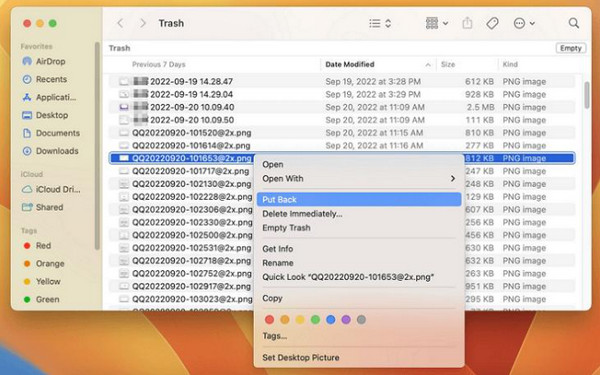
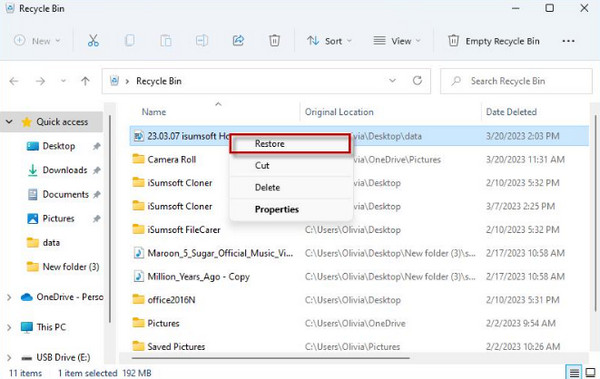
You may be able to recover files from Recycle Bin (Windows) or Trash (Mac). These built-in tools are designed to temporarily store the recently deleted files from your Mac or Windows. Their steps are available below.
Mac Trash Bin: Open Trash Bin on your Mac. Then, locate the files on the mentioned tool. Later, right-click the files. Select the Put Back button afterward.
Windows Recycle Bin: Open Recycle Bin. Choose the files you want to retrieve. Later, right-click the files and choose the Restore button.
Part 3. How to Recover Deleted Files from Hard Drive by Checking Your Backups
If the files were permanently deleted, you will need a backup that was created before the deletion occurred. Mac and Windows have different methods. Learn how to recover deleted files from an external hard drive using your backups with the steps below.
1. Use Windows File History
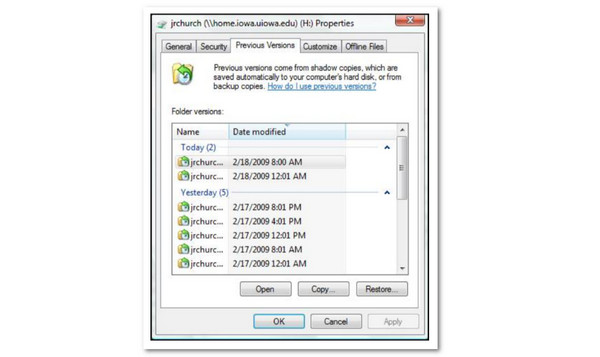
Your files can be restored using File History. These methods can be done with the steps below.
Go to File Explorer. Then, right-click the folder. Select the Previous Versions button. Select the version you prefer. Finally, click the Restore button.
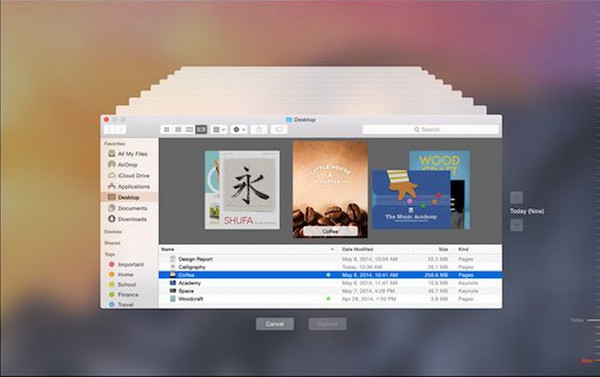
2. Use Time Machine on Mac
Time Machine is a tool on your Mac that allows a backup 24/7 for your files. Restoring these backups is easy. You can learn how below.
Open Time Machine. Then, use the Arrows button to choose the files you want to retrieve. Later, click the Restore button.
Part 4. How to Unhide Hidden Files on a Hard Drive (They May Not Be Deleted)
Your data might not be deleted at all — it could simply be hidden. You can unhide it to bring it back. Follow the steps below for Mac and Windows.
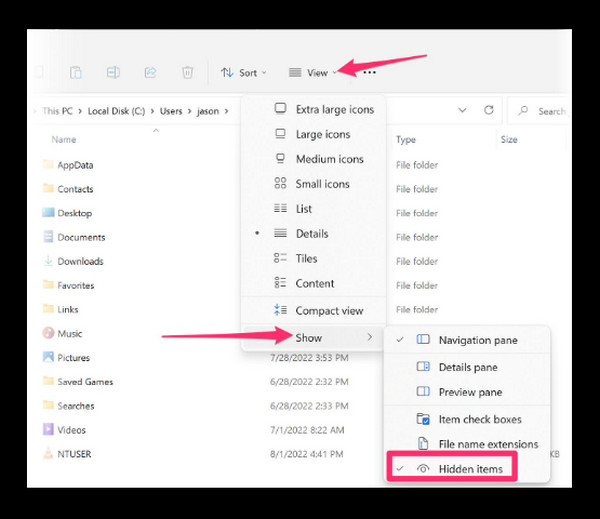
Windows: Open File Explorer. Select the View button on the main interface. Later, click the View button from the list. Choose the Hidden Items button at the bottom. Locate the files afterward that you thought were deleted.
Mac: Open Finder. Then, open the folder where the files disappeared. Then, press the Command + Shift + . (period). The hidden files should now be visible.
Part 5. How to Recover Deleted Files from Hard Drive With FoneLab Data Retriever
Built-in methods are convenient to use, but do not guarantee a 100% success rate. FoneLab Data Retriever is a third-party tool that allows you to successfully retrieve any data you want from your hard drive on both Windows and Mac. It includes documents, videos, images, and more.
The tool also allows you to filter data, so you can locate the files you want within seconds. How to recover deleted files from an external hard drive? Please use the steps below to operate the tool.
FoneLab Data Retriever - recover the lost/deleted data from computer, hard drive, flash drive, memory card, digital camera and more.
- Recover photos, videos, documents and more data with ease.
- Preview data before recovery.
Step 1Select the Free Download button from the screen. Please set up the downloaded file and install it afterward. The tool will open automatically after installation.
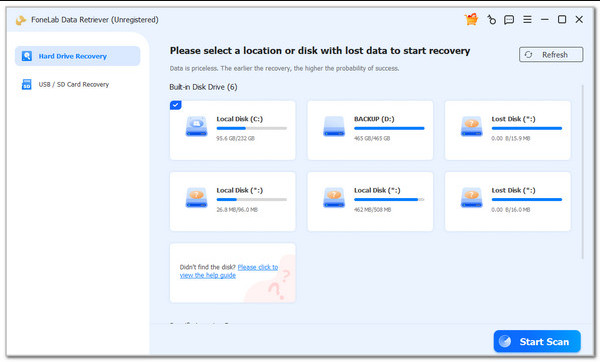
Step 2The tool will display the supported locations and devices. Select the Hard Drive Recovery button. Later, please select the location where you want to see or find the deleted files. Click the Start Scan button to start locating them.
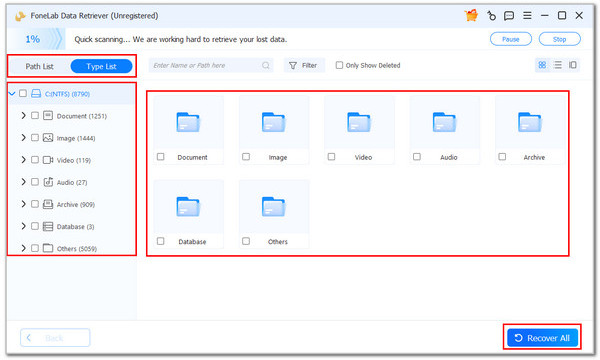
Step 3The results will be classified by data type. You can select a data type on the left, then choose the specific files you want to retrieve. Finally, click Recover All at the bottom right. The tool will then begin recovering your data to your hard drive.
Part 6. Comparison Table of Methods to Recover Deleted Files from Hard Drive
This article section will show you the comparison table of methods for the deleted computer data recovery. See their highlights and differences from the table below as you scroll down.
| Method | Time Duration | Required Account | Required Skills |
| Recycle Bin/Trash Bin | A Few Seconds | None | Beginner |
| Backups | 30 Minutes to Hours | Google or Apple ID Account Associated With Backups | Professionals |
| Hidden Files | A Few Minutes | None | Intermediate |
| FoneLab Data Retriever | A Few Seconds | None | Beginner |
Part 7. FAQs about How to Recover Deleted Files from Hard Drive
Is file recovery always possible?
Yes. There are almost always possible ways to recover your deleted or lost files. If basic troubleshooting doesn't work, you can seek professional help. Professional third-party tools can also be used, including FoneLab Data Retriever.
How long do permanently deleted files last?
Permanently deleted files remain recoverable until they are overwritten. Once overwritten, they are effectively gone.
We hope this article has taught you how to recover deleted files from a hard drive. FoneLab Data Retriever is here to help you retrieve multiple data types on your Windows and Mac. It includes music, documents, videos, photos, and more. Downloading the tool will help you determine more information and features about it!



