
 iPhone Data Recovery
 iOS System Recovery
 iOS Data Backup & Restore
 iOS Unlocker
 iPhone Password Manager
 Location Changer
 Android Data Recovery
 Broken Android Data Extraction
 Android Data Backup & Restore
 Android Unlocker
 FoneTrans for iOS
 iPhone Data Eraser
 iPhone Cleaner
 HEIC Converter
 HyperTrans
 WhatsApp Transfer for iOS
 Mac Sweep
 Data Retriever
 Mac Data Retriever
 Video Converter Ultimate
 Screen Recorder
 Phone Mirror
- Part 1. What Does a RAW Drive Mean & Why Did It Happen?
- Part 2. The Chkdsk Myth: Why Standard Windows Tools Fail on RAW Drives
- Part 3. The Safest Way to Extract Data from a RAW Partition: FoneLab Data Retriever
- Part 4. Step-by-Step Guide: How to Get Your Files Back with FoneLab Data Retriever
- Part 5. How to Safely Format and Fix the RAW Drive After Data Recovery
- Part 6. FAQs about Recovering Data from a RAW Drive
 Recover PC Data Now
Recover the lost/deleted data from computer, hard drive, flash drive, memory card, digital camera and more.
A Safe Guide to Recover Data from RAW Drive Correctly
 Updated by
 This post discusses how to recover data from RAW drive and what this specific drive is all about. Has your drive ever appeared as RAW on your computer? If so, don’t be alarmed, as this is not a unique situation. Your external hard drive may work fine one moment, and the next, Windows may ask you to format it before it can be opened. Other times, it happens after a sudden power outage, an improper eject, etc. When this happens, data loss is likely your biggest concern.
Thankfully, a RAW drive does not automatically mean your files are gone forever. Whether your drive contains years of family photos, critical work documents, or other important data, don’t worry, because these files can still be recovered. To know how, simply browse the following sections for a deeper understanding of what a RAW drive is. This way, you can understand and apply the best recovery techniques for RAW drives more easily.


Guide List
- Part 1. What Does a RAW Drive Mean & Why Did It Happen?
- Part 2. The Chkdsk Myth: Why Standard Windows Tools Fail on RAW Drives
- Part 3. The Safest Way to Extract Data from a RAW Partition: FoneLab Data Retriever
- Part 4. Step-by-Step Guide: How to Get Your Files Back with FoneLab Data Retriever
- Part 5. How to Safely Format and Fix the RAW Drive After Data Recovery
- Part 6. FAQs about Recovering Data from a RAW Drive
Part 1. What Does a RAW Drive Mean & Why Did It Happen?
Before anything else, know that a normal drive uses a file system, like NTFS or FAT32, to organize files so your computer can read them. Meanwhile, a RAW drive means this file system is damaged or missing. When this happens, Windows cannot read the drive. So, instead of your folders, you may see messages like "You need to format the disk," or the drive shows 0 bytes of space, even though you know your files are still there. The question is, why does this happen?
Well, as mentioned, common reasons include unplugging the drive without safely ejecting it, sudden power outages, virus attacks, bad sectors, or failed system updates. The good news is that a RAW drive is not usually broken. Your files are still intact—they are just hidden because the file system map is lost. Thus, as long as you avoid formatting the drive or overwriting, you can still recover data from RAW drive, which will be discussed shortly
Part 2. The Chkdsk Myth: Why Standard Windows Tools Fail on RAW Drives
When something goes wrong with a drive, many users immediately turn to CHKDSK. It is a built-in Windows tool that checks for file system errors or issues and tries to fix them. It works well on drives with minor corruption, which is why it has become a go-to solution for many. The problem is, CHKDSK is designed only for drives with a recognizable file system like NTFS or FAT32. When it comes to a RAW drive, there is no file system for the tool to read and repair.
In fact, running CHKDSK on a RAW drive can actually make things worse. Since the tool does not understand the drive's structure, it may attempt to fix things by overwriting data or forcing changes, which can only lead to permanent data loss. So, while CHKDSK is useful in other situations, we don't recommend it as a first step to fix or recover data from a RAW drive.
Part 3. The Safest Way to Extract Data from a RAW Partition: FoneLab Data Retriever
Now that you know CHKDSK is not the answer, it’s time to explore the most reliable solution, which is FoneLab Data Retriever. It is a safe and reliable tool designed specifically for situations like this. Whether you need to perform a hard drive data recovery from RAW drives, formatted storage, accidental deletion, a computer virus, etc., you can rely on this program.
Besides, FoneLab Data Retriever can recover deleted file on PC, supporting an extensive range of file types in countless formats. You can use it for your documents, pictures, audio files, emails, videos, and more. It also never stores or modifies your original data, ensuring your files will remain protected throughout the process. Aside from that, it offers a deep scan feature and a preview function that allows you to see your recoverable files before saving them.
Part 4. Step-by-Step Guide: How to Get Your Files Back with FoneLab Data Retriever
FoneLab Data Retriever - recover the lost/deleted data from computer, hard drive, flash drive, memory card, digital camera and more.
- Recover photos, videos, documents and more data with ease.
- Preview data before recovery.
After familiarizing yourself with FoneLab Data Retriever, it’s time to get your files back using its powerful features. Hence, view the step-by-step guide below as an example of how to recover data from RAW drive using FoneLab Data Retriever:
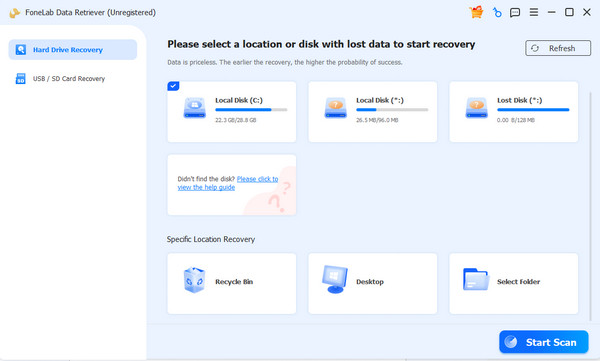
Step 1Using the Free Download button, save FoneLab Data Retriever’s installer and launch it from your Downloads folder. Opening the file will prompt you to set up and install the recovery program. Thus, simply follow along, and shortly, it will be installed. You can then hit Start to present the main interface. From there, select your RAW drive from the location or disk list.
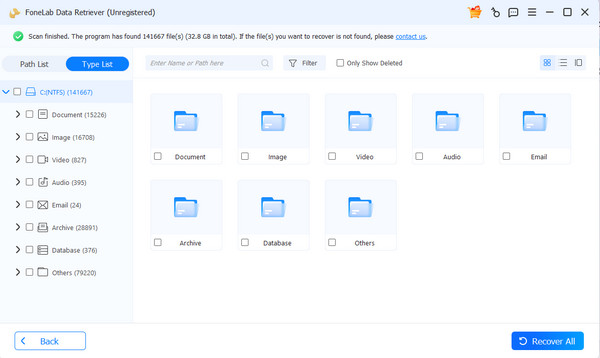
Step 2Afterward, proceed by hitting Start Scan at the bottom right. The program will scan your RAW drive for lost or deleted data and list the files by type. Open each of them to explore the files and find the items you want to get back. Once located, mark their checkboxes. After that, click Recover All at the bottom right to retrieve your desired files.
Part 5. How to Safely Format and Fix the RAW Drive After Data Recovery
Once you have successfully recovered all your important files, don’t get complacent yet. To make your RAW drive usable again, the next step is to fix it so you can use it again. The safest and most reliable way to do this is by formatting the drive. It rebuilds the file system on the drive, making it recognizable to Windows once again. However, you must only do this after your data is safely stored elsewhere, as formatting will erase everything currently on the drive.
To format the drive, open File Explorer, right-click the RAW drive, and select Format. Next, choose a file system like NTFS or exFAT as needed, and proceed with a quick format. Meanwhile, if the drive does not appear in File Explorer, you can use Disk Management instead. Simply right-click the RAW drive and select Format from there. After formatting is complete, the drive should return to normal and work as it used to.
Part 6. FAQs about Recovering Data from a RAW Drive
How long does a RAW drive recovery take?
It depends on your RAW drive’s size and scan depth. A quick scan may take a few minutes, while a deep scan on a large drive could take much longer.
Does a RAW drive mean my hard drive is dead?
No, not necessarily. In most cases, the hardware is fine, and only the file system is corrupted. However, if the drive is physically damaged, data recovery may be more difficult.
By following the necessary steps in this guide and using a trusted tool like FoneLab Data Retriever, you can safely recover your files from a RAW drive and restore its normal condition. Install it to bring your lost or deleted data back anytime.



