
 iPhone Data Recovery
 iOS System Recovery
 iOS Data Backup & Restore
 iOS Unlocker
 iPhone Password Manager
 Location Changer
 Android Data Recovery
 Broken Android Data Extraction
 Android Data Backup & Restore
 Android Unlocker
 FoneTrans for iOS
 iPhone Data Eraser
 iPhone Cleaner
 HEIC Converter
 HyperTrans
 WhatsApp Transfer for iOS
 Mac Sweep
 Data Retriever
 Mac Data Retriever
 Video Converter Ultimate
 Screen Recorder
 Phone Mirror
 Recover PC Data Now
Recover the lost/deleted data from computer, hard drive, flash drive, memory card, digital camera and more.
3 Ways to Recover Deleted Photos on Desktop & Mobile Devices
 Updated by
A photo lover’s biggest nightmare is losing the photos they stored on their desktop computer or took with their mobile device. Whether it is an accidental deletion or not, we have all, at some point, deleted a file or image to free up storage, only to realize later that we needed the photos for memories or something else and regret deleting them.
Users don’t have to worry about accidentally deleting their photos, as recovering deleted photos can be done in multiple ways on both desktop and mobile devices. This guide will cover this in more detail, with simplified steps. In addition, reading this guide will give users an immediate action plan for recovering specific images on their device, as well as where their deleted photos may be stored on their desktop computer and mobile device.


Guide List
Part 1. First Thing User Should Do
How to get back deleted photos? As you may know, a deleted photo or file is not immediately removed from the user's device; it can be found in the device's ‘Recycle Bin’ or ‘Recently Deleted’ folder, giving users about 30 days to restore their photos. Moreover, even if the photos are removed from the device after 30 days, their data remains on the device and can be recovered using a data recovery tool.
However, the catch is that the data remaining on the device is merely residual, and it can be overwritten; once it is, it is lost forever. If you’re wondering what to do right now to prevent data overwriting, stop using the device immediately, as new data, in this case newly taken photos or videos, can overwrite the deleted photo data. Thus, to prevent users from accidentally overwriting their data, they should stop taking photos or videos immediately and follow the data recovery steps below.
Part 2. How to Recover Deleted Photos on Cloud & Backup
Method 1: Device Cloud & Backup Recovery Method
Google Photos/ iCloud Trash Folder
If you stored your photos in a cloud storage system and want to recover them, you can access your Cloud storage portal through a mobile device or desktop device. For this method, we’ll use Google Photos to demonstrate how to retrieve deleted photos from cloud storage.
Step 1Open your Google Photos app on your mobile device or access it via a browser.
Step 2Once you are in the Google Photos interface, simply access the Trash folder in the left navigation pane.
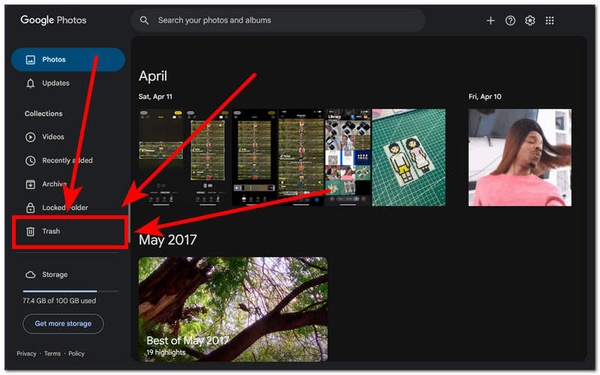
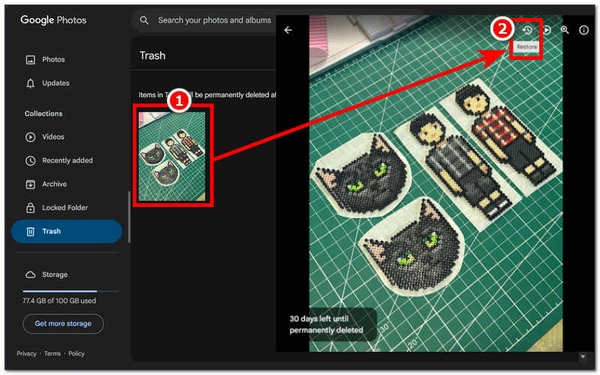
Step 3In the Trash folder, you will see all the photos you have recently deleted. To restore them, tap the photo and click the Restore icon in the upper-right corner.
How to Check Connected Accounts:
To see which devices are connected to your cloud storage account and whether they can be used to restore deleted photos, simply follow the steps below.
Step 1Using a browser, go to myaccount.google.com.
Step 2Once you are on your Google Account page, simply go to your account’s Security & Sign-In section.
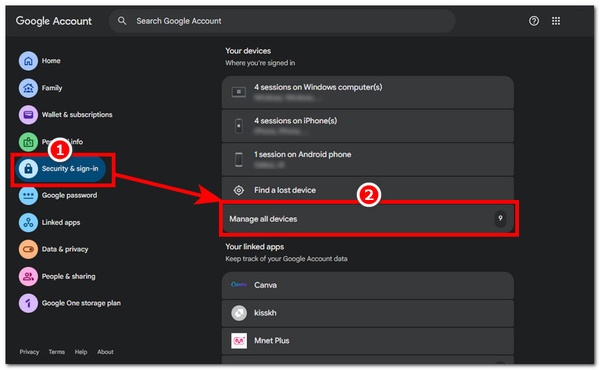
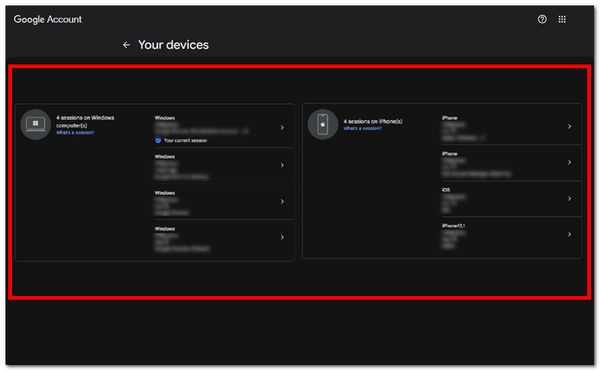
Step 3Once there, scroll down and locate and click the Manage All Devices menu to view all the accounts or devices connected to your cloud storage.
Step 4From there, you can check all devices connected to your cloud storage account and remove them from the same window.
Method 2: Checking the Device's Built-In Recently Deleted Folder
Windows (Recycle Bin / File History)
Step 1When using a Windows desktop device, you can find and restore deleted photos by accessing your desktop’s Recycle Bin.
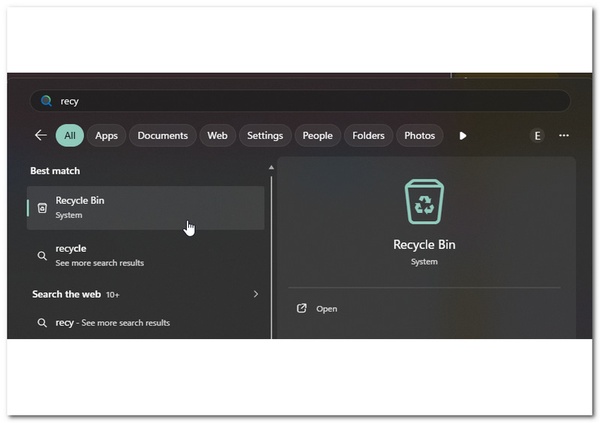
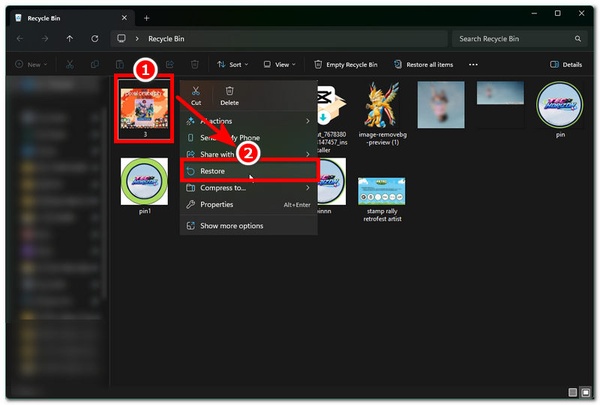
Step 2Once the Recycle Bin is open, click the specific image or images you want to recover.
Step 3Right-click the photo, then click Restore to automatically restore it to its original file folder.
macOS (Recently Deleted / Time Machine)
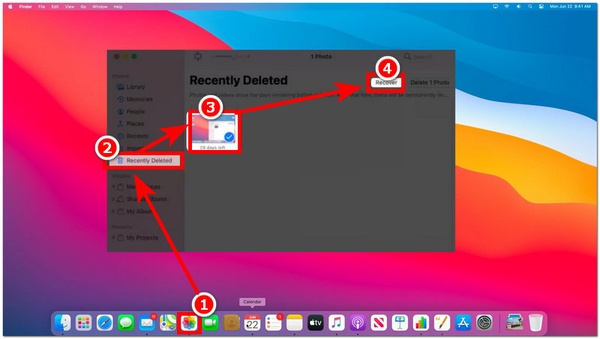
Step 1When it comes to restoring deleted photos on a macOS device, simply launch the Photos app.
Step 2Once the Photos app is open on the user’s macOS device, click the Recently Deleted section on the left side of the app.
Step 3Once the user is in the Recently Deleted folder, they will see all the photos that were recently deleted from their macOS device. To restore them, simply click the specific photos they want to restore, then click the Recover button in the upper-right corner of the window.
Android/iOS (Local "Recently Deleted" albums)
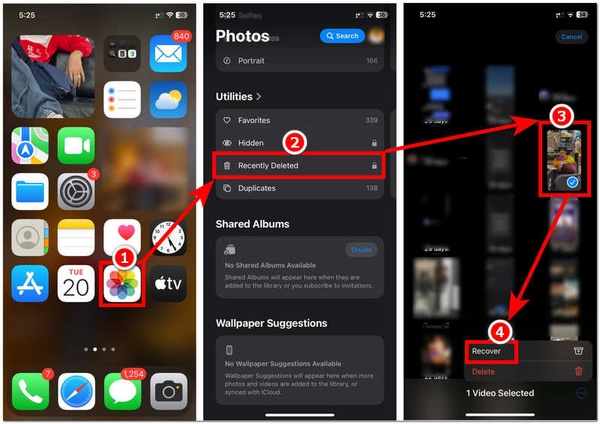
Step 1When it comes to how to retrieve deleted photos on iPhone or Android, users can easily recover their deleted photos, as there is a dedicated folder that holds deleted photos or videos before they are removed after a period of time. To begin, simply open your mobile device's Photos or Gallery App.
Step 2Once you are in your mobile Photos app, simply locate and tap on your Recently Deleted folder to proceed.
Step 3In the Recently Deleted folder, select the photos you want to restore, tap them, then tap the Recover button to put them back in your Photos app.
Method 3: Use Reliable Data Recovery Software
If your photos are nowhere to be found after checking your device storage or recently deleted folder, and you still can’t see them in it, then maybe they've been sitting in your Trash folder for more than 30 days and your device automatically removed them. Don't fret; as long as you haven’t overwritten it yet, you can still recover them by using reliable data recovery software like the FoneLab Data Retriever tool.
FoneLab Data Retriever - recover the lost/deleted data from computer, hard drive, flash drive, memory card, digital camera and more.
- Recover photos, videos, documents and more data with ease.
- Preview data before recovery.
What FoneLab Data Retriever brings to the table is a multi-tool that recovers not just photos but also deleted documents, emails, videos, and files in any format from storage devices like hard drives, USB drives, and memory cards. On top of that, what makes this more convenient for users is that it is a lightweight software tool with a straightforward, easy-to-use interface for all types of users. It can be used as a tool to recover deleted photos from Android, recover deleted photos on iPhone, and recover deleted photos from PC, making FoneLab one of those types of data retrieval tools that manage to be of use across multiple types of devices a user can have when it comes to retrieving deleted photos, files, and more.
Key Features:
- • It offers comprehensive, accurate data recovery capabilities.
- • It can address data file recovery from all data loss problems.
- • It supports basic and advanced file system recovery.
- • It offers quick, in-depth file data scanning for accuracy.
- • It has instant search and smart categorization of files and folders to make things organized and easy for users.
- • It offers complete file data recovery.
Step 1Download the FoneLab Data Retriever software on your desktop device (macOS or Windows). Once done, proceed to launch the software.
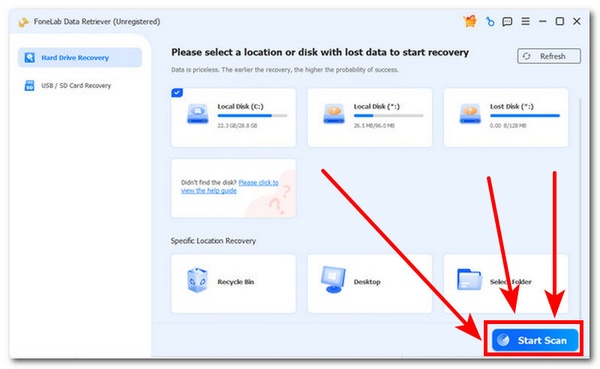
Step 2Once the software is open, from its main interface, click the Start Scan button to scan your desktop device's hard drive for all recoverable data, especially the photos you want to recover.
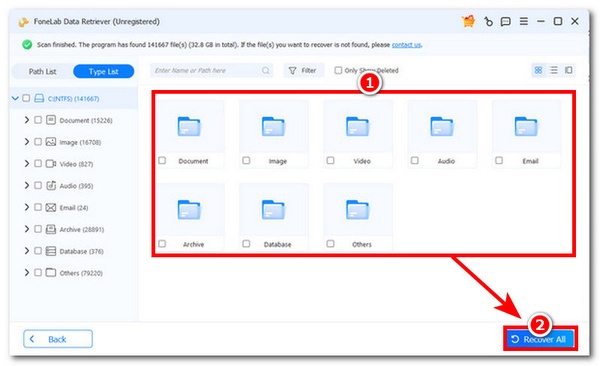
Step 3Once scanning is complete, the interface will show all folders containing your files and recoverable photos. Simply check each of them to see which files you need to recover and which you don't. You may check a specific folder or restore all data by clicking the Recover All button.
Part 3. FAQs & Troubleshooting
Why can't I find my deleted photos in the Recently Deleted folder?
If you have previously deleted photos and can’t find them in your Recently Deleted folder on your Desktop or mobile device, it means they’ve been in the folder for more than 30 days and your device has automatically removed them.
Why are my recovered photos corrupted or unopenable?
When you recover photos and they become corrupted, it is likely that most of the data was already overwritten during retrieval, resulting in incomplete data and photos you cannot open.
Part 4. Expert Tips & Preventive Measures
- • For seamless photo recovery, be sure to enable automatic backups on your device (desktop or mobile device). On desktop devices, enable your cloud storage service. For mobile devices, also consider connecting them to a cloud storage service for backups.
- • Before doing anything in an attempt to retrieve deleted photos, be sure to check your device's Trash/Recently Deleted/Recycle Bin folder.
- • Use a reliable photo recovery software tool. This is applicable if your photos can no longer be found in your recently deleted folder. Thus, to ensure complete photo data recovery, use a powerful data retriever tool like FoneLab.
Conclusion
This guide shows how to get your deleted photos back, whether you’re using a desktop device or a mobile device. This guide covers all scenarios with simplified steps for easy photo retrieval. The methods range from a low-effort approach, such as checking cloud storage systems and the device's deleted files folder, to using a reliable, easy-to-use, powerful data retriever like FoneLab to recover a photo that is already well past its 30-day deletion period on the device.


