
 iPhone Data Recovery
 iOS System Recovery
 iOS Data Backup & Restore
 iOS Unlocker
 iPhone Password Manager
 Location Changer
 Android Data Recovery
 Broken Android Data Extraction
 Android Data Backup & Restore
 Android Unlocker
 FoneTrans for iOS
 iPhone Data Eraser
 iPhone Cleaner
 HEIC Converter
 HyperTrans
 WhatsApp Transfer for iOS
 Mac Sweep
 Data Retriever
 Mac Data Retriever
 Video Converter Ultimate
 Screen Recorder
 Phone Mirror
- Part 1. Is Your MacBook Unresponsive?
- Part 2. How to Restart MacBook via Standard Restart
- Part 3. How to Restart a MacBook through Keyboard Shortcut
- Part 4. Restart MacBook Using The Power Button
- Part 5. Troubleshooting: What If Your MacBook Won't Restart?
- Part 6. Recover Lost Data with FoneLab Data Retriever
- Part 7. FAQs about How to Restart MacBook
 Recover PC Data Now
Recover the lost/deleted data from computer, hard drive, flash drive, memory card, digital camera and more.
Prominent Guide on How to Restart a MacBook Smoothly
 Updated by
 How do I restart my MacBook? For the past few days, I have noticed it running slowly, so I thought it would be best to restart it before the situation gets worse. The problem is that I only recently received the MacBook from a relative, so I’m still new to macOS and learning how everything works. Please assist me with the restart process. Thanks in advance!
Restarting a device, whether a MacBook, Windows PC, or mobile device, is among the simplest ways to resolve common performance issues such as lagging, freezing, or slow response times. However, it’s very understandable that the process can be confusing if it’s your first time or if you're a new macOS user. Hence, this article is designed to help you restart your MacBook with ease, whether it is responsive or not. The following sections also address further concerns, such as data loss. Read the information carefully to perform the restart effectively.
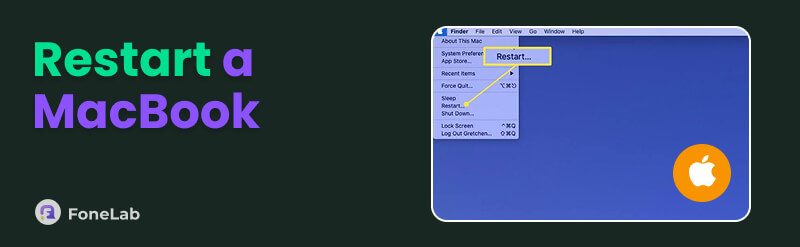

Guide List
- Part 1. Is Your MacBook Unresponsive?
- Part 2. How to Restart MacBook via Standard Restart
- Part 3. How to Restart a MacBook through Keyboard Shortcut
- Part 4. Restart MacBook Using The Power Button
- Part 5. Troubleshooting: What If Your MacBook Won't Restart?
- Part 6. Recover Lost Data with FoneLab Data Retriever
- Part 7. FAQs about How to Restart MacBook
Part 1. Is Your MacBook Unresponsive?
As mentioned, a restart is usually performed when users encounter performance issues. But before you proceed, it's helpful to check your MacBook's condition. The big question is: is it unresponsive, or does it just run slowly or lag? Knowing which situation you're dealing with will help you figure out the appropriate solution. After all, various scenarios are possible, and each has a specific solution. Your MacBook may be loading too slowly, freezing, or having hardware issues. Regardless, you will find a suitable method below.
Part 2. How to Restart MacBook via Standard Restart
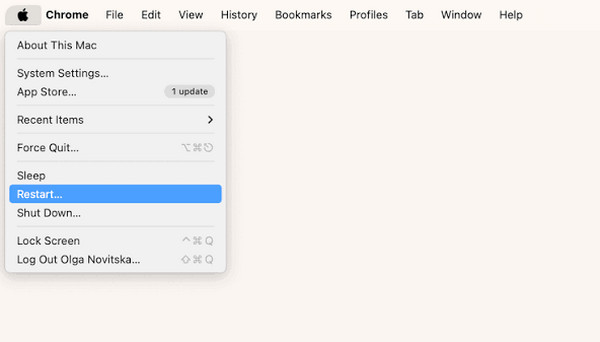
The standard restart, located in the Apple menu, is the easiest and most common way to restart a MacBook. It is suitable for fixing minor issues, such as glitches or lags, or for freeing up memory. It closes all programs and background processes before the system shuts down, ensuring your work is saved before they reopen later. The process is quick, beginner-friendly, and ideal for everyday situations where your Mac only needs a fresh start.
Follow the steps below to know how to restart MacBook via the standard restart:
Step 1Select the Apple menu on your MacBook, then choose Restart from the dropdown list.
Step 2When a confirmation dialog appears, click Restart again and wait for the process to complete.
Part 3. How to Restart a MacBook through Keyboard Shortcut
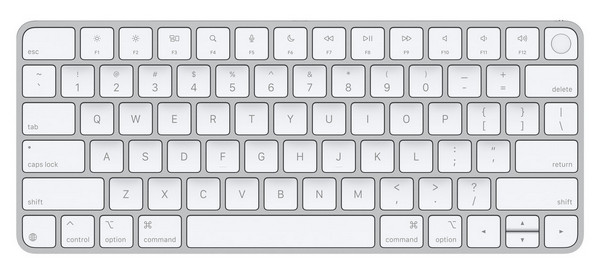
Restarting your MacBook with the keyboard shortcut is a faster alternative if your mouse or trackpad isn't responding or if you simply prefer using the keyboard. After all, pressing the specific keyboard combination immediately triggers a restart without navigating any menus. It is very convenient for quick reboots and for saving a few seconds during everyday use. However, unlike a standard restart, this method instantly terminates programs and processes, forcing the hardware to reboot without safety prompts. It’s basically like pulling the power plug.
Follow the process below to understand how to restart MacBook with keyboard shortcut:
Step 1Press Control + Command + Power button on your macOS keyboard.
Step 2If a dialog appears, asking for confirmation, press Enter to restart the MacBook.
Part 4. Restart MacBook Using The Power Button
Another effective technique to restart your MacBook is to use the Power button. Simply put, it is a forced restart that is useful when your screen is frozen or unresponsive. All you need to do is press and hold the MacBook’s Power button until it shuts down forcibly. Once turned off, press the same button briefly, and it will restart shortly. Just note that this is only recommended as a last resort, since it doesn't gracefully close programs, tasks, and other processes. You also shouldn’t do it often, as it can be harmful to your MacBook.
Part 5. Troubleshooting: What If Your MacBook Won't Restart?
What if you can’t restart or force restart MacBook, even after the primary methods? Well, no worries because you haven’t yet run out of options. Below are some actions you can still take to check and fix whatever is preventing your MacBook from restarting.
Option 1. Check Hardware
Checking the hardware is necessary when your MacBook won’t restart. That’s because a faulty physical component or accessory can be the cause. You may not know this, external devices like USB drives, monitors, printers, or even a damaged charging cable can interfere with the restart process and cause macOS to hang or freeze. To handle this, disconnect all accessories from your MacBook, then restart it with only the power adapter. If it restarts successfully, reconnect each device one at a time to identify which one is causing the issue.
Option 2. Safe Mode
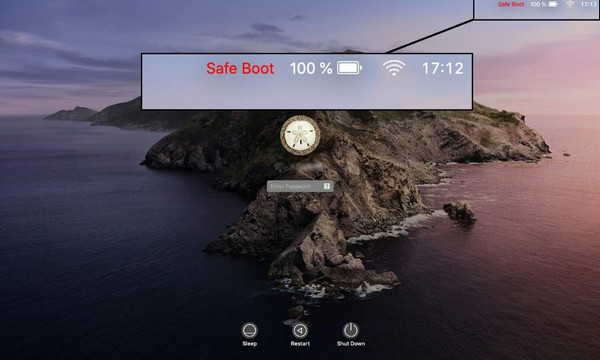
Booting your MacBook into Safe mode is another helpful attempt to fix the problem. It simply starts macOS with only the essential system files. It prevents unnecessary programs, login items, and background processes from loading, letting the MacBook restart without the potential causes of the issue. So, if your MacBook restarts properly in this mode, it likely means a third-party app, a corrupted cache, or a startup item outside Safe mode caused the problem.
Follow the directions below to fix and restart MacBook in Safe mode:
Step 1First, shut down your MacBook completely. Afterward, press the Power button and immediately hold the Shift button until the Apple logo or login display appears.
Step 2From there, log in to your account and check if Safe Boot appears in the top-right corner to confirm you're in Safe Mode.
Part 6. Recover Lost Data with FoneLab Data Retriever
As with other issues, the risk of data loss is always present if your MacBook fails to restart. Thus, we prepared a Mac data recovery program called FoneLab Mac Data Retriever. It is designed to retrieve lost or erased files from your MacBook, whether due to corruption, formatting, disk damage, or update failures.
Various data types are supported, allowing you to recover images, emails, documents, videos, and more. Besides, it doesn’t only work for MacBook files. You can also use it on your Windows, hard drives, and more. Its user-friendly functions and interface will help you recover with ease.
Follow the simple task below to recover lost data with FoneLab Data Retriever:
FoneLab Data Retriever - recover the lost/deleted data from computer, hard drive, flash drive, memory card, digital camera and more.
- Recover photos, videos, documents and more data with ease.
- Preview data before recovery.
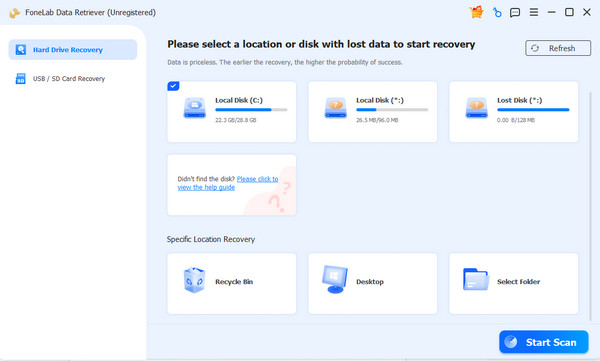
Step 1Install FoneLab Data Retriever by clicking Free Download. When done, start the program and quickly pick your drive from the interface. Next, select Start Scan.
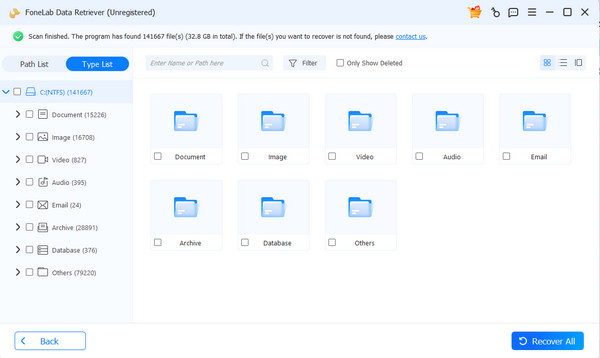
Step 2After the tool scans your MacBook data, open the folders that contain your desired files, depending on the data type. Then, check the items you want to retrieve and click Recover All.
Part 7. FAQs about How to Restart MacBook
Does restarting my MacBook delete my files?
No, it doesn’t. A normal restart only closes apps and reloads the system, so your personal files will remain safe unless an issue causes data loss.
How often should I restart my MacBook?
There's no strict rule, but restarting once a week or whenever your Mac runs slowly helps keep it running smoothly.
Whether your MacBook needs a quick refresh or is completely frozen, the restart methods and troubleshooting options covered here will help. FoneLab Data Retriever is also here in case you experience data loss.



