
 iPhone Data Recovery
 iOS System Recovery
 iOS Data Backup & Restore
 iOS Unlocker
 iPhone Password Manager
 Location Changer
 Android Data Recovery
 Broken Android Data Extraction
 Android Data Backup & Restore
 Android Unlocker
 FoneTrans for iOS
 iPhone Data Eraser
 iPhone Cleaner
 HEIC Converter
 HyperTrans
 WhatsApp Transfer for iOS
 Mac Sweep
 Data Retriever
 Mac Data Retriever
 Video Converter Ultimate
 Screen Recorder
 Phone Mirror
- Part 1. Before You Reset (Do NOT Skip)
- Part 2. How to Reset MacBook Using Erase All Content & Settings
- Part 3. How to Reset a MacBook via Recovery Mode + Disk Utility
- Part 4. How to Completely Reset MacBook with iCloud Remote Wipe
- Part 5. How to Reset Your MacBook through DFU Restore
- Part 6. Restore Important Data After a Factory Reset
- Part 7. FAQs about How to Reset MacBook
 Get Mac Data Recovery Now
Recover the lost/deleted data from computer, hard drive, flash drive, memory card, digital camera and more.
Trouble-free Guide on How to Reset MacBook Efficiently
 Updated by
 How to completely reset MacBook? It’s a question that gets asked more than you may think. Maybe your MacBook has become painfully slow and started to disrupt your daily work. Or you recently bought a new model and decided to sell or pass on the older one. Thus, it’s perfectly understandable to want to remove all your personal data. Whatever the reason, doing a reset is a suitable solution, giving your MacBook better performance and a fresh start.
Besides, if you plan to pass it on, a proper reset will ensure your sensitive information stays yours while the new owner gets a clean, fresh system to make their own. Familiarize yourself with the most effective techniques to reset a MacBook. This guide will provide all the information you need, including each method’s process and details. Aside from that, you should also check out our suggested recovery tool for restoring important files that were erased.

Guide List
- Part 1. Before You Reset (Do NOT Skip)
- Part 2. How to Reset MacBook Using Erase All Content & Settings
- Part 3. How to Reset a MacBook via Recovery Mode + Disk Utility
- Part 4. How to Completely Reset MacBook with iCloud Remote Wipe
- Part 5. How to Reset Your MacBook through DFU Restore
- Part 6. Restore Important Data After a Factory Reset
- Part 7. FAQs about How to Reset MacBook
Part 1. Before You Reset (Do NOT Skip)
Before trying to learn how to reset your MacBook, there is a crucial step you must take: saving a backup. As mentioned, a reset deletes everything on the MacBook, and you won’t have the option to choose which items to erase since the main purpose is to wipe everything. So, it’s best to back up your data first, especially the important files. You can use Time Machine, iCloud, or simply copy your folders to an external drive, whichever is most convenient for you. Then, once you have secured your important data, you’ll be ready to reset with the following methods.
Part 2. How to Reset MacBook Using Erase All Content & Settings
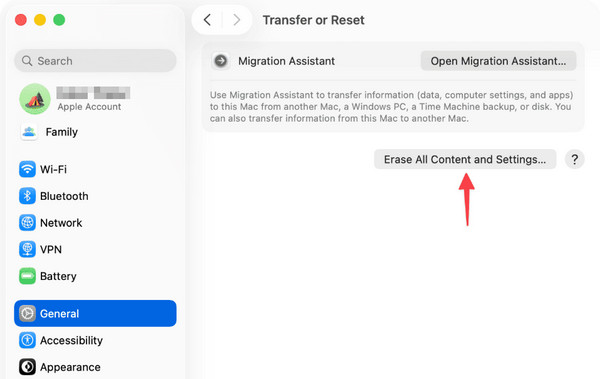
If your MacBook has an Apple Silicon chip or a T2 Security Chip running macOS Monterey or later, you're in luck. Apple provides the easiest built-in feature to factory reset a Mac called Erase All Content & Settings. Like on an iPhone or iPad, this option handles everything, including removing your data, apps, and settings without needing to reinstall the OS.
Follow the steps below to grasp how to reset MacBook to sell it or give it a fresh start using Erase All Content & Settings:
Step 1Go to System Settings by clicking the Apple logo on your MacBook desktop, then select General from the sidebar. Once the options are displayed, click Transfer or Reset.
Step 2Following that, choose Erase All Content & Settings and navigate through the on-screen prompts. Later, enter your Apple ID password to confirm the reset.
Part 3. How to Reset a MacBook via Recovery Mode + Disk Utility
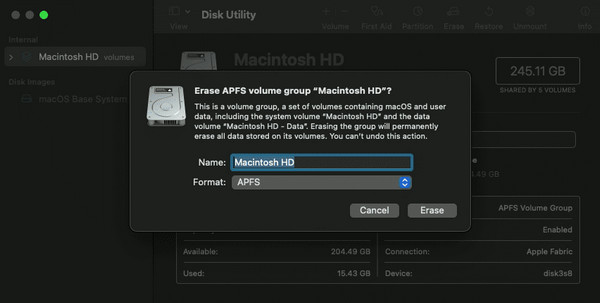
For older MacBooks without the Erase All Content & Settings option, or if you prefer a more hands-on approach, using to Disk Utility would be more suitable. It involves booting your MacBook into Recovery Mode, where you'll use Disk Utility to erase or reset it. But unlike the first method, this approach requires reinstalling a fresh copy of macOS from Apple's servers. Thus, it’s a bit more advanced, but don’t worry because the process won’t be that technical.
Follow the guidance below to learn how to reset MacBook via Recovery Mode + Disk Utility:
Step 1Turn off your Mac, then power it back on and quickly long-press Command + R until the Apple logo or a spinning globe appears. This action will launch your Mac into Recovery Mode.
Step 2From the Recovery Mode screen, select Disk Utility > Continue. Then, pick your drive, which is usually Macintosh HD, and click Erase. Finally, select the format and confirm the reset.
Part 4. How to Completely Reset MacBook with iCloud Remote Wipe
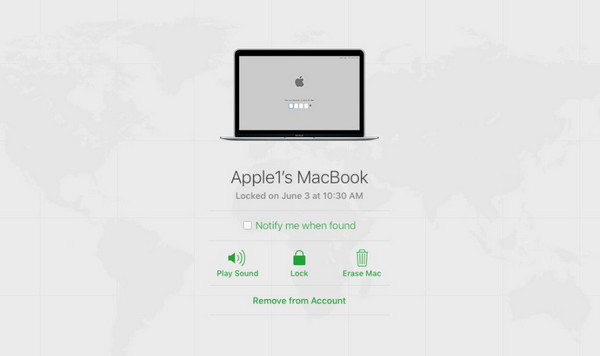
On the other hand, if your MacBook is lost, stolen, or simply out of reach, you can still wipe it clean using iCloud's remote wipe feature. It is a suitable solution when you don't have physical access to your MacBook but still want to protect your personal data. After all, the process works through Apple's Find My service, which allows users to erase their MacBook from anywhere using another device. Just note that it requires Find My Mac to be enabled.
Follow the procedure below to determine how to reset a MacBook with iCloud remote wipe:
Step 1On another device, go to iCloud.com and log in using the same Apple ID linked to your MacBook. Click on All Devices at the top, then select your MacBook from the list of devices.
Step 2The following page will reveal your MacBook remote options. From there, tick Erase Mac and finish by managing the prompts and reset confirmation.
Part 5. How to Reset Your MacBook through DFU Restore
If the previous processes don’t work or you simply want a more thorough reset method, DFU Restore is the most advanced option available. It is typically used when your Mac won't start up normally, as it completely revives the firmware and reinstalls the latest version of macOS from scratch, wiping everything. However, it requires more preparation: another Mac with Apple Configurator or a similar tool, along with a USB-C cable to connect both devices.
Follow the operation below to know how to reset your MacBook through DFU Restore:
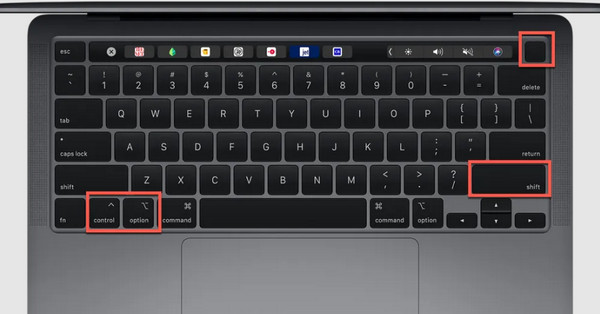
Step 1Turn off your MacBook, then attach it to another Mac via USB-C and open Apple Configurator. Enter DFU mode by holding Power + Right Shift + Left Control + Left Option for 10 seconds, then release the three keys and keep holding Power for another 8 seconds.
Step 2In Apple Configurator, right-click on your MacBook, select Restore, and confirm. The tool will shortly download and install the latest macOS, wiping everything at the firmware level.
Part 6. Restore Important Data After a Factory Reset
After resetting your MacBook, you might realize that some important files were lost because they weren't included in your backup, or perhaps you didn’t back up at all. Luckily, Mac data recovery is still possible with a powerful tool like FoneLab Mac Data Retriever. It can efficiently restore various data types, such as important documents and family photos.
That’s because FoneLab Mac Data Retriever is specifically designed to scan and recover lost or deleted files from countless storage drives, including MacBooks. It even offers a Deep Scan to ensure you’ll find your desired data. Moreover, it’s suitable for all users, including beginners.
FoneLab Data Retriever - recover the lost/deleted data from computer, hard drive, flash drive, memory card, digital camera and more.
- Recover photos, videos, documents and more data with ease.
- Preview data before recovery.
Understand the simple guide below as a pattern to restore your data with FoneLab Mac Data Retriever:
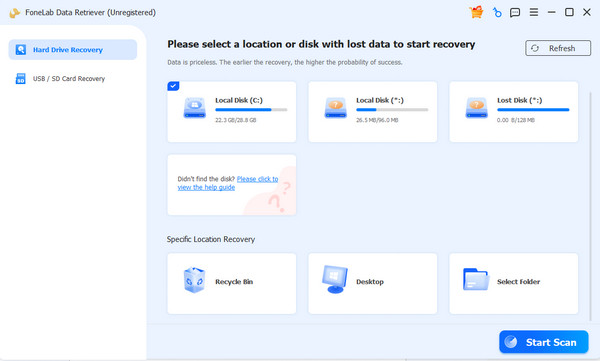
Step 1Install FoneLab Data Retriever on your MacBook via the Free Download, then launch the retrieving tool’s main interface. Next, pick your drive before heading to Start Scan.
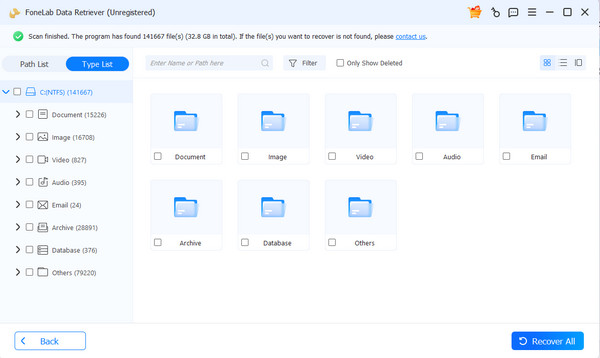
Step 2Once the scan is complete, preview the recoverable files by exploring each data type folder, then mark the items you need. Lastly, choose Recover All in the lower right portion.
Part 7. FAQs about How to Reset MacBook
Do I need an internet connection to reset my MacBook?
It depends on the method. Erase All Content & Settings doesn't require an internet connection, but Recovery Mode and DFU Restore do, as they involve reinstalling macOS.
How long will it take to reset my MacBook?
Typically, a MacBook reset takes 15–30 minutes. However, it can take longer depending on your internet speed, the amount of data on your drive, and the method used.
Resetting your MacBook doesn't have to be complicated. Just choose the method that suits your situation, follow the steps carefully, and prepare a backup or a recovery tool, like FoneLab Data Retriever.



