
 iPhone Data Recovery
 iOS System Recovery
 iOS Data Backup & Restore
 iOS Unlocker
 iPhone Password Manager
 Location Changer
 Android Data Recovery
 Broken Android Data Extraction
 Android Data Backup & Restore
 Android Unlocker
 FoneTrans for iOS
 iPhone Data Eraser
 iPhone Cleaner
 HEIC Converter
 HyperTrans
 WhatsApp Transfer for iOS
 Mac Sweep
 Data Retriever
 Mac Data Retriever
 Video Converter Ultimate
 Screen Recorder
 Phone Mirror
- Part 1. How to Reset MacBook Password Using Reset Option From Login Screen
- Part 2. How to Reset MacBook Password Using Recovery Mode
- Part 3. Erase Your MacBook With Find My
- Part 4. Comparison Table of Methods to Reset MacBook Password
- Part 5. Use FoneLab Mac Data Retriever to Recover Data
- Part 6. FAQs about How to Reset MacBook Password
 Get Mac Data Recovery Now
Recover the lost/deleted data from computer, hard drive, flash drive, memory card, digital camera and more.
How to Reset Password on MacBook in 2 Proven and Tested Ways
 Updated by
 A MacBook can hold hundreds or even thousands of files. This device is commonly used for work or school. It is designed to store large amounts of data. This is the primary reason why people add a password to their MacBooks. This prevents unauthorized access.
However, users sometimes accidentally forget their passwords. As a result, the owner cannot unlock the MacBook or access their files. How to reset MacBook password? This article will show you the 2 most recommended approaches for resetting your MacBook password. Additional information is also included for your future reference.

Guide List
- Part 1. How to Reset MacBook Password Using Reset Option From Login Screen
- Part 2. How to Reset MacBook Password Using Recovery Mode
- Part 3. Erase Your MacBook With Find My
- Part 4. Comparison Table of Methods to Reset MacBook Password
- Part 5. Use FoneLab Mac Data Retriever to Recover Data
- Part 6. FAQs about How to Reset MacBook Password
Part 1. How to Reset MacBook Password Using Reset Option From Login Screen
When you are locked out of your MacBook, the features you can use are limited. Fortunately, a MacBook offers different methods to reset your password. The easiest method uses your authentication information. It does not require professional skills.
The recovery key and Apple ID can be used to reset the MacBook password. It is possible with the Reset Password assistant while the MacBook is locked out. Ensure that the mentioned verification information is available and active. See how to do the process with the steps below.
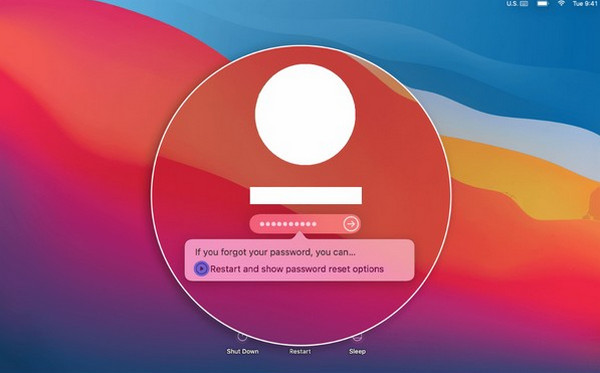
Ensure that you enter multiple wrong password attempts. Then, choose the Arrow button beside the Restart and Show Password Reset Options message. Then, the Recovery Assistant screen will appear. Select the I Forgot My Password button. Select your account and use your Apple ID or recovery key. Create a new password and log in.
Part 2. How to Reset MacBook Password Using Recovery Mode
This method is different from the previous one because it requires professional skills. The Mac recovery mode is an advanced technique typically used by experienced users. It allows you to reset your MacBook password using Terminal, which requires entering specific commands that beginners may find difficult.
These codes must be entered correctly because a single incorrect character will change the operation. An incorrect command could risk your data or your MacBook's system. Don’t worry. This article will help you perform the process easily with the steps below.
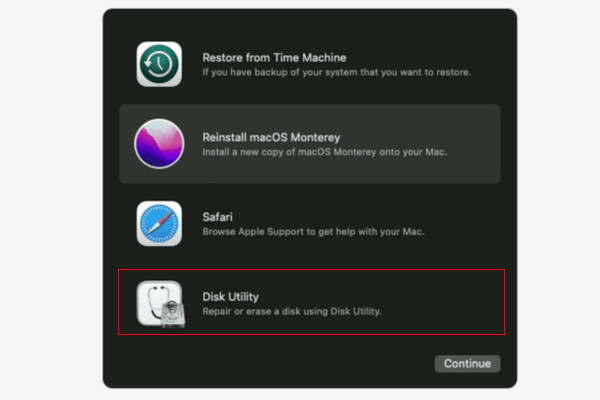
If your MacBook has Apple Silicon, shut it down. Press and hold the Power option until the Loading Startup Options appear. Click the Options and Continue button. If it has Intel, restart the MacBook. Press and hold the Command + R button. Release the combination when you see the Apple logo. Later, go to the Disk Utility section and click the Terminal button. Type the resetpassword code. Select an account and create a new password afterward.
Part 3. Erase Your MacBook With Find My
Find My is a free service of Apple that allows you to track your lost and stolen Apple devices, including a MacBook. The free service can also be used to erase a MacBook when the password is forgotten. Please use the steps below to know how Find My can erase your MacBook.
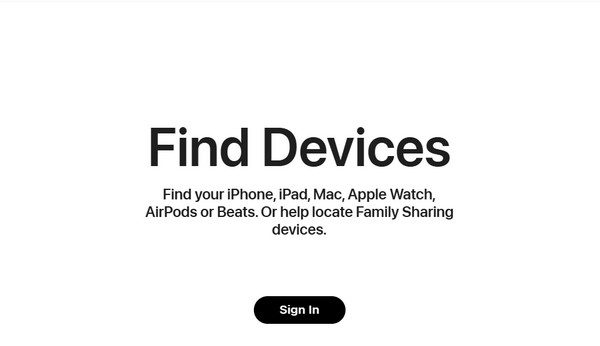
Open one of your web browsers. Then, search for the main website of Find My. Later, select the Sign In button at the bottom center. Enter the associated Apple ID account from the MacBook. Later, the digital map will appear. Go to the All Devices section. Select the name of your MacBook from the list. Finally, please select the Erase This Device button and choose the Erase button to confirm the process.
Part 4. Comparison Table of Methods to Reset MacBook Password
The reset processes for your MacBook password are distinct. In this section, we will help you determine their strengths and drawbacks. In this case, you will know which one you will be using for resetting the MacBook password.
| Features | Reset MacBook Password With Apple ID or Recovery Key | Reset MacBook Password With Recovery Mode |
| Time Duration | 5 to 20 minutes | 30 Minutes to 1 Hour |
| Skills Required | Beginners | Intermediate to Professional |
| Requires Apple ID | Yes | No |
| Data Loss | No | It is possible if the code used is incorrect. |
Part 5. Use FoneLab Mac Data Retriever to Recover Data
Did you lose important data while resetting your MacBook password? Worry no more because FoneLab Mac Data Retriever is here! It is designed to recover different types of data on your Mac. Besides that, you can also use it on your Windows computer.
The tool can recover unsaved Word documents on Mac, images, videos, music, and more. Do you want to use this tool to recover the MacBook data? The steps below will guide you on how to use the tool.
FoneLab Data Retriever - recover the lost/deleted data from computer, hard drive, flash drive, memory card, digital camera and more.
- Recover photos, videos, documents and more data with ease.
- Preview data before recovery.
Step 1Please click the Free Download option to get FoneLab Mac Data Retriever on your MacBook. After that, locate the downloaded file from your web browser. Drag and drop it to the Application location or folder to install it. Finally, the MacBook will open the tool automatically.
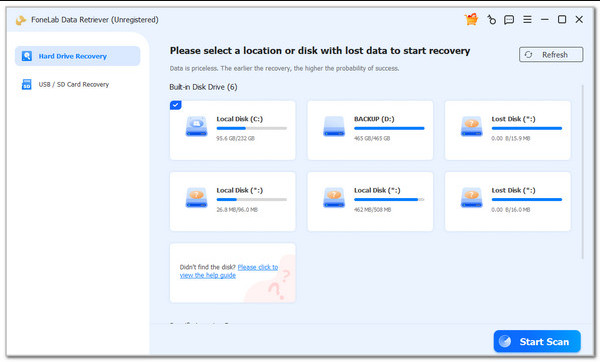
Step 2Please choose where you want to locate your deleted files. Then, click the Start Scan option at the bottom corner. Later, the tool will scan the data on your MacBook. Wait for the results on the next screen.
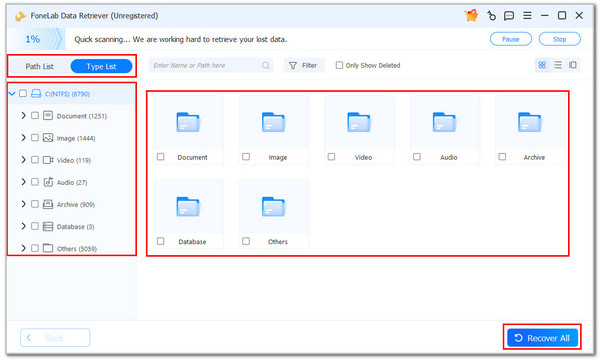
Step 3Please locate and choose the deleted data you want to retrieve on your MacBook. Later, click the Recover All button at the bottom right. Wait for the process to be completed before you close or exit the tool, and check for your recovered files.
Part 6. FAQs about How to Reset MacBook Password
Can I set my MacBook to have no password?
Yes. Having no accounts or passwords on your MacBook is completely okay. By default, the MacBook does not need a password to function. However, not having a password on your MacBook is risky. Unauthorized access can be made without your knowledge.
How to shut down a Mac without a password?
When the Mac is locked out, there are limited features you can access. The good thing is that you can shut down a Mac without a password. You only need to press and hold the Power button for 10 seconds. You only need to wait for the Mac to be turned off before releasing the button.
This post guides you on how to reset your MacBook password in 2 easy ways. Additional information about the procedures can also be discovered. FoneLab Mac Data Retriever is here to help you recover data that has been accidentally deleted after resetting the Mac password. It can retrieve documents, images, videos, and more. Download the tool today to explore all its features.



