
 iPhone Data Recovery
 iOS System Recovery
 iOS Data Backup & Restore
 iOS Unlocker
 iPhone Password Manager
 Location Changer
 Android Data Recovery
 Broken Android Data Extraction
 Android Data Backup & Restore
 Android Unlocker
 FoneTrans for iOS
 iPhone Data Eraser
 iPhone Cleaner
 HEIC Converter
 HyperTrans
 WhatsApp Transfer for iOS
 Mac Sweep
 Data Retriever
 Mac Data Retriever
 Video Converter Ultimate
 Screen Recorder
 Phone Mirror
 Get Mac Data Recovery Now
Recover the lost/deleted data from computer, hard drive, flash drive, memory card, digital camera and more.
Proper Guide on How to Hard Reset MacBook Effortlessly
 Updated by
 Learning how to hard reset a MacBook is a skill that many users should possess, especially those with performance issues. Whether you're dealing with persistent system glitches, planning to sell your device, or simply want to clear everything, a hard reset can give your MacBook a fresh start. However, not all resets are the same, so diving in without a clear plan can lead to unnecessary data loss. So, know that the proper way is to find your reset type first.
Yes, that’s right! Before you touch any settings, it's crucial to identify exactly which type of reset your situation needs, whether a simple restart or a full factory reset, which erases everything. This way, you will also be able to determine if you need to create a backup to avoid losing important files later. Allow this article to walk you through the correct techniques to perform a hard reset on a MacBook, along with a bonus tool to recover important files.

Guide List
Part 1. How to Hard Reset MacBook through Force Restart
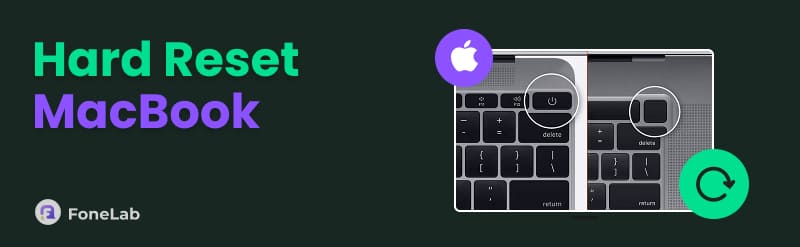
A force restart is the simplest form of a hard reset. It forcibly powers off your Mac and reboots it without erasing any data. Thus, it is appropriate for fixing frozen screens, unresponsive apps, or minor system glitches. However, the method you use depends on your Mac's processor. Intel models use a keyboard shortcut, while Apple Silicon models use just the power button.
Follow the guidelines in each method below to understand how to hard reset MacBook through a force restart:
Intel: Control + Command + Power
Press and hold the Control + Command + Power buttons simultaneously for about 5–7 seconds, then release all keys once the screen goes black and the Apple logo appears.
Apple Silicon: Hold Power button
Long-press the Power button for about 5–10 seconds, and when the screen turns off followed by the Apple logo, release it. Afterward, wait for your Mac to finish restarting.
Part 2. Hard Reset MacBook via Reset NVRAM/SMC (Intel Mac Only)
Resetting NVRAM and SMC is a deeper hard reset that clears low-level hardware settings and power management data on Intel-based Macs. It's the recommended fix for issues like display glitches, battery problems, fan noise, or sleep/wake failures that a simple restart can’t fix.
Follow the steps below to learn how to hard reset a MacBook via Reset NVRAM/SMC:
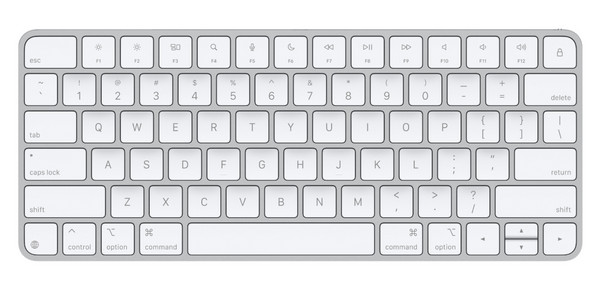
Reset NVRAM: Shut down your Mac, then turn it on. Next, immediately long-press Option + Command + P + R for about 20 seconds, then release when you see the Apple logo reappear.
Reset SMC: First, ensure your Mac is shut down. Then, press and hold Shift + Control + Option on the left side and press the Power button for 10 seconds. Release them once the MacBook turns on normally.
Part 3. How to Hard Reset a MacBook with Factory Reset
On the other hand, hard resetting through a factory reset will completely wipe your MacBook and restore it to its original state. It is a suitable action when selling or giving your device away, or for fixing major software issues that other methods can’t fix. You can factory reset a Mac, depending on its chip, whether Apple Silicon, T2 Intel, or older Intel models.
Method 1: Erase All Content (Apple Silicon + T2 Intel)
For Apple Silicon + T2 Intel users, the Erase All Content option is the fastest and most convenient hard reset method. It removes all your data and settings in just a few clicks without the need to reinstall macOS.
Follow the directions below to understand how to hard reset MacBook with a factory reset via Erase All Content:
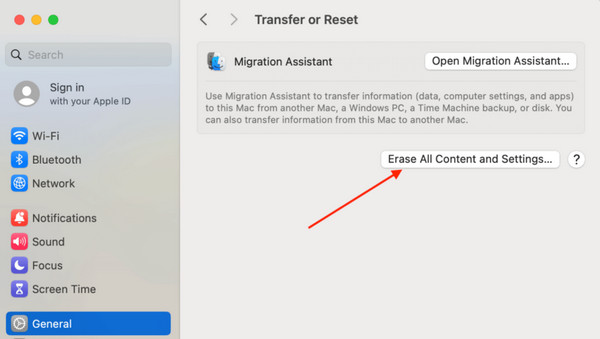
Step 1Click the Apple logo on the desktop, then pick System Settings. Next, select General > Transfer or Reset, then Erase All Content and Settings. If needed, enter your password.
Step 2Follow the on-screen prompts, and when you reach the Erase All Content option, select it to wipe the MacBook. Afterward, it will restart, and you can set it up again.
Method 2: Recovery Mode + Reinstall (Older Intel Macs – 2017 and Earlier)
On the other hand, for those with older Intel Macs without a T2 chip, you'll need to manually erase your hard drive through Disk Utility and then reinstall macOS from Recovery Mode. This process takes longer, but don’t worry, as it will still be done as thoroughly as the previous one.
Follow the procedure below to learn how to hard reset a MacBook via Recovery Mode + Reinstall:
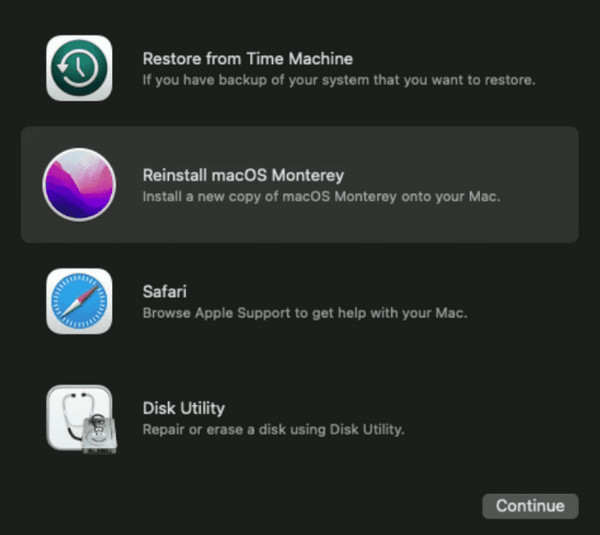
Step 1Restart your MacBook, then quickly long-press Command + R until the Apple logo appears. Once in Recovery Mode, open Disk Utility, select your startup drive, and click Erase.
Step 2After wiping the MacBook, close Disk Utility to select Reinstall macOS from the Recovery menu. Simply follow the prompts, and the operating system will be installed.
Part 4. What If You Lost Data on a MacBook
Despite your efforts to keep everything safe, data loss can still happen. Perhaps you meant to perform a force restart, but ended up factory resetting the MacBook instead. Or, a glitch caused some of your files to be deleted. Regardless, FoneLab Mac Data Retriever is here to help you perform a Mac data recovery, even if you don't have advanced knowledge.
This program is a safe and convenient tool designed to scan your Mac or MacBook’s internal drive, external storage, or even the Trash to recover lost photos, documents, videos, emails, and more. Unlike hard reset methods, FoneLab Mac Data Retriever can be used on almost any macOS version and model. Its interface is also beginner-friendly, with intuitive functions.
FoneLab Data Retriever - recover the lost/deleted data from computer, hard drive, flash drive, memory card, digital camera and more.
- Recover photos, videos, documents and more data with ease.
- Preview data before recovery.
Follow the simple steps below to recover lost data on a MacBook using FoneLab Mac Data Retriever:
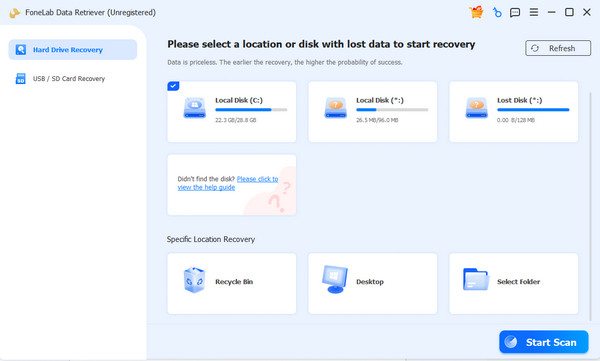
Step 1First, choose Free Download to acquire the FoneLab Data Retriever program file. Run the installer from your Downloads folder, and once installed, launch the program. Next, on the main interface, select your storage device or disk and click Start Scan.
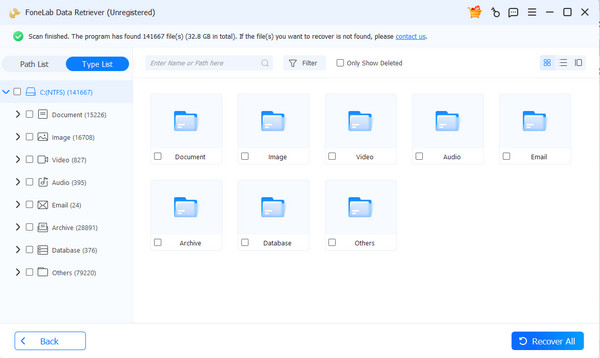
Step 2Various data type folders containing your deleted files will be displayed on the results interface, so open them individually to find your desired data. Once found, mark its checkbox and opt for the Recover All tab to retrieve the lost or deleted items you want.
Part 5. FAQs about How to Hard Reset MacBook
What should I do if my MacBook won't turn on after a hard reset?
Try charging your Mac for at least 30 minutes, then attempt a force restart. If that doesn't work, contact Apple Support for further assistance.
How do I know if my MacBook has Apple Silicon or Intel?
Click the Apple logo, then select About This Mac. If you see Apple M1/M2/M3, it means your MacBook is Apple Silicon. Meanwhile, you will see Intel if it's an Intel-based Mac.
Knowing how to properly hard reset your MacBook ensures you're prepared for any system issue while keeping your data safe, especially with FoneLab Data Retriever on your side.



