
 iPhone Data Recovery
 iOS System Recovery
 iOS Data Backup & Restore
 iOS Unlocker
 iPhone Password Manager
 Location Changer
 Android Data Recovery
 Broken Android Data Extraction
 Android Data Backup & Restore
 Android Unlocker
 FoneTrans for iOS
 iPhone Data Eraser
 iPhone Cleaner
 HEIC Converter
 HyperTrans
 WhatsApp Transfer for iOS
 Mac Sweep
 Data Retriever
 Mac Data Retriever
 Video Converter Ultimate
 Screen Recorder
 Phone Mirror
- Part 1. The Golden Pre-Reinstall Checklist
- Part 2. Understanding Your Reinstallation Options
- Part 3. Preparing the Bootable USB Drive
- Part 4. Booting Your PC from the USB Drive
- Part 5. The Windows Setup Wizard & Clean Installation Steps
- Part 6. Post-Installation Essentials (The Critical Follow-Up)
- Part 7. What to Do If You Lost Your Data: FoneLab Data Retriever
- Part 8. FAQs about How to Reinstall Windows
 Recover PC Data Now
Recover the lost/deleted data from computer, hard drive, flash drive, memory card, digital camera and more.
Reliable Guide on How to Reinstall Windows Properly
 Updated by
Are you seeking a reliable Windows reinstall process? Perhaps your computer feels slow or unstable, or it shows errors, and it’s already disrupting your work or daily Windows use. If so, you are right to decide to reinstall, as it gives your computer a fresh start by removing old files, settings, and problems that have accumulated over time. Sounds intimidating? No worries.
The Windows reinstallation process doesn’t actually require you to be an expert. Once you know the right steps and methods, which are covered below, you will see how simple it actually is, and you can do it entirely on your own. That said, let us walk through the necessary information about reinstalling Windows, from preparations and requirements to the main process. Additional methods, such as data recovery, are also covered below, so keep an eye out.

Guide List
- Part 1. The Golden Pre-Reinstall Checklist
- Part 2. Understanding Your Reinstallation Options
- Part 3. Preparing the Bootable USB Drive
- Part 4. Booting Your PC from the USB Drive
- Part 5. The Windows Setup Wizard & Clean Installation Steps
- Part 6. Post-Installation Essentials (The Critical Follow-Up)
- Part 7. What to Do If You Lost Your Data: FoneLab Data Retriever
- Part 8. FAQs about How to Reinstall Windows
Part 1. The Golden Pre-Reinstall Checklist
Before you reinstall Windows 10, 11, or other versions, preparation is important. So, here’s a checklist you can browse to avoid mistakes that could cost you your files or time later. Read through it to be completely ready.
- • Back up your important files: Copy your personal files, such as documents, videos, photos, and other data, to a drive or cloud storage.
- • Note your important settings and passwords: Write down Wi-Fi passwords, program logins, and any settings you use often. This way, it's easier to set everything up again when you have this information ready.
- • Prepare your installation tools: A USB drive with at least 8GB of space and a stable internet connection are necessary. Ensure you have them, and the drive should be empty, as it will be formatted during the process.
- • Check your hardware. Confirm that your Windows PC meets the requirements for the Windows version you plan to install. Also, make sure your PC is plugged in before you start.
Part 2. Understanding Your Reinstallation Options
There are 2 primary ways to reinstall Windows. Each has a different purpose, so choose the one suitable for your situation.
Option 1. In-Place Upgrade / Repair Install
First is an in-place upgrade or repair install. This option reinstalls Windows while keeping your personal files, settings, and most programs on your computer. It is a good choice for those with minor system issues, like errors or glitches, who don't want to lose their data. It's faster and safer than a full reinstall; however, it may not fix deeper problems.
Option 2. Clean Install
A clean install wipes everything and installs Windows from scratch. It gives your PC a completely fresh start, which is best if your system is severely corrupted or you simply want to start over. So, if you have important files, remember the checklist and back up your data.
Part 3. Preparing the Bootable USB Drive
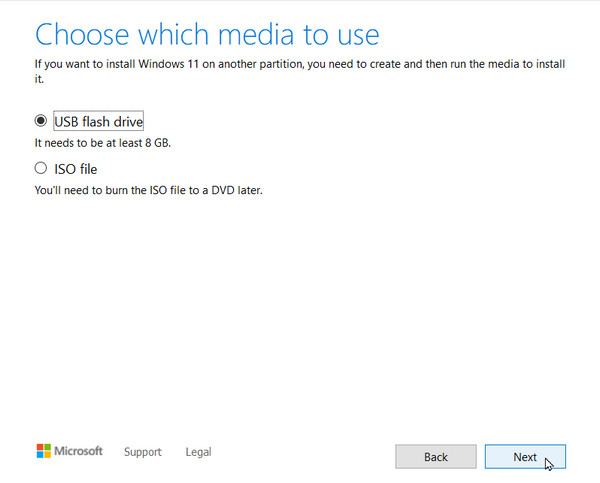
As mentioned, an 8 GB USB drive is required when reinstalling Windows, and it needs to be bootable. That’s because your PC will use it to start the installation process, but don’t worry. Creating a bootable USB is simple, especially with a stable internet connection. Microsoft provides the Media Creation Tool, making the process easy.
Step 1Save the Media Creation Tool from Microsoft’s site, then plug your drive into the PC. Next, open the tool and accept the terms, then pick Create installation media for another PC on the interface.
Step 2Afterward, select your language and Windows version and pick USB flash drive as the media type. Once ready, select your drive and wait for the tool to create the bootable drive.
Part 4. Booting Your PC from the USB Drive
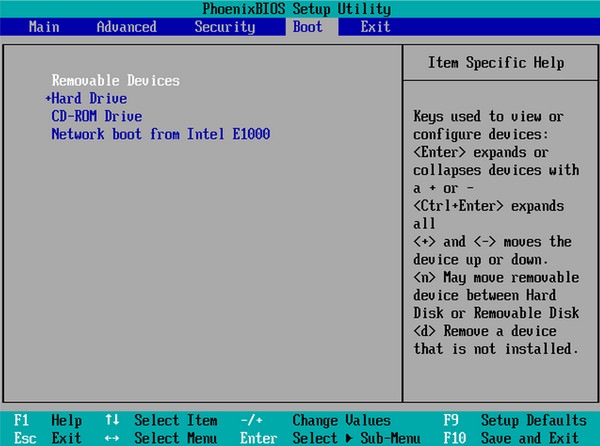
Once your bootable USB drive is ready, the next step is to reinstall Windows from USB. Normally, the computer starts from its internal drive, but this time you will boot from the USB drive to start the installation. The general process is similar for most Windows PCs.
Step 1Restart your PC and press the boot menu key (F12, F10, Esc, or Del) as soon as it turns on. Shortly, the boot menu will appear.
Step 2From there, select your USB drive to boot from it and load Windows Setup.
Part 5. The Windows Setup Wizard & Clean Installation Steps
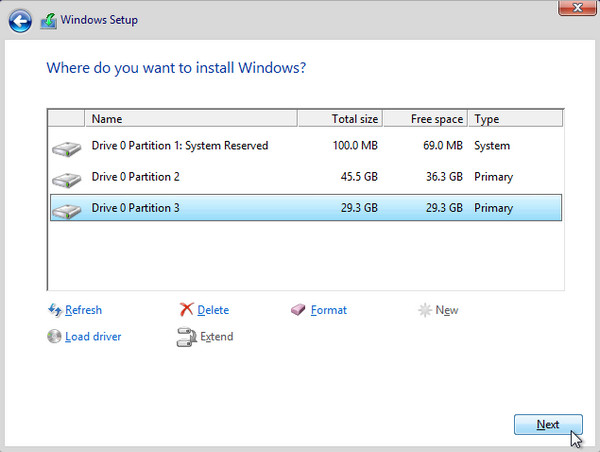
After booting from the USB drive, the Windows Setup Wizard will assist you through the installation, during which the actual clean install occurs. It will handle everything from choosing your language and region to selecting the drive where Windows will be installed.
Step 1On the Windows Setup screen, simply follow the prompts and choose the drive where you want Windows installed. If you have chosen a clean install, all your data will now be erased.
Step 2Afterward, the PC will restart, taking you to the initial setup screen to begin personalizing your new system.
Part 6. Post-Installation Essentials (The Critical Follow-Up)
Once Windows is installed, it’s time for the post-installation essentials. Note that this part is equally important, as it will ensure your PC runs smoothly and safely. Skipping them can leave your system vulnerable or missing key features.
Drivers & Updates
After a fresh install, Windows may not have all the drivers your hardware needs — such as those for graphics, audio, and Wi-Fi — to work properly. So, run a Windows Update by going to Settings > Windows Update and clicking Check for updates. This way, your PC will also get the latest security patches and fixes.
Restoring Data
Now that your Windows PC is ready, you can finally restore the backup you have saved to return your data to the computer. You may also need to reinstall your favorite programs and sign in to your accounts again to enjoy the PC fully.
Part 7. What to Do If You Lost Your Data: FoneLab Data Retriever
Despite the best preparations, you can still lose files during a Windows reinstall. You may have forgotten to back up a folder, or the installation process may have wiped something you didn't expect. If this happens, don't be alarmed because you have FoneLab Data Retriever.
FoneLab Data Retriever - recover the lost/deleted data from computer, hard drive, flash drive, memory card, digital camera and more.
- Recover photos, videos, documents and more data with ease.
- Preview data before recovery.
If you haven’t heard about it yet, this program can recover data on Windows with a high success rate. So, it’s not a problem if you forgot to back up an important file. FoneLab Data Retriever doesn’t require preparation before data loss, so you can trust it to bring back your documents, photos, and more in various scenarios.
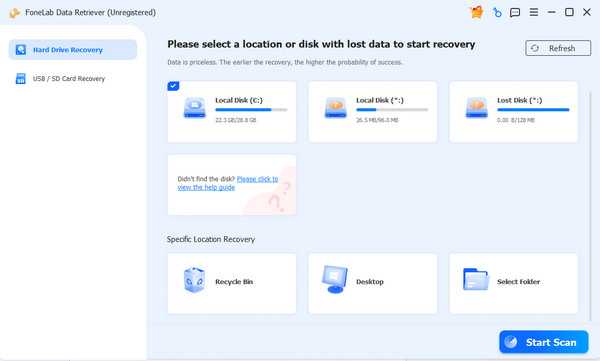
Step 1Click Free Download to save the FoneLab Data Retriever file immediately. Install the program with it, then run it on your Windows desktop. On the main interface, select your drive from the options available and click Start Scan.
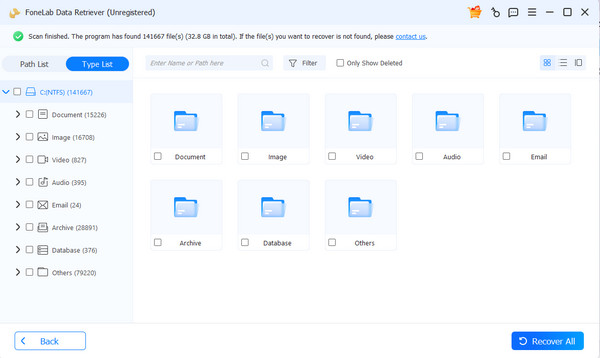
Step 2The folders in the results screen contain your lost and deleted computer files. Browse them to see your desired files, then click the checkboxes. Lastly, click Recover All.
Part 8. FAQs about How to Reinstall Windows
How long does it take to reinstall Windows?
The reinstallation usually takes about 30 minutes to an hour, depending on your PC's speed and internet connection.
Is a Windows reinstall possible on a laptop?
Yes, it is. The process is just the same as on a computer. Just make sure your laptop is plugged in or has enough battery life before you start.
With this guide, you can now reinstall Windows properly and give your PC a fresh, reliable start, especially with FoneLab Data Retriever to help you save your data if anything goes wrong.


