
 iPhone Data Recovery
 iOS System Recovery
 iOS Data Backup & Restore
 iOS Unlocker
 iPhone Password Manager
 Location Changer
 Android Data Recovery
 Broken Android Data Extraction
 Android Data Backup & Restore
 Android Unlocker
 FoneTrans for iOS
 iPhone Data Eraser
 iPhone Cleaner
 HEIC Converter
 HyperTrans
 WhatsApp Transfer for iOS
 Mac Sweep
 Data Retriever
 Mac Data Retriever
 Video Converter Ultimate
 Screen Recorder
 Phone Mirror
- Part 1. Why You Need Windows Media Creation Tool
- Part 2. Step-by-Step Installation Guide
- Part 3. Troubleshooting: The Secret Sauce
- Part 4. Advanced: Creating Installation Media for Non-Windows Users
- Part 5. How to Recover Lost Data after Using Windows Media Creation Tool - FoneLab Data Retriever
- Part 6. FAQs about Windows Media Creation Tool
 Recover PC Data Now
Recover the lost/deleted data from computer, hard drive, flash drive, memory card, digital camera and more.
A Walkthrough Guide to Windows Media Creation Tool
 Updated by
Good day! How should I proceed with the Windows Media Creation Tool download? I just landed a job and want to use my computer for it. The problem is it already has too much clutter and unnecessary software. I want a clean slate and the best performance for my Windows, and I heard this media creation tool can help. I hope someone can guide me through it.
The Media Creation tool is a free Microsoft utility that helps you download, install, or reinstall Windows on your computer. It is often used when you want a clean installation to start fresh with a new copy of Windows. As mentioned in the situation above, it removes all the clutter and unnecessary software that may be slowing down your PC. Hence, whether you are upgrading, reinstalling, or setting up a new computer, this guide will help you understand the tool.

Guide List
- Part 1. Why You Need Windows Media Creation Tool
- Part 2. Step-by-Step Installation Guide
- Part 3. Troubleshooting: The Secret Sauce
- Part 4. Advanced: Creating Installation Media for Non-Windows Users
- Part 5. How to Recover Lost Data after Using Windows Media Creation Tool - FoneLab Data Retriever
- Part 6. FAQs about Windows Media Creation Tool
Part 1. Why You Need Windows Media Creation Tool
The Microsoft Windows Media Creation Tool is useful for several reasons. First, it lets you perform a clean installation of Windows, removing all clutter and unnecessary software for better performance. It also helps you upgrade to the latest version of Windows if the current one is outdated. Apart from that, you can create a bootable USB or DVD with it, which helps install Windows on another PC. So, whether you want a fresh start, an upgrade, or a recovery solution, this tool can help.
Part 2. Step-by-Step Installation Guide
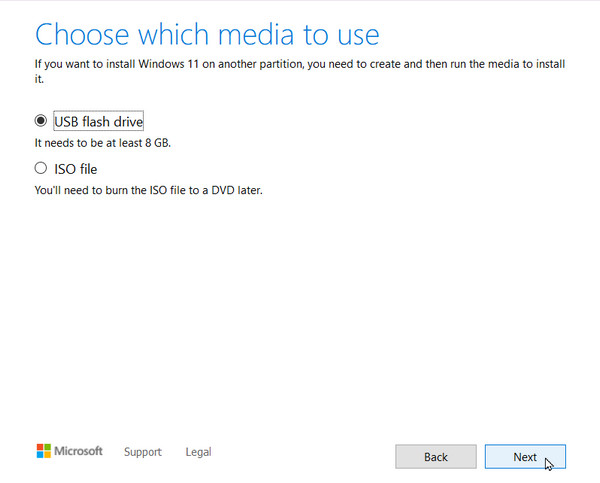
Using the Media Creation tool is straightforward. It works by downloading the latest version of Windows from Microsoft and then creating a bootable USB drive or saving an ISO file. But before that, ensure you have the right requirements: a USB flash drive with at least 8 GB of storage and a stable internet connection. Once these are ready, the process should go smoothly.
Follow the step-by-step procedure below to use Windows Installation Media Creation tool:
Step 1Begin by heading to the official Microsoft Windows download page and clicking Download Now under the Create Windows Installation Media section. Once saved, right-click the downloaded file and select Run as administrator before accepting the license terms.
Step 2When asked, choose whether you want to create a USB drive or an ISO file, then select your language and edition. Afterward, plug in your USB drive and let the tool download and write Windows to it. Once it finishes, your bootable USB is ready to use.
Part 3. Troubleshooting: The Secret Sauce
Although the Windows Media Creation Tool is designed to be simple, problems can still happen. Sometimes, it fails to download Windows, gets stuck during the process, or gives an error when creating the USB drive. A slow or unstable internet connection can cause these unfortunate scenarios, as can a faulty USB drive or failing to run the tool as an administrator.
But don't be discouraged, because such problems have simple fixes. You can try running the tool again using a different USB drive with sufficient storage, and ensure you are connected to a stable network. And when you use the tool, ensure you run it as an administrator.
Part 4. Advanced: Creating Installation Media for Non-Windows Users
What if you use a Mac or another operating system? Well, the unfortunate thing is that you cannot run the Media Creation tool directly since it only works on Windows. However, you can still create Windows installation media. As before, you'll need to download the necessary file from Microsoft's website, as the ISO file is available to anyone regardless of their operating system. But what you do afterward is what matters for non-Windows users.
Follow the operation below to use the Windows Creation tool for non-Windows users:
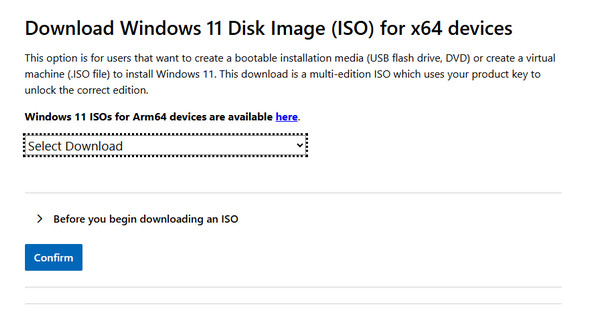
Step 1On the Microsoft Windows download page, scroll to the Windows 11 ISOs section to download the ISO file directly. Next, use a third-party tool like UNetbootin or Etcher.
Step 2The tool will help you write the ISO onto a USB drive and make it bootable. Once done, your bootable USB is ready to install Windows on any compatible PC.
Part 5. How to Recover Lost Data after Using Windows Media Creation Tool - FoneLab Data Retriever
As mentioned, the Media Creation tool is often used to declutter Windows and provide a clean slate. However, it comes with the risk of losing important files, especially if you proceed without remembering that you still have data stored, such as important images or critical documents. Luckily, FoneLab Data Retriever is available.
FoneLab Data Retriever - recover the lost/deleted data from computer, hard drive, flash drive, memory card, digital camera and more.
- Recover photos, videos, documents and more data with ease.
- Preview data before recovery.
This program is the best data recovery software we recommend for numerous reasons. From its broad file compatibility to versatile device support, it allows you to recover almost any important data from your computer, hard drives, digital cameras, memory cards, and more. Besides, the other functions make the tool more user-friendly, including secure preview and search & filter.
Follow the hassle-free task below to recover your lost data after using the Windows Media Creation Tool with FoneLab Data Retriever:
Step 1Start by selecting Free Download to obtain the FoneLab Data Retriever file in your Downloads folder. It will be ready soon, so launch the file afterward to complete the installation. After that, click Start, and the main interface will appear on your desktop. From there, select your drive and click the Start Scan button when ready.
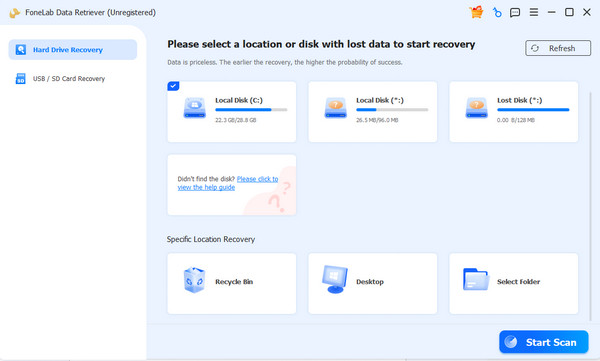
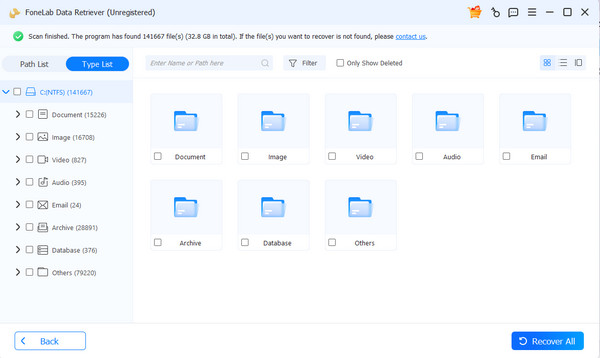
Step 2As you can see, the tool will start scanning your lost and deleted files and show different data-type folders in the interface. Open the relevant folder and explore the content to find the files you want to recover. Simply check the small boxes corresponding to them to select the items, then pick Recover All when done.
Part 6. FAQs about Windows Media Creation Tool
Is the Media Creation Tool for Windows free?
Yes, it is. Microsoft offers the Media Creation Tool for Windows at no cost, and you do not need a subscription or payment to access it. As you can see from the guidelines above, it can be downloaded directly from Microsoft's official website without any hidden fees or charges.
Can I still use the same USB drive for other purposes?
Yes, you can, but there are things you must keep in mind. The USB drive can still be used for other purposes after being used as installation media; however, you will need to format it first or let the tool overwrite the existing data.
The Media Creation Tool is a free and reliable way to install, upgrade, or reinstall Windows, and it makes creating bootable USB drives or ISO files simple, even for beginners. Use the guides above carefully to achieve your desired result, and if you ever encounter issues such as data loss, FoneLab Data Retriever is there to help.


