
 iPhone Data Recovery
 iOS System Recovery
 iOS Data Backup & Restore
 iOS Unlocker
 iPhone Password Manager
 Location Changer
 Android Data Recovery
 Broken Android Data Extraction
 Android Data Backup & Restore
 Android Unlocker
 FoneTrans for iOS
 iPhone Data Eraser
 iPhone Cleaner
 HEIC Converter
 HyperTrans
 WhatsApp Transfer for iOS
 Mac Sweep
 Data Retriever
 Mac Data Retriever
 Video Converter Ultimate
 Screen Recorder
 Phone Mirror
- Part 1. The Basics Methods to Find Recently Deleted Files on Windows
- Part 2. Built-in Windows Solutions to Find Recently Deleted Files
- Part 3. Advanced Recovery for Recently Deleted Files on Windows
- Part 4. Recover Deleted Files with FoneLab Data Retriever
- Part 5. Comparative Guide
- Part 6. FAQs & Troubleshooting
- Part 7. Preventive Measures
 Recover PC Data Now
Recover the lost/deleted data from computer, hard drive, flash drive, memory card, digital camera and more.
How to Locate Recently Deleted Files on a Windows Device
 Updated by
At some point in your life, you use a Windows device, whether for work or personal endeavors; for sure, you have encountered a lot of accidental clicks from time to time, right? And among the unexpected problems a user may encounter is accidentally deleting important files. But don't worry—accidentally deleting a file on your Windows computer doesn’t mean losing your file instantly.
The Windows Recycle Bin holds deleted files for a while, giving users a chance to recover and restore them to their original folder before they are permanently removed. But the question is how familiar users are with their Windows device, so they know where their deleted files could be located when they accidentally delete them. Worry no more, as this article lists 4 straightforward ways to find recently deleted files on Windows and actually recover them with ease.


Guide List
- Part 1. The Basics Methods to Find Recently Deleted Files on Windows
- Part 2. Built-in Windows Solutions to Find Recently Deleted Files
- Part 3. Advanced Recovery for Recently Deleted Files on Windows
- Part 4. Recover Deleted Files with FoneLab Data Retriever
- Part 5. Comparative Guide
- Part 6. FAQs & Troubleshooting
- Part 7. Preventive Measures
Part 1. The Basics Methods to Find Recently Deleted Files on Windows
When users accidentally delete files from their Windows device and want them back, the ‘Golden Rule’ before attempting a data recovery method is to check the Recycle Bin for the recently deleted files in Windows and try Undo Deletion.
The Recycle Bin Check
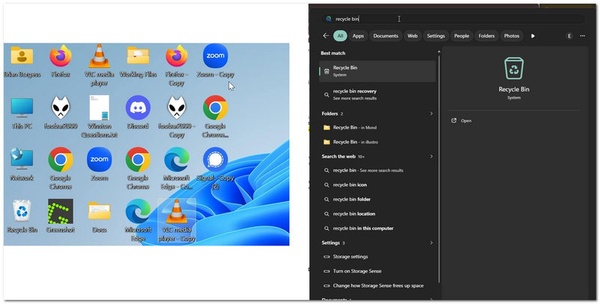
How to see recently deleted files on Windows? To recover deleted files from recycle bin, open the Recycle Bin on your Windows device and return to your Windows home screen. If you have desktop icons enabled on your device, you may see the Recycle Bin icon and check your deleted files there.
If you’ve removed your desktop icon from your home screen, you can still access your Recycle Bin through your Windows Quick Search Bar. Simply search for your Recycle Bin folder to access it instantly.
Undo Delete
If you have just deleted a file, the quickest action you can take is to Undo Delete. This can be done by pressing Ctrl+Z on your keyboard. This method will immediately undo the deletion; your files will revert to their previous locations.
Part 2. Built-in Windows Solutions to Find Recently Deleted Files
Restore from File History
To instantly restore recently deleted files on Windows via the Windows File History method, you can go to your Control Panel to access your File History and restore it there.
Step 1Go to your computer's Control Panel settings.
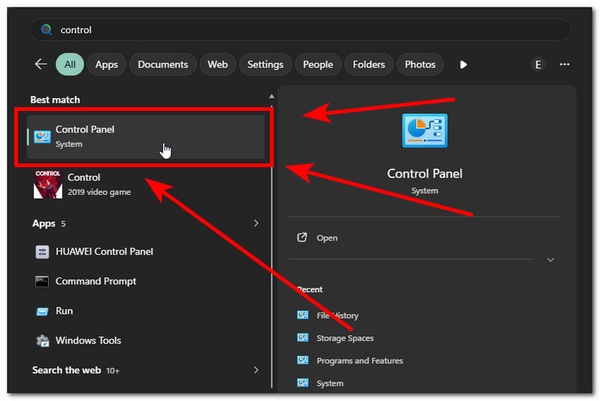
Step 2From your Control Panel, follow the navigation path System and Security > File History. To access your device file history setting.
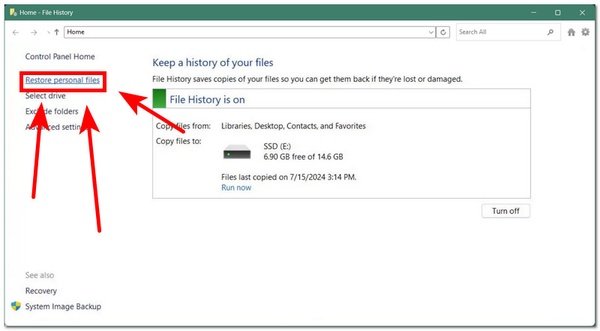
Step 3Finally, once you are in your computer's File History settings, click on Restore Personal Files. In doing this, your device will browse your computer’s file history backup and let you retrieve data for your file recovery.
Previous Version
A built-in Windows file recovery solution is to restore a file from history. Of course, this can only be done if the user has enabled File History from the Windows Control Panel settings. To use this method to find recently deleted Windows files and restore them, simply follow the steps below.
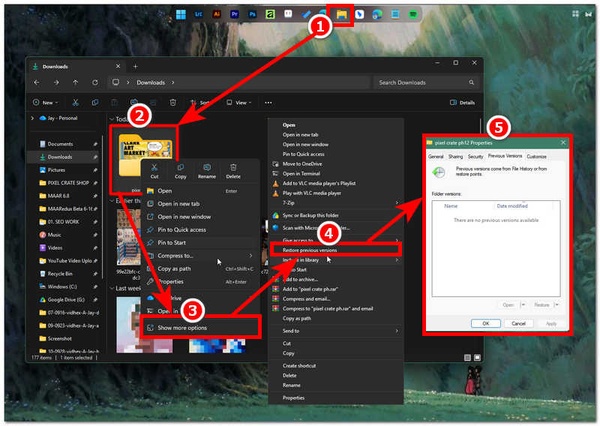
Step 1Open File Explorer on your Windows device and, from there, simply head over to the File Folder you wish to restore using the File History restoration method.
Step 2Right-click on your selected file folder and, from the menu settings, simply click on the Show More Options section to extend the menu; from there, you will see Restore Previous Version. Click that to access the previous version of the folder.
Step 3After clicking Restore Previous Version, a new window will appear showing the folder's version history. If an earlier version is available, select it to restore the folder to that state.
OneDrive/Cloud Sync
If you happen to be storing your data files in cloud storage like OneDrive and accidentally delete them, this section will help you. As Cloud Storage has become common with newer Windows users and devices, it is also important to know how to check and restore a file in your cloud storage.
Step 1Using your preferred internet browser, simply open your device's cloud storage (OneDrive).
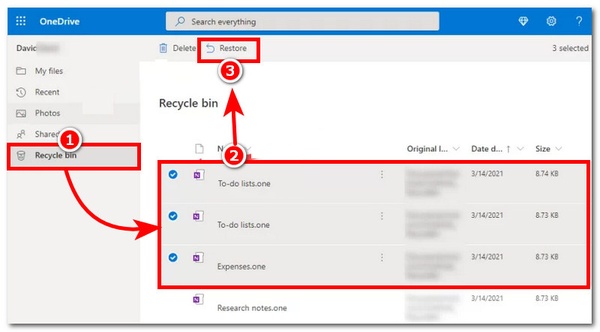
Step 2From there, click on the Recycle Bin, browse all the recently deleted files, and select all the files you wish to restore to your OneDrive folder by clicking on the Restore button.
Part 3. Advanced Recovery for Recently Deleted Files on Windows
Using Windows File Recovery
An advanced level of data or Windows file recovery can be done by using the Windows File Recovery tool. This free Windows command-line tool allows users to recover data from files that have not yet been overwritten.
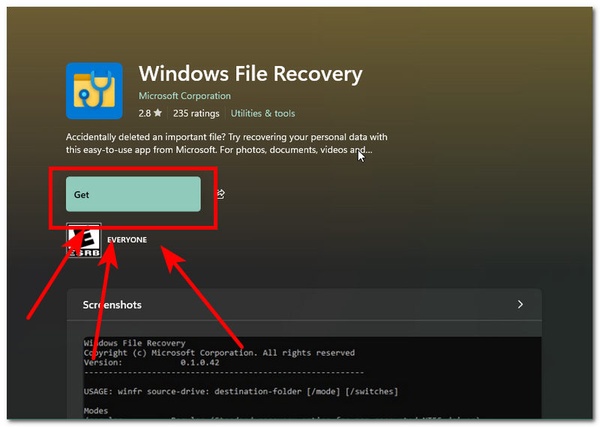
Step 1Download and install Windows File Recovery from the Microsoft Store. Once done, proceed to open Command Prompt and run it as an administrator.
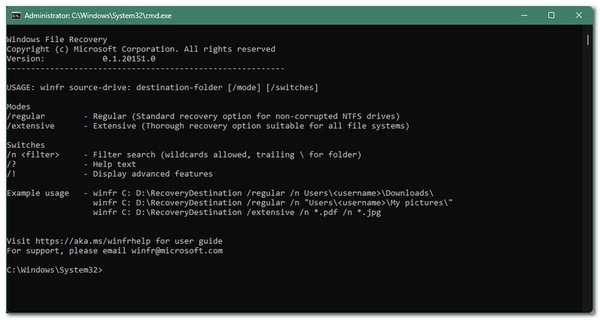
Step 2Based on the file system of the source drive, choose the appropriate recovery mode and run the recovery command using the syntax: winfr source-drive: destination-drive: [/mode] [/switches].
Step 3After running the recovery command, you will then be able to select the destination where you want your recovered files to be stored.
Search for Hidden Files
When it comes to searching for hidden files on your Windows device, whether for a later restore or recovery, this method will show you how.
Step 1Open your Windows File Explorer and go to the tab or folder you wish to inspect and search for hidden files.
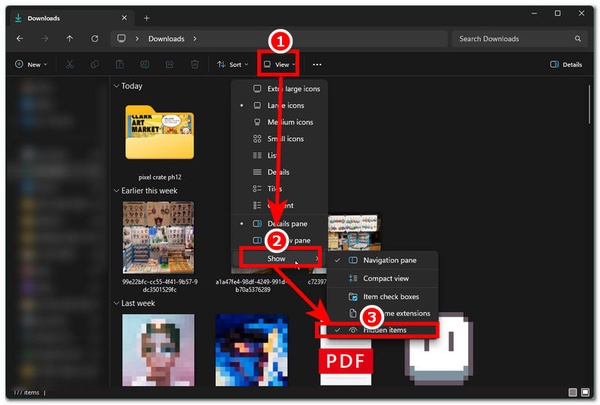
Step 2Once you're on your chosen tab, simply click the View tab, then click Show. From there, a menu will expand. Click Hidden Items to show the hidden files on your computer.
Part 4. Recover Deleted Files with FoneLab Data Retriever
How to recover recently deleted files on Windows? Recovering deleted files on Windows can be quite difficult to comprehend, especially for novices. A much more efficient method is FoneLab Data Retriever, which simplifies file recovery on Windows. For starters, FoneLab is a versatile tool that supports data recovery from computers, memory cards, and more. The use of this tool has become the go-to method for users who find the command-line recovery method confusing.
FoneLab Data Retriever - recover the lost/deleted data from computer, hard drive, flash drive, memory card, digital camera and more.
- Recover photos, videos, documents and more data with ease.
- Preview data before recovery.
FoneLab Data Retriever's data recovery capabilities extend beyond documents to other file formats, including images, videos, and more. With a straightforward interface, it helps users complete the task without issues, as it can perform quick and deep scans to ensure that intact data files are recovered from your Windows device.
Step 1Download and install the FoneLab Data Retriever software on your Windows device. Once done, proceed to launch the software.
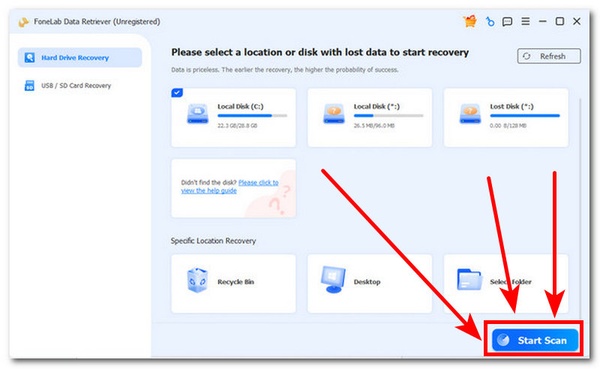
Step 2Once the software is open, right from its main interface, click the Start Scan button to have the software check the Windows hard drive for all possible data files you want to restore to your computer.
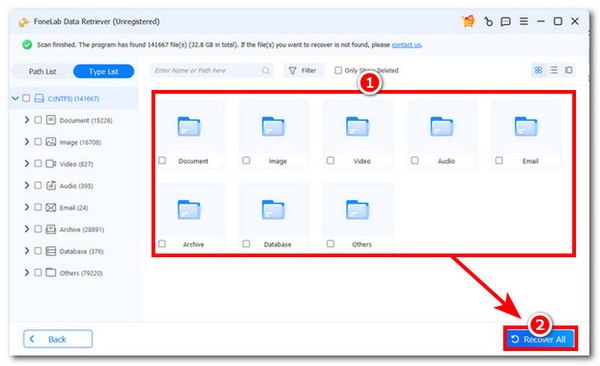
Step 3Once the scanning is complete, it will show in the interface all the possible folders that contain deleted data or files. Simply check each of them to explore the files you need to recover and not. You may check a certain folder or decide to restore all the data by clicking the Recover All button.
Part 5. Comparative Guide
When deciding which method to use for finding recently deleted files on Windows, it is important for users to know the status of their deleted files. Hence, to better determine which approach a user may need for their data file recovery, we list the key features of each method below.
| Methods | Key Features |
| The Basics Method | • Simple and straightforward file recovery method. • Easy to do and can almost resolve most data file loss retrieval needs. • Basic process: Recycle Bin checking & Undo Deletion Shortcut Key method. |
| The Built-In Window Solutions | • It has an elevated process and methodology for recovering missing data, as these methods collectively demonstrate recovery from a cloud storage system and restoration from file history and previous versions, which requires a bit of expertise but is still doable for all users. |
| The Advanced Recovery | • It requires ample knowledge of using the command prompt and of executing code to ensure effective data file recovery. • The most effective and advanced level of recovering deleted files for a computer. |
Part 6. FAQs & Troubleshooting
Where do permanently deleted files go in Windows?
When the deleted files have been in the Recycle Bin for more than 30 days, they will be permanently deleted and can no longer be accessed through the Recycle Bin. However, the data will remain on the storage device until it gets overwritten or erased.
How can I find recently deleted files without using the Recycle Bin?
There are various ways users can locate their recently deleted files without going to the Recycle Bin folder, such as checking their file history, Windows backup, and their cloud storage recycle bin.
Part 7. Preventive Measures
Here are some preventive measures users can take to avoid permanently losing deleted files.
- • Always check your Windows Recycle Bin for accidentally deleted files before emptying it to free up storage.
- • Enable your computer's File History to back up copies of your files automatically.
- • Use cloud-based storage as a backup or sync so your files have an extra copy.
- • Recover your deleted files as soon as possible.
This article has explored various methods for locating recently deleted files on Windows as well as recovering them according to what the user prefers. The methods listed are categorized into basic solutions, use of built-in Windows solutions, advanced recovery methods, and the use of a straightforward, lightweight FoneLab Data Retriever to provide a more user-friendly and convenient way to restore all types of files.


