
 iPhone Data Recovery
 iOS System Recovery
 iOS Data Backup & Restore
 iOS Unlocker
 iPhone Password Manager
 Location Changer
 Android Data Recovery
 Broken Android Data Extraction
 Android Data Backup & Restore
 Android Unlocker
 FoneTrans for iOS
 iPhone Data Eraser
 iPhone Cleaner
 HEIC Converter
 HyperTrans
 WhatsApp Transfer for iOS
 Mac Sweep
 Data Retriever
 Mac Data Retriever
 Video Converter Ultimate
 Screen Recorder
 Phone Mirror
 Recover PC Data Now
Recover the lost/deleted data from computer, hard drive, flash drive, memory card, digital camera and more.
Eminent Guide on How to Find Archived Emails in Gmail
 Updated by
 “How to find my archived emails in Gmail?” This is a common question from Gmail users searching for a specific Archive folder. Whether you have decided to archive an email to clean your inbox, store an important message in a safe place, etc., it can be alarming when you don’t see the designated folder later. Don’t worry, though. Archiving an email doesn’t mean it will be saved in an actual Archives folder, so it’s normal if you don’t find it in a specialized location.
If you’re unaware, Gmail does not have a dedicated Archive folder like other email services. Instead, archived messages can be found using different methods. After all, archiving is not the same as deleting, so you will still be able to see them. The key is learning how. Keep reading—the following sections cover everything you need to know about Gmail's archiving process, along with helpful methods to find your emails.


Guide List
Part 1. What Does Archive Mean in Gmail?
In Gmail, the archive function is designed to help you declutter your inbox without permanently deleting anything. That’s because when you archive a message, Gmail simply moves it out of sight while still storing it safely for future reference. As mentioned, people usually use it when cleaning the inbox or saving an important email.
The big question is, where does Gmail store archived emails if it doesn’t offer a specific folder for them? Well, the answer is that they are moved to a central holding area called All Mail. It is essentially a master list of every email you have ever received or sent, excluding those in Trash or Spam. Hence, your email still exists, taking up storage space, and can be retrieved at any time.
Part 2. 4 Ways to Find Archived Emails
Now that you have a better understanding of Archive in Gmail, it’s time to learn how to find the emails you have archived. The good news is that there are 2 prominent ways you can do this. Browse the information and processes below to view them again.
Method 1. Find Archived Emails in Gmail through All Mail
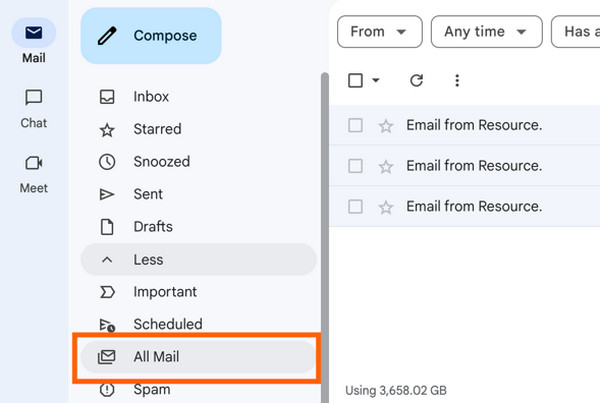
All Mail is a specific location in Gmail that offers the most straightforward way to find your archived email. As mentioned, it provides a complete list of emails in your account, except for the ones in your Trash or Spam folders. By navigating directly to this section, you can browse your entire email history in one place, making it easy to find that message you archived and wish to view.
Follow the task below to learn how to find archived emails in Gmail through All Mail:
Step 1First, ensure you are logged in, and on your Gmail account webpage, click More in the sidebar to scroll down. You will then see All Mail, so select it.
Step 2Once in All Mail, scroll through the list to browse your archived emails. Shortly, you will find the archived email you need, and you must only click it to view it again.
Method 2. Find Archived Emails in Gmail via Advanced Search
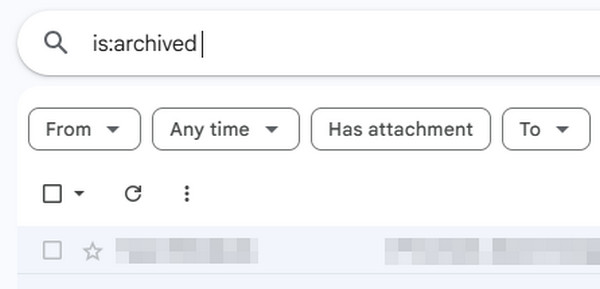
On the other hand, the advanced search feature is perfect when you know the exact email you are looking for but can't remember when it was archived. Instead of scrolling through hundreds or thousands of emails in All Mail, this feature lets you find the one you need using specific details, such as the sender, subject, keywords, or date range. It is especially helpful for older emails.
Follow the process below to grasp how to find your archived emails in Gmail via advanced search:
Step 1Click the search bar at the top of your Gmail account page, then type in:archive first. Following that, enter the details of your desired archived email, like its sender, subject, etc.
Step 2Gmail will shortly show the results, allowing you to find the exact archived email you need immediately. You can then simply view it from there by clicking the email.
Part 3. What If You Permanently Deleted an Email
Archiving is one thing, but what if you deleted an email and even emptied your Trash? Unfortunately, this happens to some, but you don’t have to be alarmed. Whether you have changed your mind or experienced an accidental deletion, FoneLab Data Retriever is here to help you recover deleted emails. It is a tool loved by both beginners and experienced users.
Its simplicity and intuitive recovery function allow you to recover deleted files from PC with ease, whether you have already eliminated them from the Trash or Recycle Bin or not. Aside from that, FoneLab Data Retriever supports various email file formats, like MBOX, EML, MSG, etc., and you can even preview them before recovery. Besides, other helpful features are provided.
FoneLab Data Retriever - recover the lost/deleted data from computer, hard drive, flash drive, memory card, digital camera and more.
- Recover photos, videos, documents and more data with ease.
- Preview data before recovery.
Perceive the instructions below as a pattern to recover a permanently deleted email with FoneLab Data Retriever:
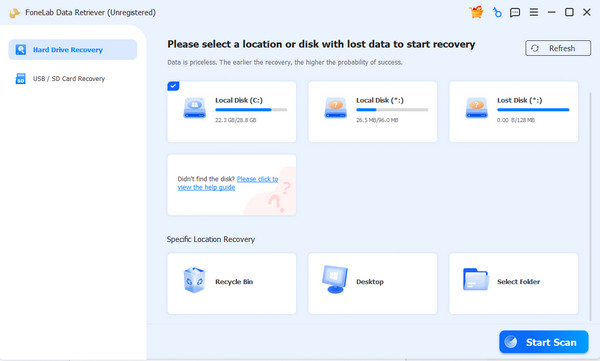
Step 1Save FoneLab Data Retriever’s file through the Free Download tab. It will appear in your Downloads folder. Open it and proceed with the installation. Once the tool starts, opt for your storage device or drive on the main interface, then select Start Scan.
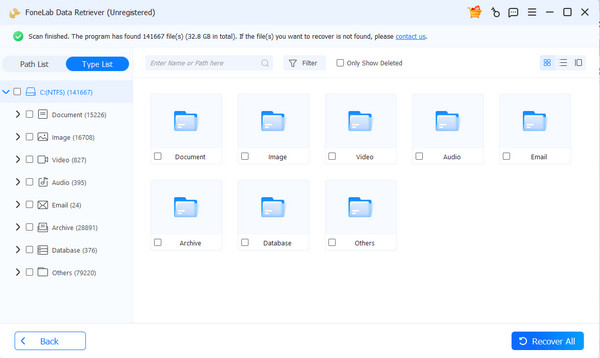
Step 2Wait until the program finishes scanning your files, and when the data type folders appear, open the one named Email to explore the deleted emails. Once you find the item you want, select its checkbox. After selecting, you can finally hit Recover All.
Part 4. How to Unarchive Emails in Gmail
Once you have found your archived emails, you will likely want to move them back to your main inbox. Unarchiving simply restores the email to your Inbox, making it visible again. Whether you found the email through All Mail or advanced search, you can expect a straightforward process.
Follow the steps below to learn how to unarchive emails in Gmail:
Step 1First, navigate to your All Mail section or utilize the search bar to locate the specific archived message you wish to restore. Once found, simply click it to open.
Step 2After that, choose the Move to Inbox icon from the top options. The email will instantly reappear in your main inbox.

Part 5. FAQs about How to Find Archived Emails in Gmail
How to find archived emails in Gmail app?
Finding archived emails in the Gmail app is the same as finding them using a browser. Simply go to the All Mail section or use the advanced search feature.
Can I recover an archived email that was accidentally deleted?
Yes, you can. Whether or not the email was archived before deletion, it will still proceed to the Trash section; thus, you can check it there. However, if it's no longer available or you emptied the Trash, FoneLab Data Retriever will be helpful.
Finding archived emails in Gmail is quick and easy once you know where to look, whether through All Mail, advanced search, or a recovery tool for deleted emails, like FoneLab Data Retriever.



