
 iPhone Data Recovery
 iOS System Recovery
 iOS Data Backup & Restore
 iOS Unlocker
 iPhone Password Manager
 Location Changer
 Android Data Recovery
 Broken Android Data Extraction
 Android Data Backup & Restore
 Android Unlocker
 FoneTrans for iOS
 iPhone Data Eraser
 iPhone Cleaner
 HEIC Converter
 HyperTrans
 WhatsApp Transfer for iOS
 Mac Sweep
 Data Retriever
 Mac Data Retriever
 Video Converter Ultimate
 Screen Recorder
 Phone Mirror
 Get Mac Data Recovery Now
Recover the lost/deleted data from computer, hard drive, flash drive, memory card, digital camera and more.
Reliable Guide to Factory Reset MacBook Effortlessly
 Updated by
 Need to reset MacBook to factory settings? You're not alone. Whether it is running slowly, crashing often, or you're getting ready to pass it on to someone else, a factory reset is often the go-to solution. That's because over time, your MacBook inevitably collects background clutter, old files, and temporary data that can significantly affect its performance. Hence, a full reset can help wipe everything clean and restore your macOS to its original state.
However, we understand if you find the term 'reset' technical or risky, making the process intimidating, but don't worry. With the right guidance, the process of resetting the MacBook becomes straightforward, especially if you choose the most suitable reset option for your specific situation. Hence, dive into the trustworthy strategies below to perform a safe factory reset.

Guide List
Part 1. Apple's Ways to Factory Reset MacBook
A factory reset is a process users perform to resolve issues or concerns on their devices. Hence, it's not surprising that Apple has provided multiple ways to reset a MacBook to its factory settings to ensure users can wipe their computers safely. Check them out below.
Option 1. System Settings
The first built-in method that Apple provides to factory reset a MacBook is through the System Settings menu. It is specifically designed to make the process accessible and straightforward for everyday users. Thus, if your MacBook's issues don't affect you from navigating System Settings, this is the perfect method for you. It works by erasing your personal data and reinstalling a fresh copy of macOS, restoring your MacBook to its original state.
Follow the navigation below to understand how to reset MacBook to factory settings in System Settings:
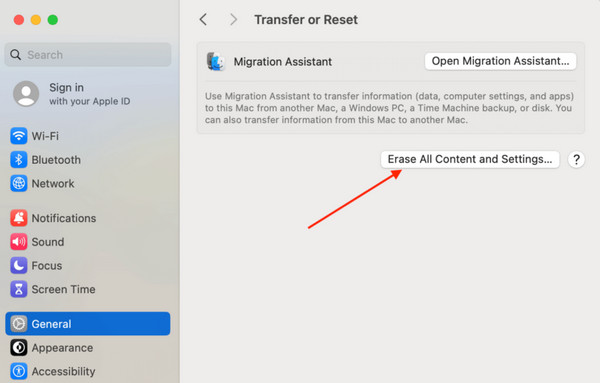
Step 1Click the Apple symbol in the top-left corner of your MacBook desktop and select System Settings from the appearing menu. After that, navigate to General in the sidebar to view and pick the Transfer or Reset option.
Step 2Next, choose the button labeled Erase All Content and Settings. You can then follow the simple on-screen prompts, confirming your Apple ID password. Shortly, your MacBook will restart and clean itself automatically.
However, because this method relies on your current system being functional, it may not work if your Mac is severely corrupted or won't boot properly. So, even if it is the most beginner-friendly approach, moving on to another factory reset method is your best option.
Option 2. iCloud Find My
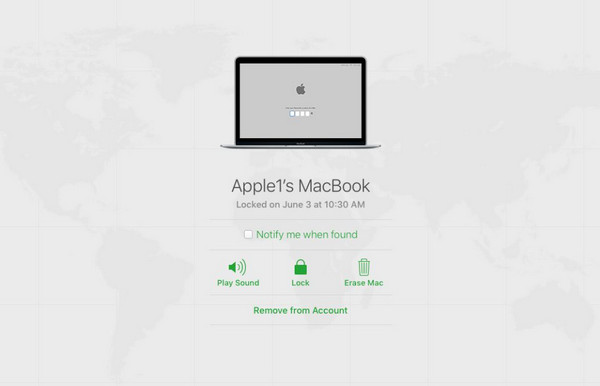
The second built-in method is iCloud's Find My feature. Unlike the previous method, this method is best suited for situations where your MacBook is lost, stolen, or physically inaccessible. In addition to locating lost or misplaced Apple devices, Find My can also manage your MacBook remotely. Among the management options on its page is Erase (Device), which, as its name suggests, erases the computer,along with all its content and settings. You won't even need to touch the Mac itself.
Follow the guide below to grasp how to factory reset a MacBook with iCloud Find My:
Step 1Open your trusted browser on another computer or your phone to visit iCloud's site and log in. Once the homepage launches, head immediately to the website's Find My section.
Step 2On the Find My page, opt for All Devices and choose your MacBook from the dropdown options. When the next screen shows options for your computer, click Erase Mac to factory reset your MacBook.
Note that this option has several important requirements. Your MacBook must be linked to your Apple ID, have Find My from computer pre-enabled, and be connected to the internet.
Option 3. Disk Utility
Another method is factory resetting the MacBook through Disk Utility. Unlike the previous two options, Disk Utility gives you complete control over the erasing process. You can choose which drives or volumes to wipe and specify security levels and formatting types. It is ideal when your MacBook won't boot normally, as it is the go-to choice for fixing serious corruption. It is the most traditional and thorough approach available on macOS.
Follow the operation below to factory reset MacBook through Disk Utility:
Step 1First, turn off your MacBook completely. Then press and hold the Power button to restart it. When the startup options appear on screen, release the Power button.
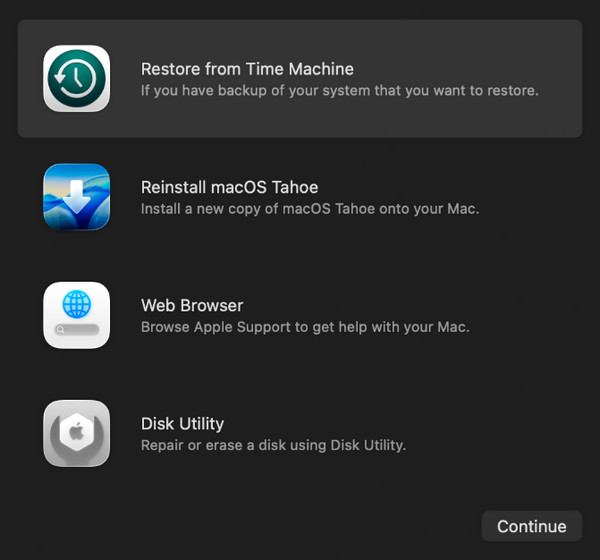
Step 2Afterward, tick Options > Continue, then select the volume you wish to erase and the startup disk. You can then just go along with the prompts until you reach the Recovery screen. From there, pick Disk Utility to erase your chosen disk.
Please keep in mind that Disk Utility requires a bit more care than the other methods. Because it offers so much control, it's also easier to accidentally erase the wrong drive if you're not paying close attention. it also doesn't automatically reinstall macOS, so you must do that manually if necessary.
Part 2. How to Recover Lost Data on MacBook with FoneLab Mac Data Retriever
Now that you've learned the factory reset methods above, you probably realize that the process will permanently erase personal files, including photos, documents, and videos. So, it can be very frustrating if you only intend to fix a problem without losing the content. Luckily, you can recover Mac data after resetting with FoneLab Mac Data Retriever. It is a specialized tool that helps Mac users scan and recover lost or deleted files for any reason.
Whether you accidentally formatted or intentionally factory reset your MacBook, you can rely on this tool's efficiency and success rate to retrieve your files. Besides, FoneLab Mac Data Retriever provides an intuitively designed interface and functions that are advantageous for beginners. The supported file types include documents, audio files, images, videos, emails, and more.
FoneLab Data Retriever - recover the lost/deleted data from computer, hard drive, flash drive, memory card, digital camera and more.
- Recover photos, videos, documents and more data with ease.
- Preview data before recovery.
Recognize the hassle-free steps below as an example to recover lost data with FoneLab Mac Data Retriever after your MacBook factory reset:
Step 1By clicking Free Download, FoneLab Mac Data Recovery's file will be in your Downloads. Open the file from there to initialize the setup and installation, and when done, click Start. Your MacBook drives will be presented on the interface, so select your data location.
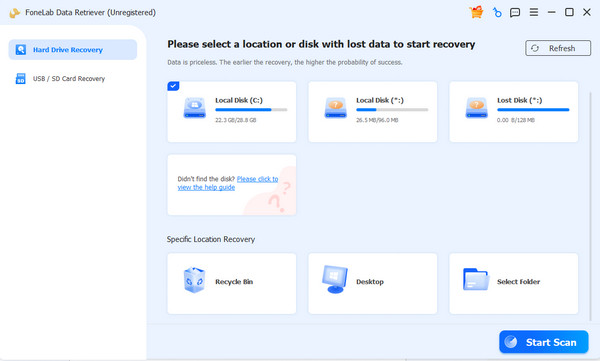
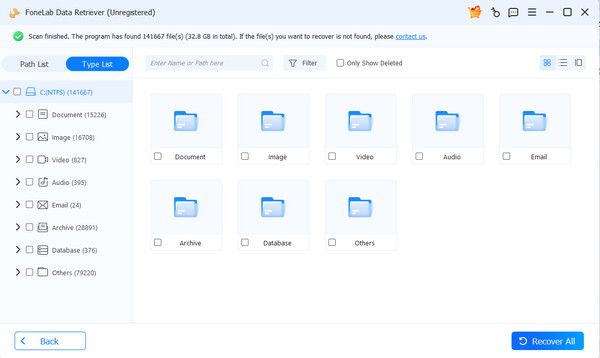
Step 2Following that, tick Start Scan, and the program will begin finding your lost files on the MacBook. Once the scan completes, browse through the folders and select the files you want to recover. After making your selections, click Recover All to restore them.
Part 3. FAQs about How to Factory Reset MacBook
How long does it take to factory reset my MacBook?
The factory reset process typically takes 30 minutes to an hour, depending on your MacBook model and internet speed, for reinstalling macOS.
What is the difference between erasing and resetting a MacBook?
Erasing removes only your data on the MacBook, while a factory reset includes both erasing your data and reinstalling a fresh copy of macOS.
Regardless of the factory reset method you choose, the processes above will restore the best performance of your MacBook. However, they will also eliminate your data, so rely on FoneLab Mac Data Retriever anytime to restore your important files.



