
 iPhone Data Recovery
 iOS System Recovery
 iOS Data Backup & Restore
 iOS Unlocker
 iPhone Password Manager
 Location Changer
 Android Data Recovery
 Broken Android Data Extraction
 Android Data Backup & Restore
 Android Unlocker
 FoneTrans for iOS
 iPhone Data Eraser
 iPhone Cleaner
 HEIC Converter
 HyperTrans
 WhatsApp Transfer for iOS
 Mac Sweep
 Data Retriever
 Mac Data Retriever
 Video Converter Ultimate
 Screen Recorder
 Phone Mirror
- Part 1. Recover Excel Files With The Document Recovery Pane
- Part 2. How to Recover Unsaved Workbooks
- Part 3. Recover Excel Files by Digging Into System Folders
- Part 4. Recover Excel Files by Reverting to Version History
- Part 5. Recover Excel Files With FoneLab Data Retriever
- Part 6. Comparison Table of Methods to Recover Excel
- Part 7. Prevent Future Data Loss: Optimize AutoRecover Settings
- Part 8. FAQs about Excel AutoRecovery
 Recover PC Data Now
Recover the lost/deleted data from computer, hard drive, flash drive, memory card, digital camera and more.
Excel AutoRecover: Definition and How to Use It Effectively
 Updated by
 Many users use Excel to create workbooks. Workbooks are helpful for storing data and other information. So, losing access to or accidentally deleting Excel workbooks is indeed a disaster.
This can mean losing countless pieces of important information. Luckily, you can recover Excel files. This article will cover everything you need to know about the topic, including the Excel AutoRecovery file location. Please continue reading below to learn all the details.


Guide List
- Part 1. Recover Excel Files With The Document Recovery Pane
- Part 2. How to Recover Unsaved Workbooks
- Part 3. Recover Excel Files by Digging Into System Folders
- Part 4. Recover Excel Files by Reverting to Version History
- Part 5. Recover Excel Files With FoneLab Data Retriever
- Part 6. Comparison Table of Methods to Recover Excel
- Part 7. Prevent Future Data Loss: Optimize AutoRecover Settings
- Part 8. FAQs about Excel AutoRecovery
Part 1. Recover Excel Files With The Document Recovery Pane
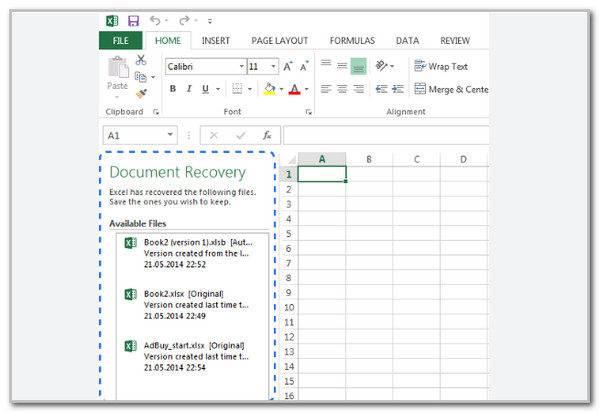
Excel has several useful built-in tools. One of these is the Document Recovery Pane, which is different from the AutoRecover folder. It is a feature that helps users retrieve unsaved Excel workbooks after an unexpected shutdown or software crash. The feature will automatically open the Document Recovery pane to help with recovery.
Open Excel after the crash. Then, wait for the Document Recovery pane to appear. Review all the files and choose the version you want to recover. Click File and choose Save As afterward.
Part 2. How to Recover Unsaved Workbooks
Excel workbooks are one of the most commonly used file types. They are commonly used to store and organize large amounts of data. In this section, you will see how to recover them if you did not have the chance to save them due to unexpected circumstances. See the steps below to know how.
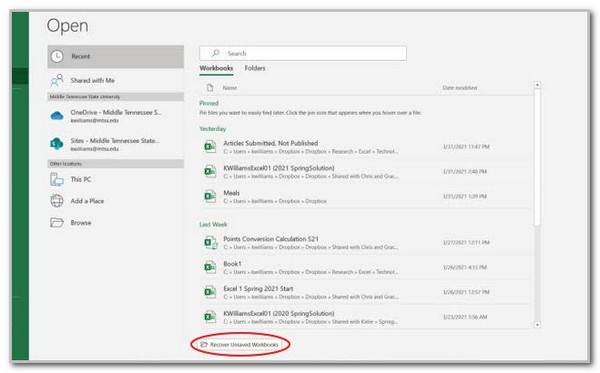
Open Excel. Go to File > Info > Manage Workbook > Recover Unsaved Workbooks. A folder will appear. Select the file you want to recover, then choose File > Save As to save it.
Part 3. Recover Excel Files by Digging Into System Folders
Besides Excel's built-in tools, you can also search your system folders for unsaved Excel files. This method is more complex and time-consuming. See the steps below to know how the process is done.
Open File Explorer. Then, search for the file extension of the documents you are looking for. Later, go to the AutoRecover folder of the computer. Select File and Open. Click Options. Select Save. Finally, the computer will start to recover your unsaved Excel files.

Part 4. Recover Excel Files by Reverting to Version History
Excel has other features for recovering documents from before a shutdown or crash. You can also revert to a previous version of your Excel document. Below are the steps to perform the process.
Open Excel. Choose File and select Info. Later, select Version History on the options list. The file versions will appear. Select Restore to start recovering the Excel file on your computer.

Part 5. Recover Excel Files With FoneLab Data Retriever
The built-in Excel recovery methods are indeed beneficial. However, they may not work in every situation. FoneLab Data Retriever can be used as a deleted Excel recovery tool to help you retrieve your Excel documents on your Windows and Mac. It can also recover various data types from your computer. It includes databases, videos, images, and more data types. Additionally, it can recover data from different devices and locations on your computer. These include the hard drive, Recycle Bin, and more. You can even use it to recover a document not saved in Excel. Please see the steps below to know how to use the tool.
FoneLab Data Retriever - recover the lost/deleted data from computer, hard drive, flash drive, memory card, digital camera and more.
- Recover photos, videos, documents and more data with ease.
- Preview data before recovery.
Step 1Download FoneLab Data Retriever to get it. Set up, install, and open the software to start the process.
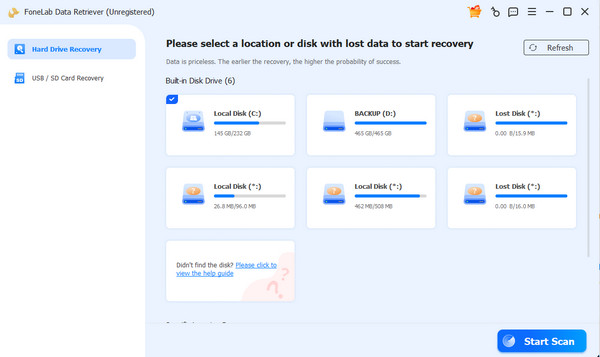
Step 2Choose the location where you want to store the lost documents. Later, please select the Start Scan button at the bottom right. Later, the results will be prompted on the next screen.
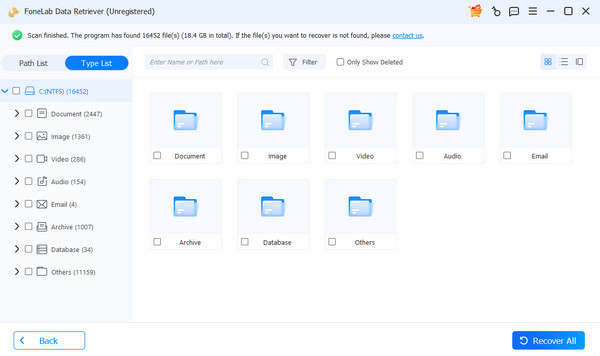
Step 3Locate the documents you want to retrieve. Click the Documents button. Later, please choose the Excel files you want to retrieve. Finally, click the Recover All button at the bottom right corner of the main interface.
Part 6. Comparison Table of Methods to Recover Excel
There are multiple ways to recover Excel documents. This section compares them to help you choose the best method. See the table below for more information.
| Method | Effectivity Rate | Difficulty Level | Cons |
| Document Recovery Pane | Moderate | It is easy for professionals, but difficult for beginners. | The Document Recovery Pane is not available for all modes of Excel. |
| Recover Unsaved Workbooks | Moderate | Moderate | This method cannot be used for other types of documents in Excel. |
| Digging Into System Folders | Moderate | Hard | The method is quite difficult, and it is not recommended for novices. |
| Reverting to Version History | Moderate | Hard | When the computer or tool shuts down out of nowhere, the version of the document is not |
| FoneLab Data Retriever | High | Easy | The tool needs to be downloaded on your Mac or Windows computers. |
Part 7. Prevent Future Data Loss: Optimize AutoRecover Settings
To prevent future data loss, regularly back up your files. Also, ensure that the AutoRecover feature is enabled in Excel. Iou can optimize the AutoRecover settings in Excel. This will help protect your work from unexpected shutdowns. You can also access the automatic recovery path of Excel.
Part 8. FAQs about Excel AutoRecovery
Where do recovered Excel files get saved?
Recovered Excel files are not always stored in a fixed location. Usually, you can find them in their original locations.
How to access recovered files?
You can access recovered files just like any other file. No special tools or apps are needed to open them.
In conclusion, you can recover unsaved Excel files after a shutdown or crash. This article has covered the main methods, including Excel AutoRecover feature. FoneLab Data Retriever is also here to help you recover Excel files easily. Besides documents, it can also recover photos, videos, audio, and more. Download the tool now if you want to know more about it!



