
 iPhone Data Recovery
 iOS System Recovery
 iOS Data Backup & Restore
 iOS Unlocker
 iPhone Password Manager
 Location Changer
 Android Data Recovery
 Broken Android Data Extraction
 Android Data Backup & Restore
 Android Unlocker
 FoneTrans for iOS
 iPhone Data Eraser
 iPhone Cleaner
 HEIC Converter
 HyperTrans
 WhatsApp Transfer for iOS
 Mac Sweep
 Data Retriever
 Mac Data Retriever
 Video Converter Ultimate
 Screen Recorder
 Phone Mirror
- Part 1. Identify Your Corrupted Data Type
- Part 2. How to Repair Corrupted Excel File by Extracting Data Only
- Part 3. How to Repair Corrupted Excel File by Changing the Calculation Settings
- Part 4. How to Repair Corrupted Excel File With Built-in Excel Recovery
- Part 5. How to Repair Corrupted Excel File With Professional Tool
- Part 6. Comparison Table of Methods to Repair Corrupted Excel File
- Part 7. Prevention Tips to Prevent Data Corruption
- Part 8. FAQs about How to Repair Corrupted Excel File
 Recover PC Data Now
Recover the lost/deleted data from computer, hard drive, flash drive, memory card, digital camera and more.
How to Repair or Recover Corrupted Excel File in 4 Quick Techniques
 Updated by
 An Excel file is commonly used for work. It is a program utilized for data analysis and organization to visualize information. It offers grids where you can add the data for each category. It supports shortcut commands that are helpful for users.
So, losing Excel files due to corruption can be a significant setback. It will cost you a significant amount of time to re-enter the missing data, especially if there are hundreds or thousands of entries. In this article, we will show you the 4 leading methods to recover or repair corrupted Excel files. See them as you scroll below.


Guide List
- Part 1. Identify Your Corrupted Data Type
- Part 2. How to Repair Corrupted Excel File by Extracting Data Only
- Part 3. How to Repair Corrupted Excel File by Changing the Calculation Settings
- Part 4. How to Repair Corrupted Excel File With Built-in Excel Recovery
- Part 5. How to Repair Corrupted Excel File With Professional Tool
- Part 6. Comparison Table of Methods to Repair Corrupted Excel File
- Part 7. Prevention Tips to Prevent Data Corruption
- Part 8. FAQs about How to Repair Corrupted Excel File
Part 1. Identify Your Corrupted Data Type
There are various corrupted data types on your computer. These file types may encounter different errors, depending on their file extension. See the table below for the summary.
| File Extension | File Type | Common Signs of Corruption |
| .xlsx, .xlsm, and .xls | Workbook | Excel crashes and cannot be opened entirely. |
| .xls, .xlsx, and .xlsm | Worksheet | There are missing specific sheets. |
| .xlsx, .xlsm, and .xls | Chart | Some charts are missing or displayed incorrectly. |
| .xltx and .xltm | Template | Templates fail to create a new file. |
| .xlsb | Binary | Files cannot be read or accessed. |
Part 2. How to Repair Corrupted Excel File by Extracting Data Only
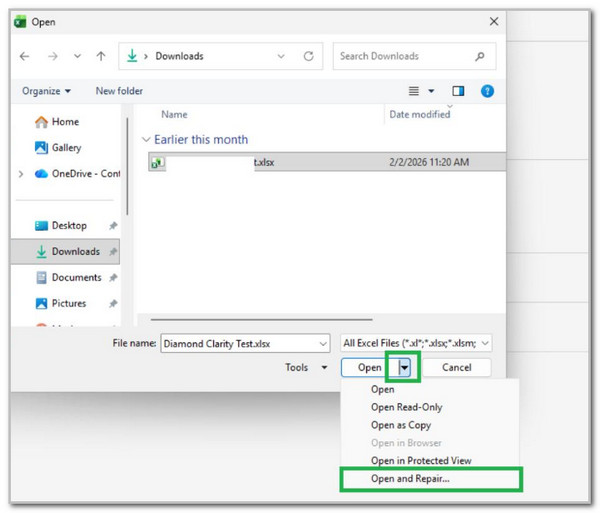
Excel has an Open and Repair feature that helps you recover information from corrupted files. You can fix corrupt files using the feature with the help of this feature. How to fix a corrupt Excel file? See the steps below to know how to use the feature.
Open Microsoft Excel. Then, choose the File button. Later, select the Open button. After that, choose the Browse button. Go to the corrupted files. Click the small Arrow and choose the Open button. Choose the Open and Repair button afterward.
Part 3. How to Repair Corrupted Excel File by Changing the Calculation Settings
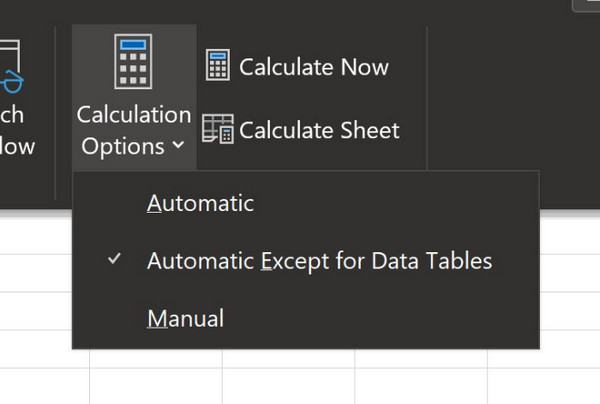
One of the causes of a corrupted Excel file is a faulty external link, formula, or more. You can open the mentioned file in a manual calculation mode to fix the issue. Fix the Excel file corrupted using the steps below.
Open Excel. Then, choose the blank workbook. Later, click the Formulas button at the top. Select the Calculation Options button. Choose your Manual option. Now, open the Excel file from the computer and check for the current issues.
Part 4. How to Repair Corrupted Excel File With Built-in Excel Recovery
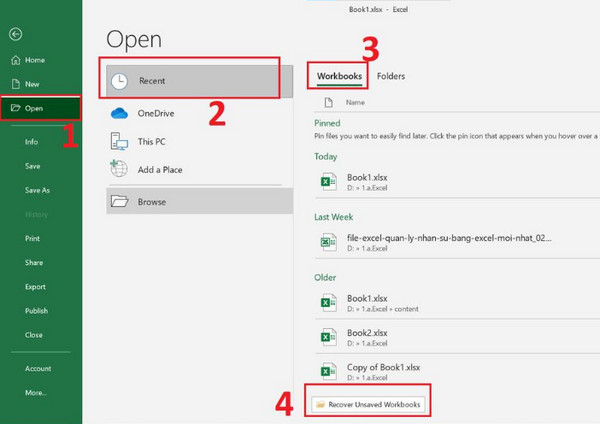
Excel files may also be deleted. Unsaved, AutoRecover, and Previous Versions are some recovery options.. You can also use these features for deleted Excel recovery. See their designated procedure with the steps below.
Unsaved: Open Excel and choose the File button. Choose the Info button and select the Manage Workbook button. Later, select the Workbooks button. Select the Excel file you want to access and click the Open button.
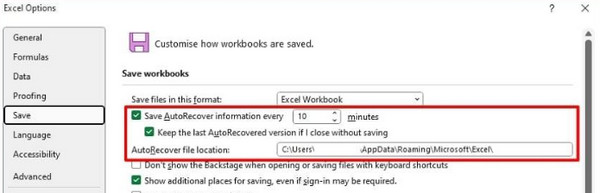
AutoRecover: Access Excel. Choose the File button and click the Options button. Click the Save button. Later, note the AutoRecover file location.
Part 5. How to Repair Corrupted Excel File With Professional Tool
You can also use Excel corrupt file repair software, such as FoneLab Data Retriever. This tool is well-known for its simple interface. Beginners do not experience difficulties recovering lost data, including Excel files. This tool can recover multiple data types, including images, videos, databases, documents, music, and emails.
FoneLab Data Retriever - recover the lost/deleted data from computer, hard drive, flash drive, memory card, digital camera and more.
- Recover photos, videos, documents and more data with ease.
- Preview data before recovery.
Furthermore, it filters your data so you can see it instantly. Please see the steps below to know how to use the tool.
Step 1Download FoneLab Data Retriever. Then, set up and install it on your computer. Finally, please wait for the tool to open.
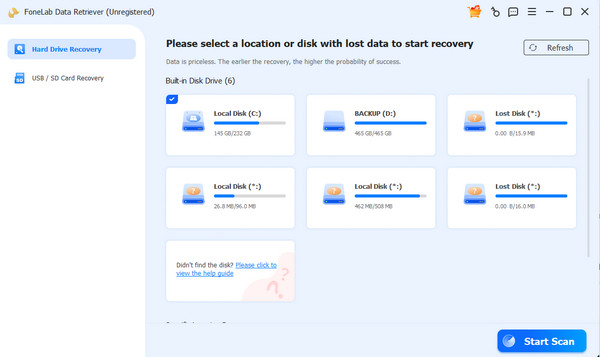
Step 2The available folders will appear. Please select the one where you lost the files. Click Start Scan at the bottom. Later, the tool will start to scan for your files.
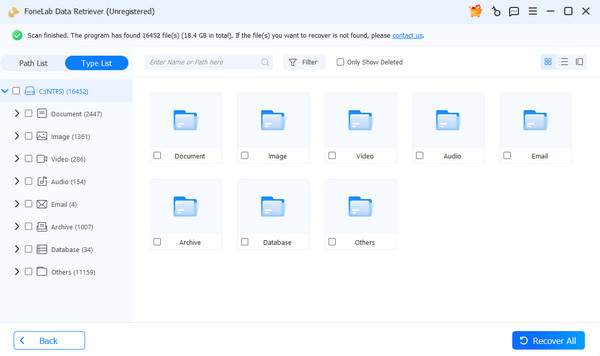
Step 3Click the Document button on the left side. Locate the Excel files you want to recover from the screen. Later, click the Recover All button at the bottom right.
Part 6. Comparison Table of Methods to Repair Corrupted Excel File
| Method | Difficulty | Time Duration | Pros |
| Extracting Data Only | Moderate | 10 Minutes to 30 Minutes | You can use it through Excel. |
| Changing the Calculation Settings | Moderate | 15 Minutes to 20 Minutes | You do not need to download third-party programs. |
| Excel Built-in Recovery Tools | Moderate | 10 Minutes to 30 Minutes | You can recover your data if AutoRecover was enabled before the files became corrupted. |
| FoneLab Data Retriever | Easy | A Few Seconds or Minutes | Besides Excel, it can also retrieve images, videos, databases, and more. Also, it works offline! |
Part 7. Prevention Tips to Prevent Data Corruption
To prevent data corruption, you need to save the files regularly. Also, back them up using cloud services to have a copy. This way, you won't permanently lose your files. Additionally, shut down Excel or your computer properly to avoid errors while saving files.
Furthermore, you are always required to update Excel. This ensures you have the latest features and bug fixes. Lastly, ensure there are no interruptions when transferring files.
Part 8. FAQs about How to Repair Corrupted Excel File
What causes an Excel file to be corrupted?
Data corruption occurs when the underlying data structure is scrambled or incomplete. It can happen due to an interruption while saving, a hardware issue, or other factors.
How do I clear corrupt files?
You can delete corrupted files just like any other file on your computer. To permanently delete them, go to the Recycle Bin. Then, click the Empty Recycle Bin button at the top.
This post teaches you how to recover a corrupted Excel file. 4 of the best practices are included for you! FoneLab Data Retriever is here to help you recover your Excel files from different folders or locations. Besides Excel files, it can also recover images, videos, databases, and more data types. Download the tool on your computer now to explore more of its features!



