
 iPhone Data Recovery
 iOS System Recovery
 iOS Data Backup & Restore
 iOS Unlocker
 iPhone Password Manager
 Location Changer
 Android Data Recovery
 Broken Android Data Extraction
 Android Data Backup & Restore
 Android Unlocker
 FoneTrans for iOS
 iPhone Data Eraser
 iPhone Cleaner
 HEIC Converter
 HyperTrans
 WhatsApp Transfer for iOS
 Mac Sweep
 Data Retriever
 Mac Data Retriever
 Video Converter Ultimate
 Screen Recorder
 Phone Mirror
- Part 1. Recycle Bin (Windows) or Trash (Mac)
- Part 2. Recover Unsaved Workbooks
- Part 3. OneDrive/SharePoint Version History
- Part 4. iCloud Drive
- Part 5. Windows File History
- Part 6. Previous Versions
- Part 7. Time Machine
- Part 8. FoneLab Data Retriever
- Part 9. Comparison of Methods to Recover Deleted Excel Files
- Part 10. Tips for Future Prevention of Losing Excel Files
- Part 11. FAQs about How to Recover Deleted Excel Files
 Recover PC Data Now
Recover the lost/deleted data from computer, hard drive, flash drive, memory card, digital camera and more.
Proper Guide on How to Recover Deleted Excel Files
 Updated by
 Hello! What is a good way to recover permanently deleted Excel files, or even temporarily deleted ones? I accidentally included an important Excel file when I deleted a lot of data to clean up earlier. Now, I'm not sure if it has already disappeared completely or if I can still find them for restoration. Regardless, can somebody please help me recover the Excel file? Thanks!
Excel files are essential for countless users in the business industry, regardless of their position, in academic research projects, etc. So, losing an important one may cause you to panic, whether you lost it due to an unintentional deletion, a system crash, unexpected power off, etc. Luckily, you can do a quick fix in such a situation by using the Ctrl + Z keys to undo the deletion instantly. Just note that this will only work if you haven't performed other actions after erasing it.
No worries, though. If the quick fix has become unavailable, browse this article's walkthrough guidelines, as the following parts present the proper strategies for recovering Excel files. The details and complete procedures are provided here to assist you throughout.


Guide List
- Part 1. Recycle Bin (Windows) or Trash (Mac)
- Part 2. Recover Unsaved Workbooks
- Part 3. OneDrive/SharePoint Version History
- Part 4. iCloud Drive
- Part 5. Windows File History
- Part 6. Previous Versions
- Part 7. Time Machine
- Part 8. FoneLab Data Retriever
- Part 9. Comparison of Methods to Recover Deleted Excel Files
- Part 10. Tips for Future Prevention of Losing Excel Files
- Part 11. FAQs about How to Recover Deleted Excel Files
Part 1. Recycle Bin (Windows) or Trash (Mac)
Recycle Bin or Trash is the initial place you should check after losing a file, depending on your computer's operating system. It is the default holding area for files that were erased using the standard deletion method. As long as you haven't emptied either folder, there is a high chance that you can recover files from Recycle Bin or Trash. It is also the fastest recovery method since the said folders are built into their respective OS, and their processes don't involve technical steps. All you need to do is access the designated section and perform the recovery easily.
Follow the steps below to grasp how to recover deleted Excel files with the Recycle Bin or Trash:
Step 1Open the Recycle Bin or Trash by clicking its icon on your Mac or Windows desktop.
Step 2Once the deleted data appears, find and right-click the Excel file to select Restore on Windows or Put Back on Mac.
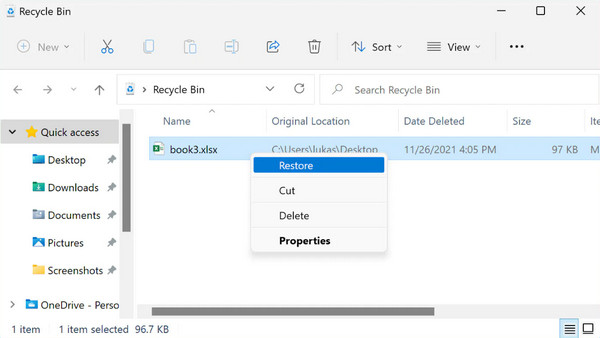
What if you have deleted the Excel file after emptying the Recycle Bin or Trash? Unfortunately, this method will no longer be suitable, since the deleted data has become unavailable.
Part 2. Recover Unsaved Workbooks
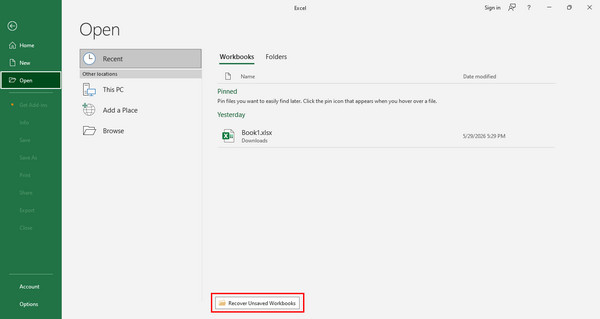
Sometimes you didn't actually delete an Excel file. Perhaps you only closed it without saving. In this case, you can use Excel's built-in safety net that is dedicated to this situation. There's an option called Recover Unsaved Workbooks. If you fail to save the file properly because of a sudden power off, program crash, or accidentally clicking the Don't Save tab, this will be a good option.
Follow the task below to recover an unsaved Excel file through Recover Unsaved Workbooks:
Step 1Start Excel and click File > Open, then in the Recent section, tick Recover Unsaved Workbooks. Once a dialogue box appears, select your unsaved Excel file.
Step 2Click Open afterward, and finally, recover it using the Save As option.
Part 3. OneDrive/SharePoint Version History
Meanwhile, if you store your Excel files on OneDrive or SharePoint, you have a powerful recovery tool that many users may not know exists. Version History automatically keeps older copies of your file every time you make changes. So, unlike the Recycle Bin or Trash, it doesn't recover your deleted Excel file. Instead, it will restore an earlier version of the file that still exists on your cloud storage.
Follow the procedure below to determine how to recover deleted Excel files via Version History:
Step 1Open your Excel file in the online version of OneDrive or SharePoint, then select Version History from the menu.
Step 2Next, browse the list of saved versions to find the one you wish to recover. Then, right-click it to select Restore, recovering your Excel file.

Part 4. iCloud Drive
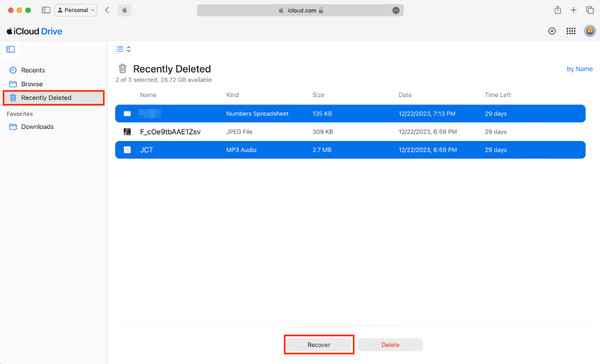
For Apple users who store Excel files in iCloud Drive, recovery becomes simple thanks to the Recently Deleted folder. Just like the Trash on your Mac, this folder stores the files you have already deleted, but the key difference is that this specific folder holds the erased data only up to 30 days. Also, this method works perfectly as long as your Excel file is saved to your iCloud Drive rather than only on your local computer.
Follow the guidelines below to recover your deleted Excel files with iCloud Drive:
Step 1Using your Apple credentials, log in to iCloud and click iCloud Drive on the homepage.
Step 2After that, find and pick your Excel file in the Recently Deleted section to click Restore.
Part 5. Windows File History
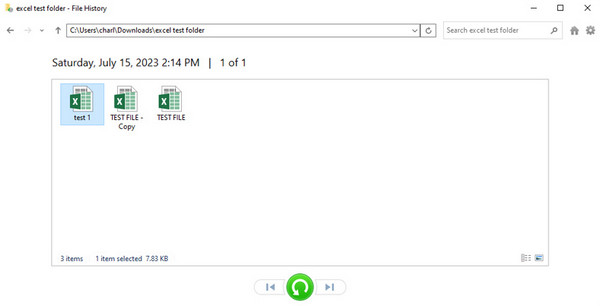
Another good recovery method is the Windows File History. It is a built-in backup feature on Windows that continuously saves copies of your files, allowing you to recover them later. If you had this feature turned on before losing the Excel file, you can browse through your computer data history and restore the one you need, even if the original has been deleted from the bin.
Follow the navigation below to learn how to recover permanently deleted Excel files in Windows 10 using Windows File History:
Step 1Using the Search option on your desktop, type and tick Restore your files with File History.
Step 2Once your File History backups are listed, select the one containing your deleted Excel file and hit the green Restore symbol.
Part 6. Previous Versions
Previous Versions is also a feature on Windows that works as a hidden safety net that works hand-in-hand with File History. It allows you to see older copies of your files saved in a folder, so if you view the previous version of the folder that previously contained your Excel file, you will be able to restore it, including the deleted file and the folder's previous content. However, like the last part, this strategy can only work if your File History is pre-enabled.
Follow the instructions below to recover a previous copy of your Excel file via Previous Versions:
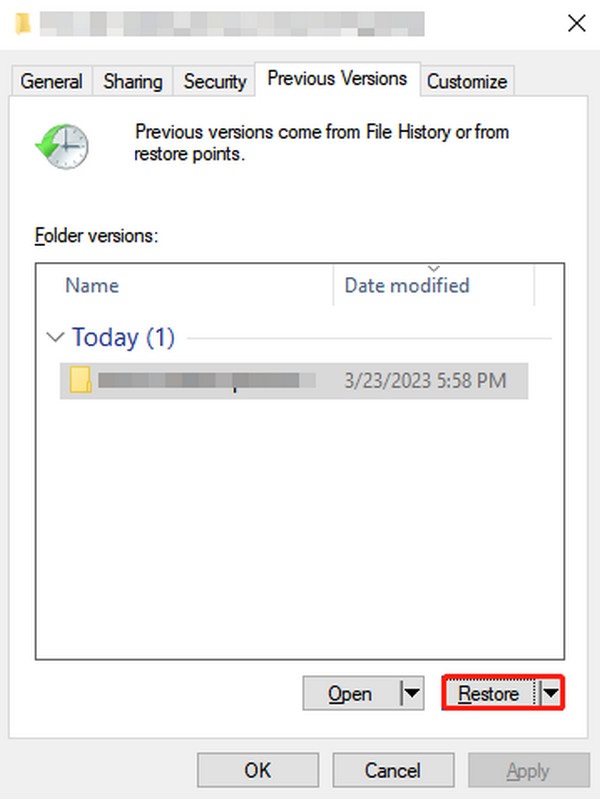
Step 1Right-click the folder that originally contained your deleted Excel file and select Restore previous versions from the menu.
Step 2Next, pick the relevant version from the list and click Restore to return the file.
Part 7. Time Machine
On the other hand, macOS also offers a built-in backup feature called Time Machine. It is also among the most reliable ways to recover your deleted Excel files. Like File History, it runs regular backups of your files, so if you enabled it beforehand, restoring your Excel file will be effortless. But if not, a backup copy of your deleted data won't be available to restore.
Follow the directions below to recover permanently deleted Excel files using Time Machine:
Step 1Open the folder where your Excel file was last saved, then launch Time Machine by clicking its symbol in the menu bar and choosing Enter Time Machine.
Step 2Use the timeline on the right edge of the screen to go back to the date before deletion, select your file, and click Restore.

Part 8. FoneLab Data Retriever
As you may have noticed, Windows and Mac both have their respective methods for data recovery. But with FoneLab Data Retriever, you can enjoy recovering deleted files on either computer operating system since it can be installed on both operating systems. You also don't have to worry much about limitations since this program doesn't have a specific recovery time window.
Aside from that, various data types, such as images, documents, videos, and more, are supported by FoneLab Data Retriever. You can recover your Excel files painlessly, especially thanks to the tool's user-oriented design. So, Windows and Mac data recovery will be effortless.
FoneLab Data Retriever - recover the lost/deleted data from computer, hard drive, flash drive, memory card, digital camera and more.
- Recover photos, videos, documents and more data with ease.
- Preview data before recovery.
See the proper guides below as a pattern of how to recover deleted Excel files with FoneLab Data Retriever:
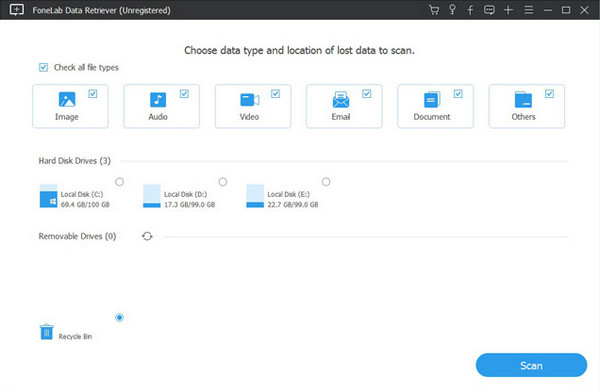
Step 1Save the FoneLab Data Retriever file with the Free Download tab, and once it's in your Downloads, use it to set up and install the tool. Next, hit Start to run it, and once the interface is shown, check Documents and its disk drive location before selecting Scan.
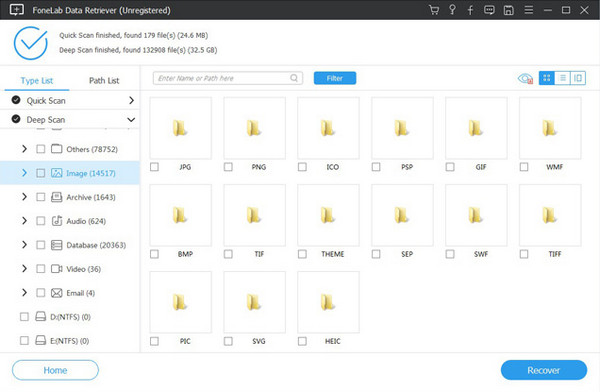
Step 2After scanning, the documents folder will be presented. Open it to browse your deleted docs and pick the Excel file you wish to restore. Then, opt for Recover, retrieving it.
Part 9. Comparison of Methods to Recover Deleted Excel Files
| Method | Best For | Requirements | Success Rate | Ease of Use |
| Recycle Bin / Trash | Deleted files that are still stored in the Trash or Recycle Bin | File not emptied from bin/trash | High | Very Easy |
| Recover Unsaved Workbooks | Closing Excel without saving | File was opened/edited but never saved | Medium | Easy |
| OneDrive/SharePoint Version History | Restoring older versions or overwritten content | File saved to OneDrive or SharePoint | High | Easy |
| iCloud Drive | Deleted files stored in the Apple cloud | File saved to iCloud Drive | High | Easy |
| Windows File History | Permanently deleted local files | File History was enabled before deletion | Medium to High | Medium |
| Previous Versions | Restoring older copies of folders | File History enabled | Medium | Medium |
| Time Machine | Deep recovery of permanently deleted Mac files | External backup drive with Time Machine configured | Very High | Easy |
| FoneLab Data Retriever | When all built-in methods fail | No prior backup needed | Very High | Easy |
Part 10. Tips for Future Prevention of Losing Excel Files
Losing an Excel file can be stressful, but most situations are entirely preventable if you take the correct action. As you can see, many official recovery features are available, so optimize them, depending on your computer OS. Second, we suggest getting into the habit of using 'Save As' to create multiple versions of critical files, especially before making major changes. Also, consider using a competent recovery tool like FoneLab Data Retriever as a safety net.
Part 11. FAQs about How to Recover Deleted Excel Files
Can I recover an Excel file I deleted a year ago?
Possibly, if you had Time Machine, Windows File History, or a cloud version history enabled. Or, if you use a professional recovery tool, FoneLab Data Retriever. Otherwise, chances are low.
Does Ctrl+Z work even after closing the folder?
Yes, it does, as long as you haven't performed other actions or closed File Explorer completely.
Losing an Excel file doesn't have to be permanent. Just act quickly and check the simplest recovery methods first, but if the recovery still fails, FoneLab Data Retriever will still be here to help.



